Topview Official Guide: Avatar Marketing Video
Official Guide
Topview Official Guide: Avatar Marketing Video
Introduction
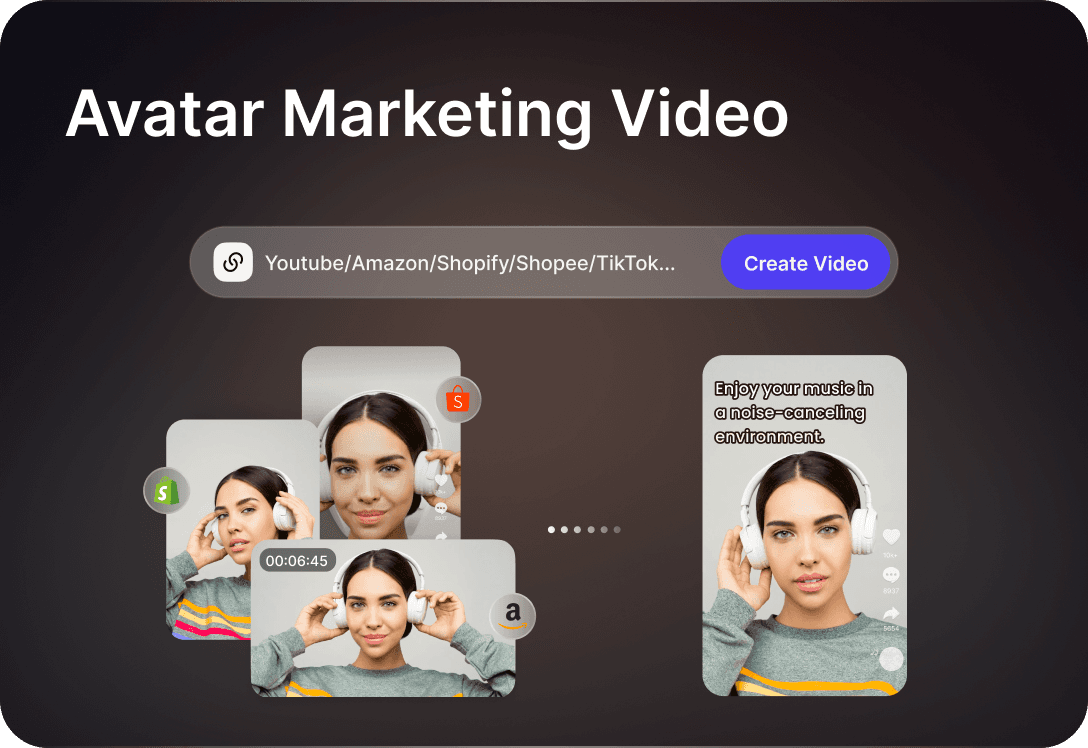
Avatar Marketing Video is an AI-powered tool that generates marketing videos in one click by learning from over 5 million viral TikTok hits.
Key Features:
AI Script Generation: The AI studies massive viral TikTok content to create marketing video scripts. Supports 20+ languages.
Product Link to Video: Input an Amazon or TikTok product link. The AI automatically extracts images, videos, and copy from the product page and generates a video with one click.
Materials to Video: Upload product images or video assets. The AI matches them multimodally, selecting the best shots, voiceover, subtitles, and background music automatically.
AI Avatars: Ultra-realistic avatars replace the need for foreign models or actors. Features include natural expressions, precise lip-sync, and authentic AI voiceovers.
Video Guide
How to Use
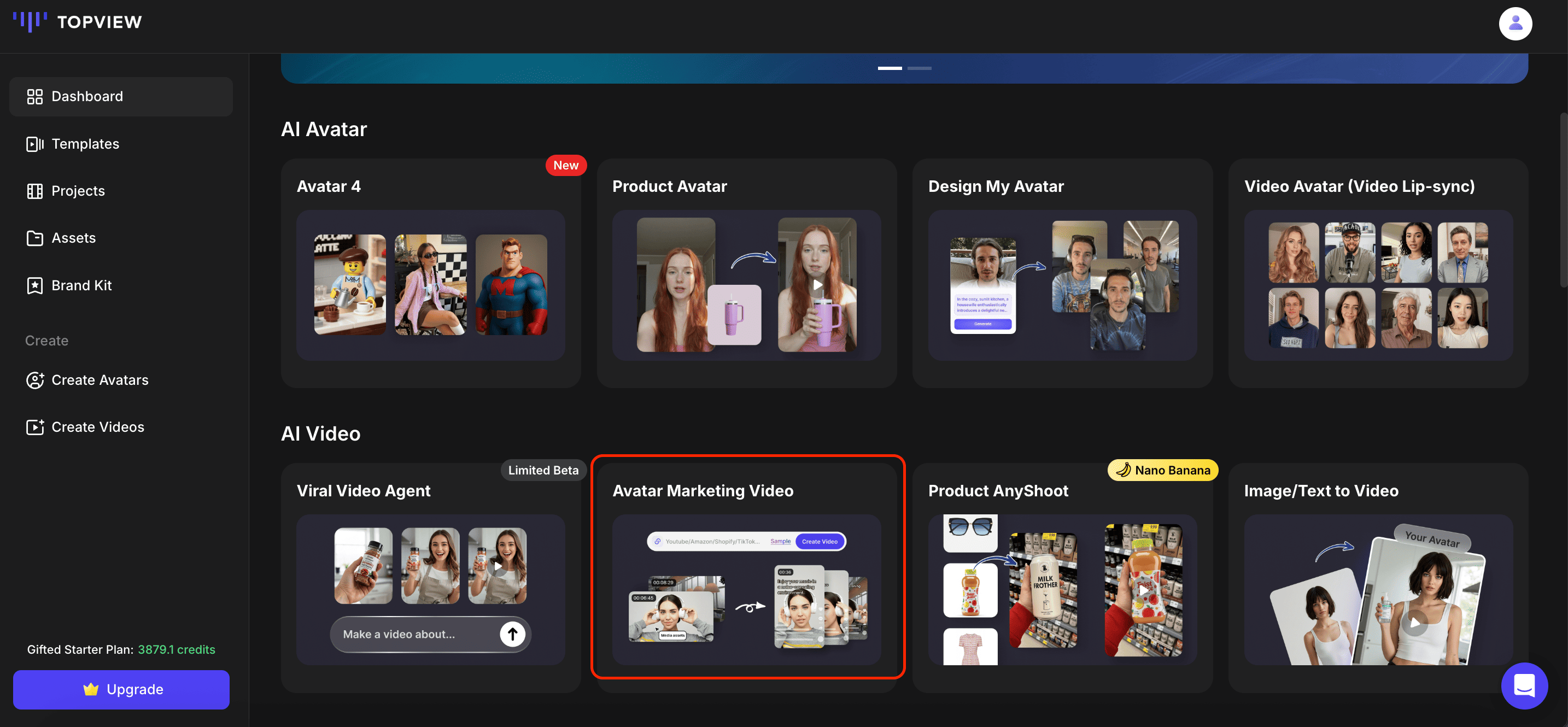
- Click on 'Avatar Marketing Video'.
- Enter a product page link or upload local creatives.
Input Method 1: Product Link
Supports links from platforms such as Amazon, eBay, Shopify, Etsy, Aliexpress, Shopee, and more.
Input Method 2: Local Upload
Upload creatives from your local media.
Supports file formats including mp4, mov, png, jpg, bmp, webp
Maximum file size: 1 GB
Maximum video duration: 10 minutes
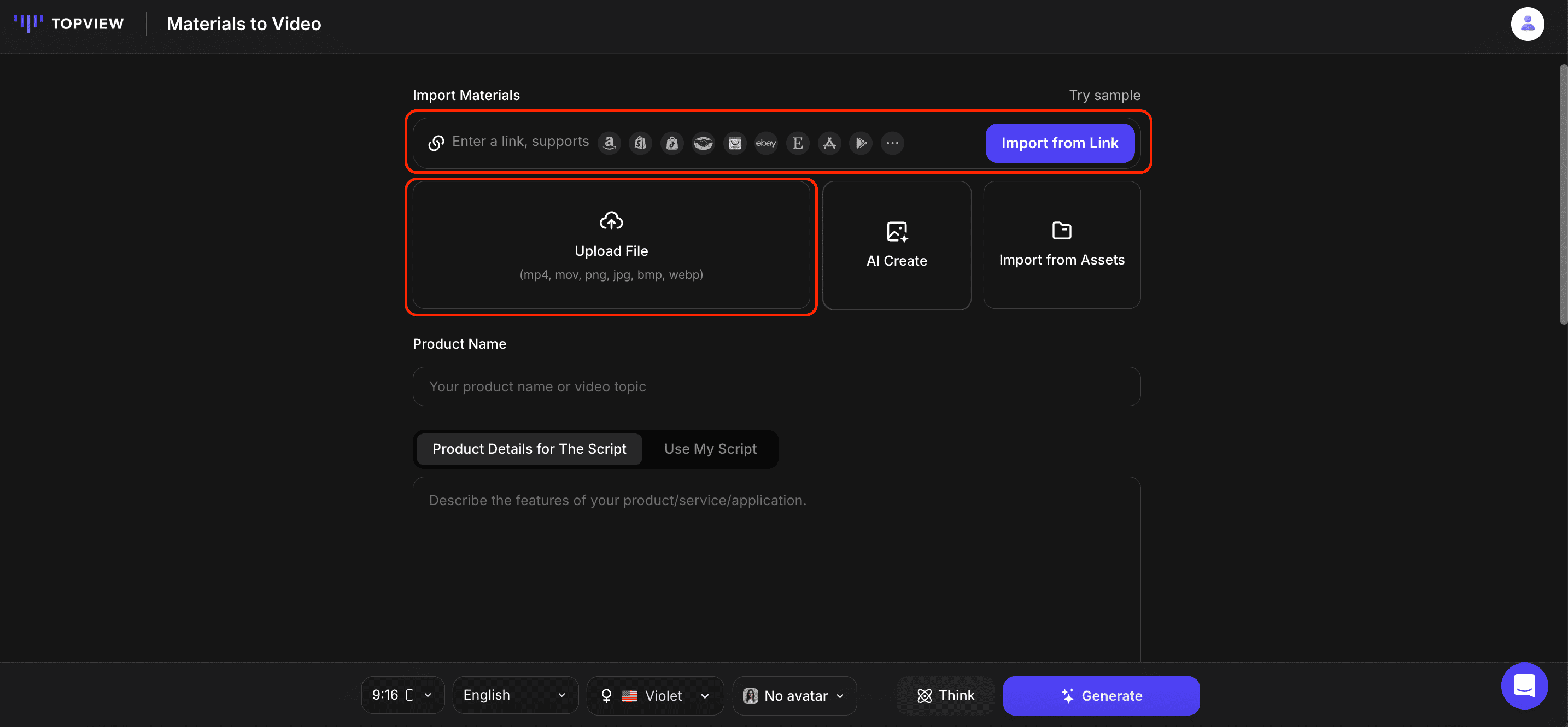
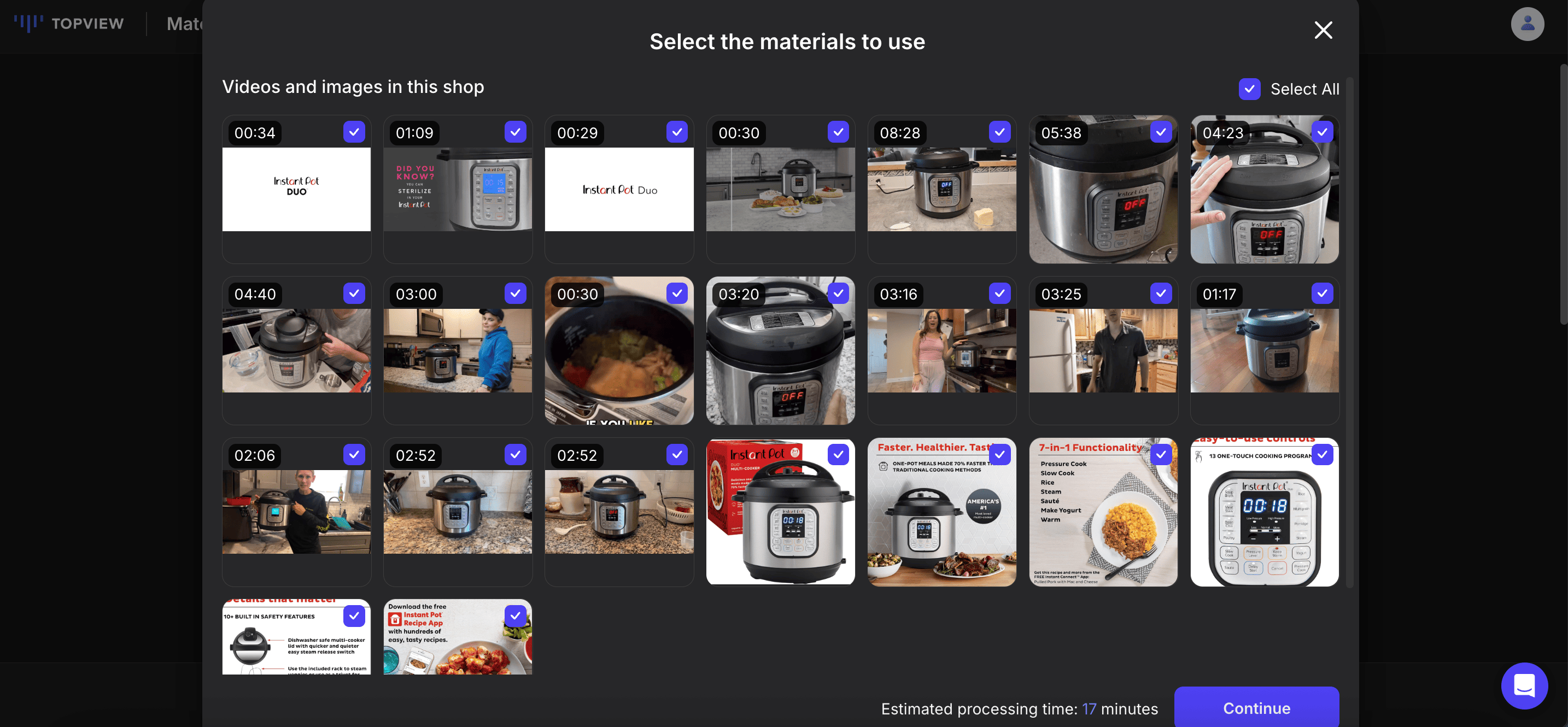
- If you provide a product page link, the tool will pull videos and images from that page. You can then select the materials you want to use for your video.
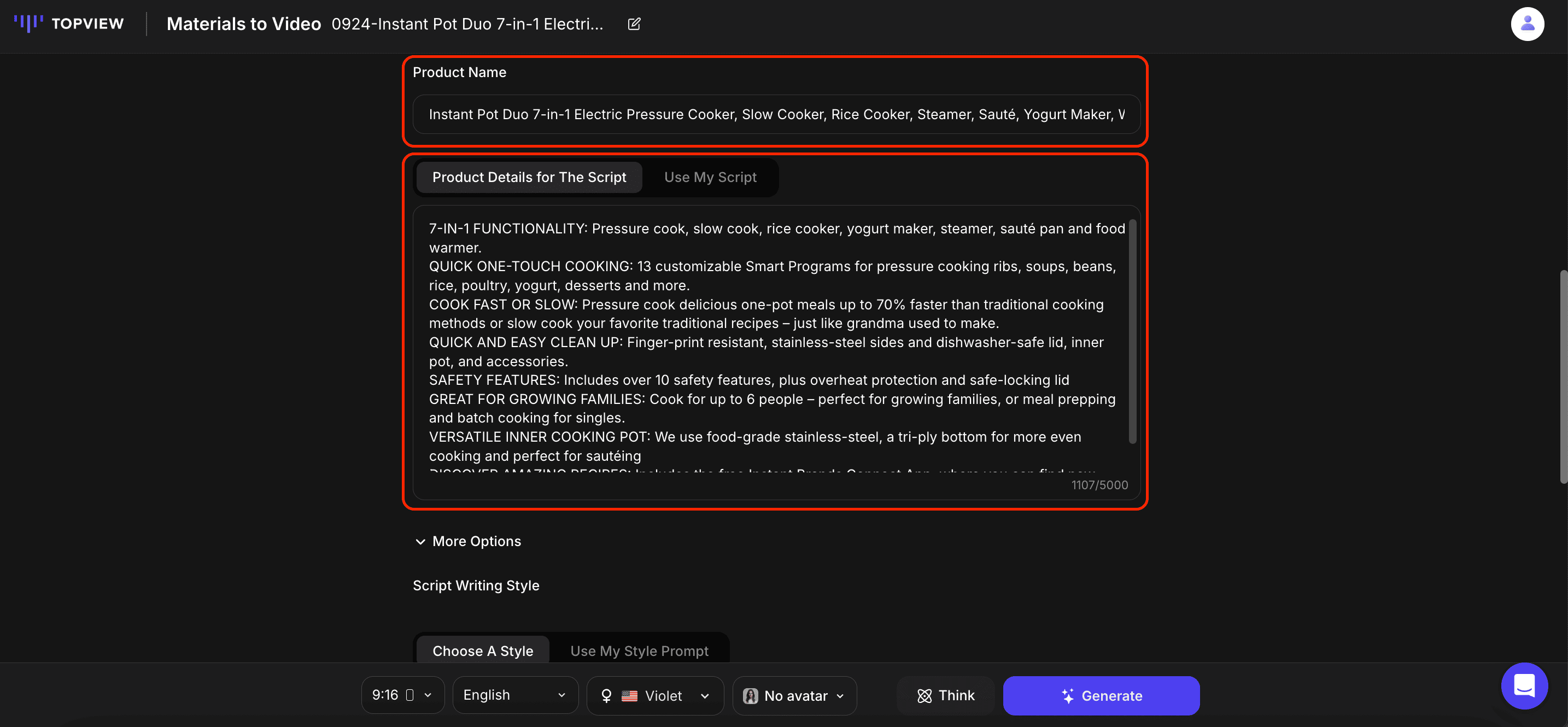
- Enter the product name and product description, highlighting key selling points or keywords (e.g., wireless microphone, suitable for phone, easy to carry).
If you previously provided a product page link, the tool will extract the product name and details from that page automatically. Make any amendments as needed.
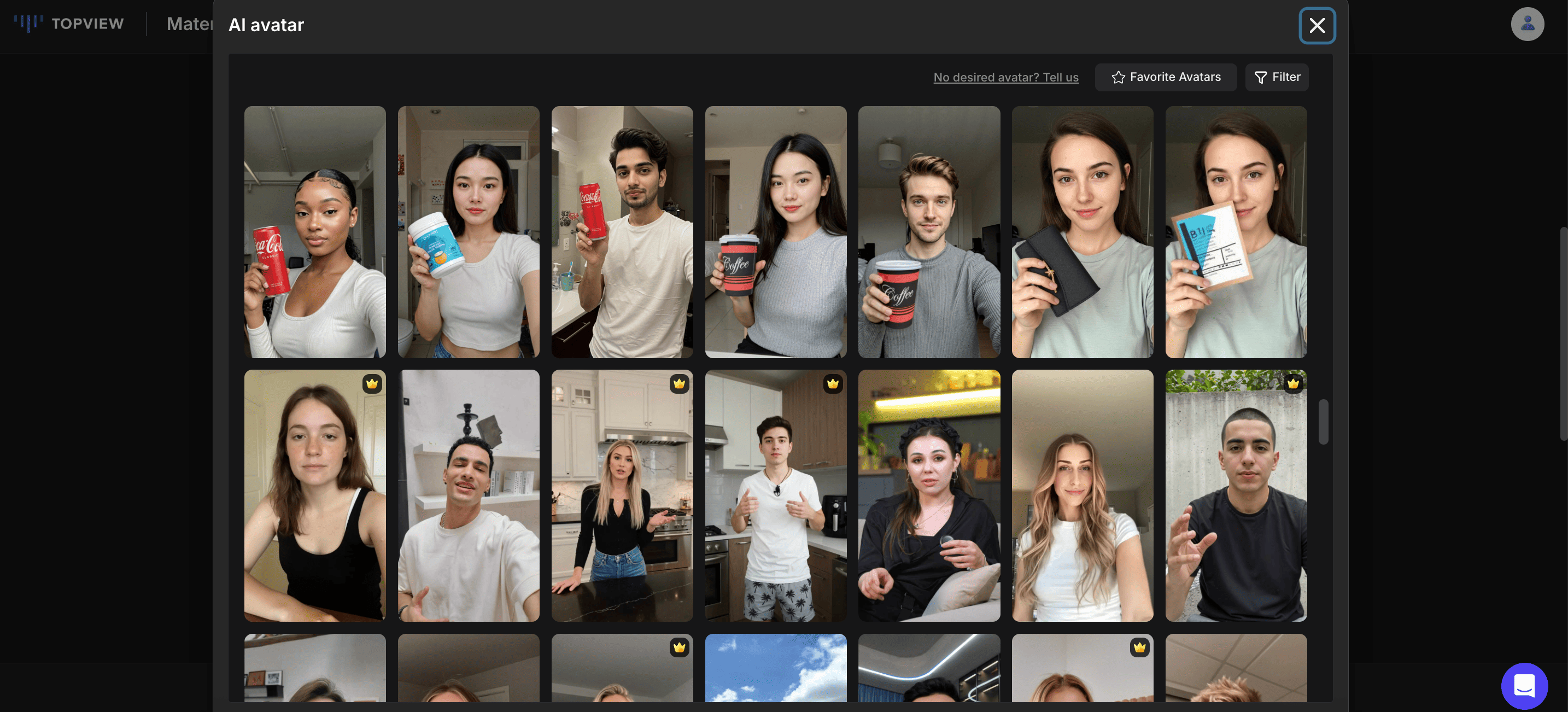
- Pick your ideal aspect ratio, video language, AI voice and avatar.
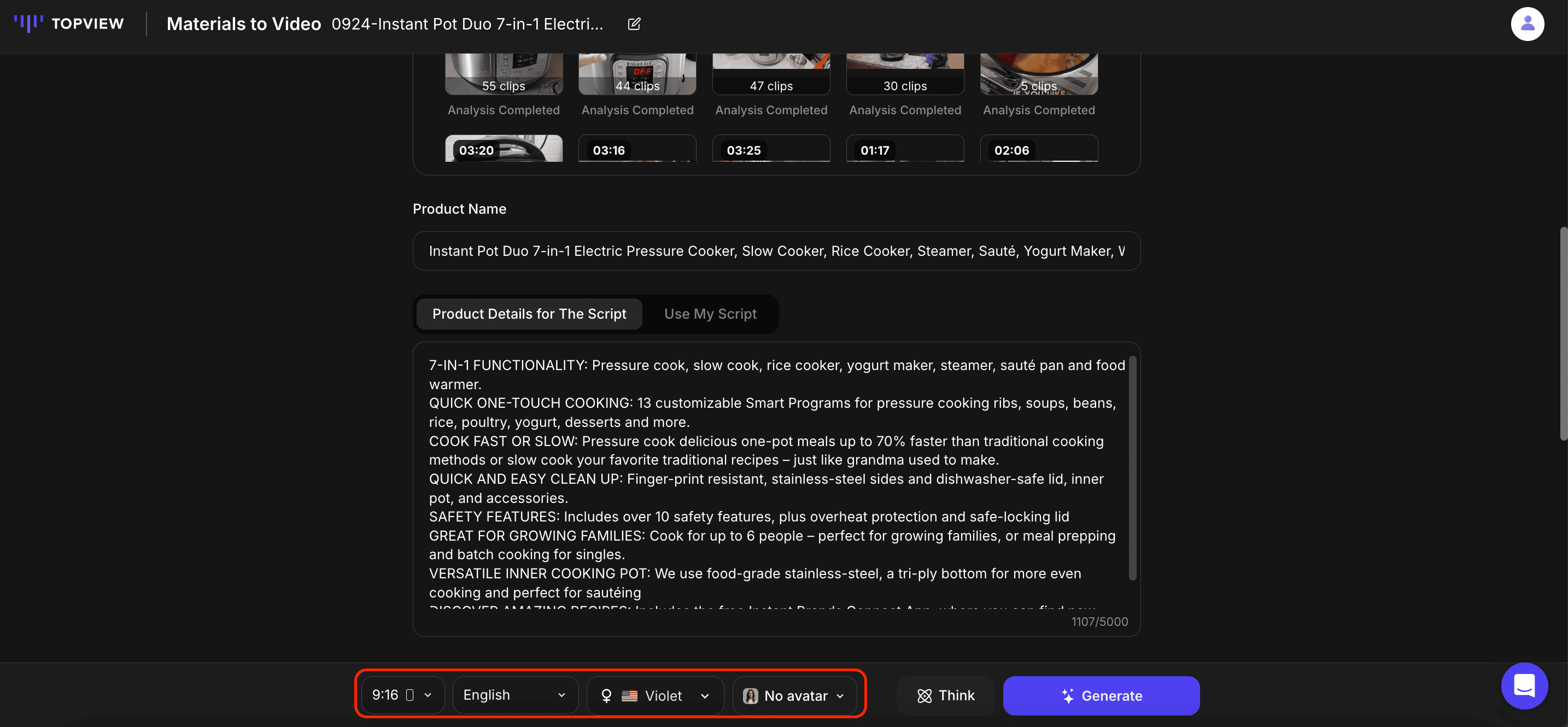
- For the AI avatars, you can choose from the existing avatars available in the public library. Alternatively, any avatars you have created using Product Avatar or Video Avatar will also be available as options.
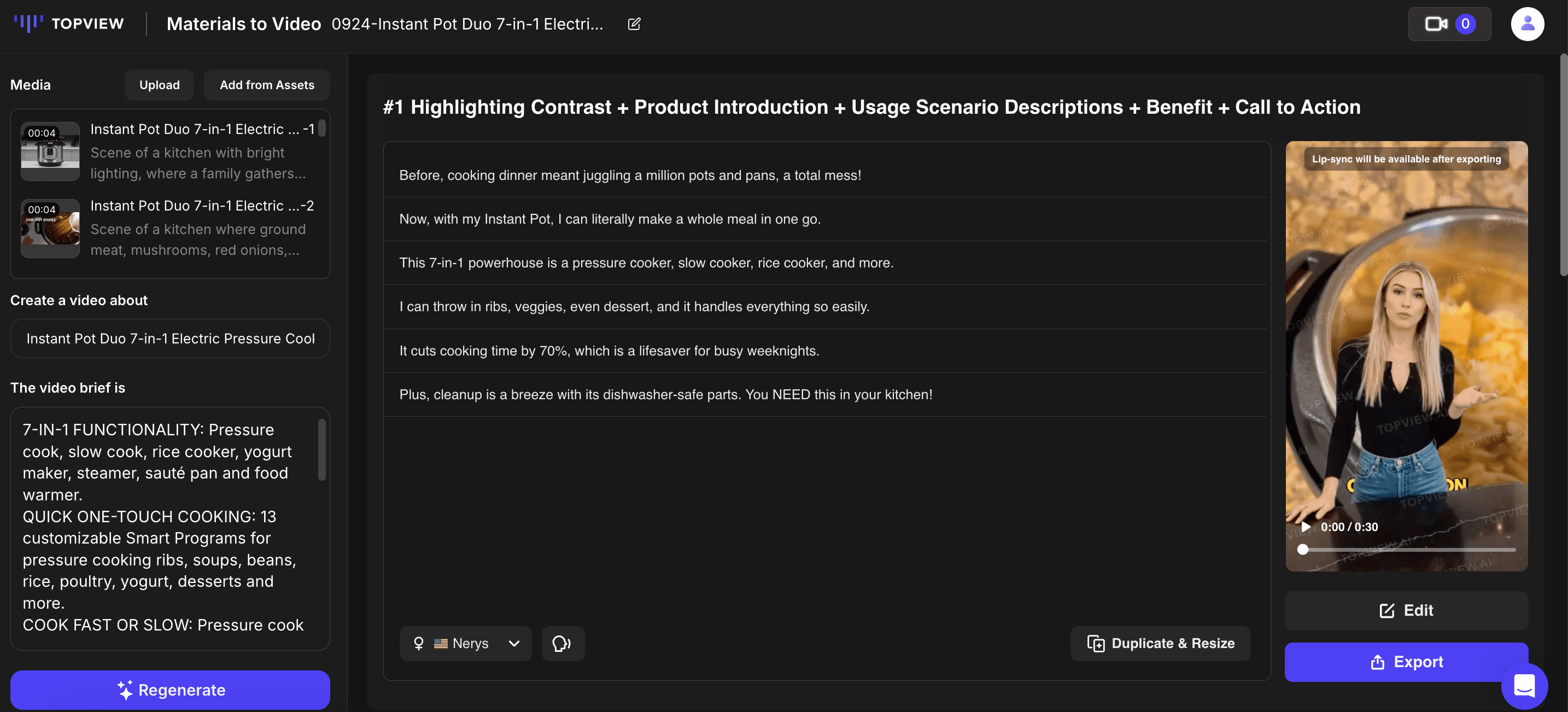
- Click the 'Generate' button to generate the video scripts and video drafts.
The tool generates 3 scripts and videos in different styles for you to choose from. Make adjustments as needed.
Click on the script text to edit the script as needed.
Click the 'Voiceover' button to change or adjust the voiceover for the video.
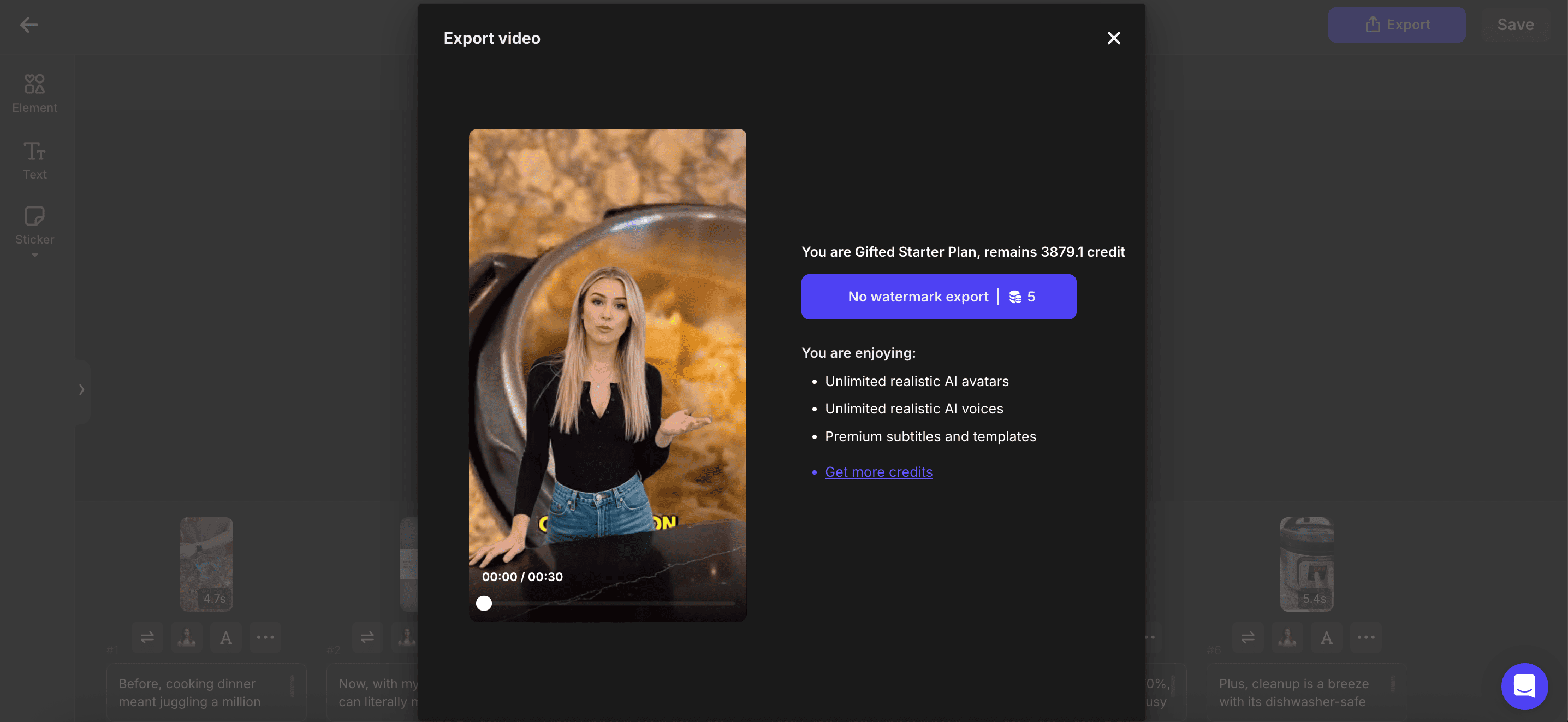
Once satisfied, click the 'Export' button to save the final video.
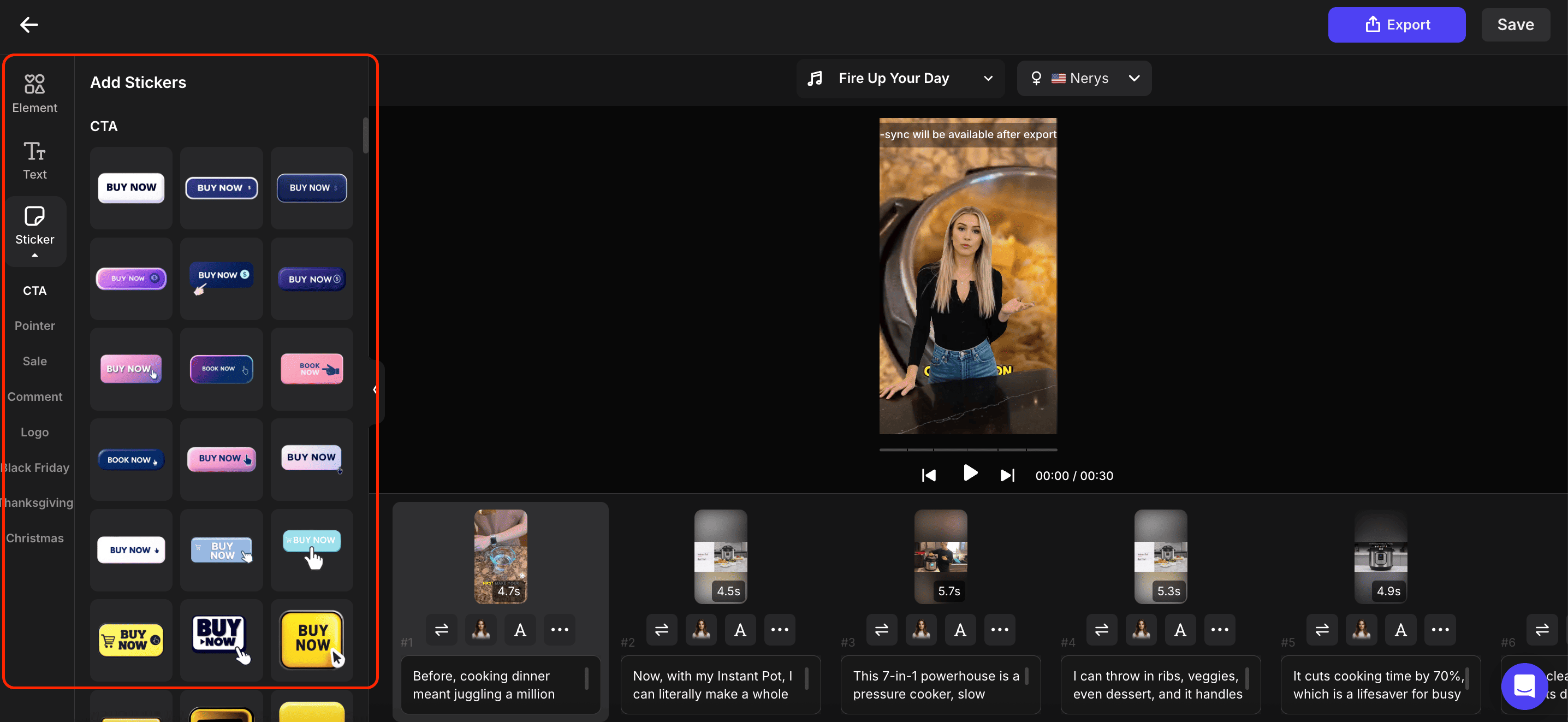
- If adjustments to the video is required, click on 'Edit'.
Upload elements, inset text or stickers if needed.
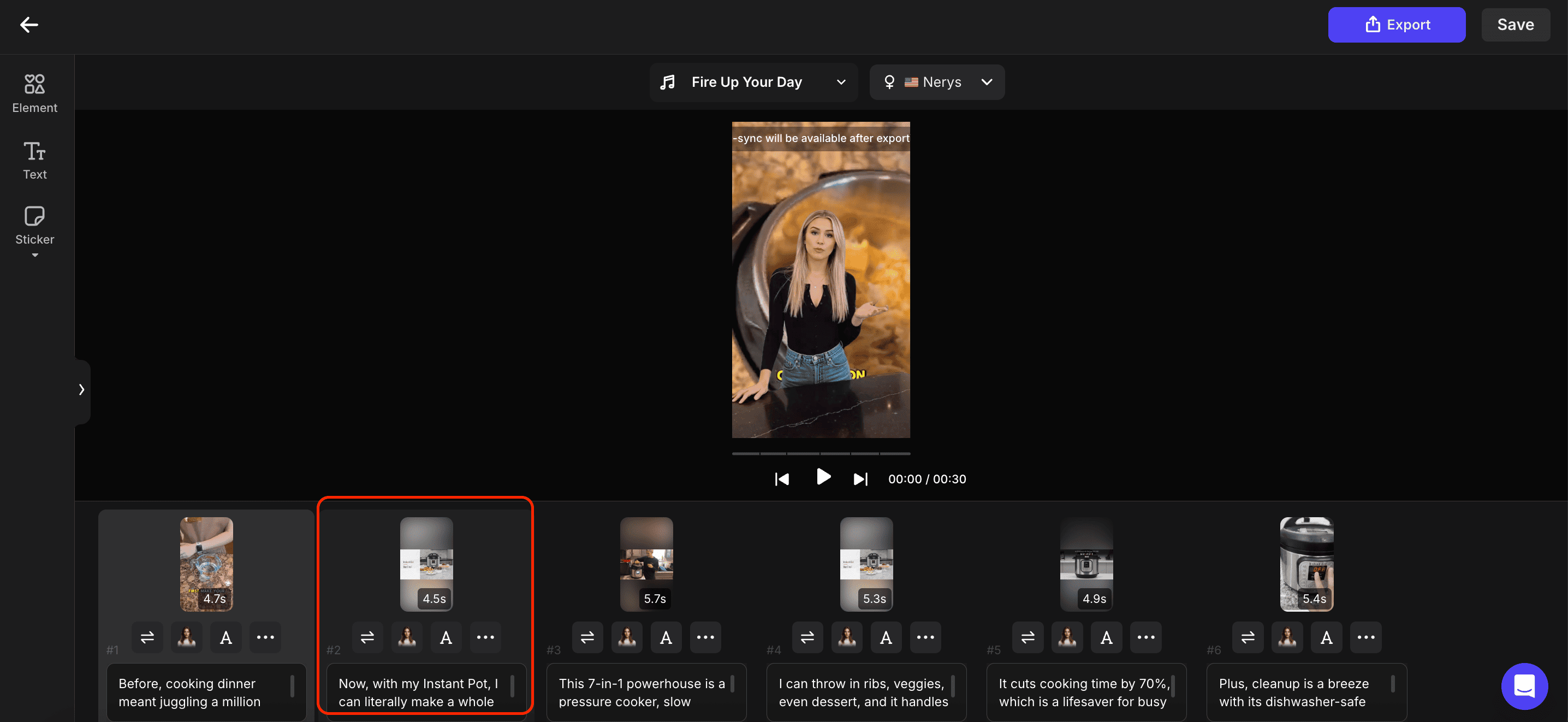
- For each of the scenes, you can make adjustments including:
- Replace the image of video used for that scene
- Adjust how the AI avatar should appear in that scene
- Adjust the subtitle style, size and positioning
- Add transitions between the scenes
- Once the adjustments are completed, click on 'Save' to save the changes or click 'Export' to download the completed video. The credits required will be shown.
Sample Videos