Topview Official Guide: Product Avatar
Official Guide
Topview Official Guide: Product Avatar
Introduction
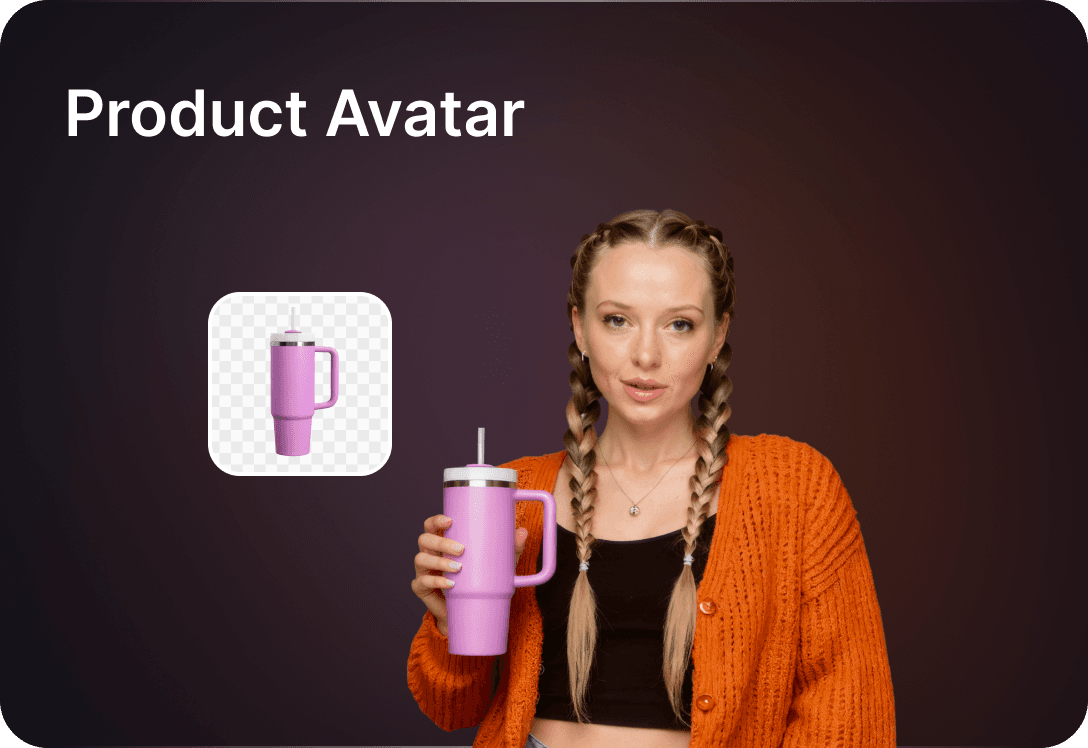
Product Avatar is an AI-powered tool that combines your product image with a lifelike AI avatar. The avatar can hold, showcase, or interact with your product, creating natural and engaging visuals.
Key Features:
Single Image Input: Upload just one product image to generate the video.
UGC-Style Output: Instantly create high-quality, user-generated content-style videos.
No External Resources Needed: No influencers, actors, or production team required.
Video Guide
How to Use
- Click on 'Product Avatar'
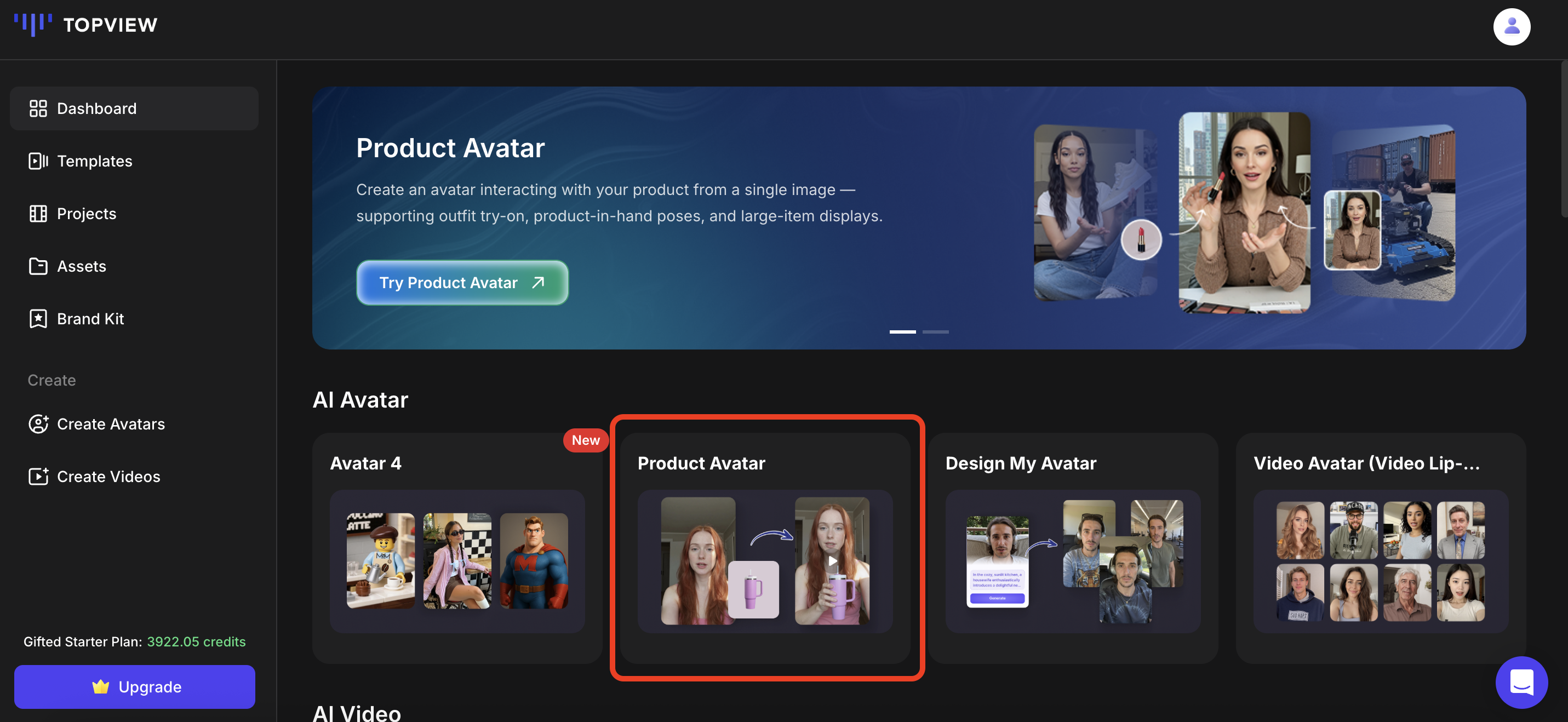
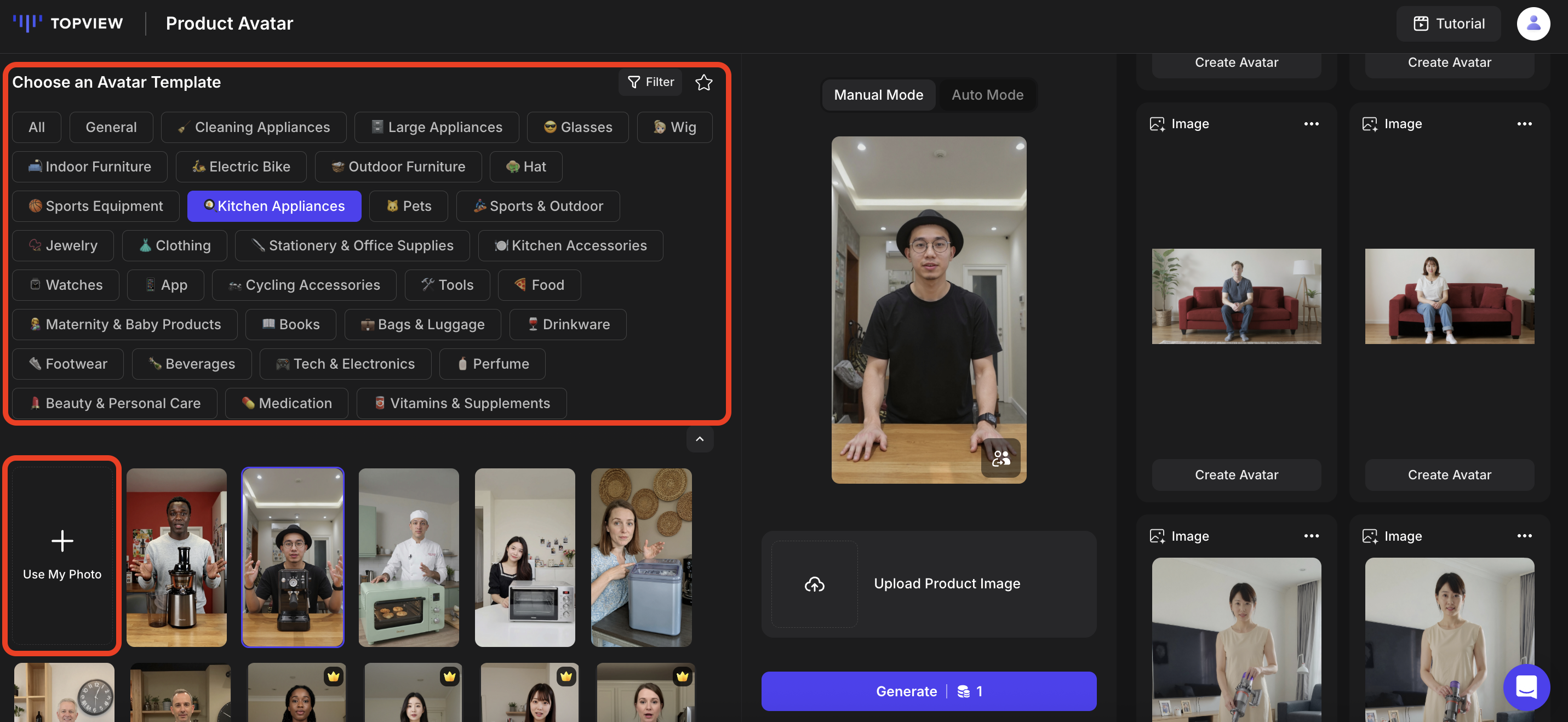
- Select your ideal avatar template from the various categories. When choosing the avatar, it is recommended to choose an avatar template that best fits the product that you want to showcase.
Alternatively, you can choose to click on 'Use My Photo' to upload your own image or use AI to generate a custom avatar.
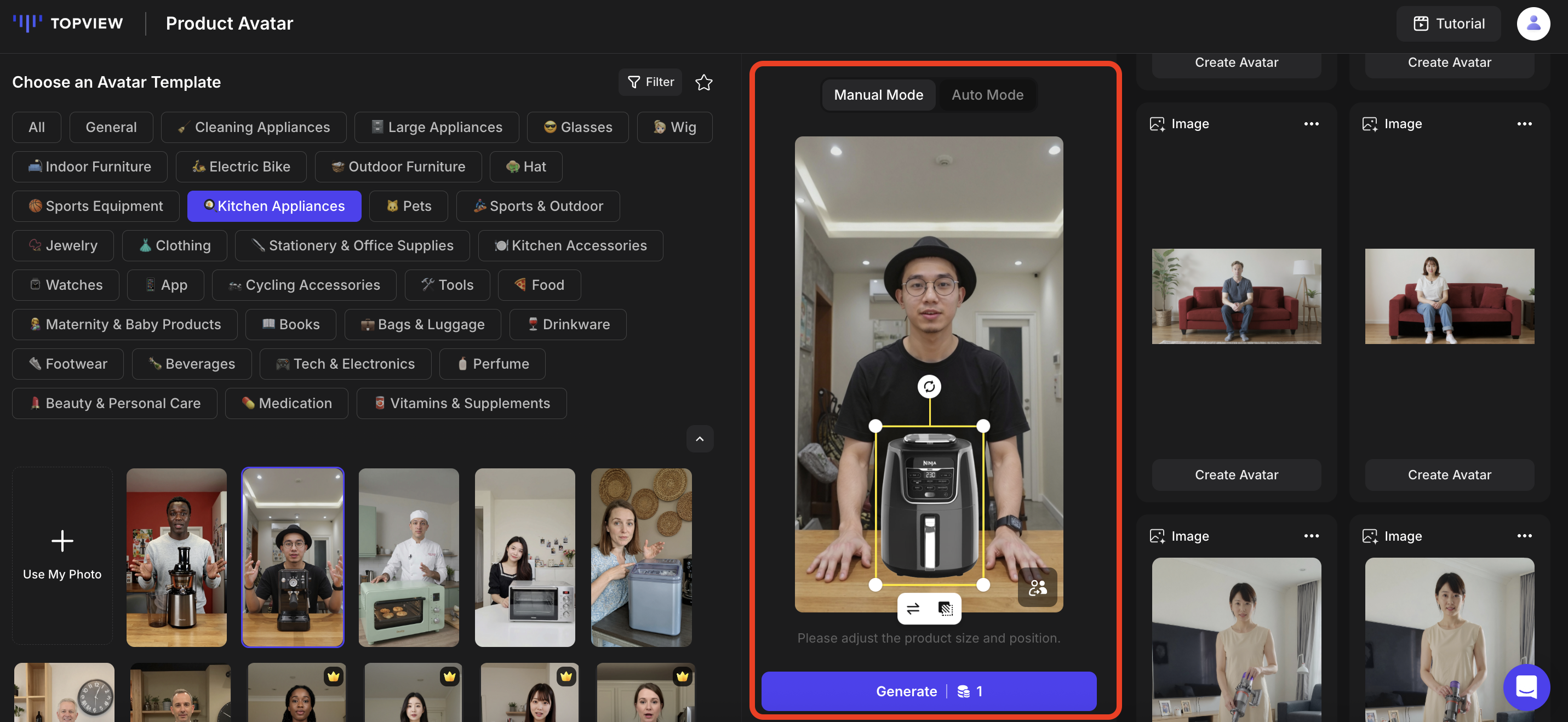
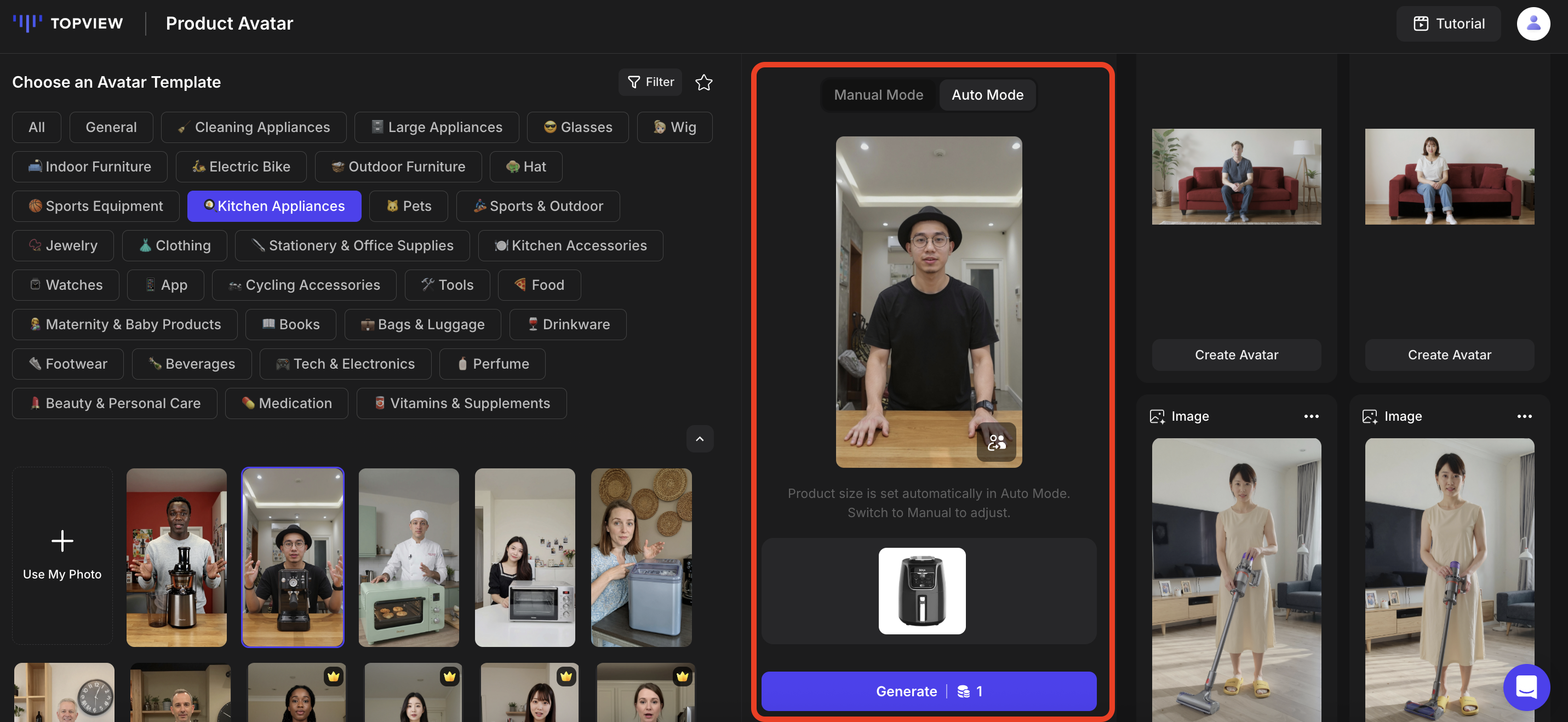
Click on 'Upload Product Image' to upload your product image.
For the Manual Mode, you can adjust the product's size and placement. After making the appropriate adjustments, click Generate.
For the Auto Mode, once your product image appears, click 'Generate'.
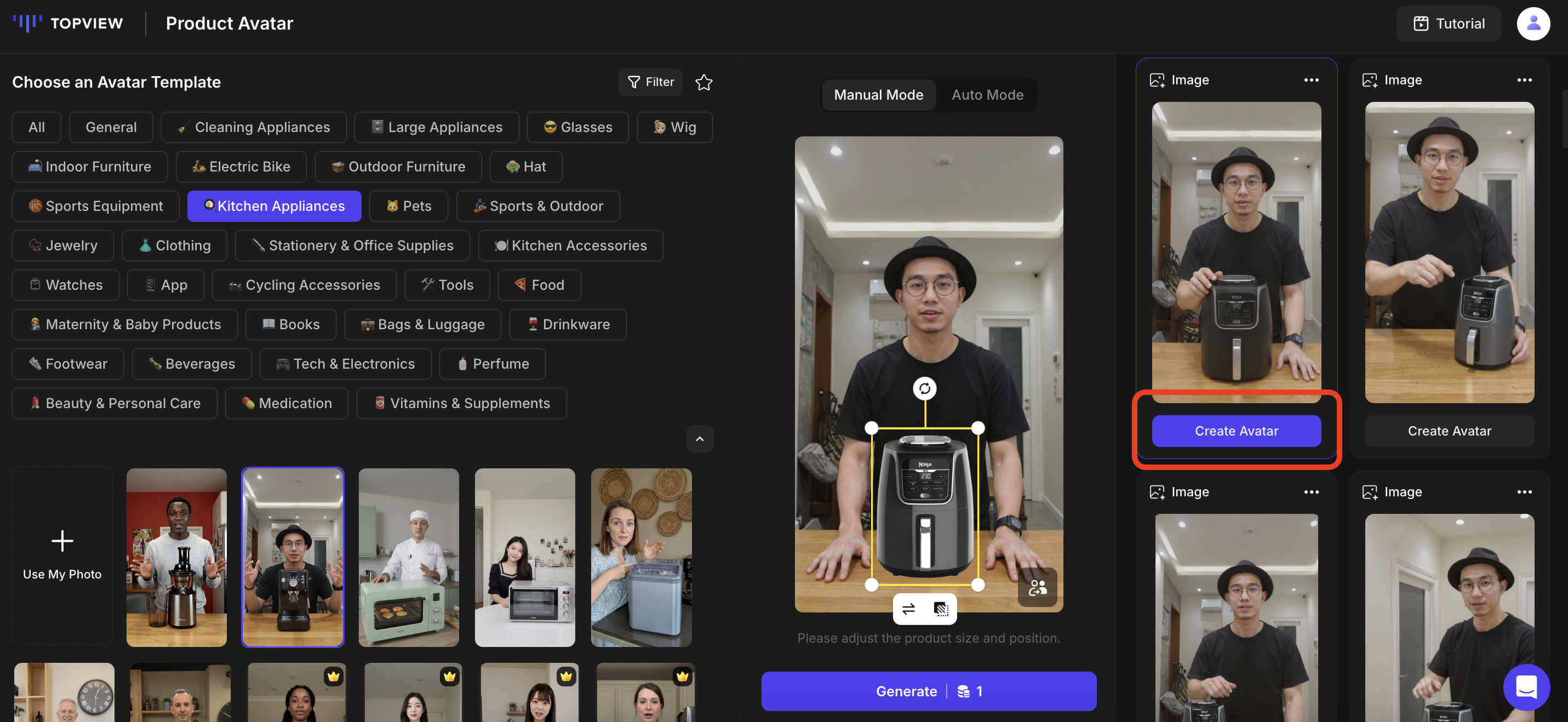
The credits required will be shown on the 'Generate' button. The image generation process will take around 1 to 2 minutes.
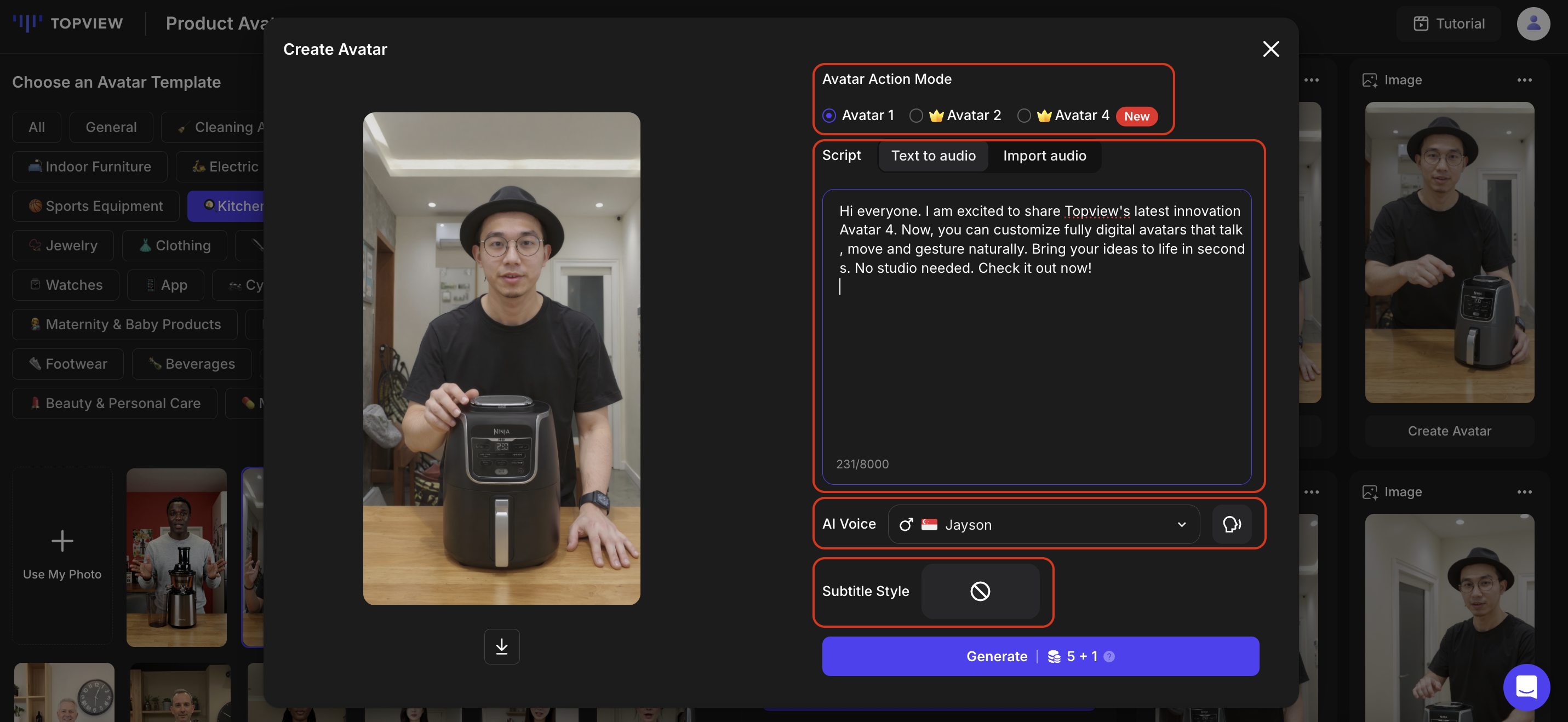
- To animate your image into an avatar video, click on 'Create Avatar'.
- Pick the Avatar Action Mode that you want to use (Avatar 4 is our latest release), enter your script, and select the voiceover. You will be able to listen to the AI voiceover before generating your video. Alternatively, you can also import your own audio. Select the subtitle style if you wish to, and click 'Generate'. The credits required will be shown on the 'Generate' button.