Topview Official Guide: AI Board
Official Guide
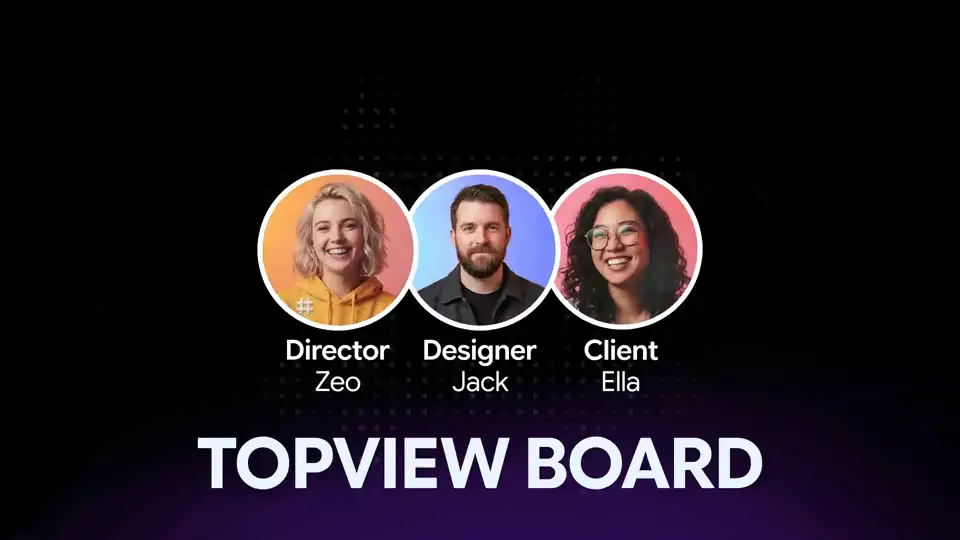
AI Board: Your Super Creative Workbench
Collaborate, create, and manage all your AI-generated content in one powerful workspace with AI Board.
Introduction
AI Board features a brand-new User Interface Design and powerful function integration. It is a super workbench that effectively addresses the issues of chaotic AI workflows by combining various AI tools in one place.
Team Collaboration
Supports multiple users simultaneously. Simply send the link to clients/colleagues to get feedback online.
One-Stop Service
Subscribe to Topview membership for one-stop access to mainstream AI.
Smooth Creative Process
Image Generation → Video Generation → Audio Generation → Smart Editing, through seamless integration of commonly used tools.
How to Use
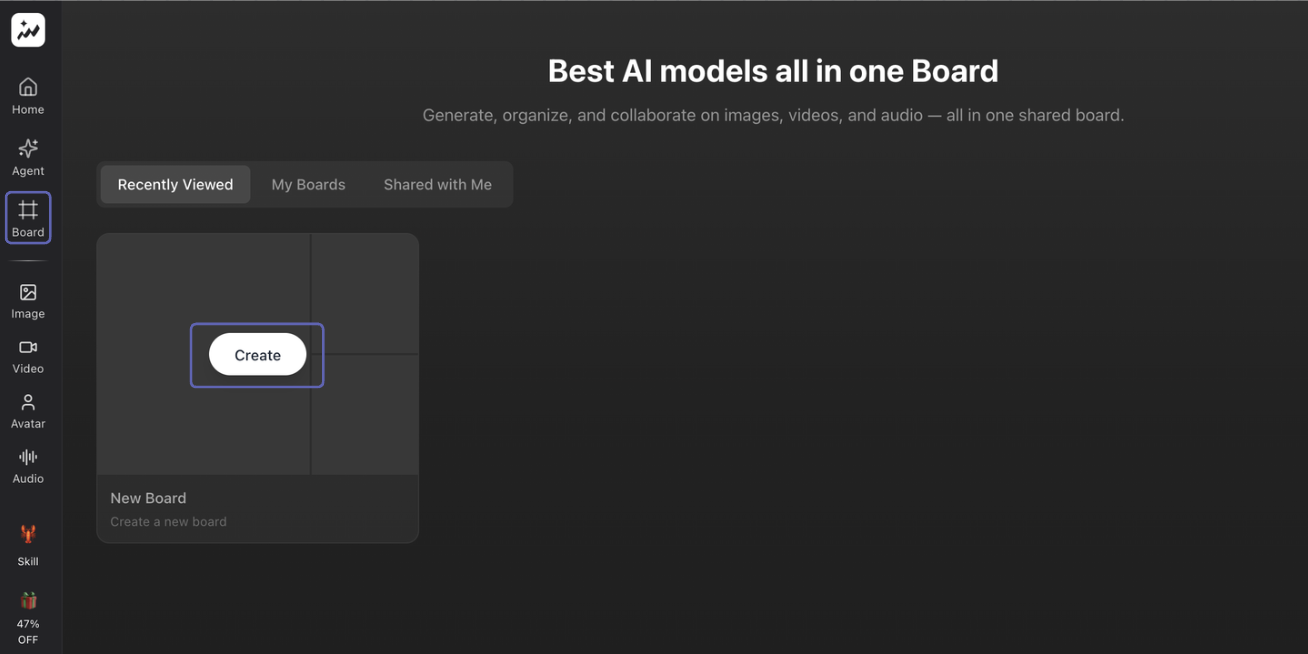
Step 1: Enter the Board
You can separate projects into different boards according to your own needs. Each board acts as an independent workspace for organizing your creatives.
Step 2: Share the Board
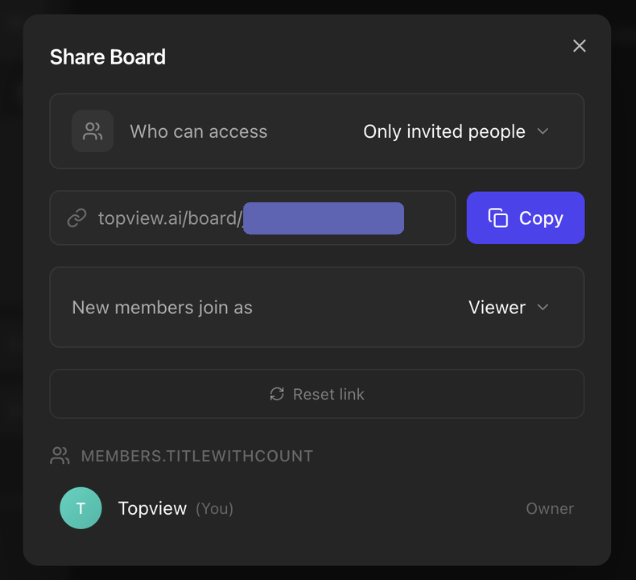
Open one of the boards, click the share button in the top right corner. Then, copy the link and send it to the user (this user should also have a Topview Account). You can adjust the user's permission to either a viewer or editor.
Step 3: Rate and Comment on Creatives
Board collaborators can review and provide feedback on creatives:
- Star Ratings: Collaborators can mark star ratings on each creative and pin them to the top.
- Comments & To-Do Tasks: Press into the image/video to leave comments. Comments will automatically create a to-do task, which can later be resolved.
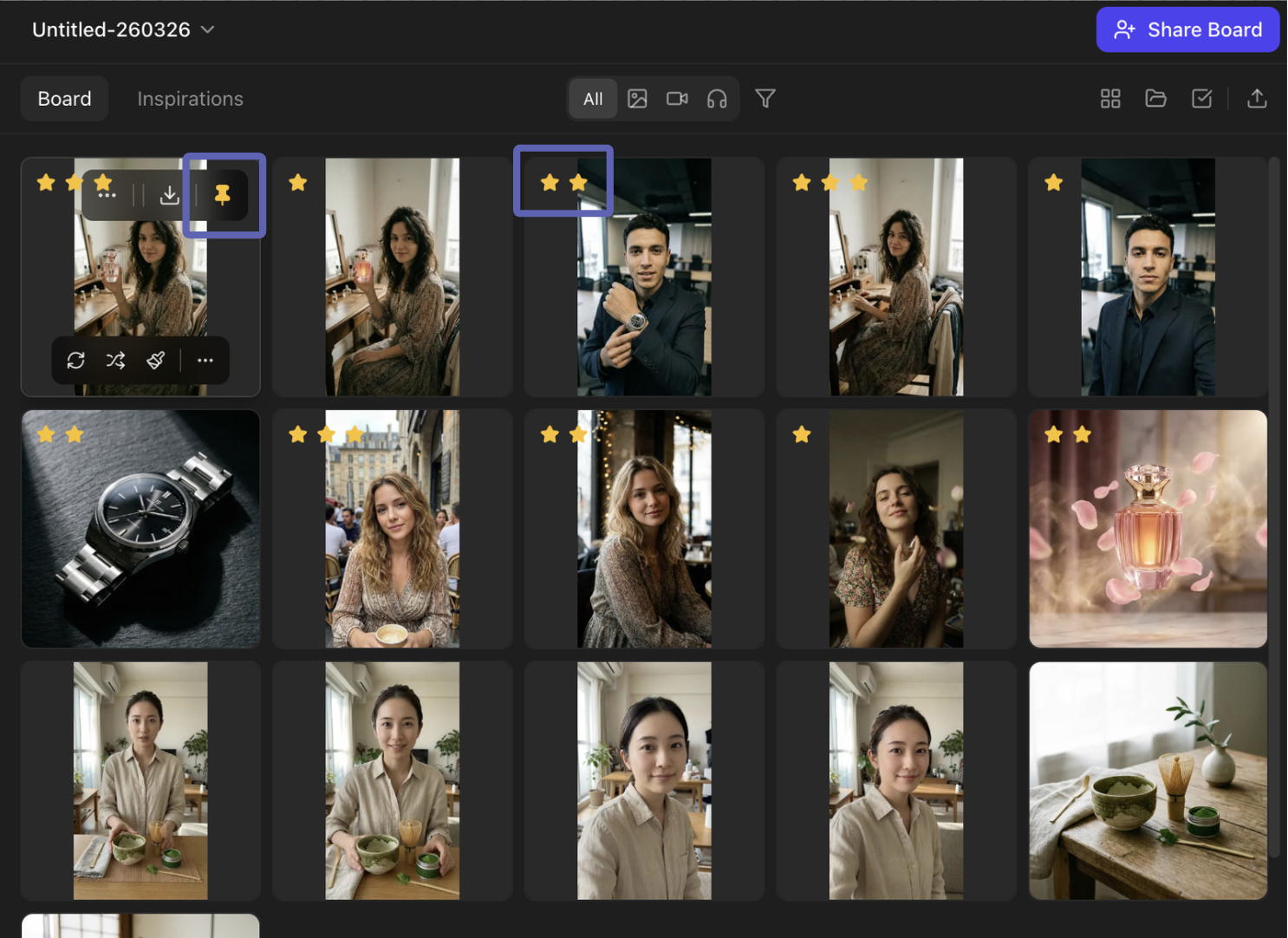
Star Rating
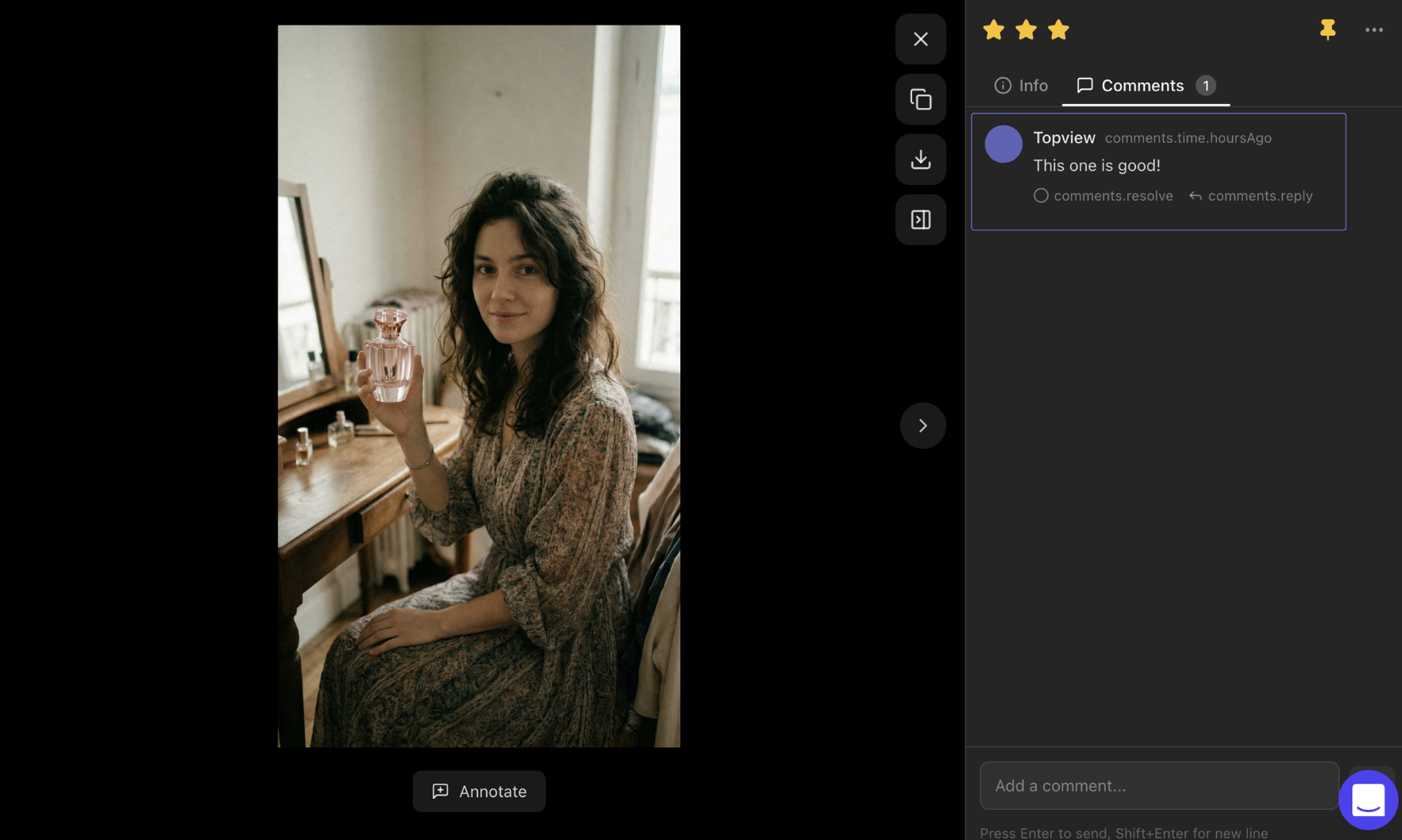
Comments & To-Do Tasks
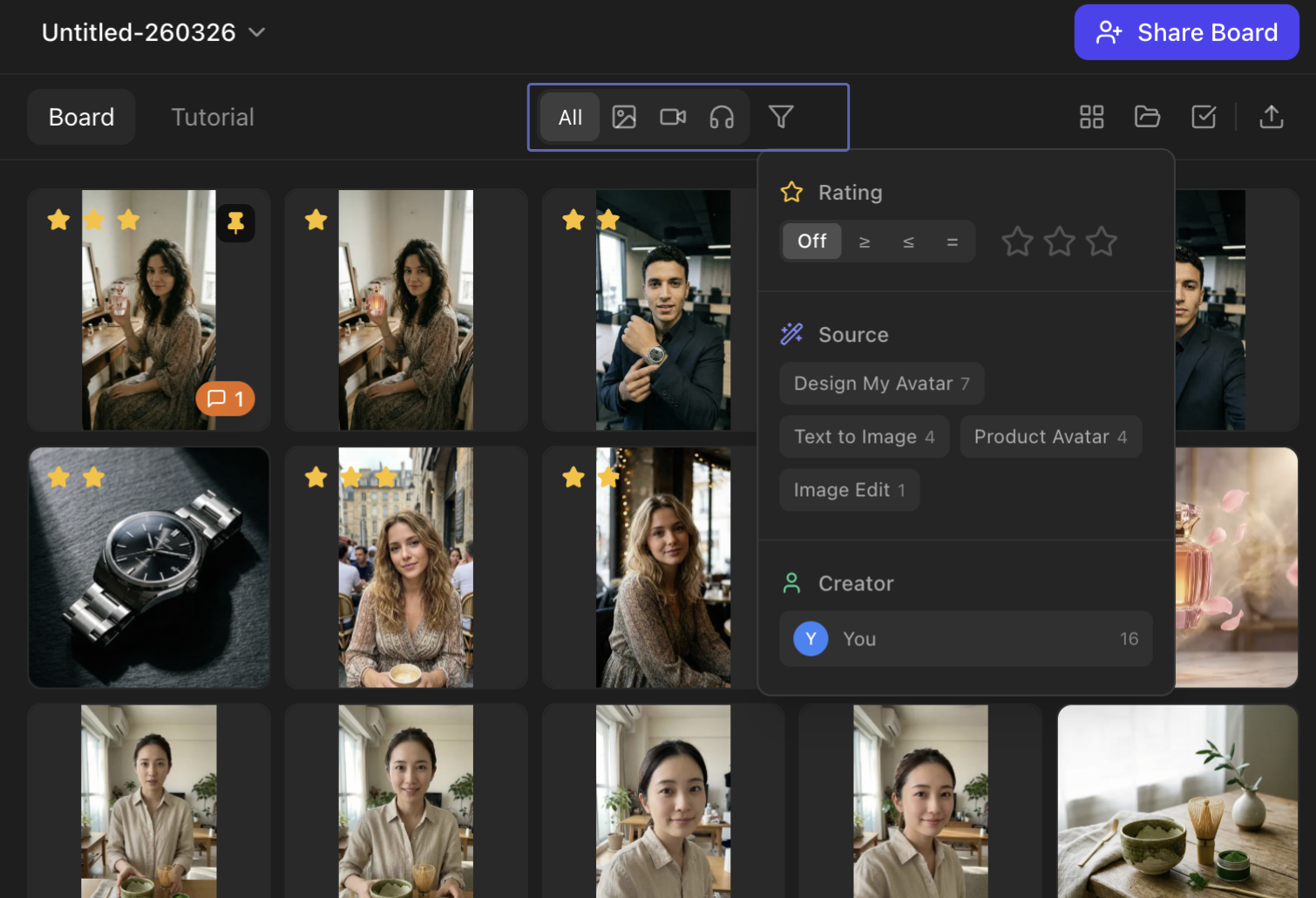
Step 4: Filter Your Creatives
In each board, you can filter creatives according to type (images, videos, audio), tool used, or rating. This helps you quickly locate the creatives you want.
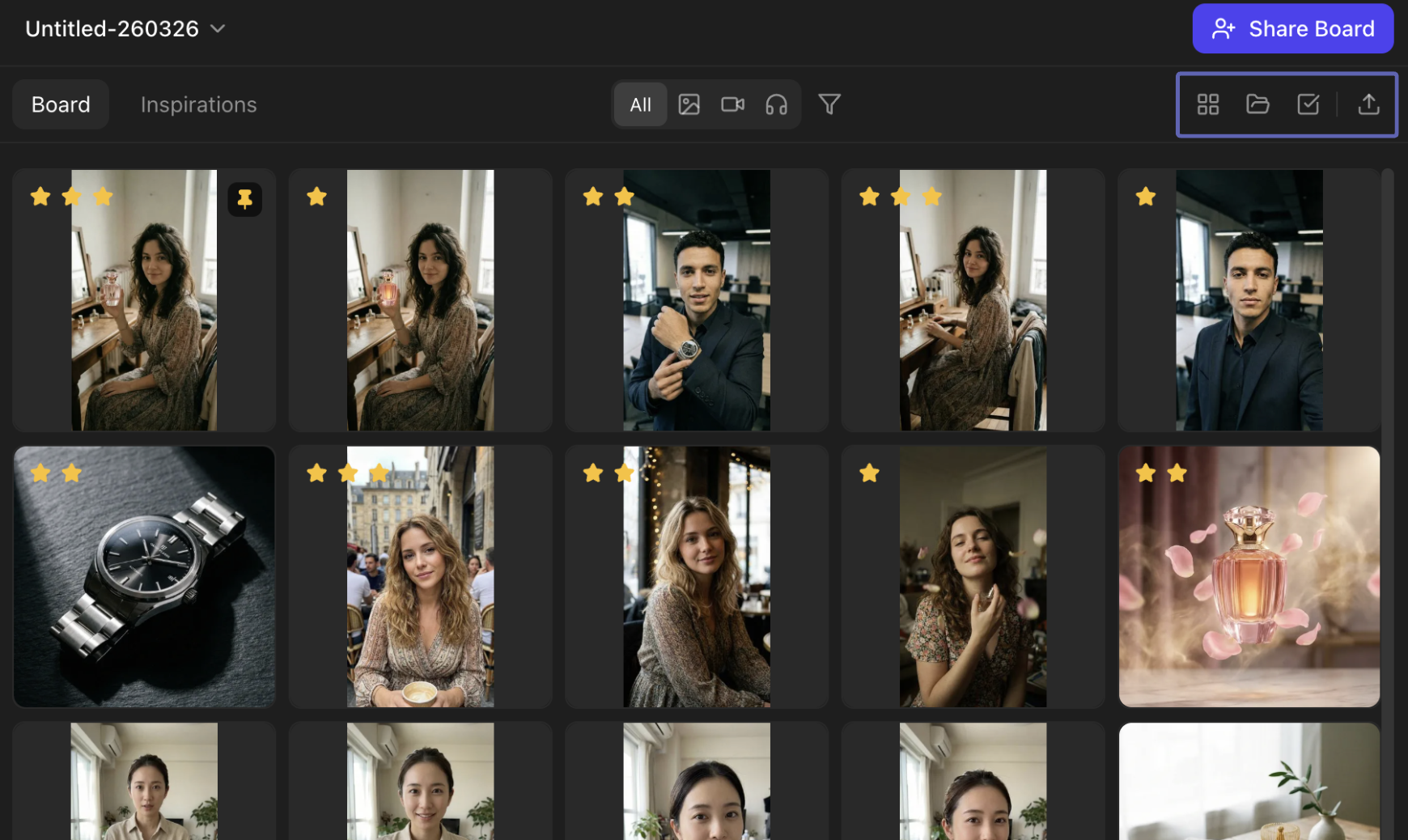
Step 5: Layout, Sorting & Batch Operations
The buttons at the top right of the board support functions such as changing the layout, sorting, batch selecting, and uploading creatives.
Short-Cut Keys in Board
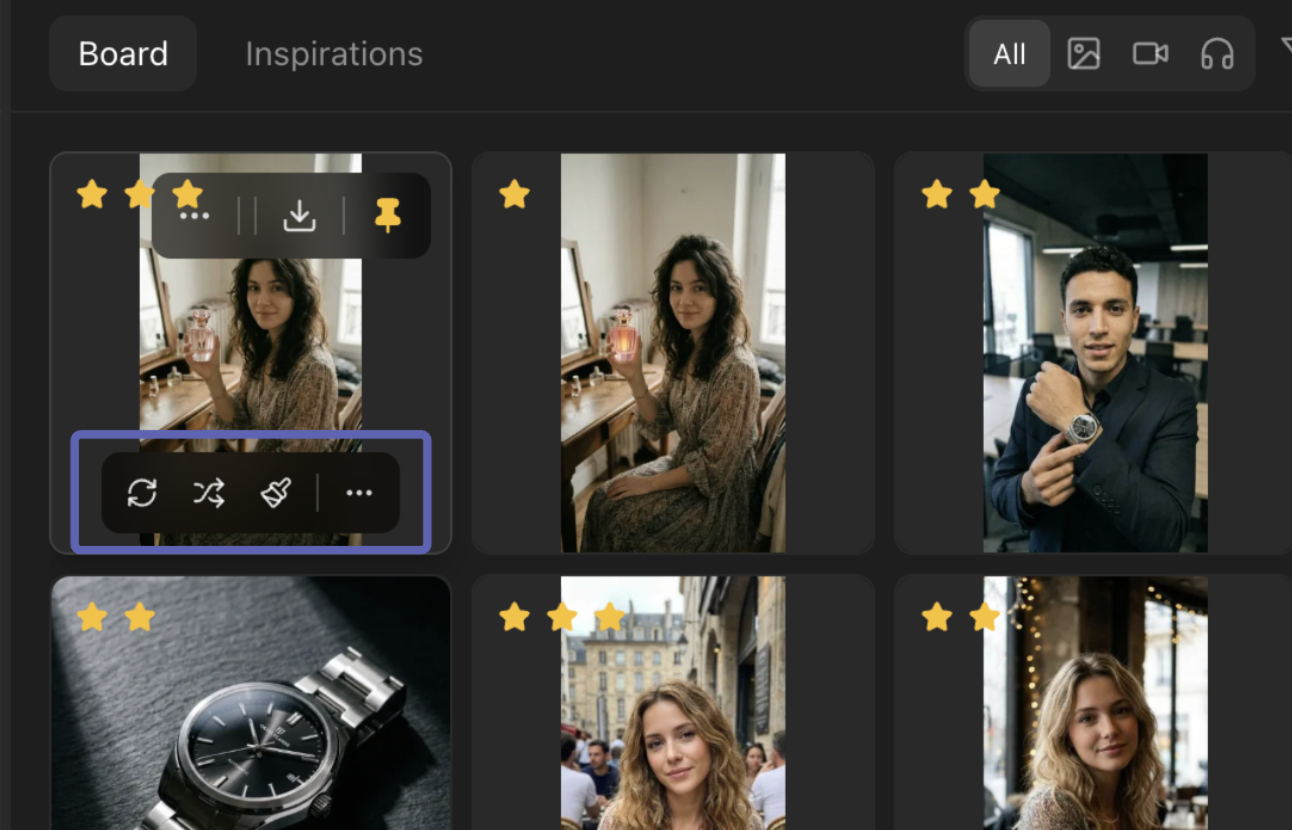
Hover over any creative in the board to access powerful quick actions:
Re-edit
Re-generate images after fine-tuning prompts.
Remix
Enter the image editing function and fine-tune the image through prompts.
Inpaint
Use the brush to paint the area that you wish to modify.
Generate Video
Create the desired video through prompt words.
Edit Angles
Change the angle of the image.
AI Avatar
Convert text to audio and let the characters in the image speak.
Upscale
Increase image resolution for higher quality output.
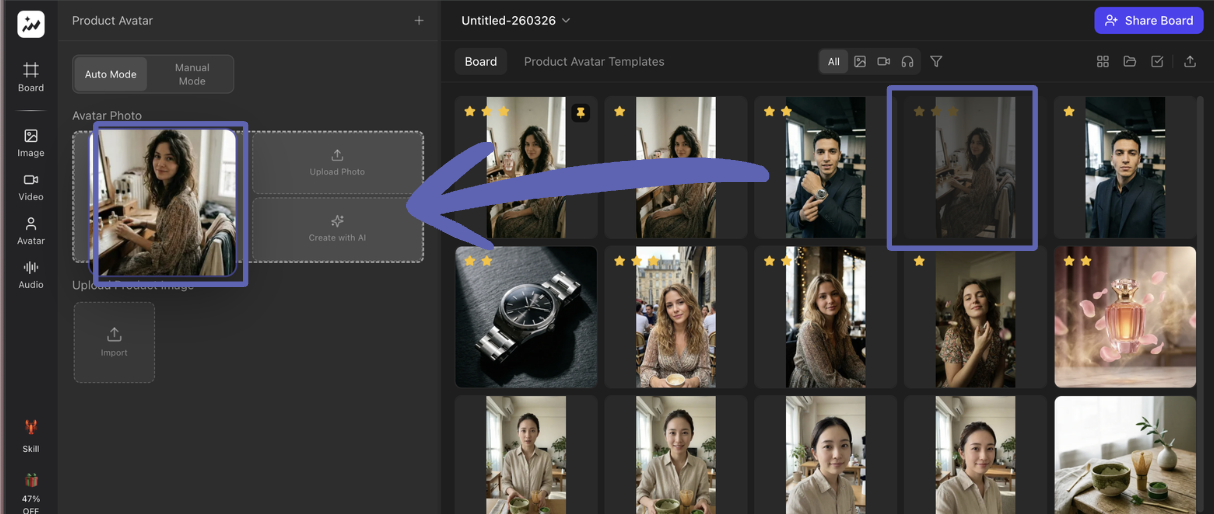
Drag & Drop Support
Board supports rearrangement of creatives by dragging and dropping, and also supports using the mouse to drag creatives from the board directly into the tools for a seamless workflow.