Topview Official Guide: AI Image
Official Guide
AI Image Generation: Your Complete Visual Toolkit
From text-to-image creation to product photography — explore every AI-powered image tool in Topview.
Text to Image
Open the tool, type in a detailed prompt, then select your preferred image generation model. The models available are all the mainstream AI models on the market. Click "Generate" and obtain your newly generated image on the right side of the board.
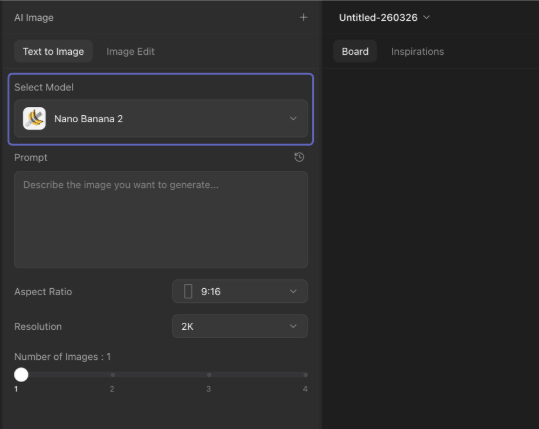
Image Edit
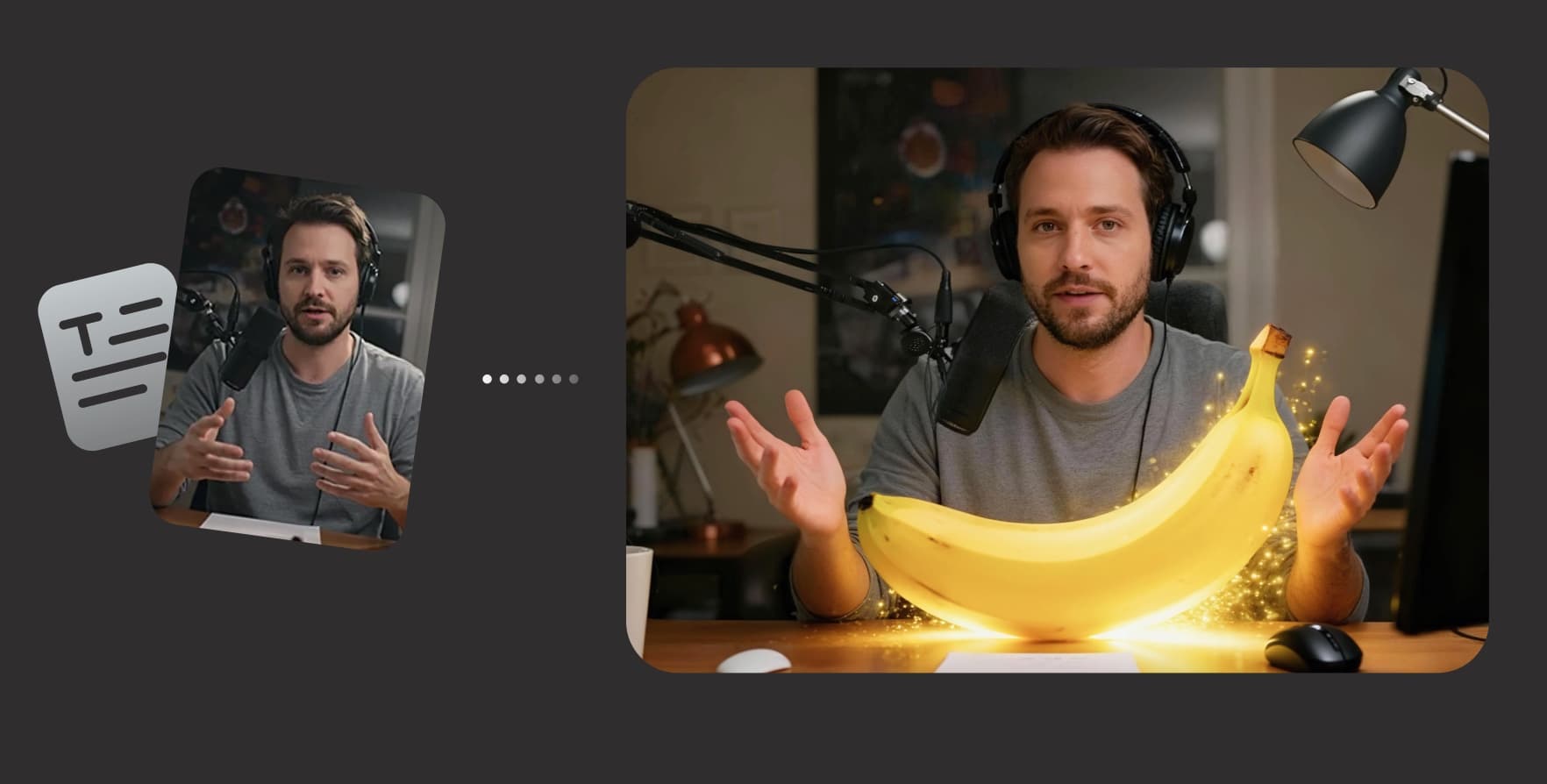
Type in a prompt to edit the uploaded image and then click "Generate". This highly flexible all-purpose mode offers a multitude of creative possibilities.
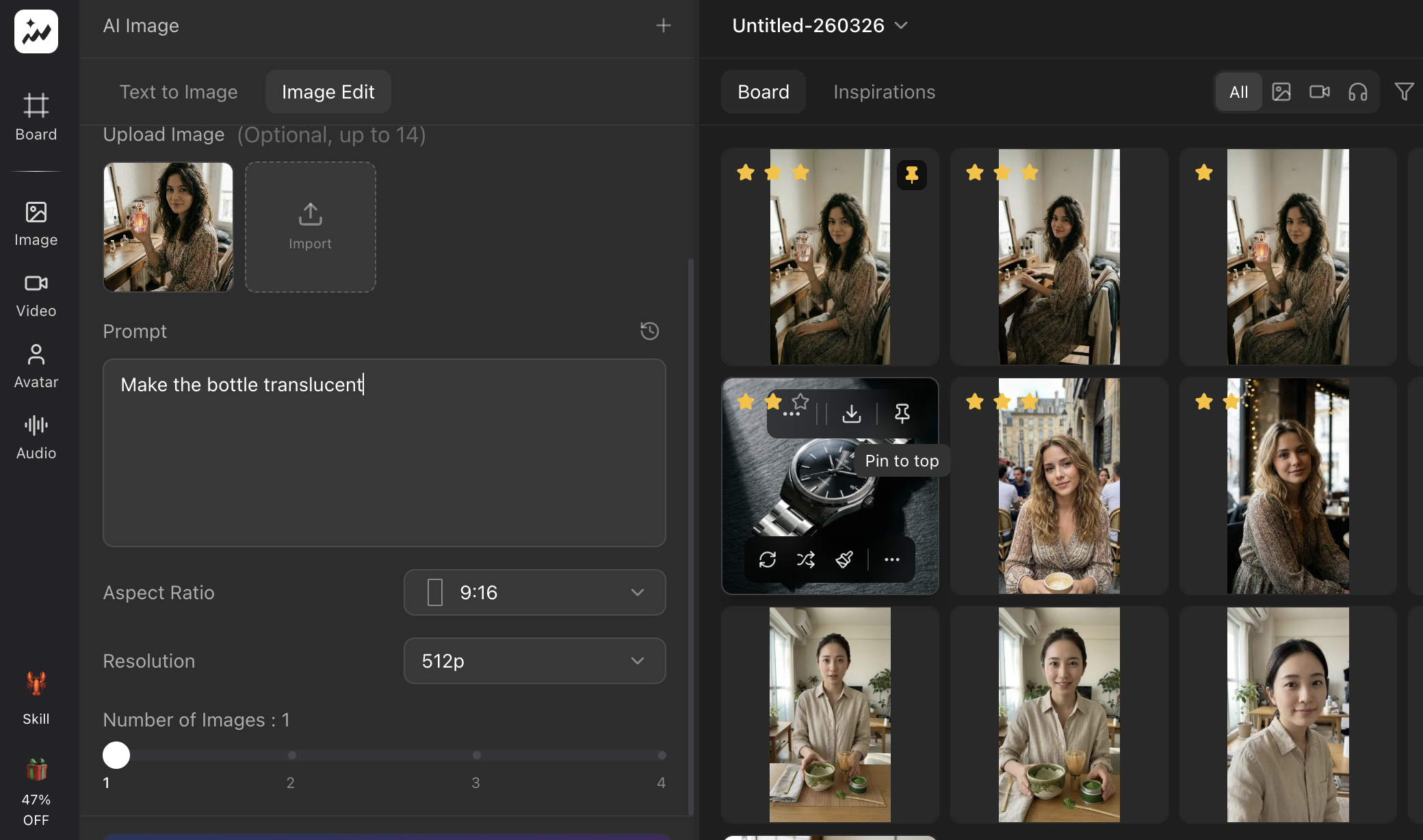
What You Can Do
Change Character Appearance
Freely modify the character's physical appearance, body shape, clothing, etc. Suitable for creating before-and-after comparison pictures.
Detailed Product Images
Provide detailed product selling points and clear product images to generate high-quality product detail pictures for e-commerce platforms.
OOTD Pictures
Upload multiple product images and a model image to allow the model to wear all the products simultaneously.
Place Products in Backgrounds
Upload a product image and provide product measurements for placing the product in different backgrounds.
AIGC Style Transfer
Convert photos into different styles, such as anime. Note: Avatar 4 Lip-sync supports anime characters too.
Inpaint
- Upload the image that you want to modify.
- Use the brush to mark the parts that need to be adjusted.
- If necessary, upload reference images, before clicking "Generate".
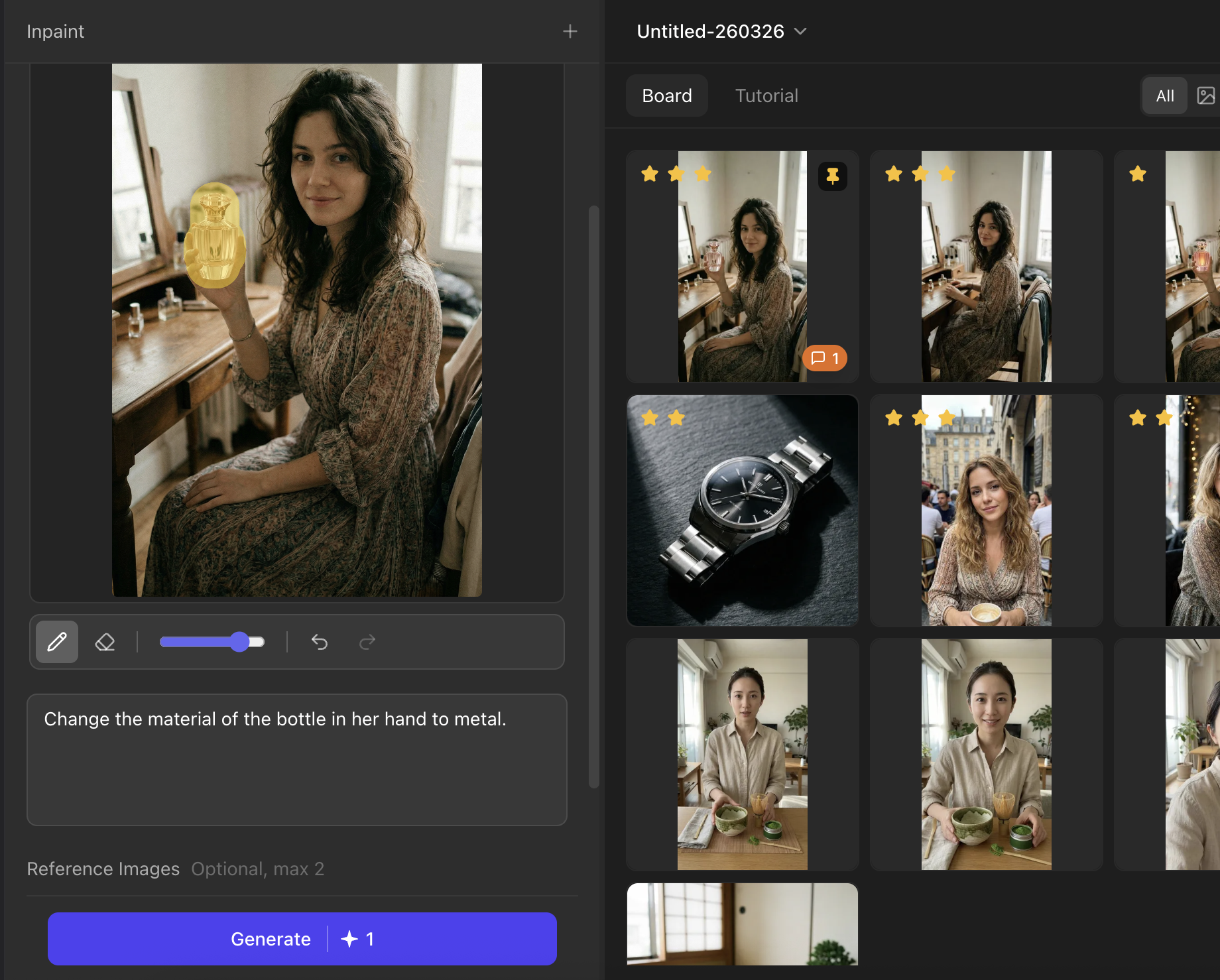
Image Character Swap
Upload the image of the target background above, and the image of the target character below. Then, click "Generate" to obtain the final image.
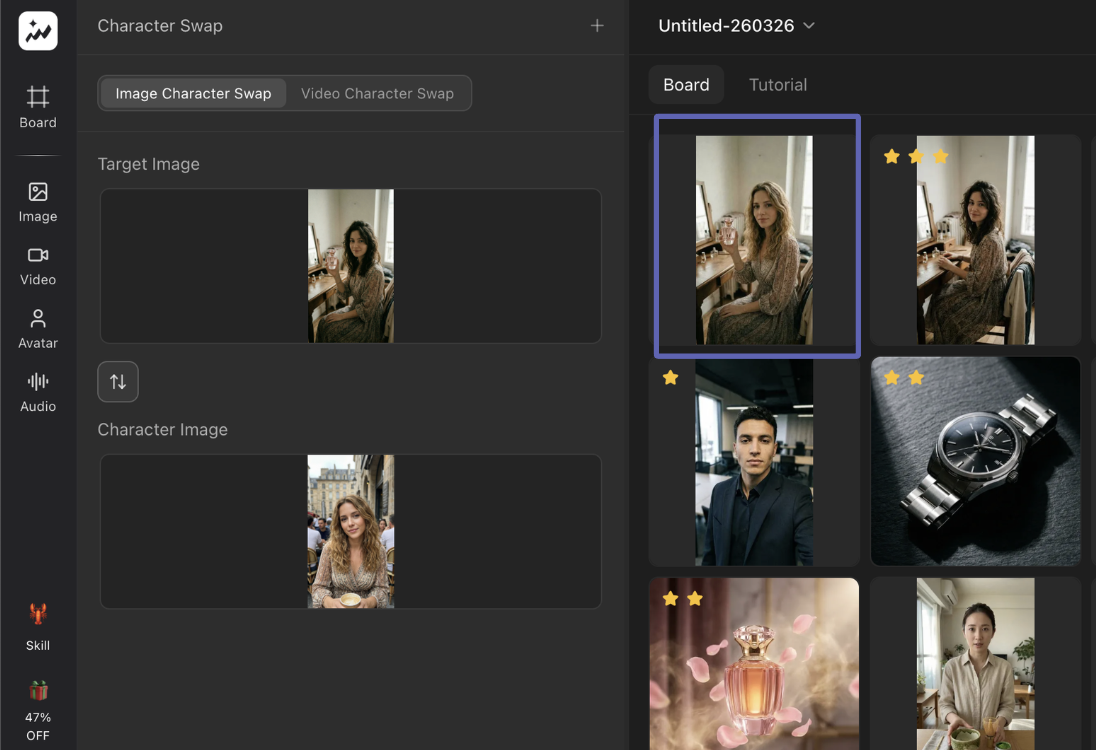
Image Upscale
Upload the image that you want to enhance the quality of and click "Generate".
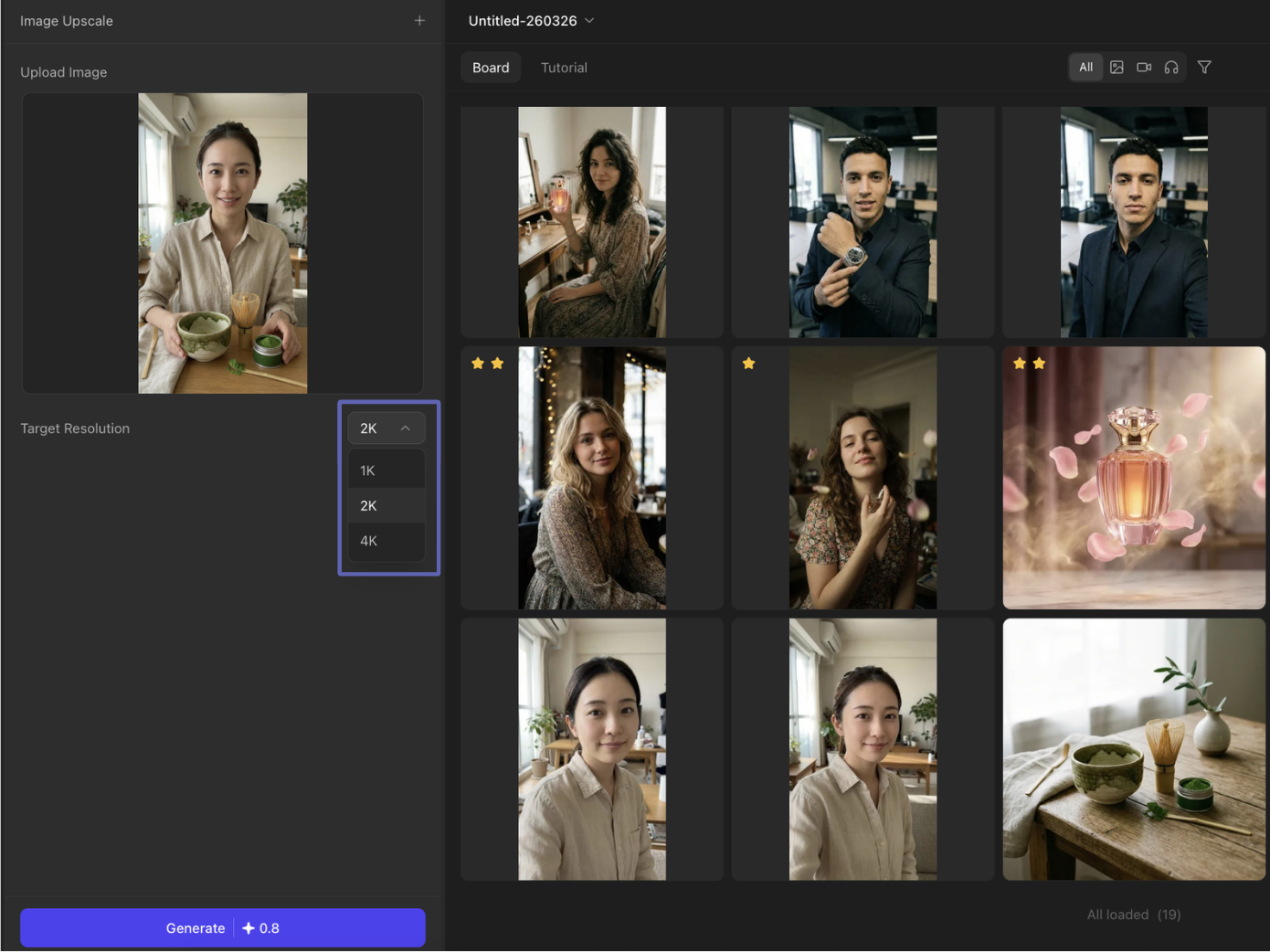
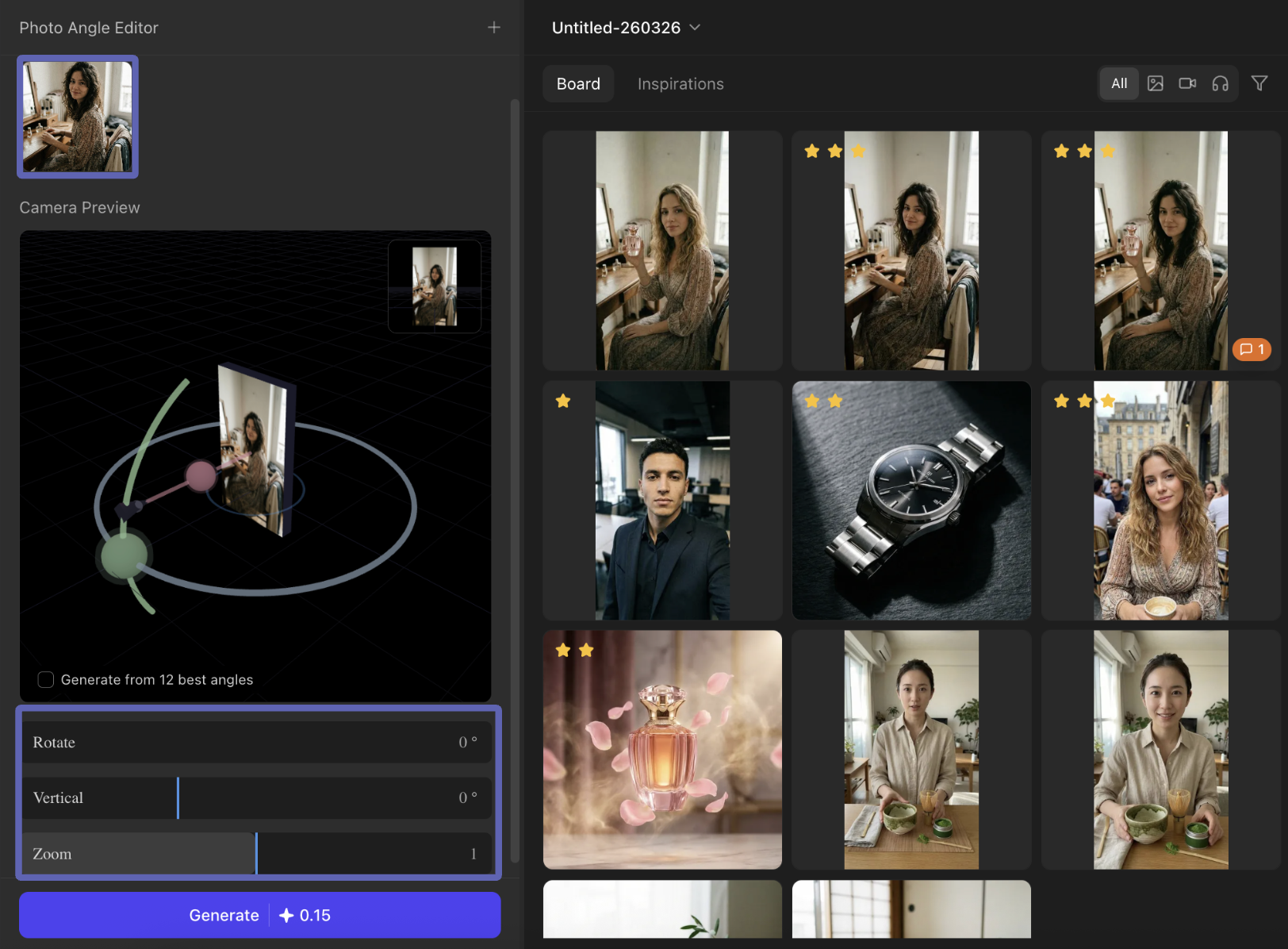
Photo Angle Editor
- Upload an image and adjust the image angle by swiping left or right. Preview the final image in the upper right corner.
- For batch output, select "Generate from 12 best angles" to produce images from multiple angles in one go.
- After the images are completed, two images can be used as the first and last frames and placed into the "Image to Video" function to create a video with smooth camera movement.
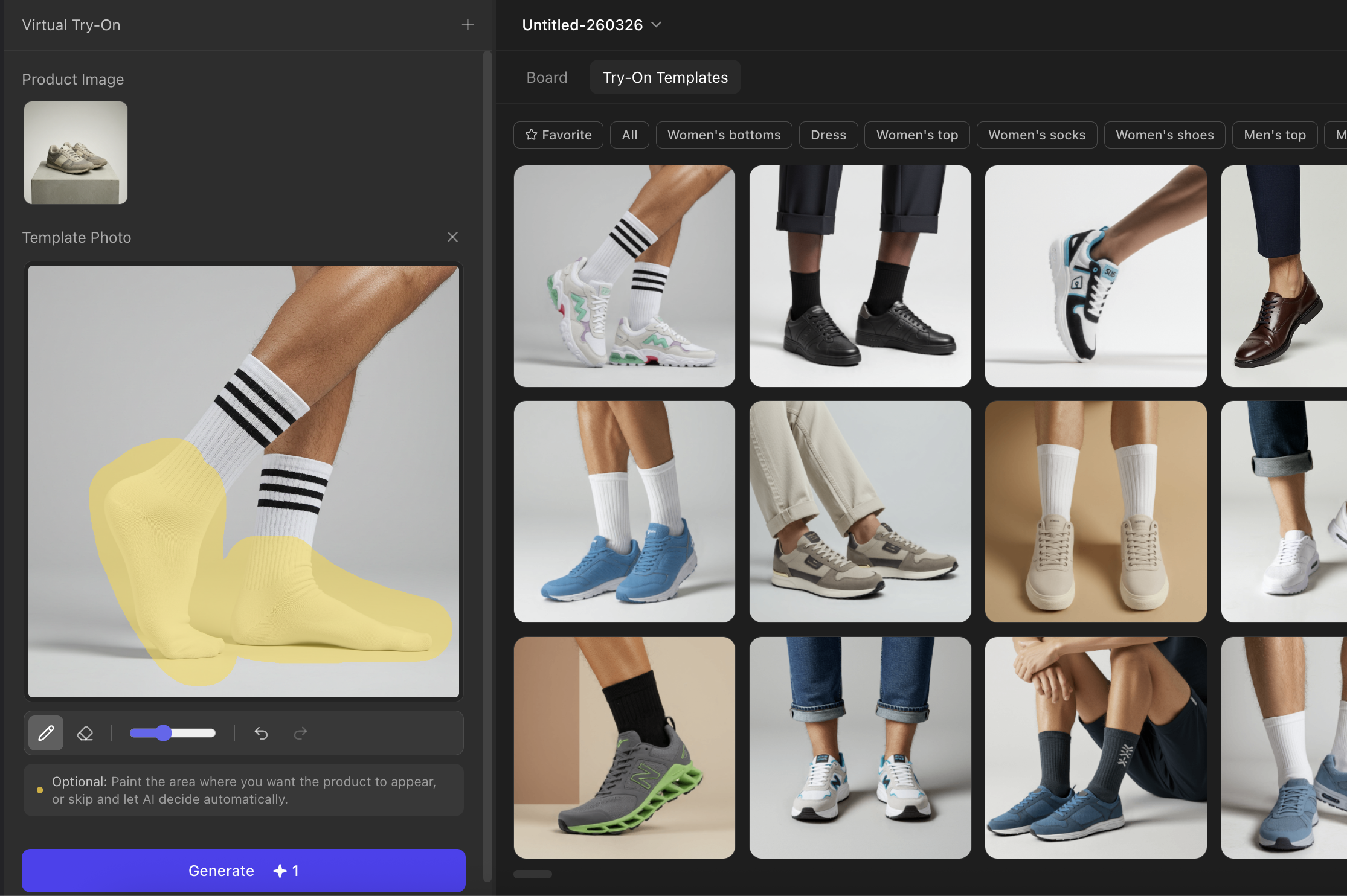
Virtual Try-On / Product Photography (Product + Model)
This feature allows users to seamlessly integrate product images directly onto avatars or other target objects. It is suitable for scenarios such as product posters, model try-ons, and product display.
- Upload your product image. Click on "Select from Templates" to choose an ideal template for your product, or upload from your board.
- Use the brush tool to highlight the area on the target image that you want to redraw. Then click "Generate".
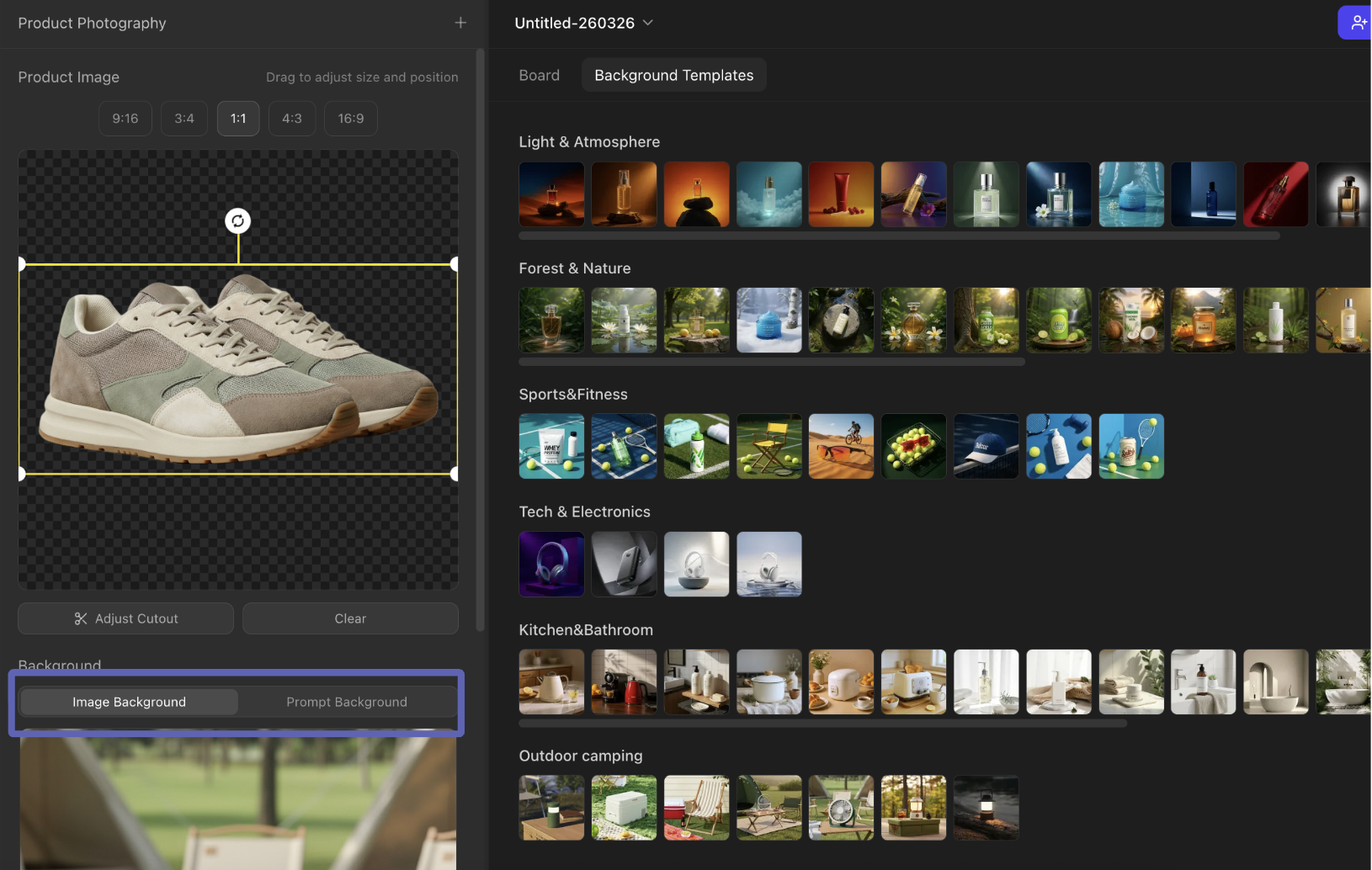
Product Photography (Product + Background)
This mode can be used to design AI backgrounds for products, creating professional-looking product posters. Upload your product image and select a template background image to place it into, or create one using a prompt. Then click "Generate".
Why Product Photography?
AI automatically generates professional quality product images and videos without models or editing.
Access over 5,000 public templates with diverse backgrounds, suitable for e-commerce, social media, and advertising.
Suitable for all product categories — clothing, beauty, furniture, luggage, pet supplies, electronics, and more.