Topview Official Guide: Product AnyShoot
Official Guide
Topview Official Guide: Product AnyShoot
Introduction
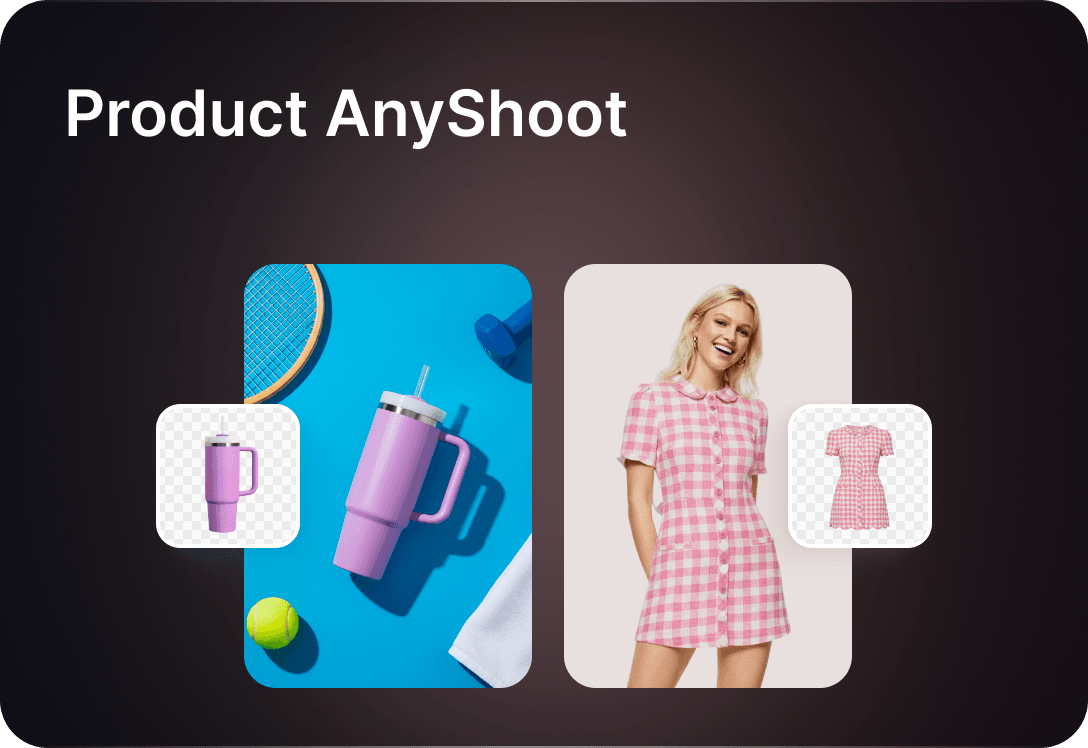
Product AnyShoot allows users to place product images into a wide variety of realistic scenes---like models wearing your clothes or items displayed in lifestyle settings---without any filming or photoshoots. Simply upload your product image, and the AI instantly generates professional visuals.
Key Features:
No Studio Needed: AI automatically generates high-definition product images and videos, no studio, model, or editing required.
Anywhere: Choose from over 5,000 templates with diverse backgrounds, scenes, and styles---perfect for e-commerce, social media, and advertising.
AnyType: Compatible with all product categories, including apparel, beauty, furniture, bags, pet products, and electronics.
Two Modes Available:
Product + Model: Integrate your product into scenes featuring models (ideal for try-on and fashion showcases).
Product + Background: Place your product into various backgrounds (when models aren't needed).
Video Guide
How to Use
- Click on 'Product AnyShoot'
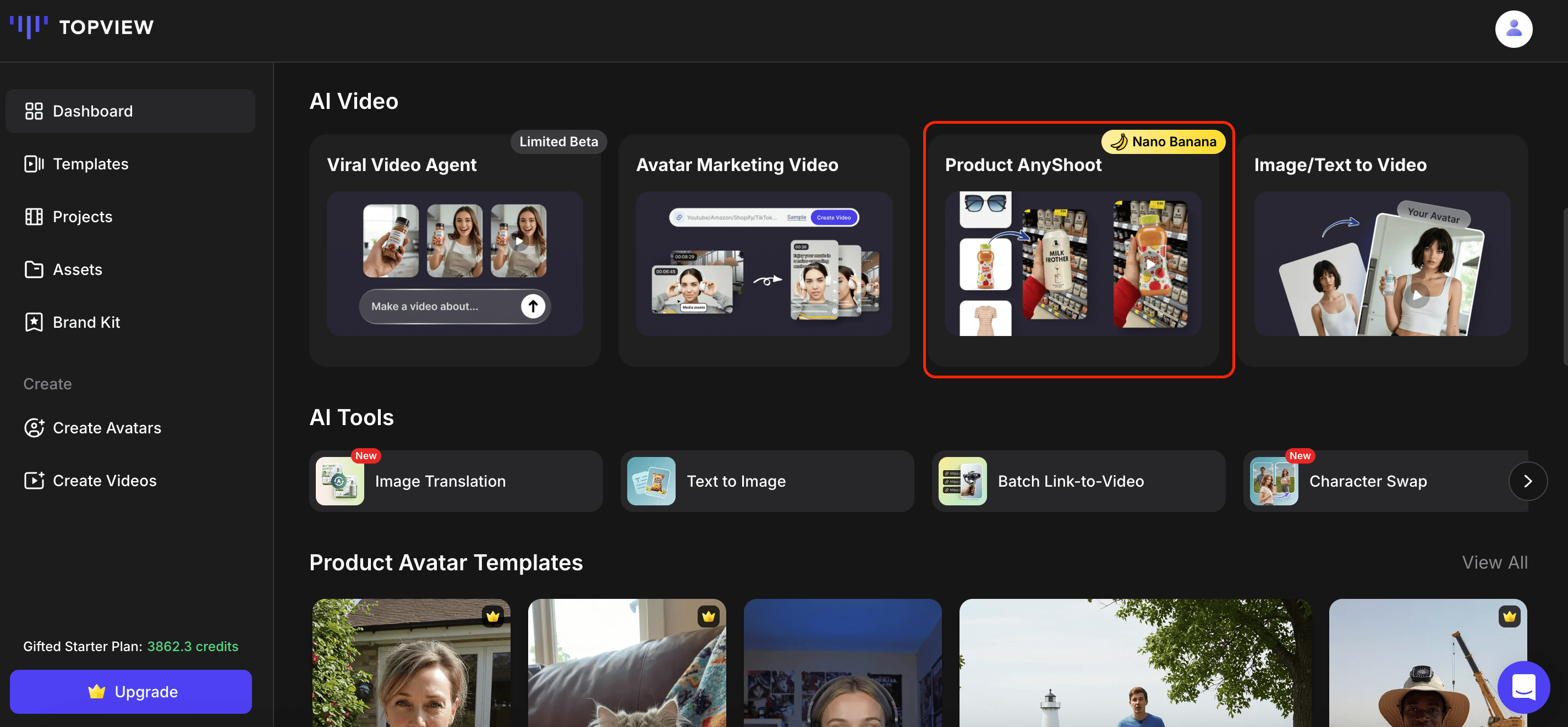
- Pick from the 2 modes 'Product + Model' or 'Product + Background'.
Product + Model: Integrate your product into scenes featuring models (ideal for try-on and fashion showcases).
Product + Background: Place your product into various backgrounds (when models aren't needed).
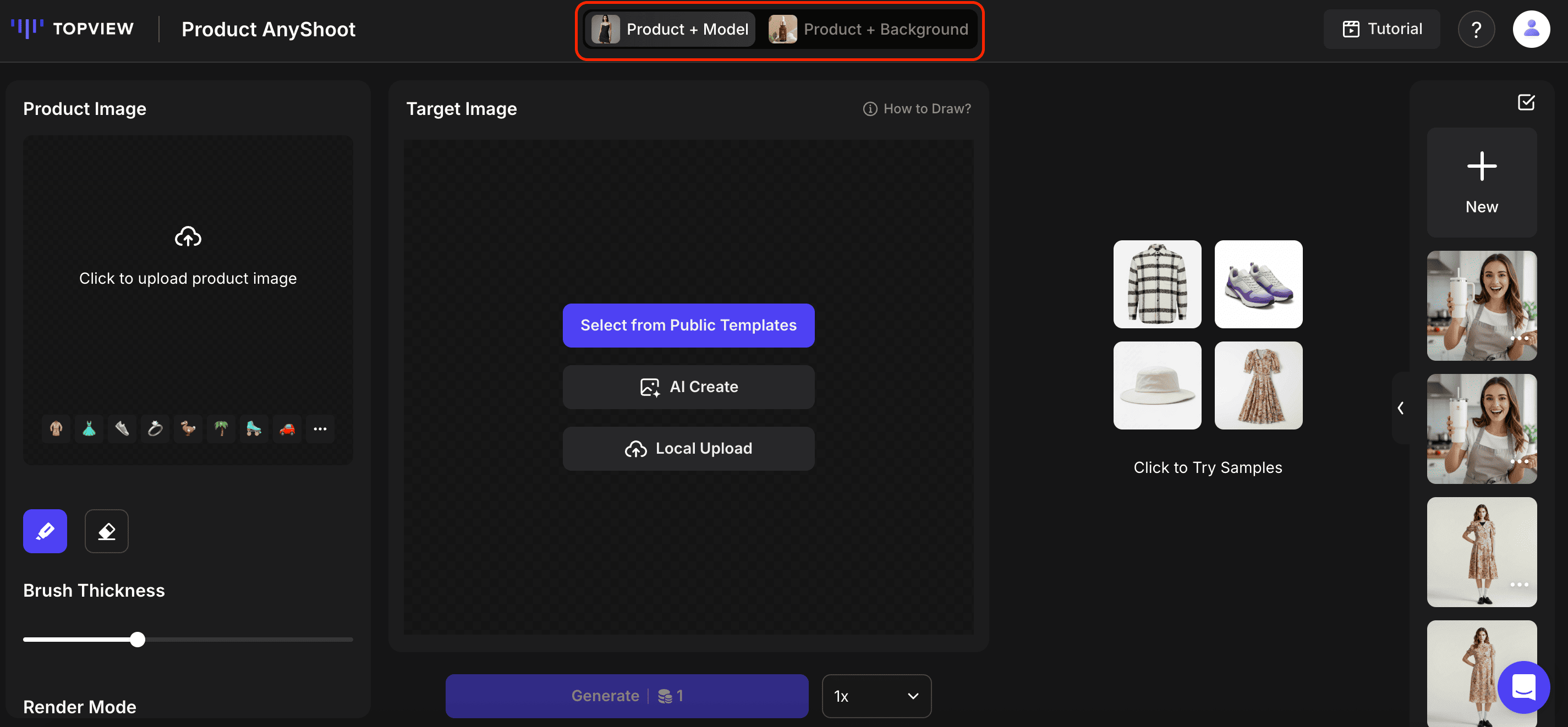
- For 'Product + Model' mode, upload your product image. Click on 'Select from Public Templates' to choose an ideal template for your product.
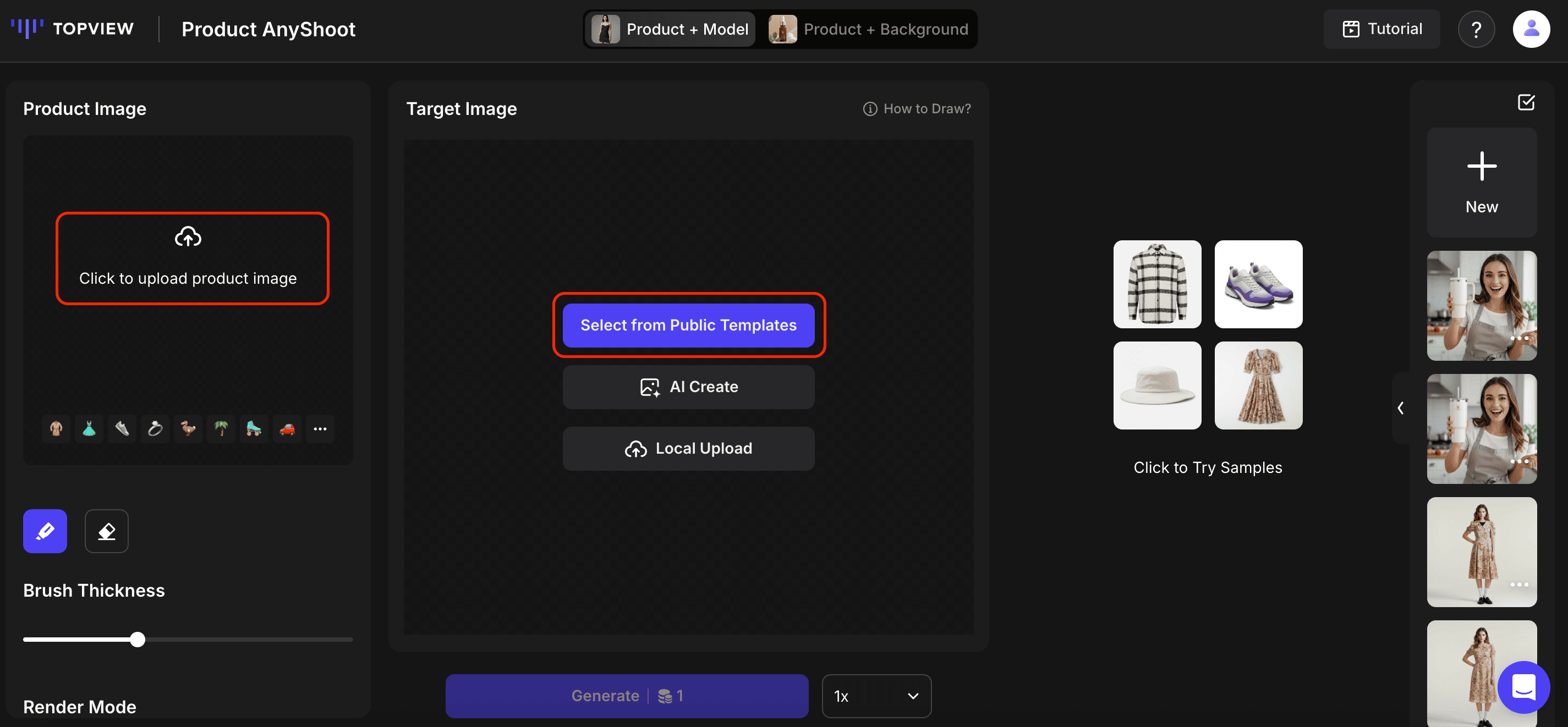
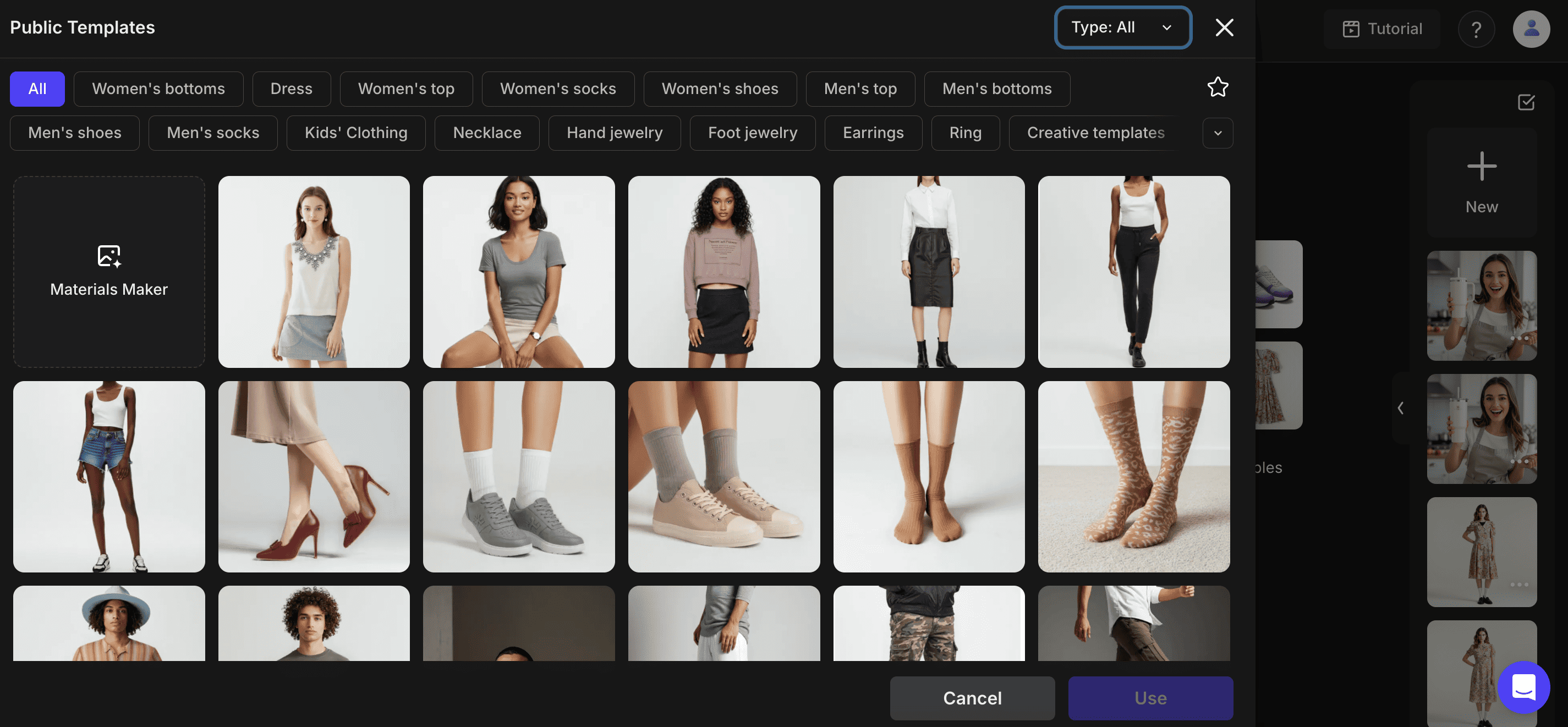
Use the brush tool to highlight the area on the target image that you want to redraw. Select the Render Mode that you prefer:
Product Priority: Preserves maximum detail of your product. The background may be slightly adjusted to achieve a better fit.
Background Priority: Keeps the original scene and model unchanged. Product details may be refined to blend naturally with the background.
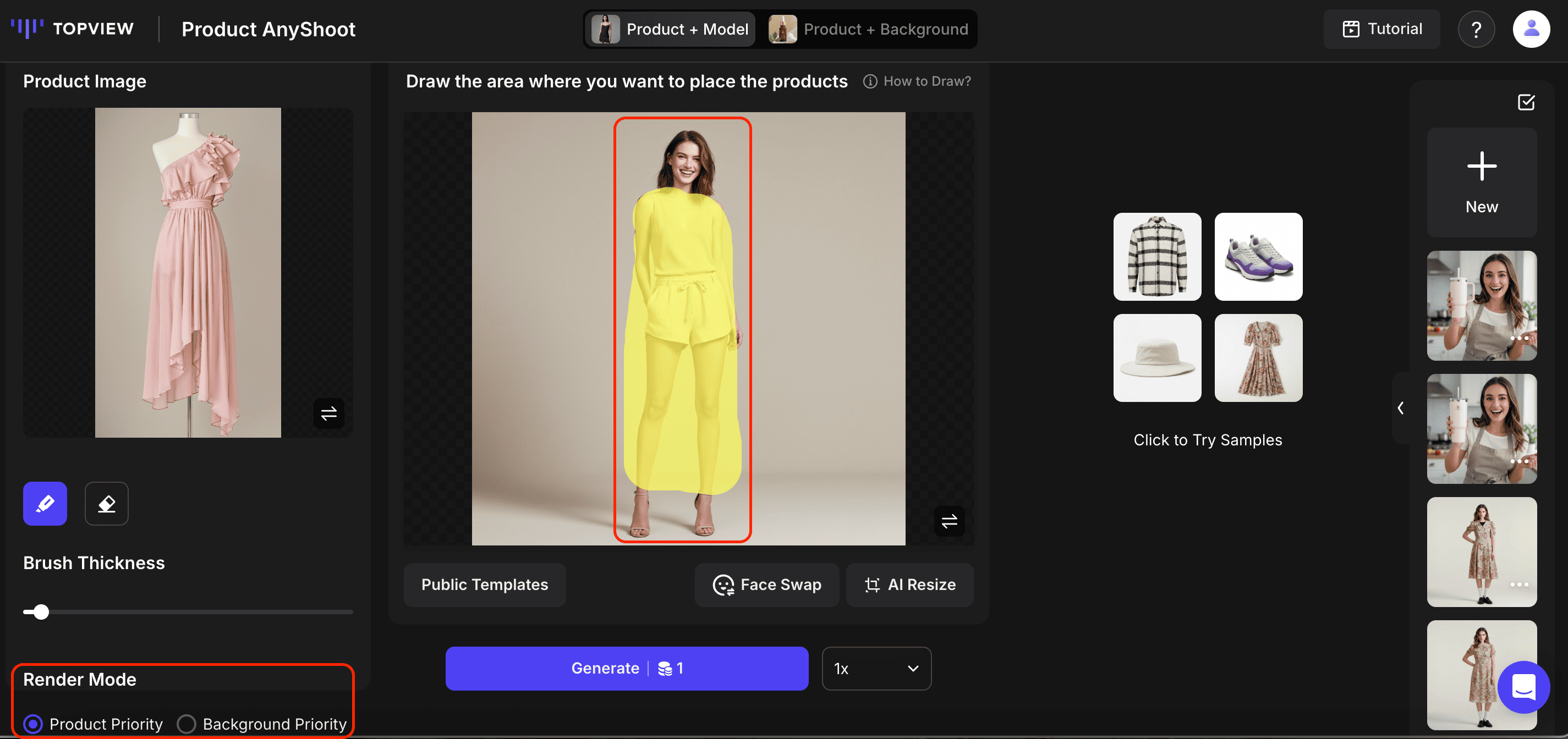
Once everything is ready, click 'Generate'. The number of credits required will be shown on the Generate button. You can also use the dropdown menu to select 1x, 2x, etc., if you want to generate multiple results at once.
- For 'Product + Background' mode, upload your product image and select a background image to place it into.
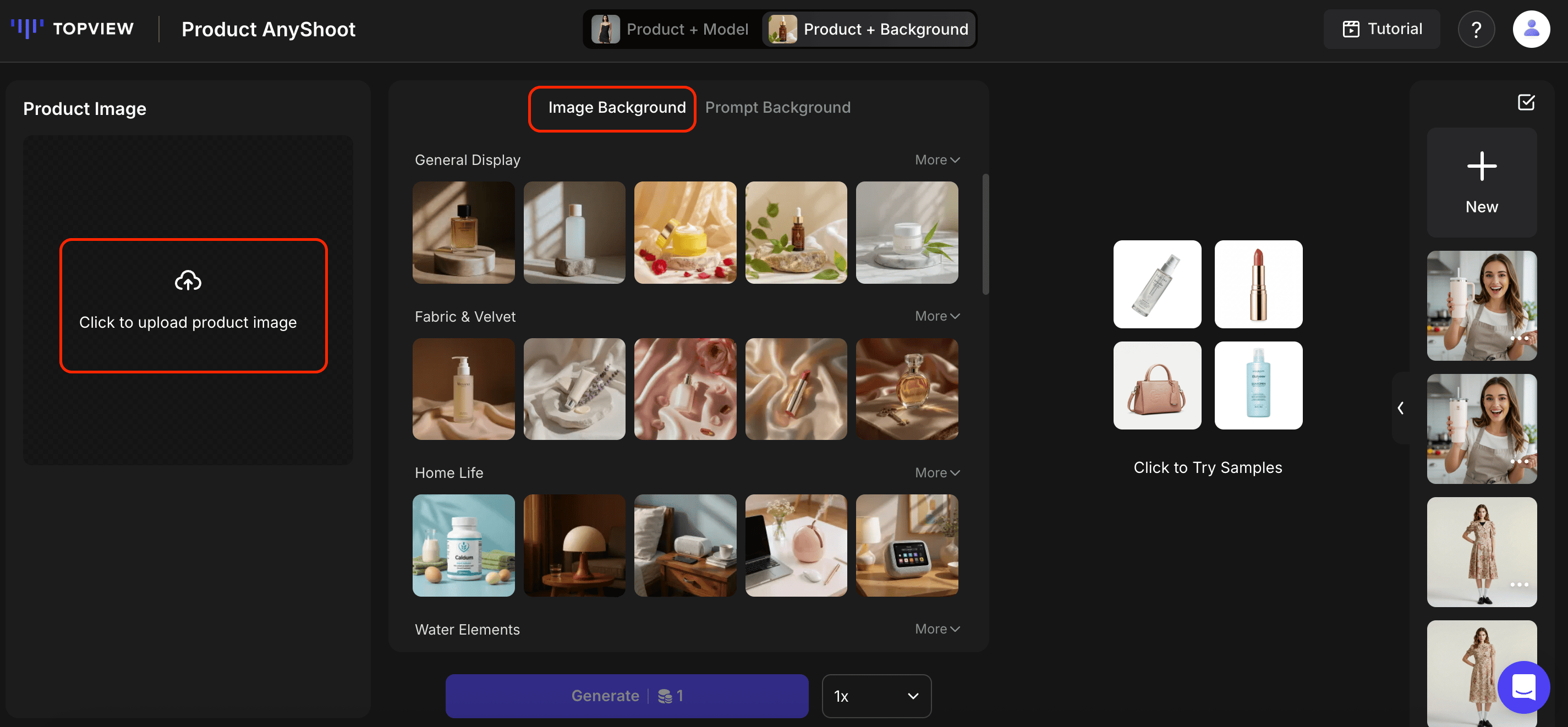
Select your ideal image ratio. Under Product Similarity, there are 2 options:
Natural (98% Match): Maintains maximum detail of your product.
Creative (90% Match): Allows AI to add creative variations while still representing your product.
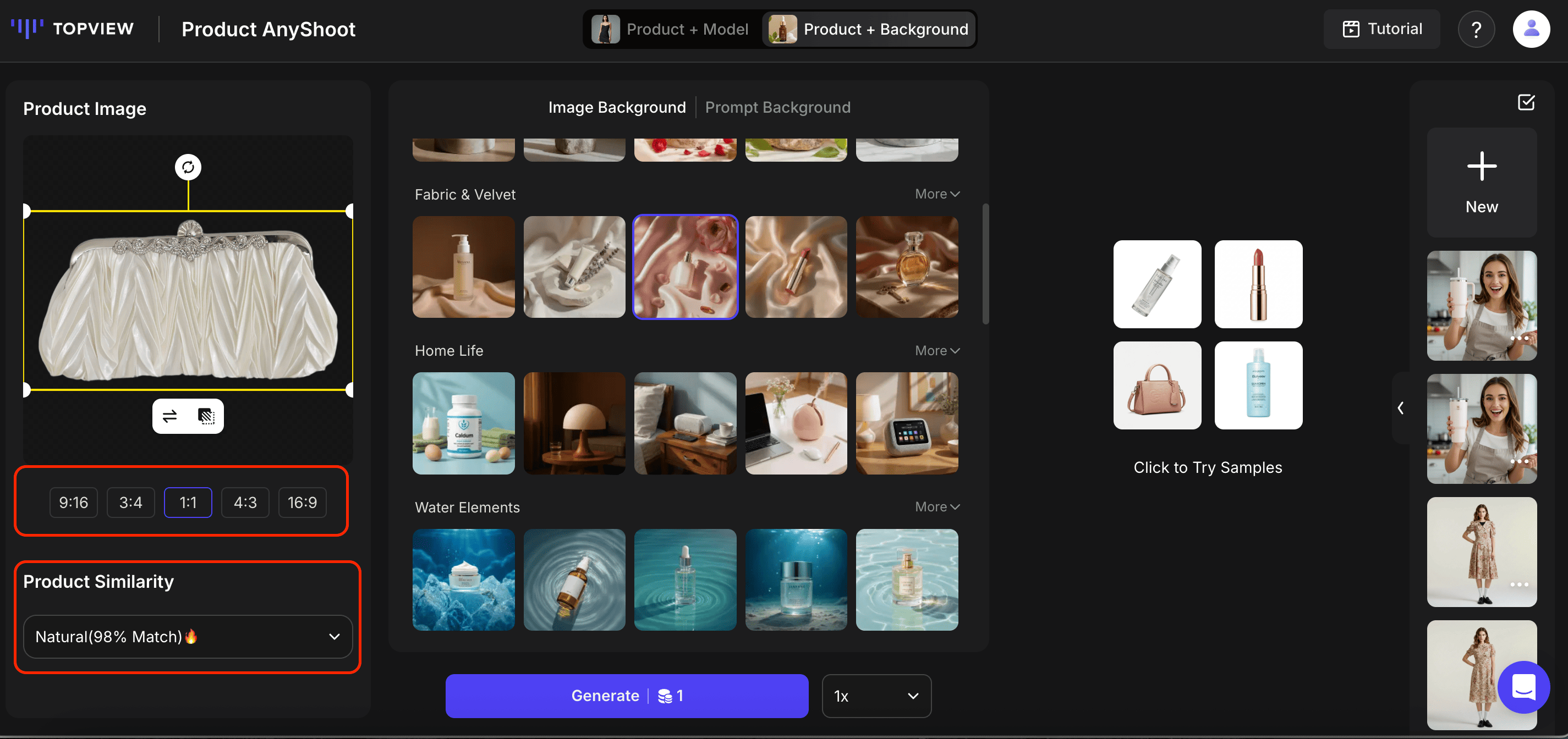
If you'd like more creative control, choose 'Prompt Background' to generate a custom background using text prompts.
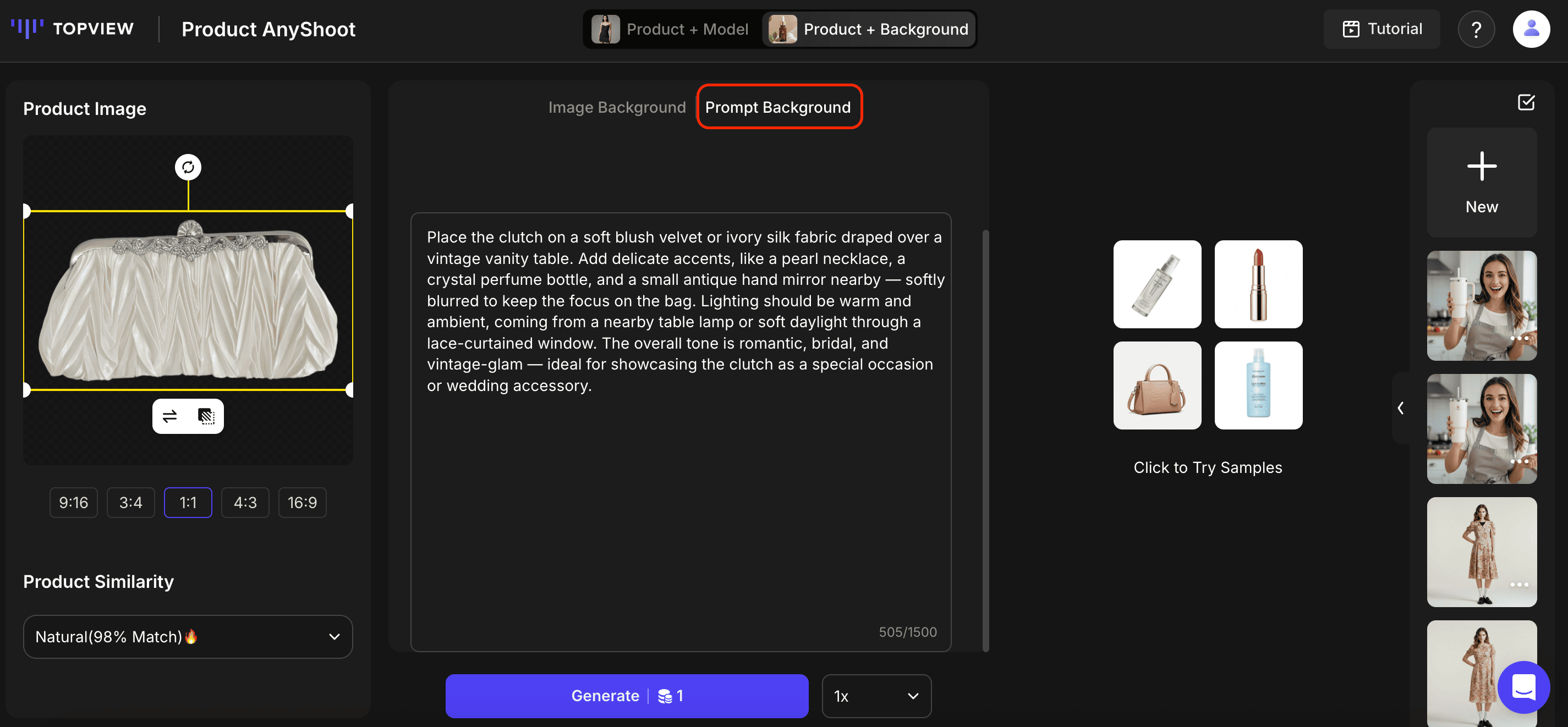
Once everything is ready, click 'Generate'. The number of credits required will be shown on the Generate button. You can also use the dropdown menu to select 1x, 2x, etc., if you want to generate multiple results at once.
- To animate your image into a video, click on 'Image to Video'.
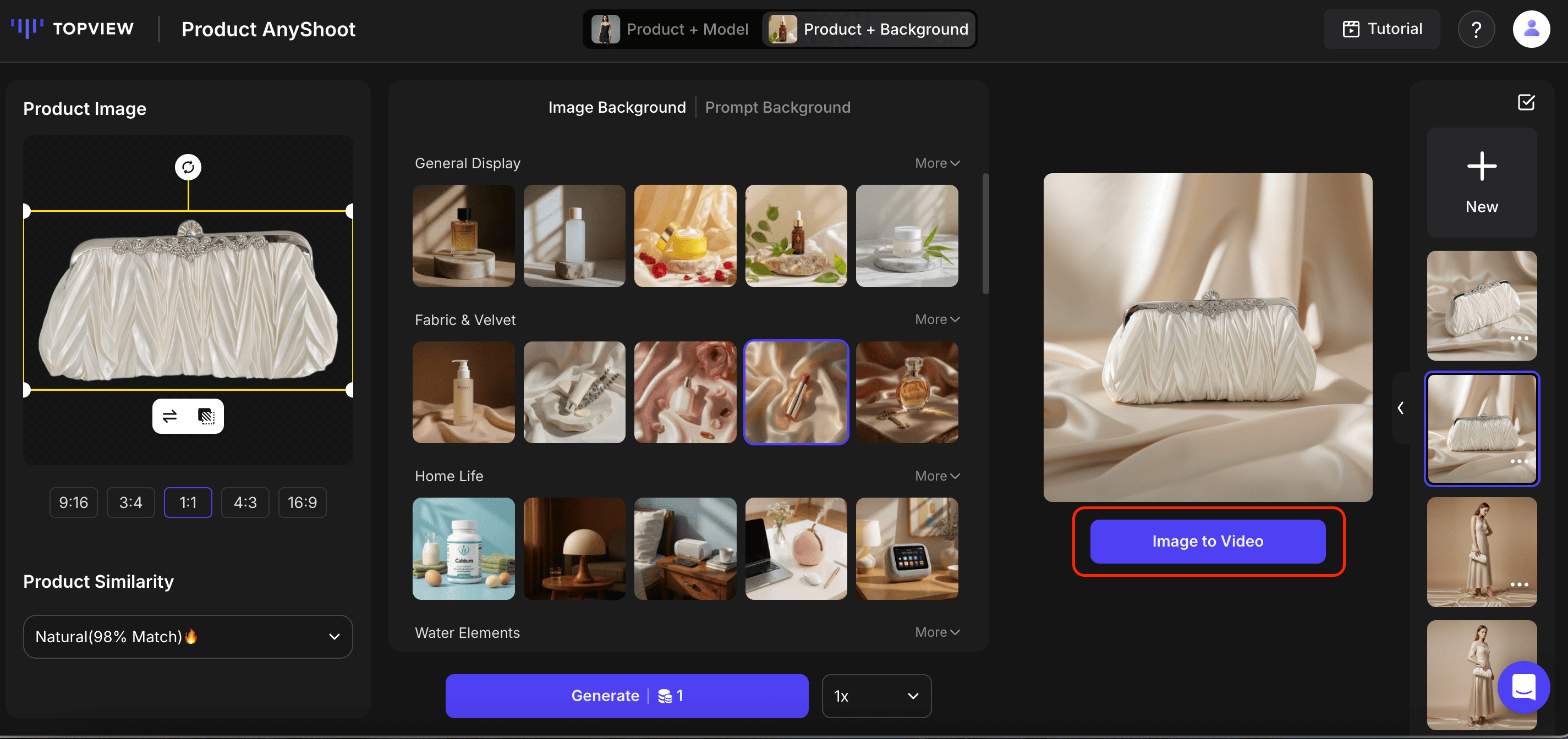
Type in your prompt to generate your ideal video.
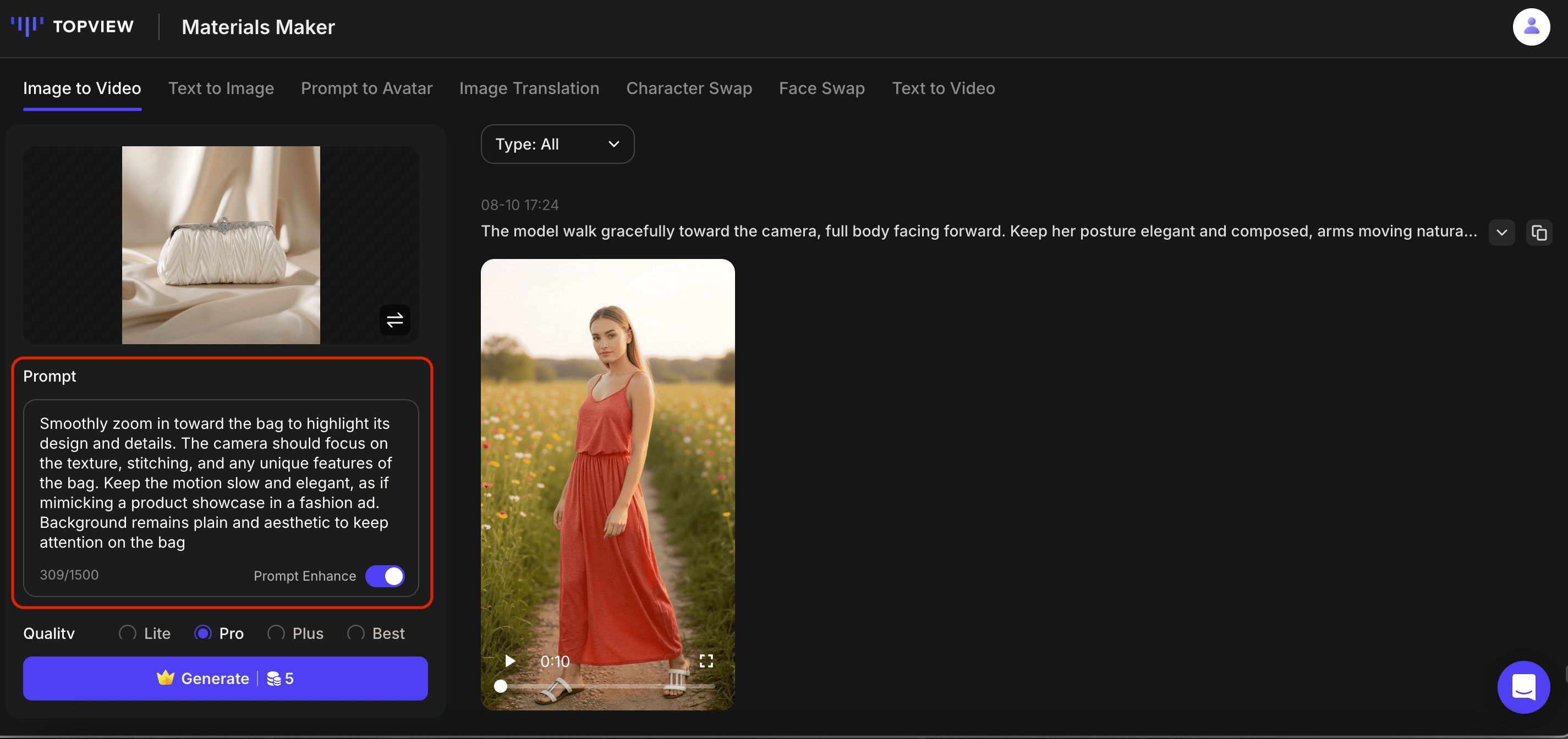
Then select the Quality, Duration, and Number of Generations. You can also add a Negative Prompt to exclude unwanted elements.
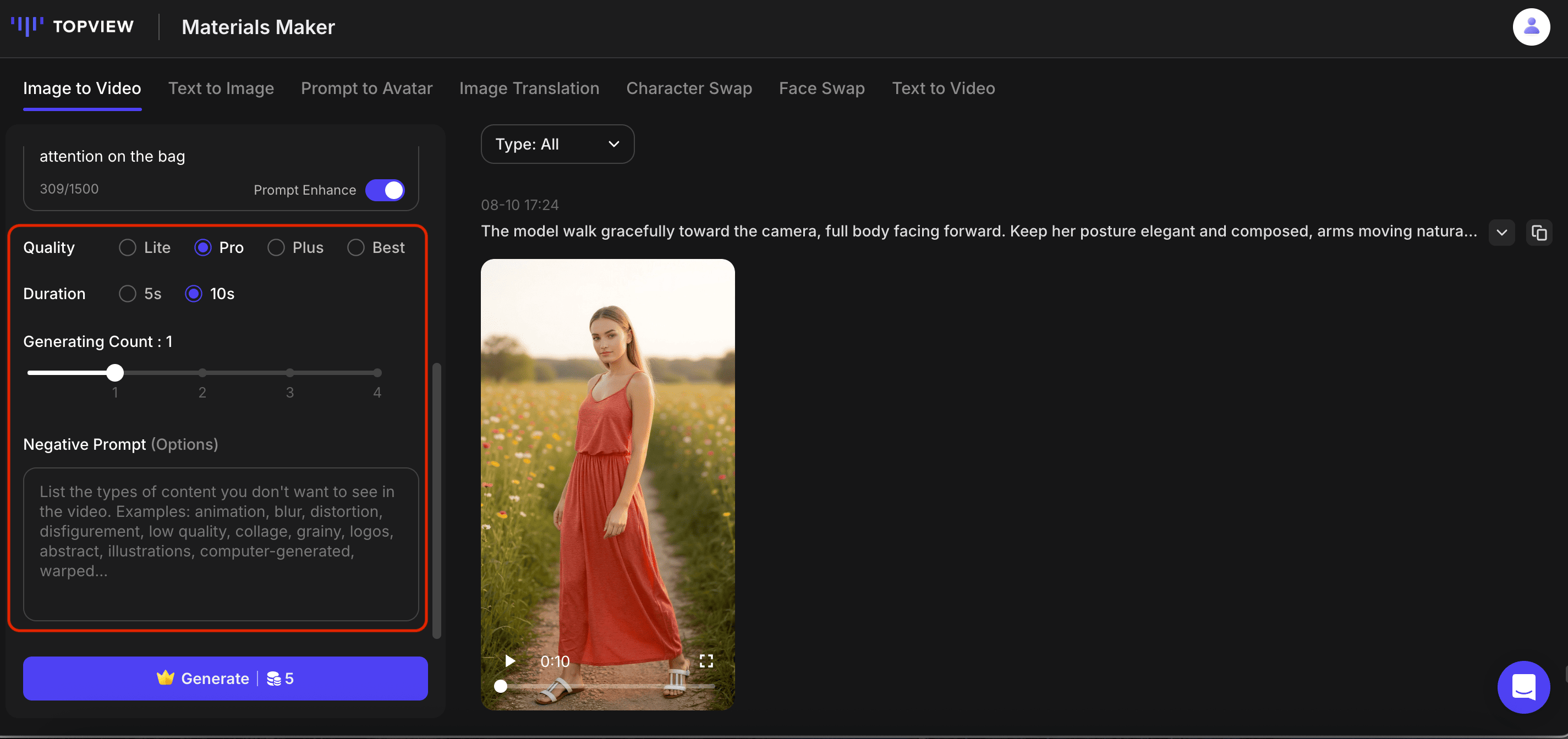
Once everything is ready, click 'Generate'. The number of credits required will be shown on the Generate button.
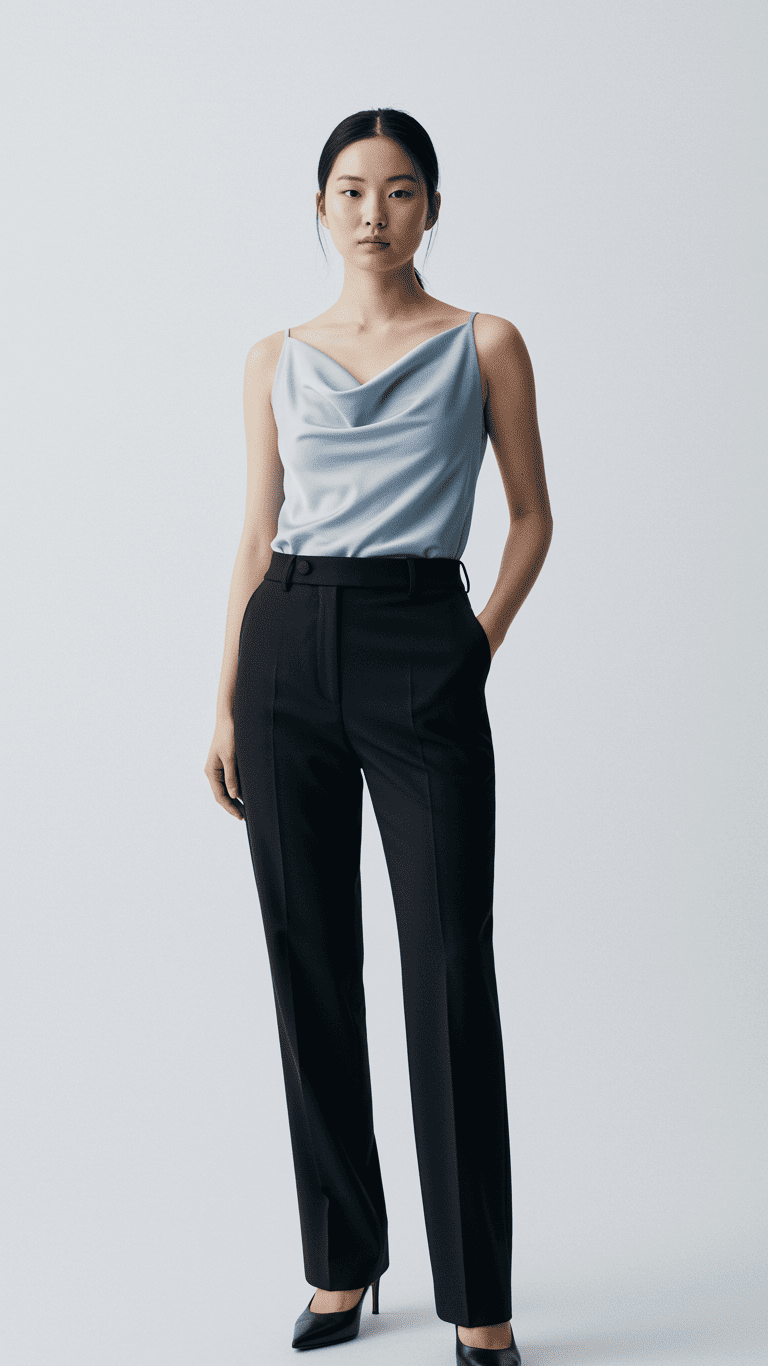
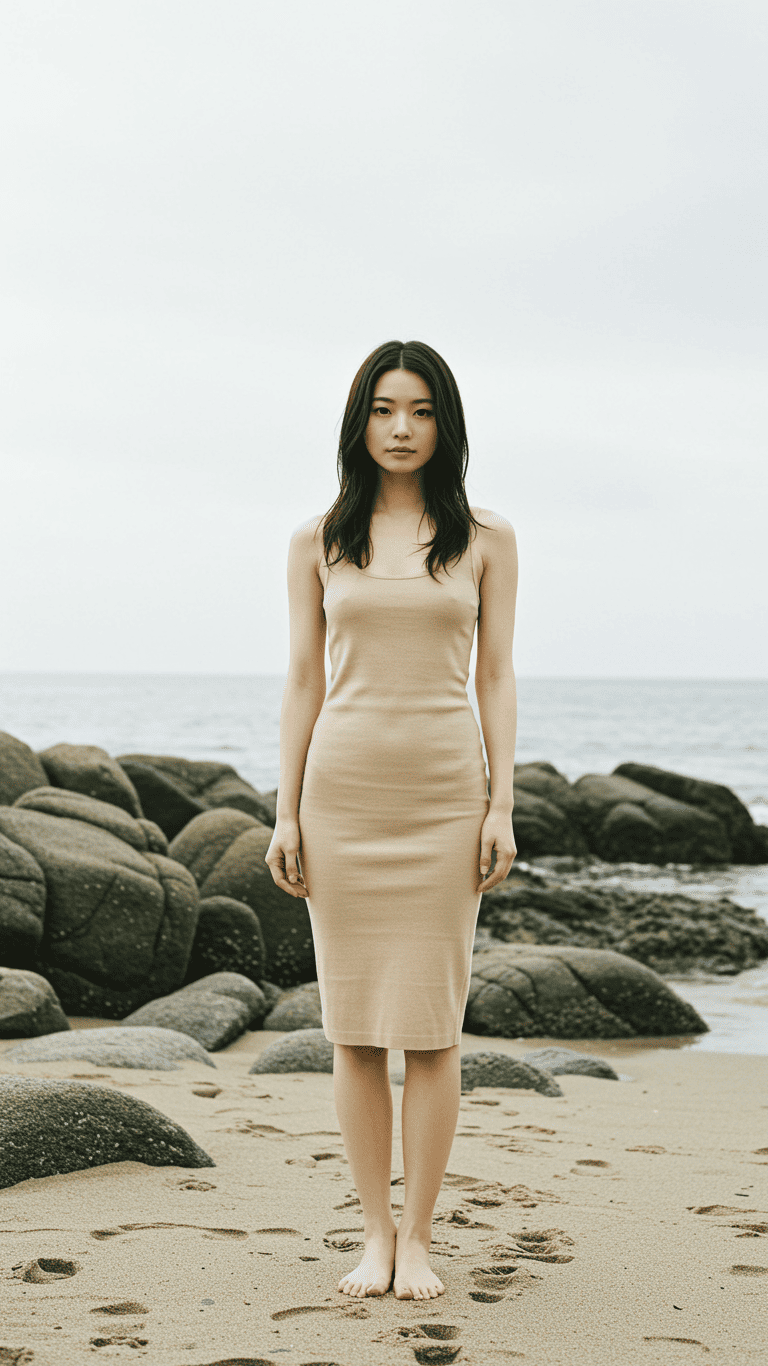
Sample Prompts to Create Your Own AI Model
Create your own AI-generated model images by entering a prompt in the 'Text to Image' feature.
 |
 |
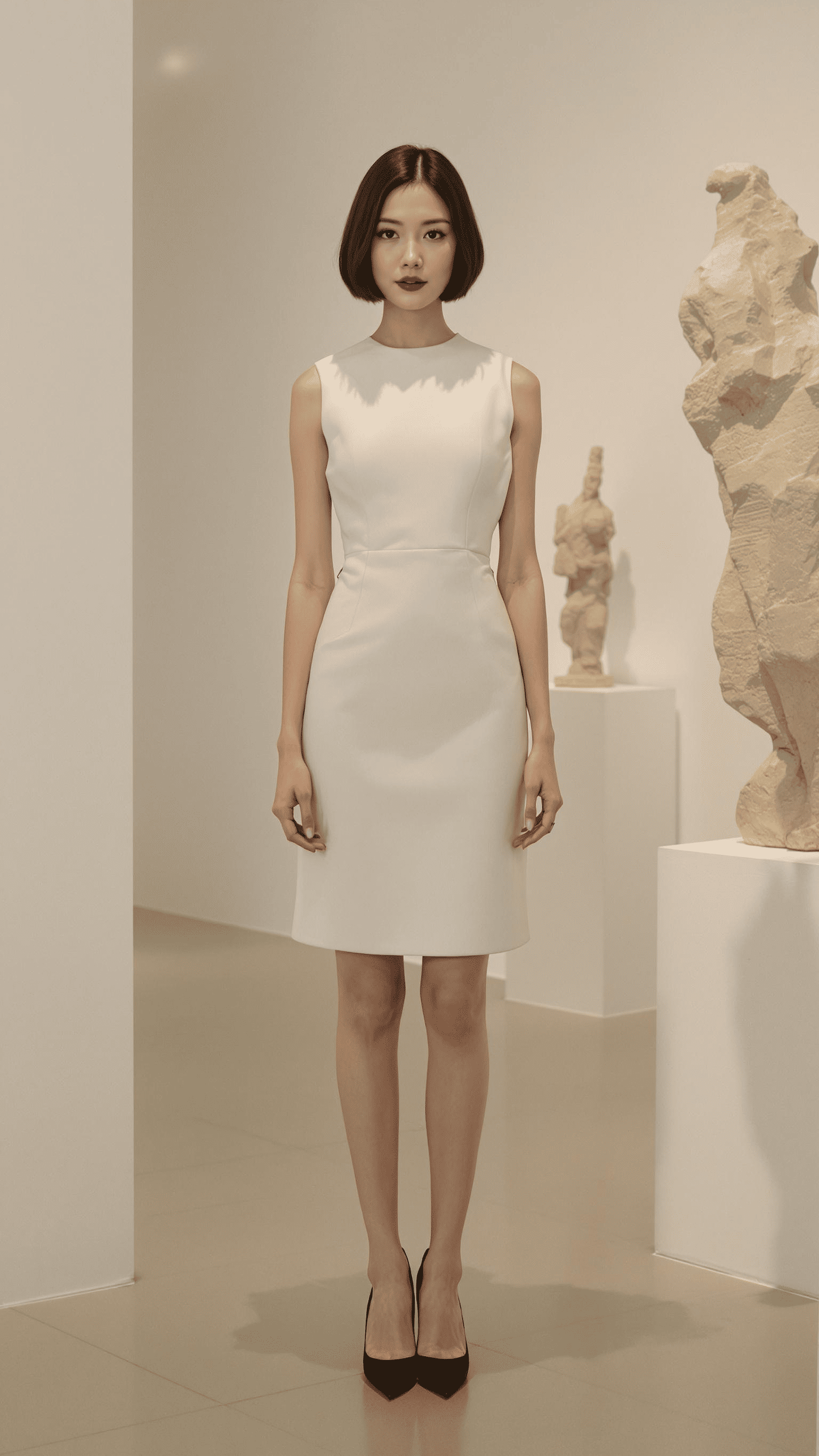 |
| A full-body shot of an elegant young woman in her mid-20s, standing confidently against a plain white background... | A Japanese woman standing in a full-body pose on a beach with smooth boulders and soft sand... | A Japanese woman with short bob hair, sharp jawline, and almond-shaped eyes standing in a modern art gallery... |