If you type “make me a product video” into a normal ChatGPT thread, you will get a script. You will not get an MP4. ChatGPT is a conversation. Video is a production job. The useful 2026 question is not “does ChatGPT have Sora again.” It is “which ChatGPT-family surface can actually call a video workspace.”
This tutorial is the install-and-first-clip path for an AI video ChatGPT plugin that runs on Codex, OpenAI’s coding agent. Agent handles intent. Topview Canvas handles generation, placement, and finish. Topview is in the Codex plugin store. Open the listing and click Install plugin.
What you can and cannot do in ChatGPT today
Topview is in the Codex plugin store. Open the Topview plugin in Codex and click Install plugin. Authorize in the browser, start a new chat, and type @Topview.
A normal ChatGPT thread, before you add the plugin, can still write a brief, a hook, or a shot list. It will not keep a Canvas of your SKU photos.
Developer Mode MCP on ChatGPT web is a fourth door. That is how some model routers attach a remote server. Topview’s remote marketing server lives on the MCP page, which is a different product from this Plugin. Do not paste a Plugin install into Developer Mode, and do not paste the MCP URL into Codex as if they were the same installer.
So the line a colleague can check without Slack:
In Codex, open the Topview plugin and click Install plugin. A normal ChatGPT thread cannot run the job until that plugin is installed.
If your company only pays for ChatGPT web seats and nobody can open Codex, stop here. The rest of this article will not unlock inside that browser tab.
Agent versus Canvas (why the plugin is not “another model”)
People hear “plugin” and think “a model with a nicer prompt box.” That is the wrong object.
The agent (Codex) already has your product URL, the “do not invent a second lid” note, and last week’s brief. It is good at deciding what to make and which skill to call.
The Canvas is where shots, references, and revisions live. You can place a packshot, run TikTok Product Ad, extend a clip, crop for 9:16, and keep the same product card attached to the next take. Chat history is a log. It is a bad studio.
Seedance 2.5, Wan 3.0, MiniMax H3, Kling 3, Vidu Q3, and GPT Image 2 are generators that Canvas can call. They are not plugins. Ranking them against “ChatGPT plugins” is a category error. If you only need one raw clip and you already live on a model website, use the model website. If the brief already lives in the agent, install the workbench.
Unlimited plans do not run this path. The product FAQ is explicit: Unlimited does not support automated workflows, including Plugin, MCP, or Skill. Use Pro or above.
Install in three steps (copied from the live page)
Install in three steps
Install by clicking. The listing is Topview on Codex. The button on that page says Install plugin.
Step 1 — Click Install plugin in Codex
Open that link in Codex. Click Install plugin.
Step 2 — Authorize Topview
After you click install, a browser page opens. Sign in and authorize that Topview account. If that page never opens, the install is not finished.
Step 3 — Start a new chat
Start a new chat, type @Topview, select it, then send the brief. The listing itself shows that mention on the sample prompts. An old chat can keep running without the plugin you just added.
Then send the creation request
In that new chat, with @Topview selected, send the brief the way you would brief an editor: product photos, the SKU name, length, aspect ratio, and the things the model must not invent. You can also name a ready-made skill (next section).
Get the result on Canvas
Codex should call Topview, place the job on Canvas, and hand you something you can inspect — not a mystery ZIP in chat. Review identity first (logo, bottle shape, label language), then motion. If the shot is useful but the crop is wrong, fix it on the board. Do not open a second generator tab and paste the prompt again.
Cursor and Claude Code have their own prompts on the same plugin page. This article stays on Codex because that is the ChatGPT-family host. Do not paste the Codex /goal into Cursor. Do not paste the Cursor restart prompt into Codex.
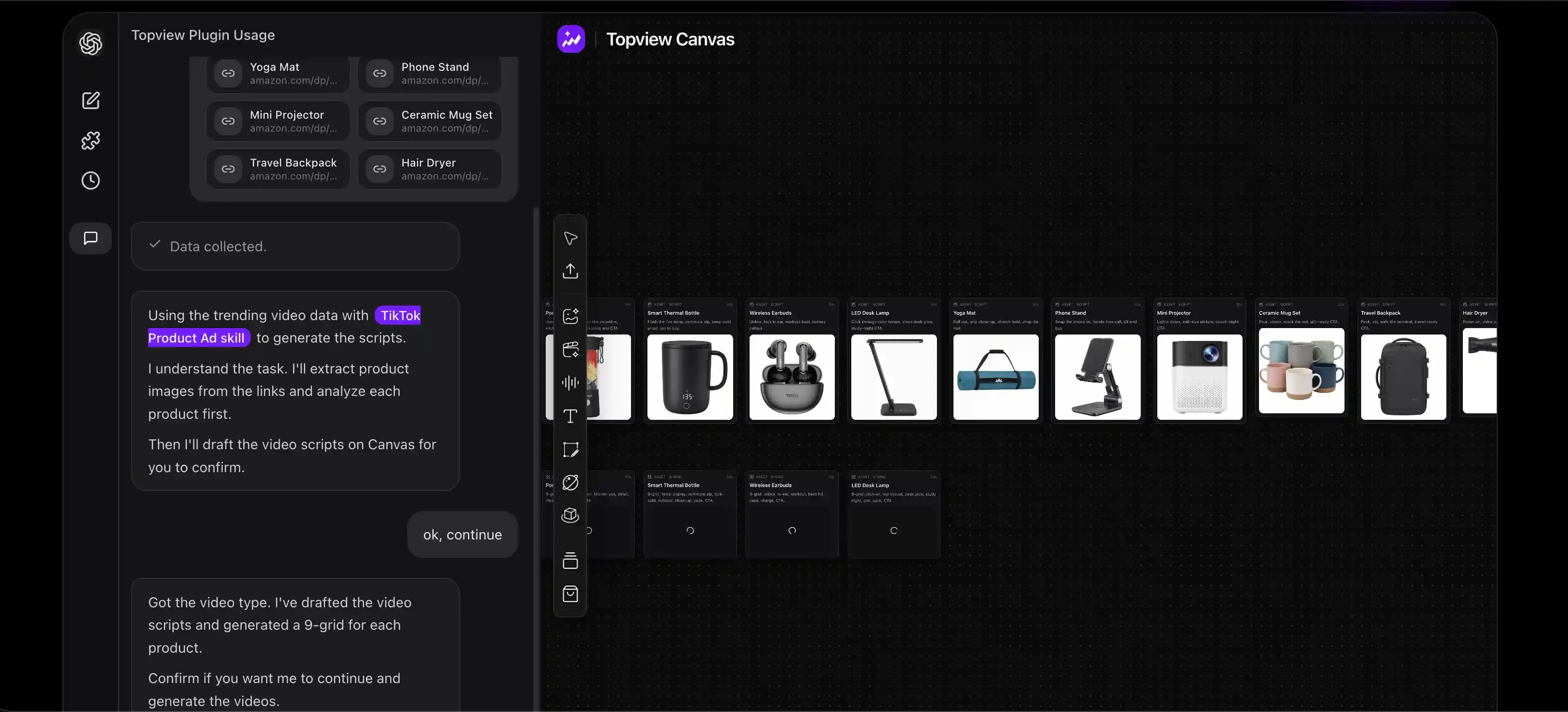
First job: a 15-second product ad from a packshot
A first render should be boring on purpose. Pick one SKU you already photograph for Amazon or TikTok Shop. You want to learn the handoff, not win an award.
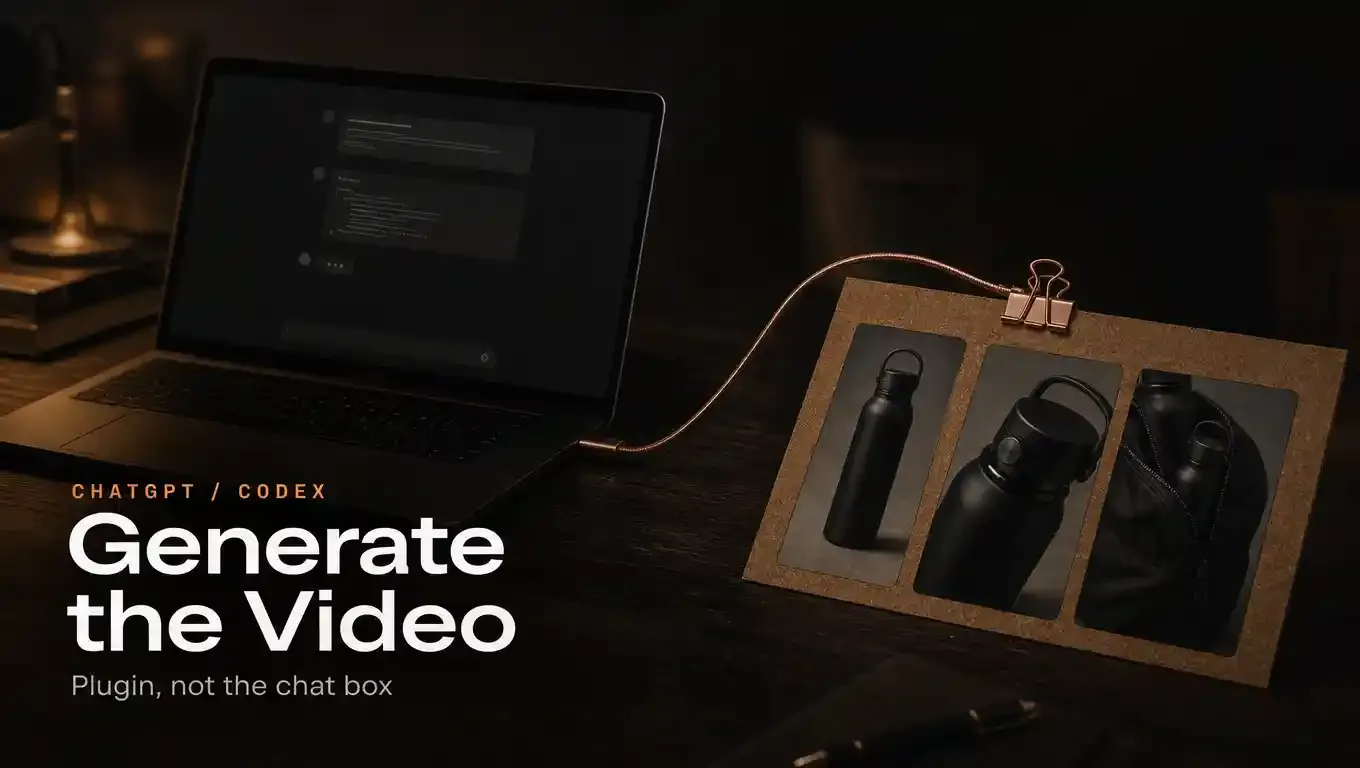
Attach two or three stills: front pack, three-quarter, and a hand-hold if you have it. Then send a request like this — change the nouns, keep the constraints:
Use TikTok Product Ad. Product: 20 oz stainless bottle, matte black, logo printed not embossed. Audience: gym commuters. Length: about 15 seconds. Aspect: 9:16. Hook: the lid clicks shut in one motion before the bag zip. Do not add a second colorway. Do not invent a straw. Keep the logo readable in the first two seconds. After you generate, put the stills and the clip on Canvas so I can pick a take.
Why this works as a test:
The skill is a named object on the product page, so the agent is not guessing a pipeline.
The stills are ground truth. If the bottle grows a straw, you caught a real failure mode.
Fifteen seconds sits inside the range current video models on this stack are built for. Seedance 2.5 commonly lands around 1080p and about 4–30 seconds with multiple references. It is not a native 4K camera replacement. Do not write “4K” into the prompt as if that unlocks a hidden mode.
If you sell on more than one marketplace, you can ask the agent to look up TikTok, YouTube, Amazon, or Shopee context after the object is locked. Scripts that chase a trending comment while the bottle is still wrong are how you get a funny ad for the wrong SKU.
Other skills on the same page, for the second and third jobs: Micro-Drama Ad Creator, Try-On Product Ad, Pain Point Product Ad, plus Ghibli-inspired and cinematic toolkits. Batch ecommerce ads, viral remakes, and short dramas are the workflows the plugin page itself names. Start with one SKU before you batch.
What “done” looks like (and what it does not)
A finished Plugin job is a Canvas project: references attached, one or more takes, a crop you chose, maybe an extend. You should be able to come back tomorrow and generate a second shot without re-uploading the bottle.
It is not:
A GPT that writes a script and links you out to InVideo or Pictory. Those tools are fine. They are websites with a ChatGPT front door.
A Voice-with-video session where ChatGPT looks through your phone camera. That is perception, not production.
A Runway or Seedance tab you opened in another window. If you only needed the model, you never needed the plugin.
Promo copy on the plugin page (3 September 2026): Pro and above can receive five MiniMax H3 videos and five Wan 3.0 videos after authorization. Wan 3.0 Prime is not on that path. Those complimentary outputs are 720p/480p only. Treat that as a trial lane, not the quality ceiling of every later job.
Wan 3.0 itself is listed as a live model on the plugin page (omni-reference workflow). If the page later marks it preview-only, believe the page, not this paragraph.
When you should not use this plugin
Skip it if you need a legal recording, a real person’s unscripted testimonial, or a defect walkthrough. Generate the B-roll; shoot the evidence.
Skip it if your seat is Unlimited and you were hoping automation was included. It is not.
Skip it if you actually wanted Topview Skill (a capability pack you install with a Git URL) or Topview MCP (campaign researcher / strategist / producer on a remote server). Those pages have different paste-in commands. Installing the wrong surface is the most common self-inflicted outage.
Skip it if you cannot open Codex. The install lives in the Codex plugin store.
After the first clip
Once one SKU survives a review, ask for a second aspect ratio from the same board, or a pain-point cut that keeps the same packshot. Change one variable per pass. The agent already knows the product. Canvas already has the stills. That is the whole point of a plugin versus a new homepage.
Install from the Topview plugin listing: open it in Codex and click Install plugin. Product details stay on topview.ai/plugin. topview.ai/codex-plugin is a different package (a git install that does not open this Canvas). Do not treat that URL as this plugin.
FAQ
Can I generate video in a normal ChatGPT chat with Topview Plugin?
Only after you install Topview in Codex. A normal ChatGPT thread with nothing installed still returns a script. Open the listing, click Install plugin, authorize, start a new chat, and type @Topview.
Where do I add it?
In Codex, from this listing: Topview plugin. Click Install plugin. Then send the product brief in a new chat with @Topview selected.
Does this work on the Unlimited plan?
No. Unlimited does not support Topview Plugin, MCP, or Skill automation. Use a plan that the plugin page marks as eligible (Pro and above for the current promo).