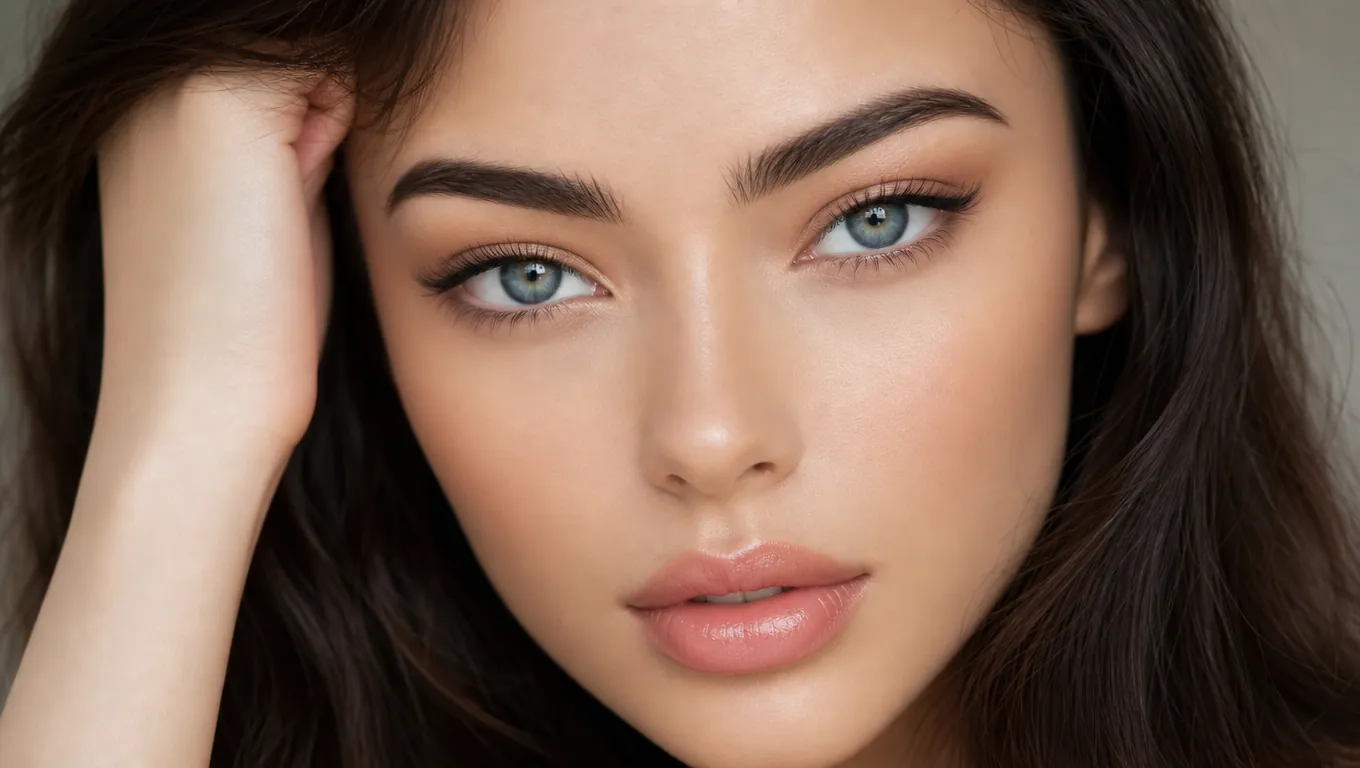
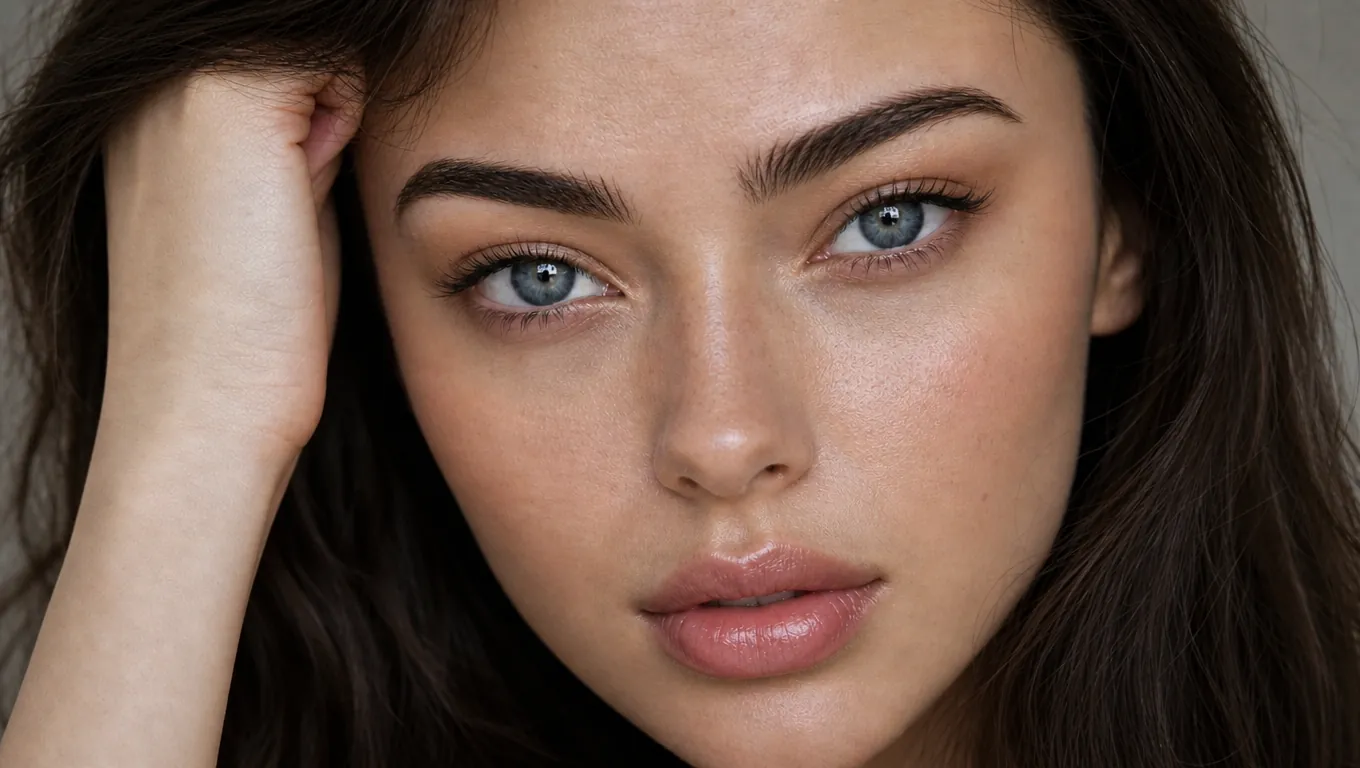
Fix Group Photos and Selfies
Phone shutters are fast, but faces can still land soft when someone moves. Run the shot through AI and every face in the frame comes back defined.
Upload a blurry portrait and get a clear, natural face back. The AI restores skin texture and facial detail without a waxy, over-edited look.
Enhance Portrait
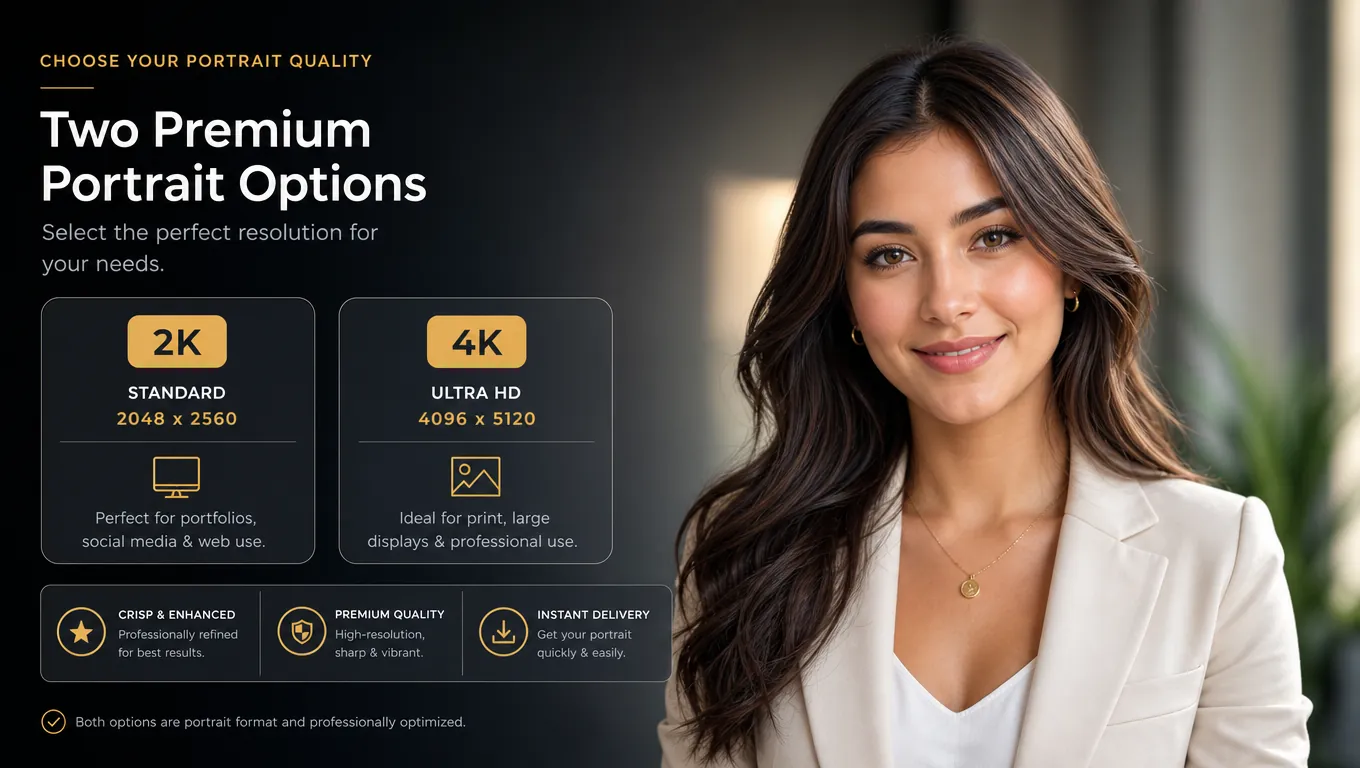
Choose output resolution, then jump into Canvas with Enhance Portrait open on your image.
Output resolution
What Enhance Portrait improves
You selected 2K here for guidance. In Canvas, confirm 2K or 4K in the Enhance Portrait menu to run the task.
Portrait preview
Upload your own photo, or start with the demo portrait.
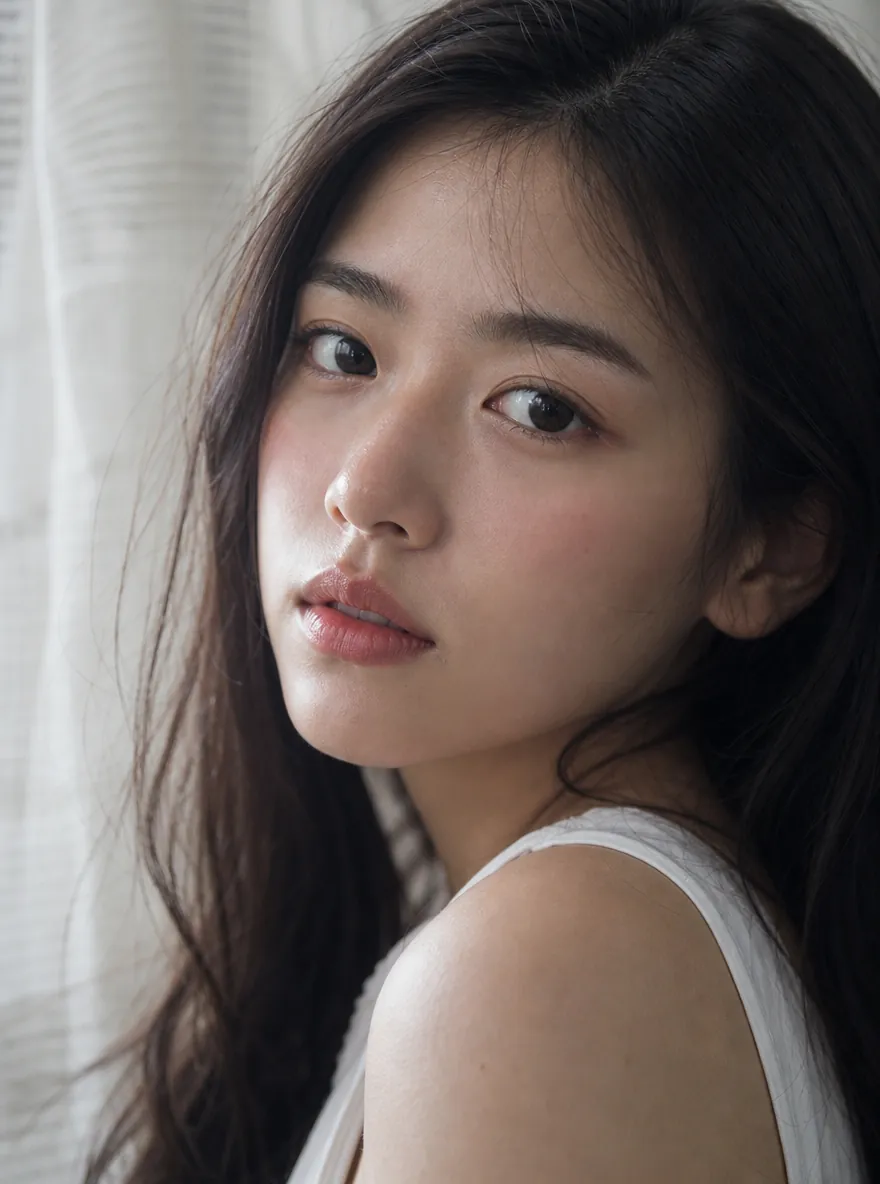
BEFORE VS AFTER
Preview how Enhance Portrait reduces the plastic AI look — and can unblur a soft portrait — for ads, character boards, headshots, and social creatives.
Phone shutters are fast, but faces can still land soft when someone moves. Run the shot through AI and every face in the frame comes back defined.
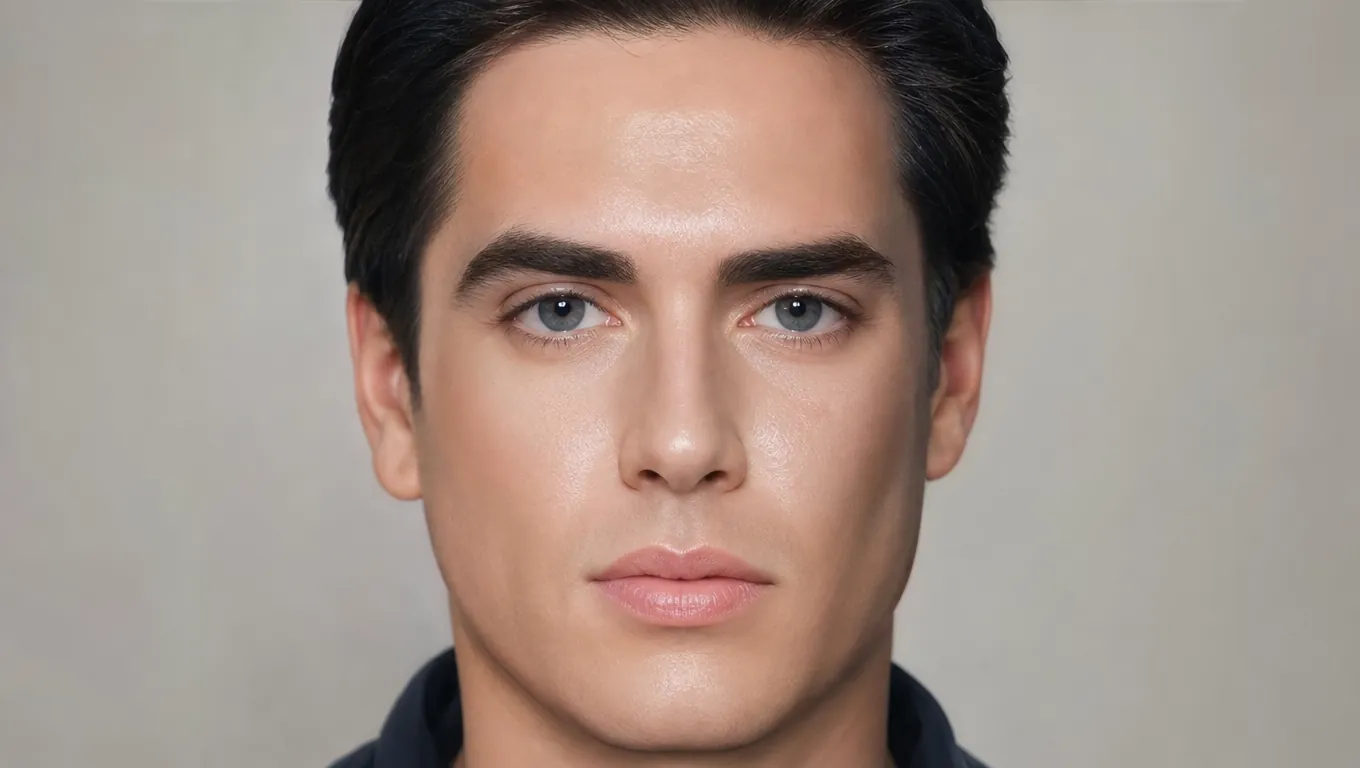
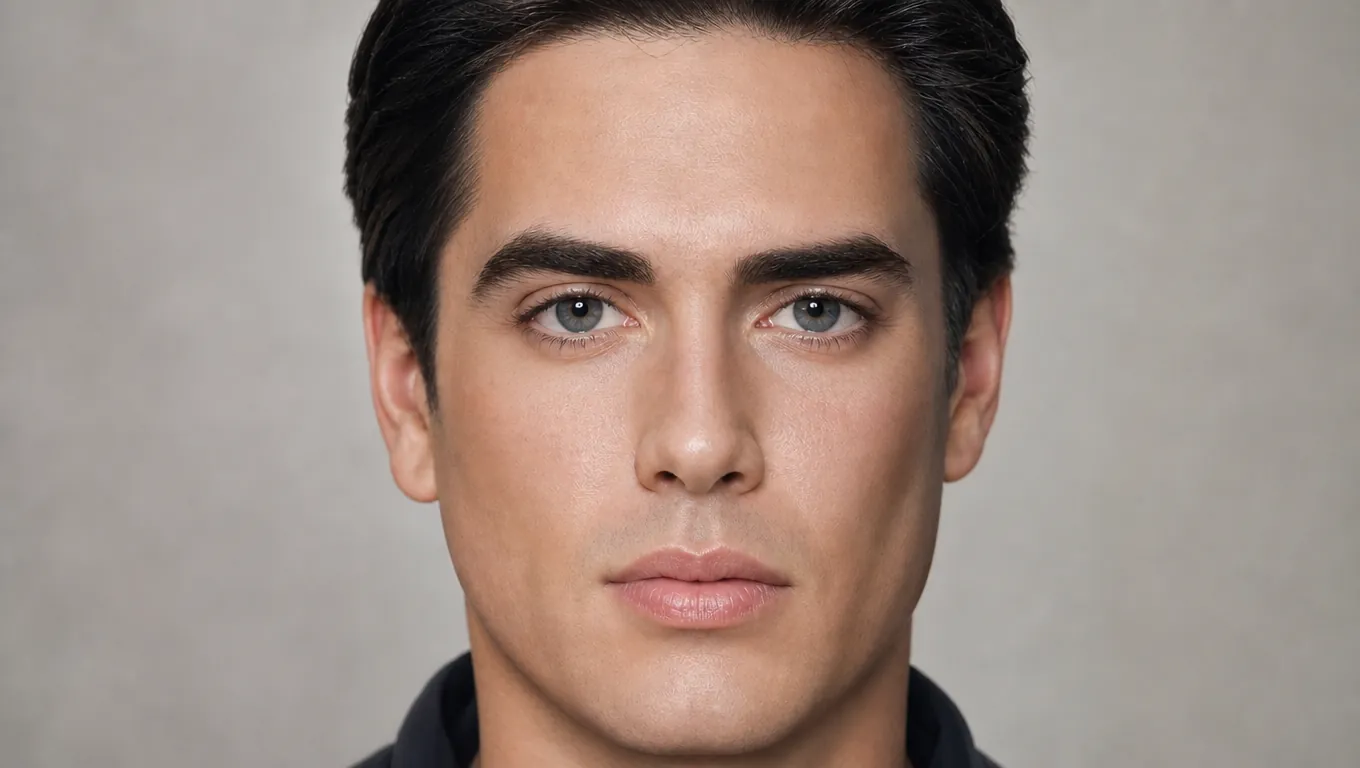
Scanned family prints carry blur, dust, and faded detail from decades of storage. The tool clears the face while leaving the memory of the photo intact.
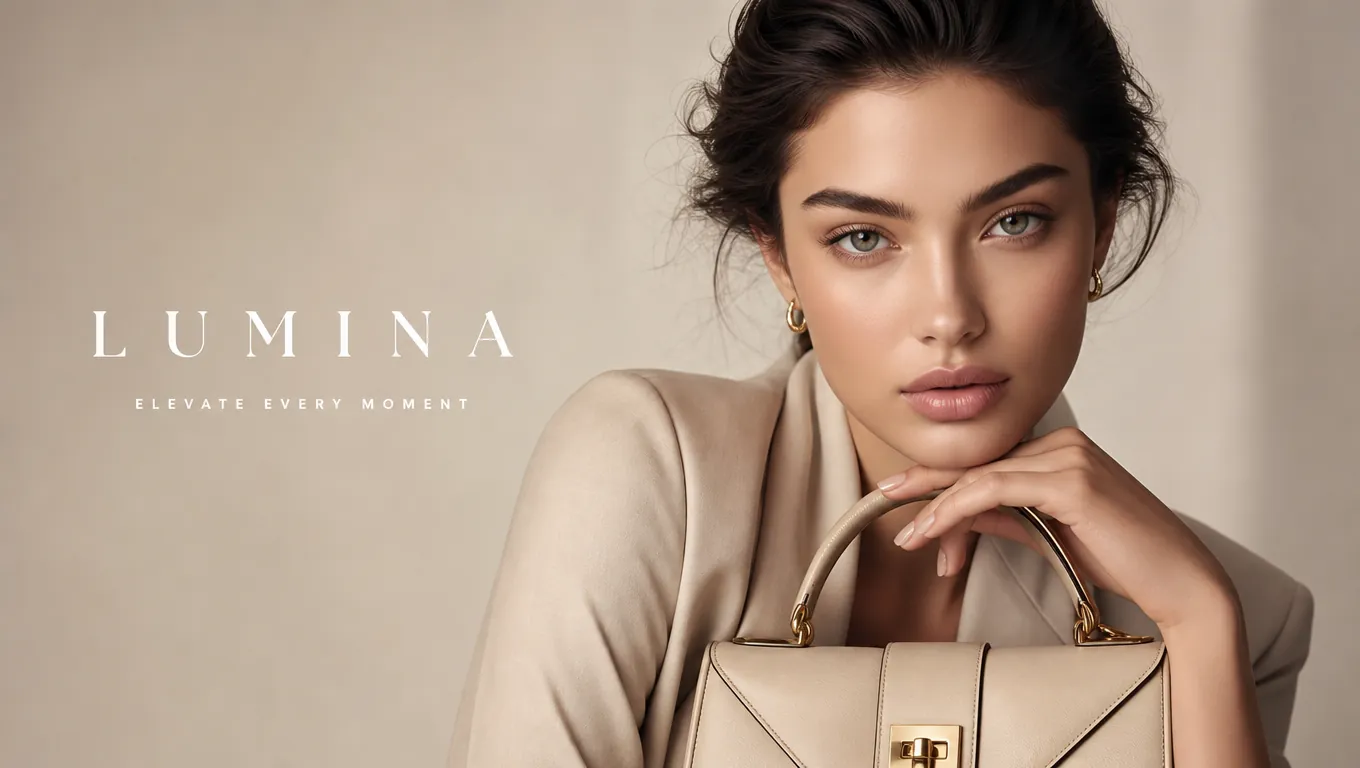
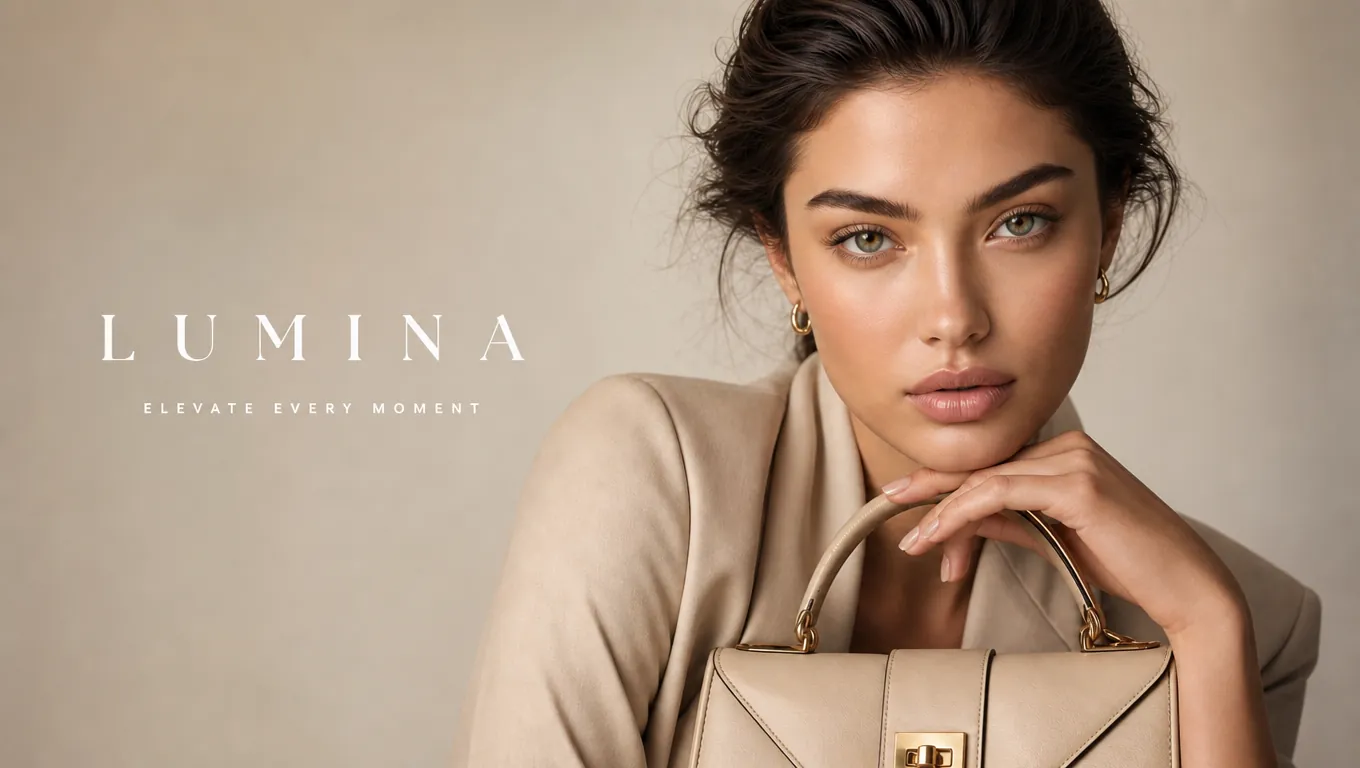
Weddings and gatherings mix movement, low light, and quick shutter taps. Motion blur on faces is exactly what this model is built to undo.
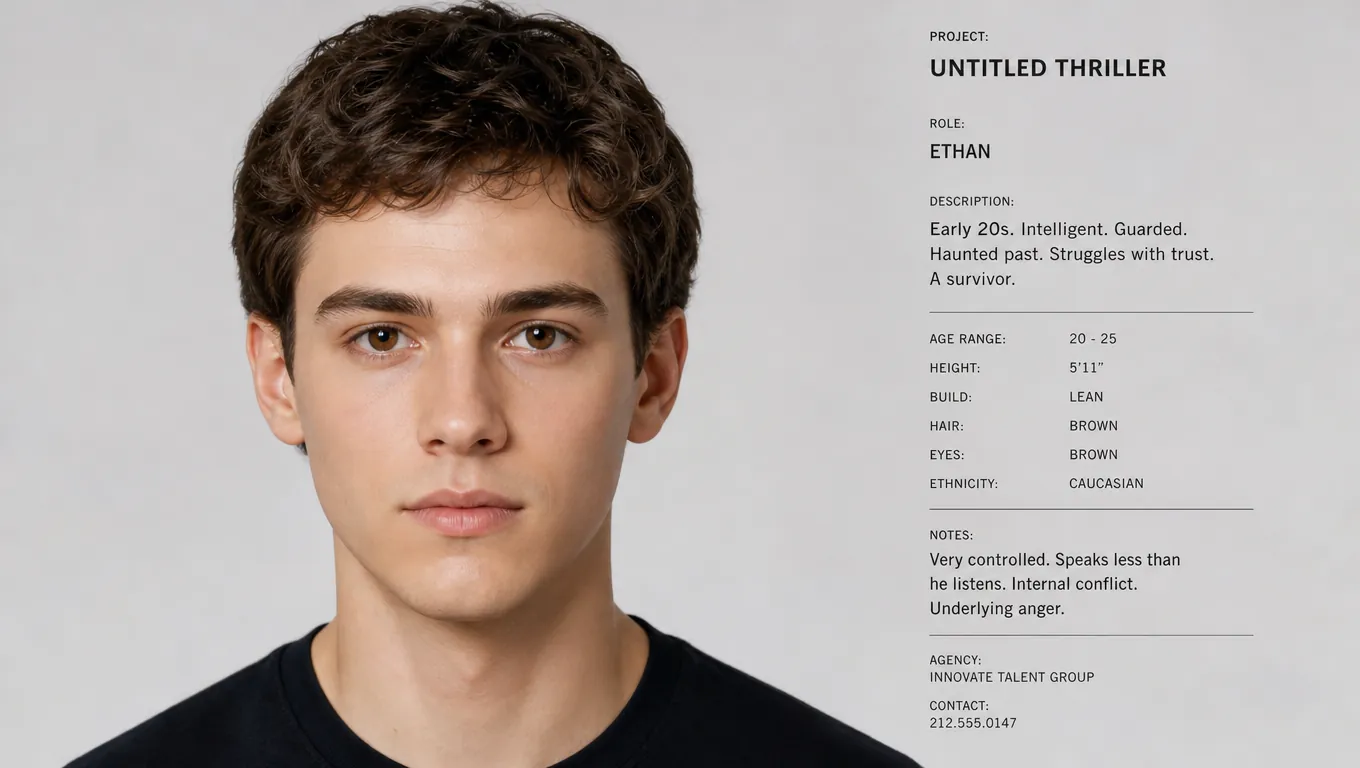
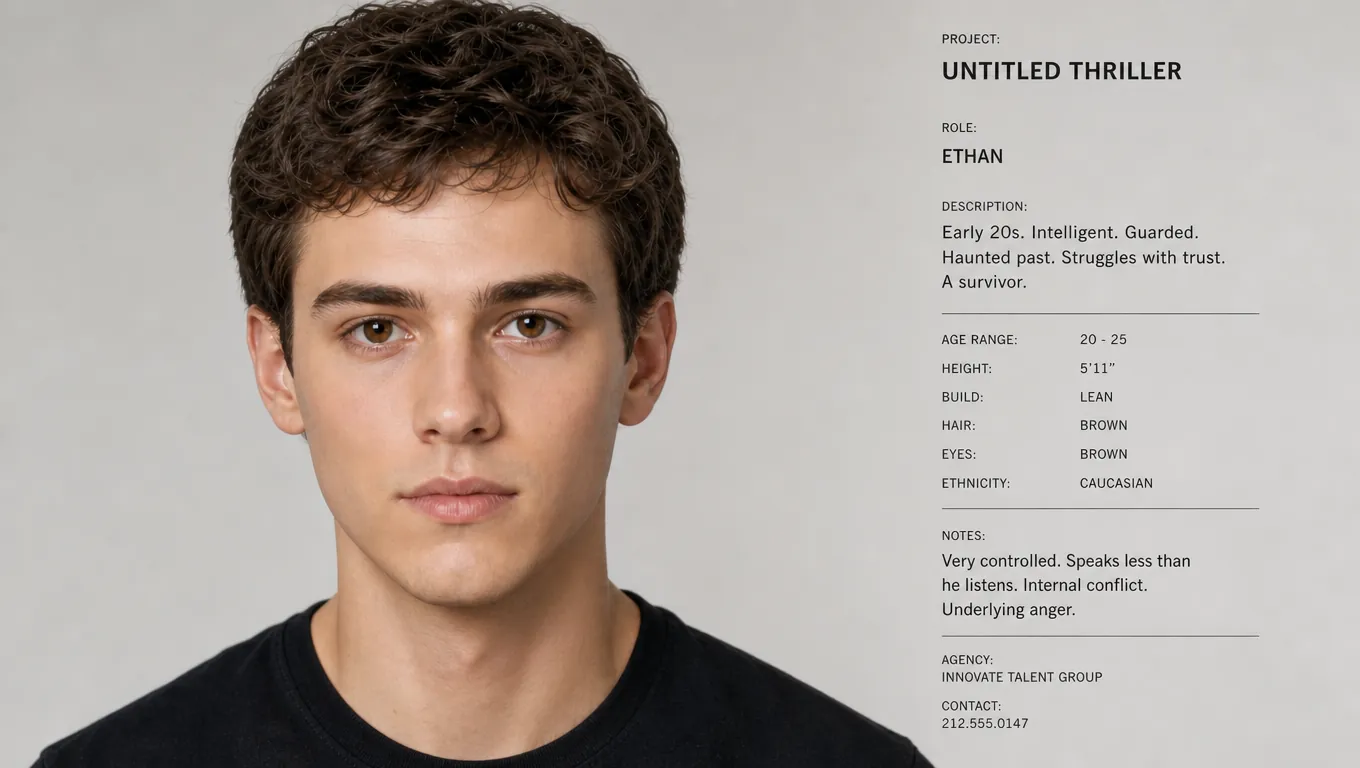
A profile picture works when the eyes are sharp. Rebuild facial detail so the shot reads as intentional instead of accidental.
Upload a blurry portrait and get a clear, natural face back. The AI restores skin texture and facial detail without a waxy, over-edited look.
Most unblur image tools treat a photo as one flat picture: they lift contrast, call it sharp, and move on. This tool is built for portraits, where the face is the part that actually matters. Upload a soft, out-of-focus shot and the AI finds the face first, then rebuilds the detail that blur removed — the eyes, the brow line, the edge of a jaw. Use it to deblur image files ruined by a shaky hand, a slow shutter, or an old scan, and it does this without flattening skin into plastic. Whether it is a group photo, a family memory, or a profile picture, this unblur photo tool keeps the person looking like the person. Enhance Portrait still runs in Canvas when you want a more natural AI face on the same workflow.
PORTRAIT ENHANCER FEATURES
Reduce the AI look, keep identity, and continue editing in Canvas alongside upscale, relight, and expression tools.
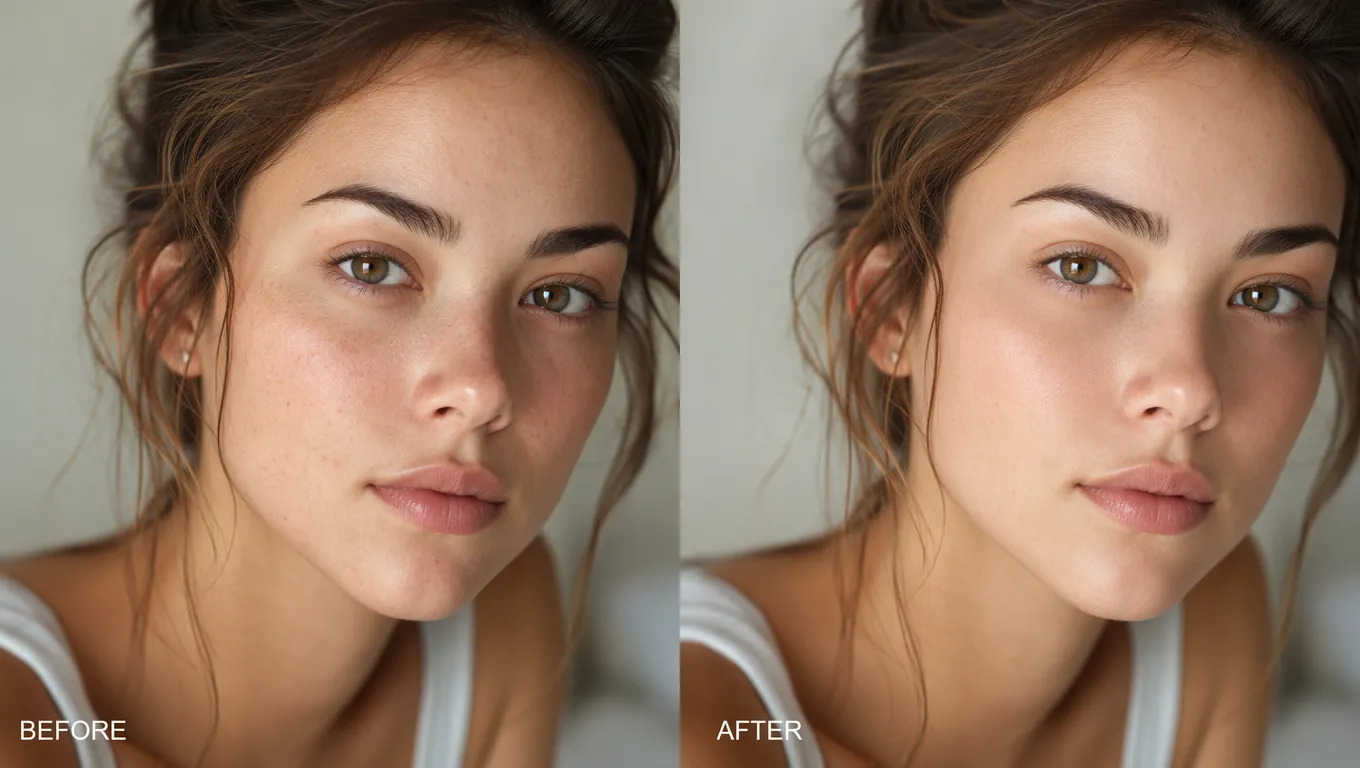
Feature 01
Drop in a soft, out-of-focus portrait and the face comes back crisp. The AI cleans up blur so you see the eyes, brows, and mouth instead of a smudge.
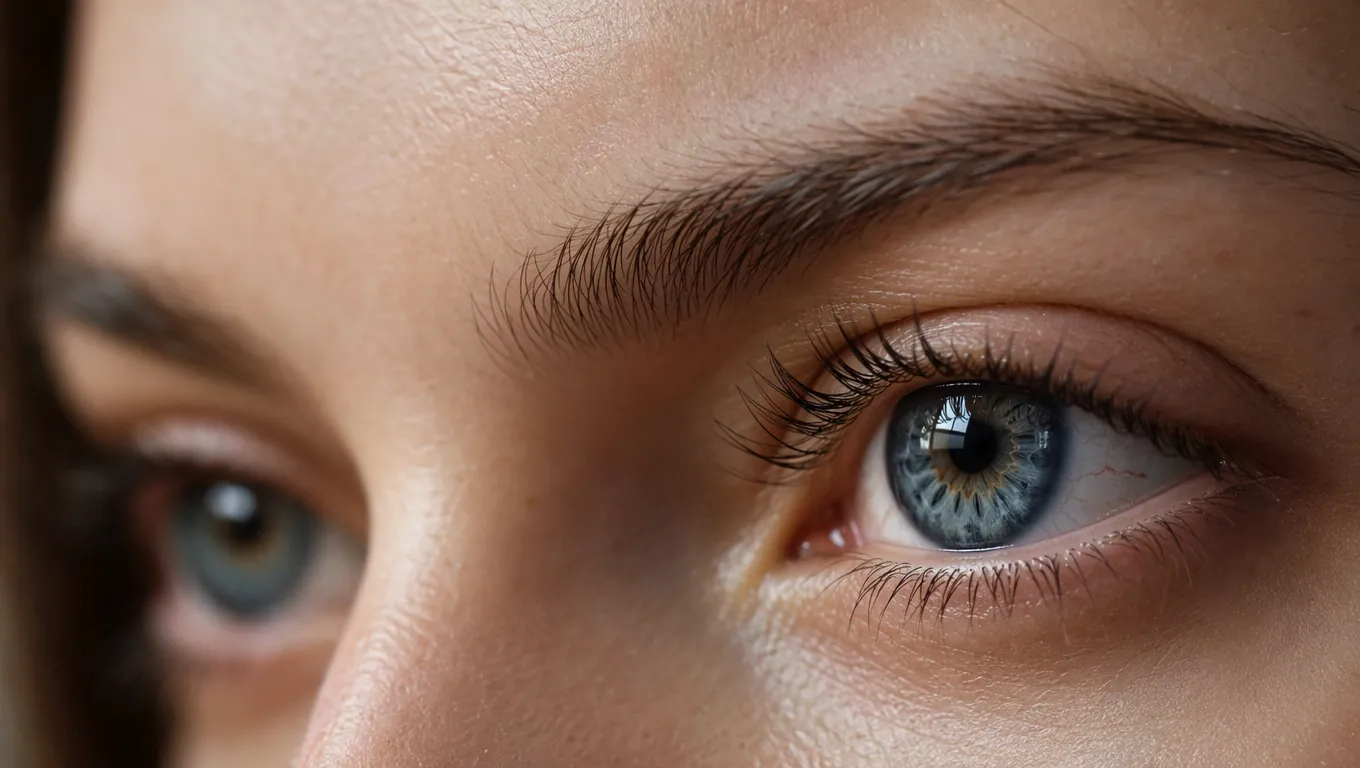
Feature 02
Plain sharpeners over-smooth skin until faces look like wax. This model keeps real skin texture and expression lines, so the face stays the person you photographed.
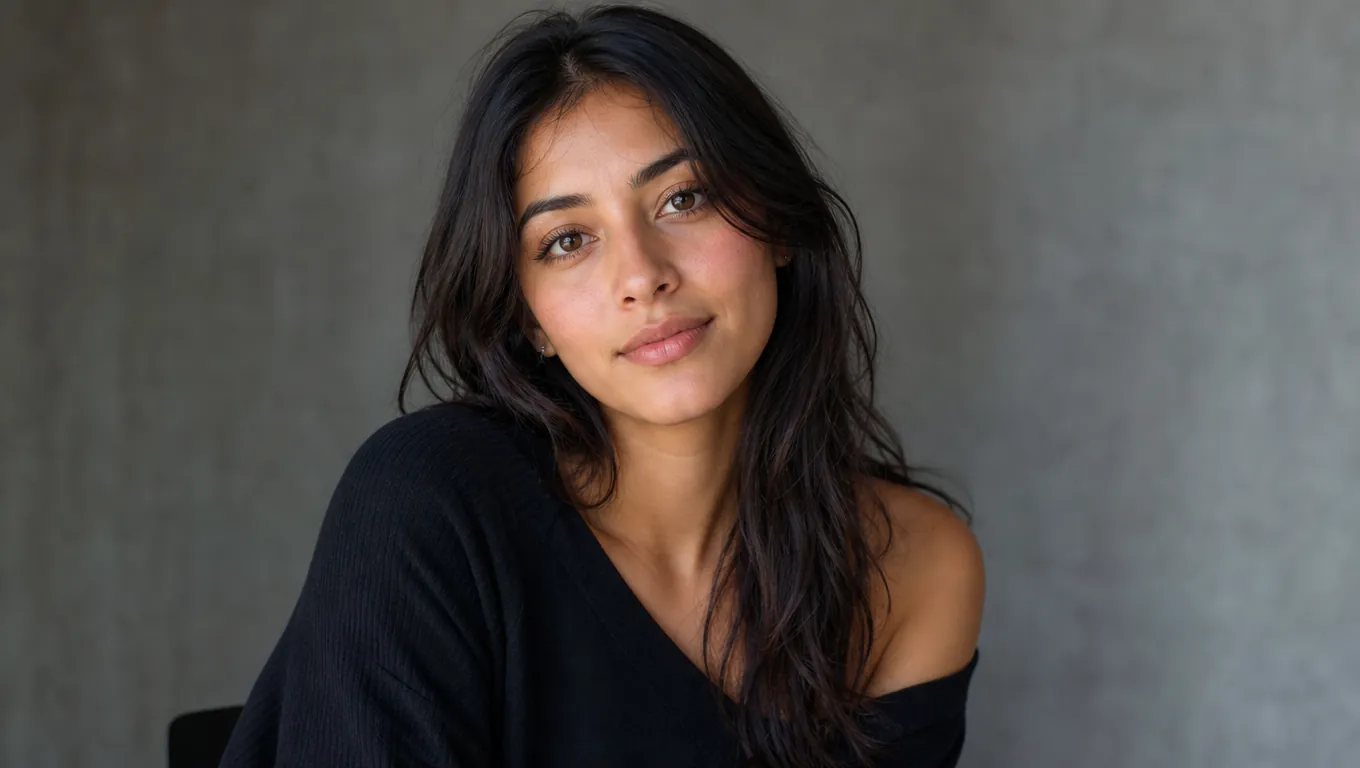
Feature 03
Recover the skin texture and fine detail that blur hid, then print, post, or send the photo. You leave with a clear image you can actually use.
Feature 04
Choose 2K for fast previews or 4K when the still needs to hold up in final layouts.
Feature 05
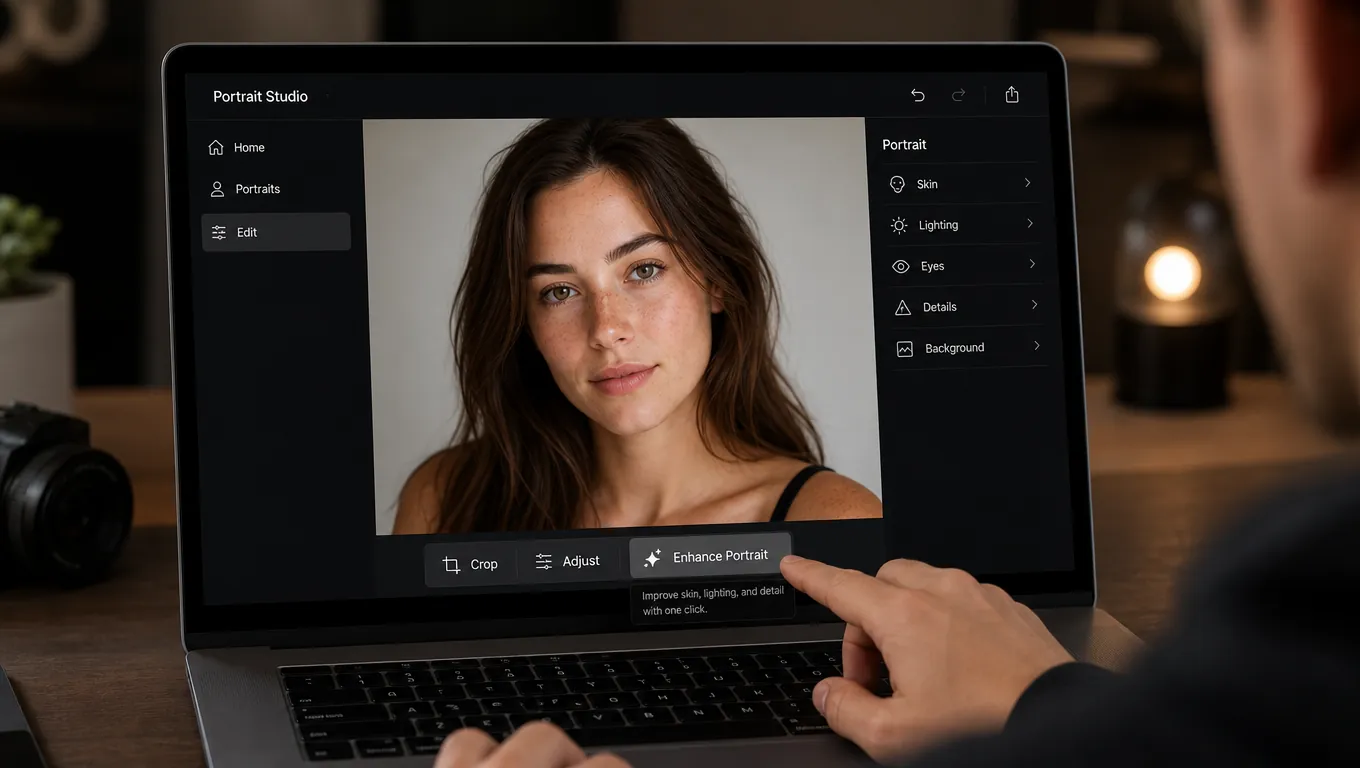
No prompt crafting. Select the image, open Enhance Portrait, pick a resolution, and generate.
Feature 06
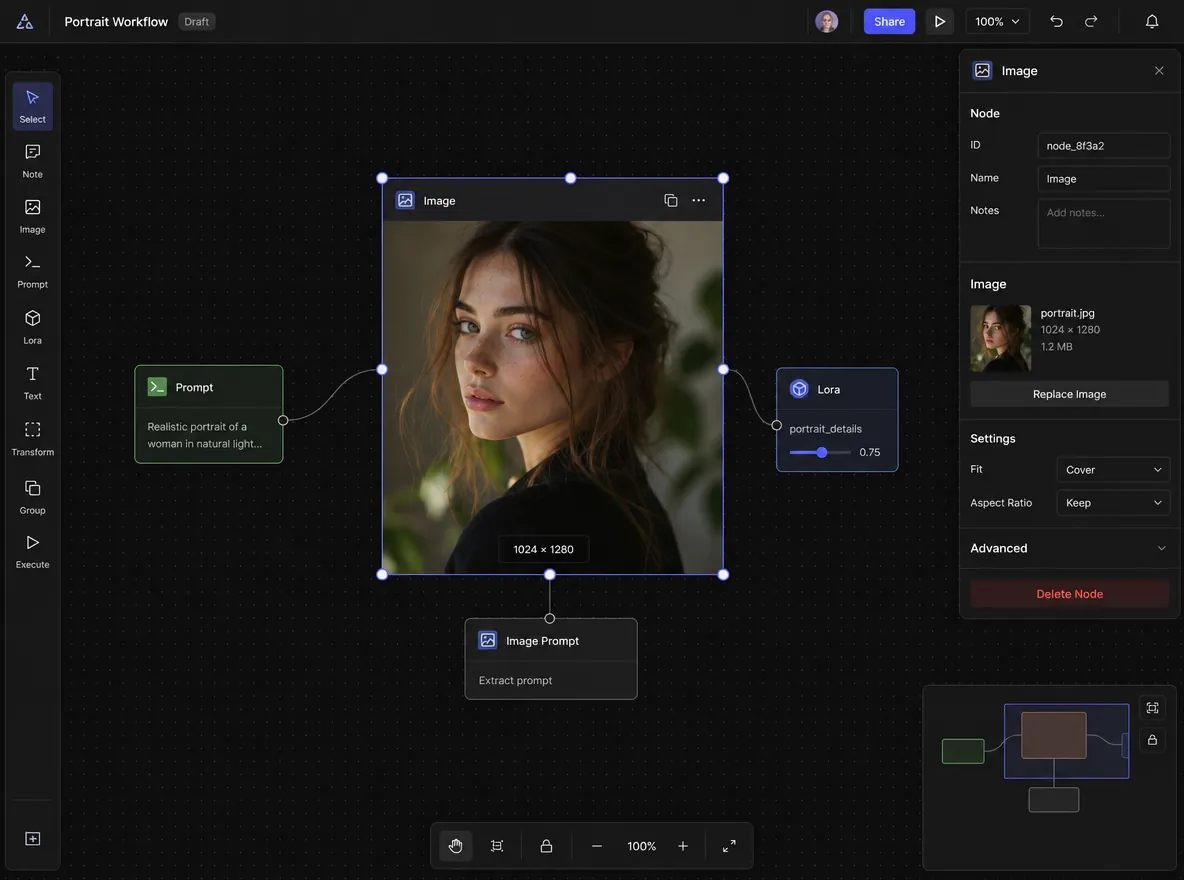
Upload here, land in Canvas with Enhance Portrait open, then chain relight, expression control, or video tools on the same node.
WHO NEEDS PORTRAIT ENHANCEMENT?
From performance ads to film previs, Enhance Portrait helps teams ship AI faces that still look human.
Clean synthetic talent stills so hooks and thumbnails feel photographic, not obviously AI.
Naturalize character close-ups before locking boards, mood frames, or AI video passes.
Refresh campaign portraits with less plastic skin while keeping the same face across assets.
Improve AI model shots for PDP and lookbooks without a face-swap or full reshoot.
HOW IT WORKS
Upload a blurry portrait, let AI sharpen, then preview and save a face that still looks real.
Choose the blurry photo with the face you want to fix — old family shots, phone snaps, or video frames.
The model unblurs the photo and rebuilds skin texture and facial detail from what the original actually captured.
Compare the sharpened portrait with the original, then download the clear version.
Explore Topview's complete suite of AI tools for ads, avatars, video, image, and voice workflows.
Unblur image online free with an AI unblur image tool tuned for faces, then keep the portrait if you like it.
Try Free