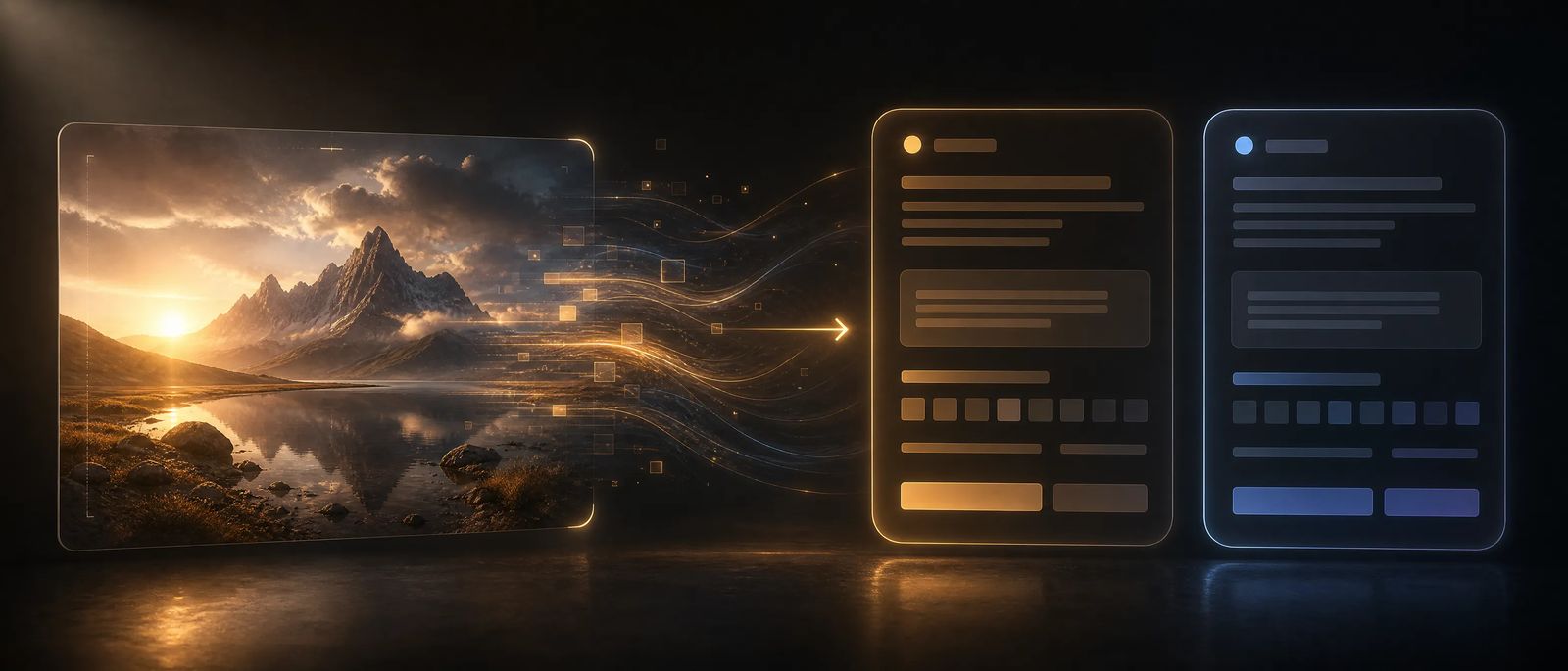
Topview Image to Prompt
Turn Any Image into a Reusable AI Prompt
Select an image in Topview Canvas and reverse-engineer it into clear Content and Visual Style sections — ready to edit, copy, and reuse for the next generation.
Open in CanvasMeet Topview Image to Prompt
Most image-to-prompt tools dump one long caption. Topview splits what is in the frame from how it looks — so you can reuse content, restyle looks, or keep both for a closer remake without leaving Canvas.
Try Image to Prompt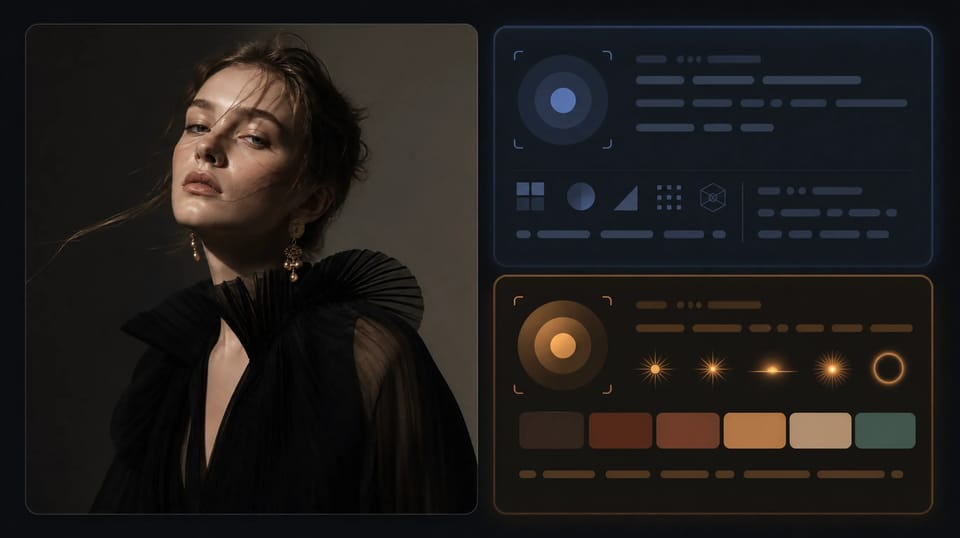
What you get
Built for Creators Who Need Prompts They Can Actually Reuse
Start from a real frame, get structured language Agent can act on, and stay inside the same canvas where you generate the next image or video.
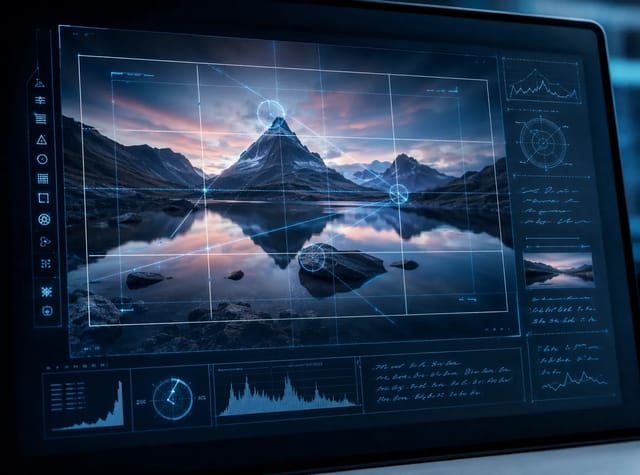
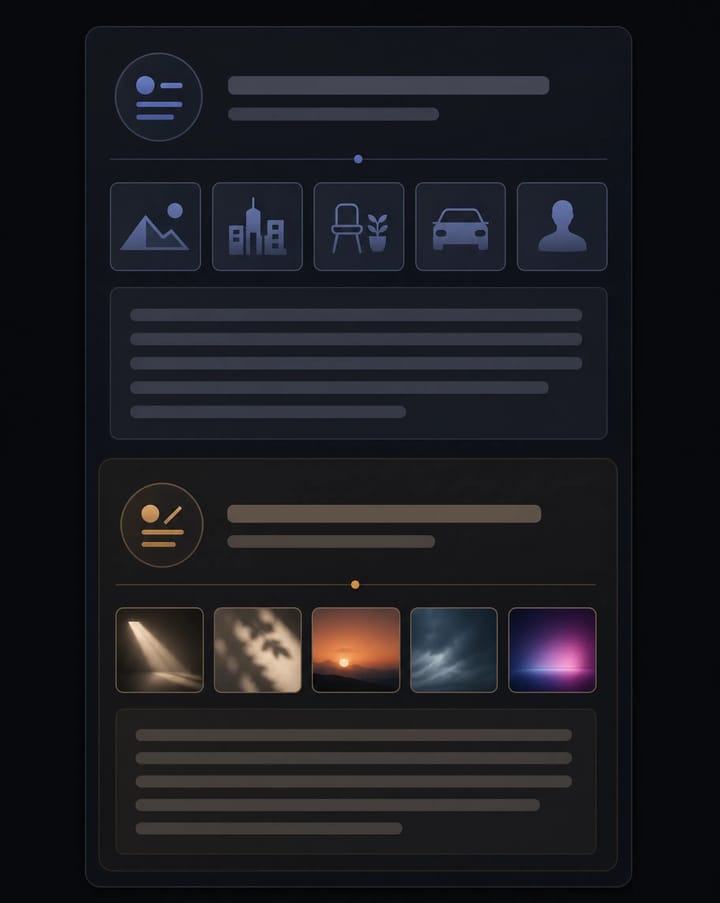
Objective Content Description
Get subjects, setting, spatial relationships, composition, action, camera angle, lens, and framing — without mixing in style fluff.
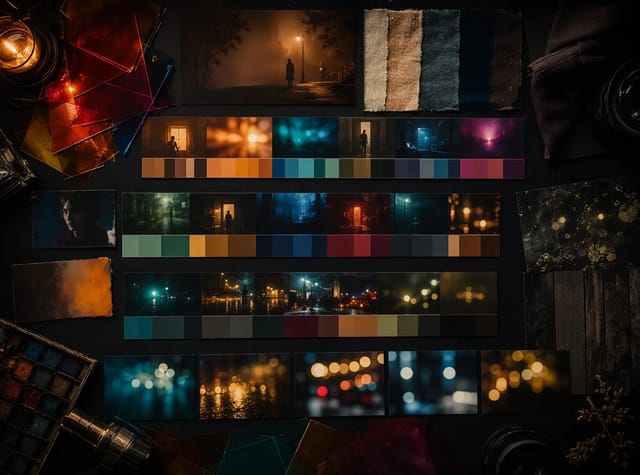
Separate Visual Style Section
Capture art direction, medium, lighting, color script, texture, depth, and finish as its own reusable block.
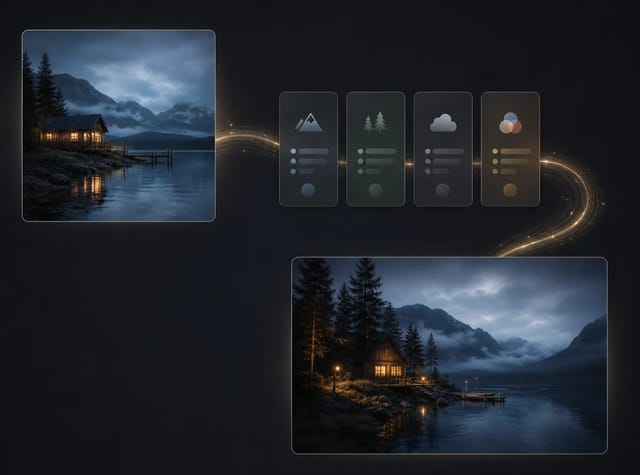
One Click from the Image Toolbar
Run Image to Prompt on an image node. Agent opens, references the image, and auto-submits so you are not rewriting the instruction by hand.
See the difference
From Source Image to Structured Prompt
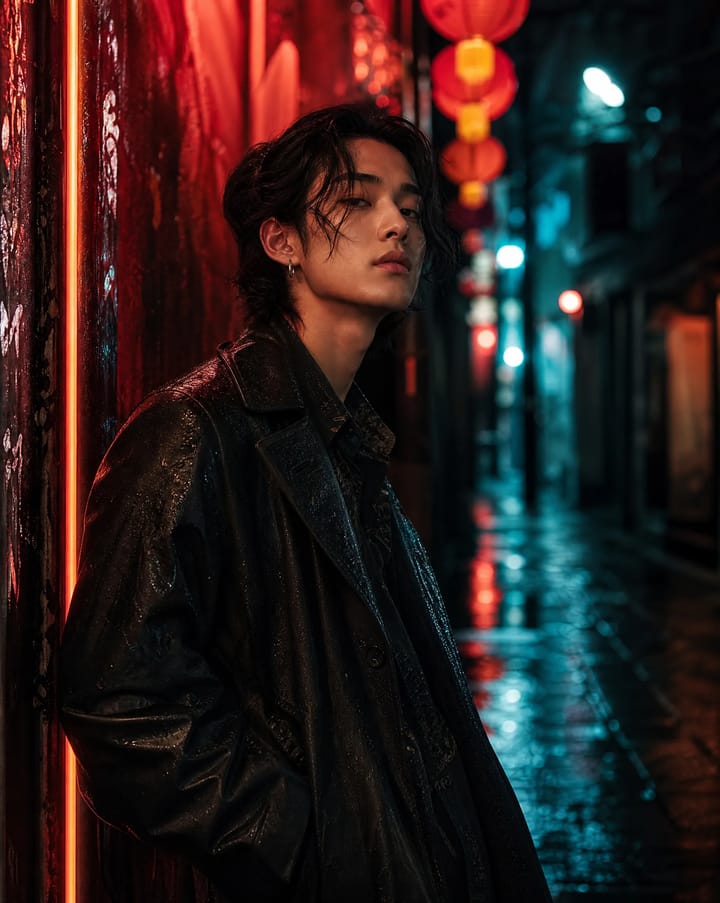
Start with a product shot, campaign still, or AI frame. Image to Prompt returns two labeled sections you can paste back into generation — Content for what happens, Visual Style for how it looks.
How to use it
Reverse-Engineer a Prompt in Three Steps
No prompt engineering required up front. Select the image, run Image to Prompt, then reuse the structured result.
Open Canvas and Select an Image
Upload or generate an image, then select the image node you want to reverse-engineer.
Choose Image to Prompt
Open More on the image toolbar and run Image to Prompt. Agent opens with the image referenced and submits automatically.
Copy, Edit, and Generate Again
Use the Content and Visual Style sections as-is, tweak either part, then create the next image or video without leaving Canvas.
Where it helps
Reuse Looks Without Guessing the Prompt
Use Image to Prompt when a frame already has the look you want — and you need language that can recreate or remix it.
Remake or Remix a Reference
Turn a hero still into editable prompt language so you can keep the composition and change the style — or the reverse.
Build a Prompt Library from Real Frames
Extract reusable Content and Visual Style blocks from campaign images, product shots, and AI outputs.
Stay Inside the Canvas Workflow
Skip tab-hopping between upload tools. Reverse-engineer, edit, and generate in the same Topview Canvas session.
Turn the Image into a Prompt. Keep Creating.
Open Topview Canvas, select an image, and run Image to Prompt to get Content and Visual Style sections in one step.
Open in Canvas