Plan before generating
Turn a rough brief into a structured direction with scenes, assets, and next steps that you can review.
Describe your idea or add image and video references. Topview plans the creative work, generates connected assets, and keeps every scene editable on Canvas.
Try a starting point
Reference images or videos
Optional · JPG, PNG, or MP4Featured workflow
The Agent turns the brief into a visual plan, creates the required assets, and organizes the work on Canvas.

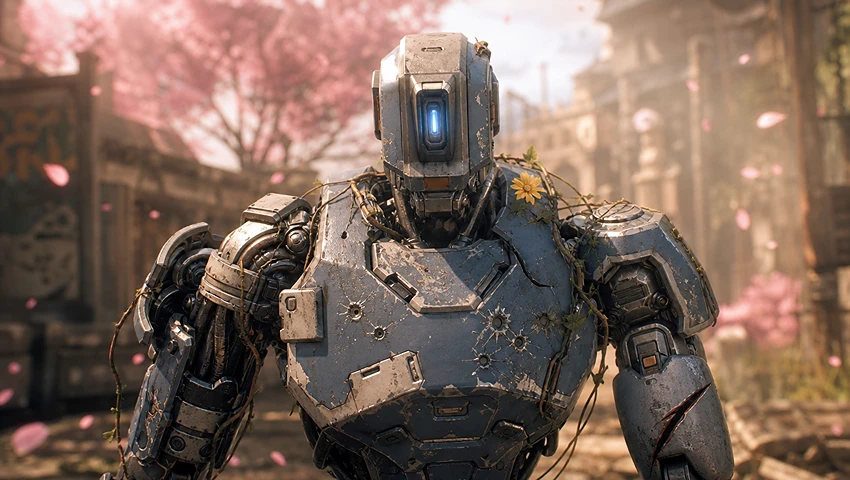
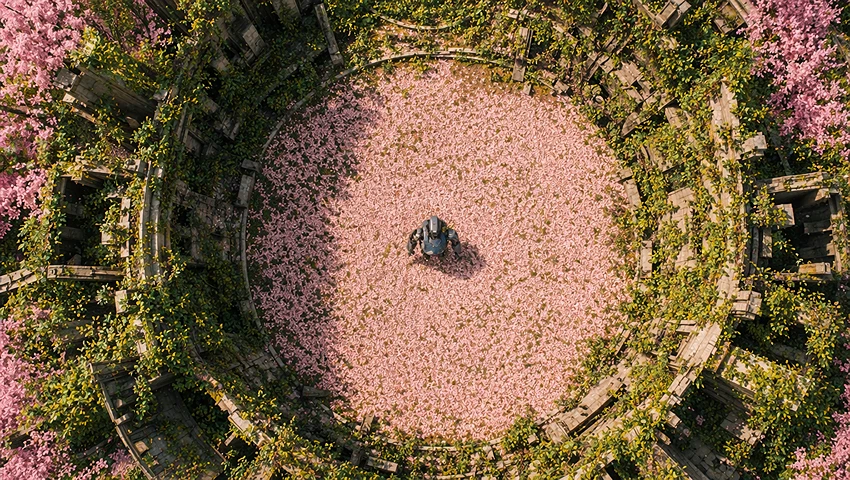
One connected workflow
Keep prompts, references, generated assets, scenes, and revisions together instead of moving between disconnected tools.
Why use an AI video agent
Topview handles the repetitive production steps while Canvas keeps the project visible and editable.
Turn a rough brief into a structured direction with scenes, assets, and next steps that you can review.
Add product images, visual references, or example videos so the Agent can use the right project context.
Use a connected image and video workflow without rebuilding context for every generation task.
Review assets and scenes on an infinite Canvas, compare options, and refine only the parts that need changes.
Keep characters, products, visual direction, and references connected across the production process.
Ask for a new direction, scene, asset, or variation while preserving the rest of the project.
How it works
Start with the context you already have, then let the Agent organize the next actions on Canvas.
Write a brief, paste a script, or choose a proven starting prompt for a film, ad, social video, or explainer.
01Upload optional images or videos to communicate the subject, product, pacing, or visual direction.
02Open the prepared project, review the Agent's plan, generate assets, and refine scenes in one workspace.
03Use cases
Give the Agent the goal and references; adjust the project as the creative direction develops.
Develop an idea into story structure, visual assets, cinematic shots, and connected scene work.
Turn a product brief and images into campaign concepts, product scenes, ads, and variations.
Create platform-oriented hooks, visual directions, and short-form assets for rapid iteration.
Use an example video or image to communicate pacing, composition, camera language, or overall style.
Project control
Your prompt and references enter a visible Canvas project. Inspect generated assets, revise the plan, and decide what moves forward.
Use a dedicated generator or editor when you already know the exact task you want to complete.
FAQ
Understand what the Agent prepares, what you can upload, and how Canvas fits into the workflow.
An AI video agent coordinates multiple steps of video creation instead of generating one isolated clip. It can interpret a brief, plan scenes, use references, create assets, and help you revise the project through conversation.
A single-purpose generator usually turns one prompt or image into one output. Topview AI Video Agent works across a connected project, helping plan the creative work and keeping generated assets and scenes editable on Canvas.
You can start with a natural-language brief or script and optionally add JPG or PNG images and MP4 videos. References can communicate a product, character, visual style, pacing, or shot direction.
The workflow supports short-film concepts, story scenes, marketing videos, product ads, social content, explainers, and other briefs that benefit from planning and multiple connected assets.
The Agent starts by preparing the project and taking the requested creative actions on Canvas. You can review the plan and outputs, continue generating, and refine the project before deciding that it is finished.
Yes. Canvas keeps scenes, references, and generated assets visible so you can compare variations, request targeted changes, and continue working without restarting the entire brief.
Yes. This page accepts image and video references. Before Canvas opens, those files are prepared as project resources and linked to the Agent prompt.
You can start the Agent with landscape 16:9, vertical 9:16, square 1:1, or cinematic 21:9 direction. The final options can also depend on the generation model used later in Canvas.
No timeline-editing experience is required to start. Describe the goal in plain language, then use the visible Canvas workflow to review and guide the project.
They are uploaded as Canvas-compatible project resources before submission. The Agent receives resource references rather than browser-only file URLs, so the project can continue after login and navigation.
Start with your brief
Describe the result, add references if needed, and let the AI Video Agent organize the creative work.
Start with AI Video Agent