Topview
    • MCP/Skill
    • Plugin
    • API
    • Pricing
    1. Home
    2. AI Video Editor
    AI Video Editor

    AI Video Editor: An AI Powered Video Editing Tool for Precise Local Edits

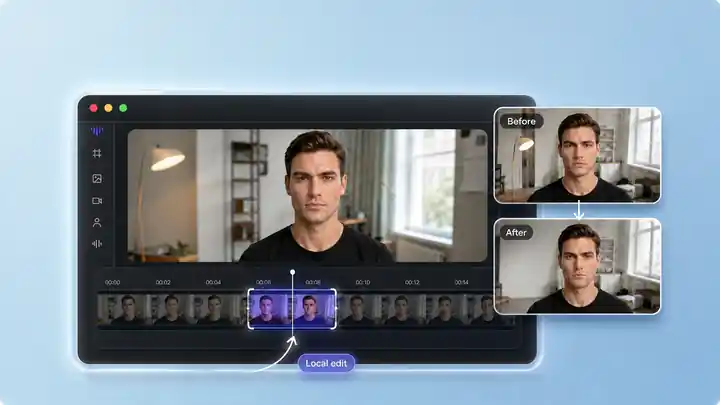
    An AI powered video editing tool for precise video edits. Use this AI video editor to edit part of a video: select the moment that needs work, describe the change in natural language, or upload a reference image, then update only that selected segment without rebuilding the entire clip.

    Timeline selection

    Selected clip: 0:00 – 0:03Total: 0:12

    Edit prompt
    Timeline video placeholder showing a highlighted two to four second segment while surrounding clips stay locked

    Core Module 01

    Edit Part of a Video with an AI Video Editor

    Not every video needs a full re-edit. With an AI video editor, you can edit part of a video by selecting the short section you want to improve and leaving the rest of your timeline untouched. Make precise video edits to fix a distracting object, update a visual detail, or change the look of one moment without rebuilding the whole clip.
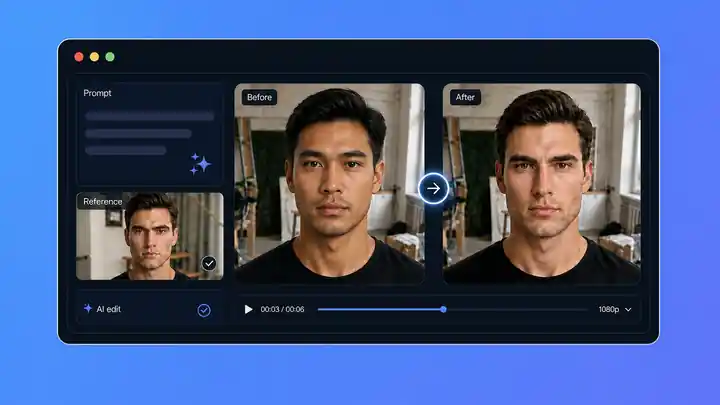
    Video placeholder with a text prompt field, reference image upload, and before after comparison

    Core Module 02

    AI Video Editor with Text Prompts and Reference Images

    Use an AI powered video editing tool to tell the editor what to change in natural language, or upload a reference image to guide the result. This AI video editing tool turns a prompt into a focused local edit, while a reference image helps match a specific subject, color, style, or visual detail. For supported workflows, it can also guide an AI face swap or video swap face edit in the selected clip.

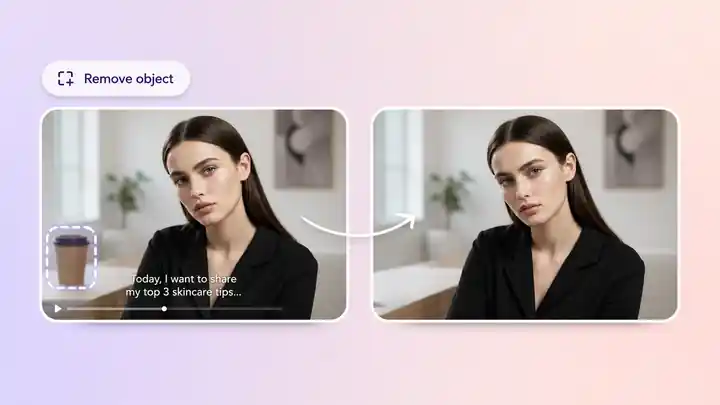
    Video placeholder showing an unwanted object removed from a selected scene

    Core Module 03

    Remove Objects from Video with an AI Video Editor

    To remove an object from a video, select the moment containing the unwanted detail and describe what should disappear or be replaced. This remove object from video workflow can clean up distracting objects, text, captions, or visual clutter in footage you own or have permission to edit. It can also work as a text remover from video or remove captions from video workflow for authorized footage, while the rest of the video stays unchanged.

    Video placeholder showing a product demo moment changed to a new background while the surrounding timeline remains unchanged

    Core Module 04

    Change a Video Background with an AI Video Editor

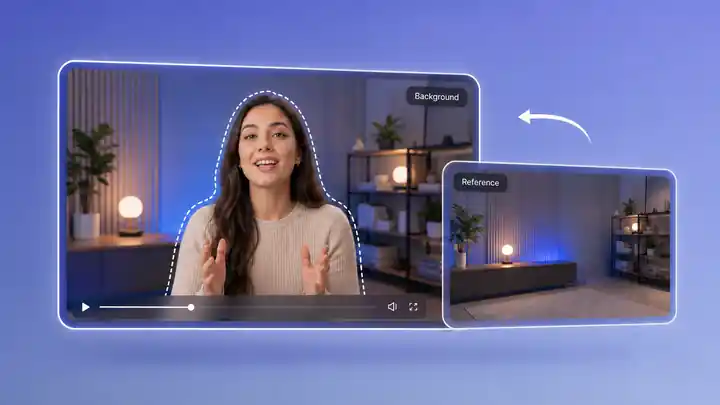
    Use this AI video editor with a video background remover to update the setting behind your subject in one selected moment. As an AI background remover, it lets you describe a new scene or upload a reference image, creating a focused background change for product demos, social posts, and short-form videos while the rest of the video stays intact. It is also useful for background remover for video and green-screen-style workflows.

    Video placeholder showing text, a product photo, or a visual callout added to a selected video moment

    Core Module 05

    Add Text or Photos to a Video with an AI Video Editor

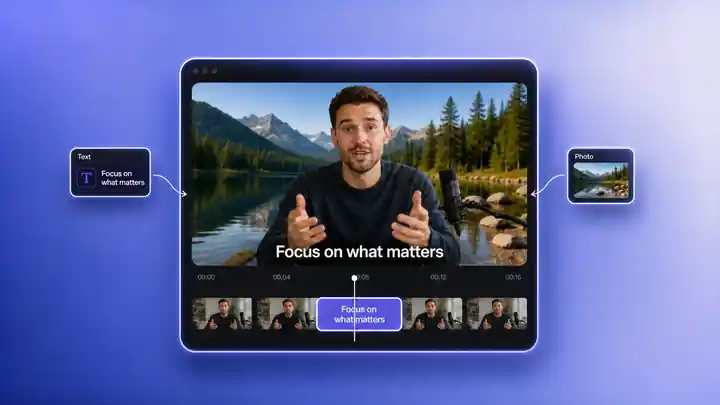
    Use this AI video editor to add text on a video or add a photo on a video. Select the exact moment where the new element should appear, describe what you want to add, and guide the look with a reference image. This AI video editor can place a callout, product detail, image, or other visual element in the selected part without changing the rest of the clip.

    Video placeholder showing three short-form video edits for hook improvement, product cleanup, and CTA update

    Core Module 06

    AI Video Editor for TikTok, Reels, and YouTube Shorts

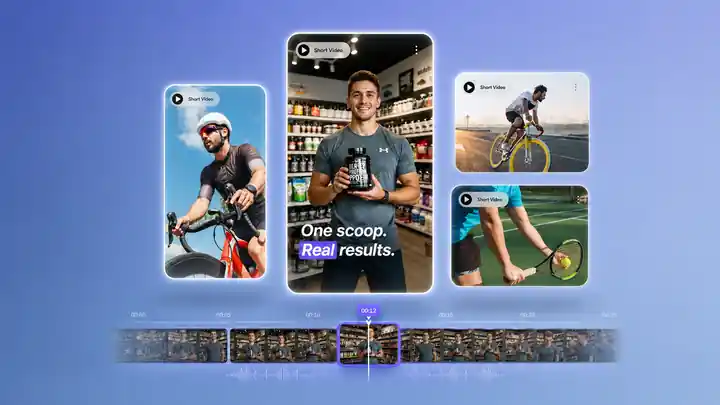
    Use this video editor for TikTok, video editor for Reels, and YouTube Shorts content when one moment needs improvement before publishing. Refine the opening hook, clean up a product shot, update a callout, or adjust a visual detail without losing the rhythm of the original video.

    Video placeholder comparing a complex editing timeline with a simple selected clip workflow

    Core Module 07

    AI Video Editor for Beginners and Fast-Moving Teams

    This AI video editor for beginners keeps local editing simple: choose a clip, explain the result you want, and review the edited moment before you move on. You do not need to rebuild a timeline or learn complex controls for every small change, making it a practical AI video editing tool for creators and fast-moving teams.

    HOW IT WORKS

    How to Edit a Video with an AI Video Editor

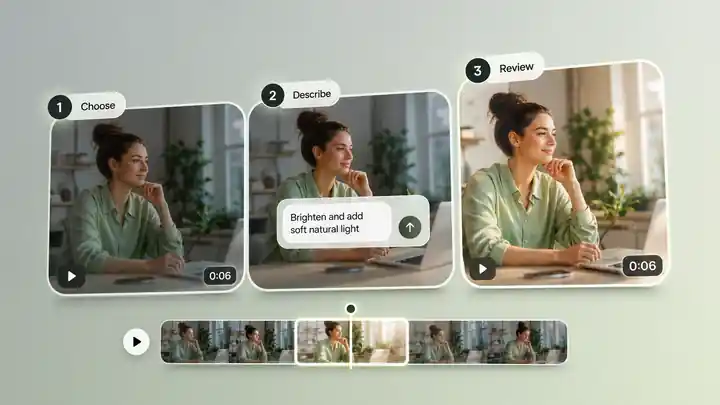
    Learn how to edit a video with an AI video editor in three simple steps: select the moment, describe or show the edit, then review the result.

    1. 01

      Upload your video and select the moment.

      Start with the original clip and highlight the short section where the change should happen.

    2. 02

      Describe or show the edit.

      Enter a natural-language prompt or upload a reference image.

    3. 03

      Review the result.

      Check the edited segment in context before exporting or continuing.

    USE CASES

    AI Video Editor Use Cases

    Make one precise local edit for product demos, creator content, ad variations, tutorials, and explainers.

    Before
    After

    Remove Object from Video in Product Demos

    Use an AI video editor to remove object from video footage, update a product detail, or apply a video background remover to one shot before your product demo goes live. Keep the rest of the product video intact.

    Before
    After

    Video Editor for TikTok and Reels: Refresh Short-Form Content

    Use this video editor for TikTok and video editor for Reels workflows to refine the hook, add a visual callout, or adapt one moment without changing the creator's performance.

    Before
    After

    AI Video Editor for Ad Creative Variations

    Use an AI powered video editing tool to test a different visual direction in one selected segment while keeping the original pacing and message intact.

    Before
    After

    How to Add Text on a Video for Tutorials

    If you are learning how to add text on a video or how to add a photo on a video, select the moment where viewers need more context and add the missing text, image, or visual cue there.

    AI VIDEO EDITOR CTA

    Fix the moment. Keep the whole story.

    Upload a video, select the part you want to change, and guide the AI video editor with a natural-language prompt or reference image. Make a precise local edit instead of rebuilding the entire video.

    More AI Tools

    More AI Tools

    Explore Topview's complete suite of AI tools for ads, avatars, video, image, and voice workflows.

    AI Ads

    AI Video AgentAI Ads VideoAI Product VideoAI UGC VideoURL to Video

    AI Avatar

    AI Avatar GeneratorProduct AvatarDesign My AvatarAI Lip Sync

    AI Video

    AI Video GeneratorAI Video Body SwapAI Video UpscalerAI Video Watermark RemoverAI Motion ControlURL to Video

    AI Image

    AI Image GeneratorAI Face SwapAI Image Character SwapAI Image UpscalerAI InpaintAI Image Text EditorPhoto Angle EditorAI RelightingAI Product PhotographyAI Virtual Try-OnAI Storyboard Generator

    AI Voice

    VoiceoverAI Voice CloningAI Music Generator

    AI Video Editor FAQs

    An AI video editor, also called an AI video editing tool, lets you make precise video edits with natural-language instructions instead of relying only on manual timeline controls. Select a specific moment, describe the desired change or add a reference image, and refine only that part of the video.

    To edit part of a video with an AI video editor, upload your video, select the short segment you want to change, then enter a prompt or upload a reference image. The local edit applies only to the selected moment while the rest of the video stays unchanged.

    Yes. Describe what you want to change in natural language, including the visual element, the desired result, and any important style or placement details. More specific prompts usually make it easier to review the intended result.

    Yes. Upload a reference image together with the selected video segment when you want to guide a look, subject, color, object, or visual style more precisely. For supported workflows, the same reference-image process can guide an AI face swap or video swap face edit; use only content you have permission and consent to edit.

    To remove object from video footage, select the part that contains the unwanted object and describe what should be removed or replaced. For the best result, use footage you own or have permission to edit and make the target object clear in the prompt.

    You can use local editing to clean up unwanted visual details in footage you own or are authorized to modify. Do not remove third-party watermarks or ownership marks without permission.

    For supported edits, use the video background remover by selecting the moment where the background should change, then describe the new setting or upload a reference image. This works as a background remover for video and can support green-screen-style product shots, social clips, and short-form videos without changing every scene.

    To learn how to add text on a video, select the moment where the text should appear and describe the message, style, or placement you want. Use this workflow for callouts, product details, subtitles, or short-form video hooks.

    To learn how to add a photo on a video, select the target moment, upload the image you want to use as a reference or visual element, and explain how it should appear. Be clear about placement, size, and timing when those details matter.

    It can help as a video editor for TikTok and a video editor for Reels. Use it to improve one hook, clean up a product moment, update a callout, or make a focused visual change before publishing.

    Yes. One of the most useful video editing tips for beginners is to fix only the moment that needs work instead of rebuilding the whole timeline. This AI video editor for beginners uses three simple actions: select the moment, describe or show the change, and review the result.

    Whether you use it as a free AI video editor or an online video editor with no watermark depends on the current plan and workspace settings. Free credits and no-watermark export rules may vary, so check the available terms before publishing. The core workflow still lets you test a targeted edit before committing to a full re-edit.

    No. This AI video editor focuses on controlled local edits. You choose the segment first, so you can edit part of a video without unintentionally changing the rest of it.

    AI Ads

    AI Video AgentAI Ads VideoAI Product VideoAI UGC VideoURL to Video

    AI Avatar

    AI Avatar GeneratorProduct AvatarDesign My AvatarAI Lip Sync

    AI Video

    AI Video GeneratorDrama StudioAI Video Body SwapAI Video UpscalerAI Video Watermark RemoverTikTok Watermark RemoverSora Watermark RemoverSubtitle RemoverAI Motion ControlAI Lip SyncURL to Video

    AI Image

    AI Image GeneratorAI Face SwapAI Image Character SwapAI Image UpscalerAI InpaintAI Image Text EditorPhoto Angle EditorAI RelightingAI Product PhotographyAI Virtual Try-OnAI Storyboard GeneratorExtract Color PaletteImage to Prompt

    AI Voice

    VoiceoverAI Voice CloningAI Music Generator

    3D

    3D World Generator3D Shot Composer

    Use Cases

    AdvertisingAffiliate MarketingEcommerceDTC BrandsAI Live Stream

    Resources

    BlogAffiliate ProgramLearning CenterAlternativeAPI

    Company

    Topview StudioPrivacy PolicyTerms
    Topview

    © 2026 TOPVIEW PTE. LTD.

    Singapore: 20 Collyer Quay #20-03, Singapore 049319
    Los Angeles: 15970 Los Serranos CC Dr #251, Chino Hills, CA 91709