Create with Kling 4.0 on Topview. Developed by Kuaishou, Kling 4.0 is an AI video generation model built for realistic motion, creative control, and longer visual storytelling. Generate videos from text and images, guide characters and scenes with multimodal references, and explore native video generation up to 30 seconds.
Native 30s generationUp to 4K · 10-bit HDR15 multimodal referencesUp to 10 keyframesStereo audio & lip syncVideo extension
Kling 4.0 AI Video Generator
@Image1
@Image2
2/50 assets
240/3500
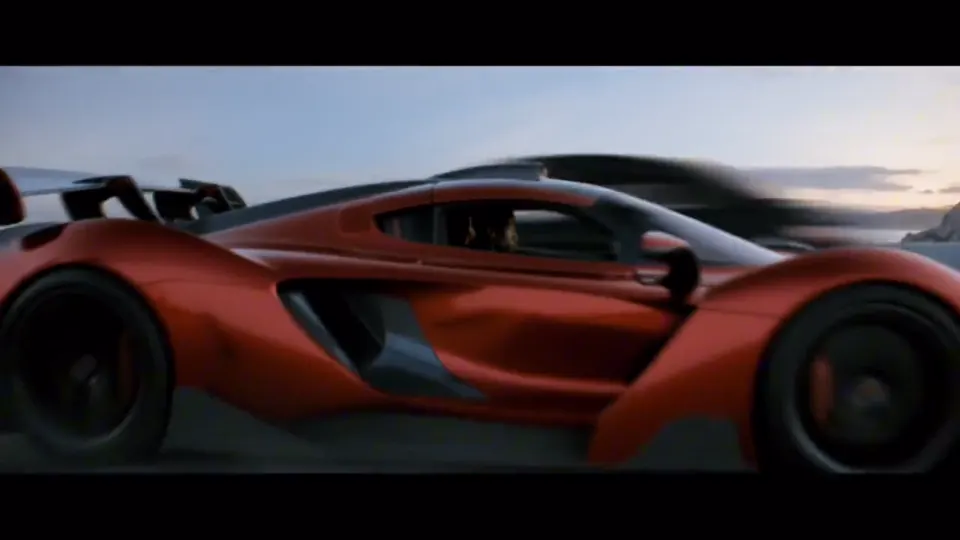
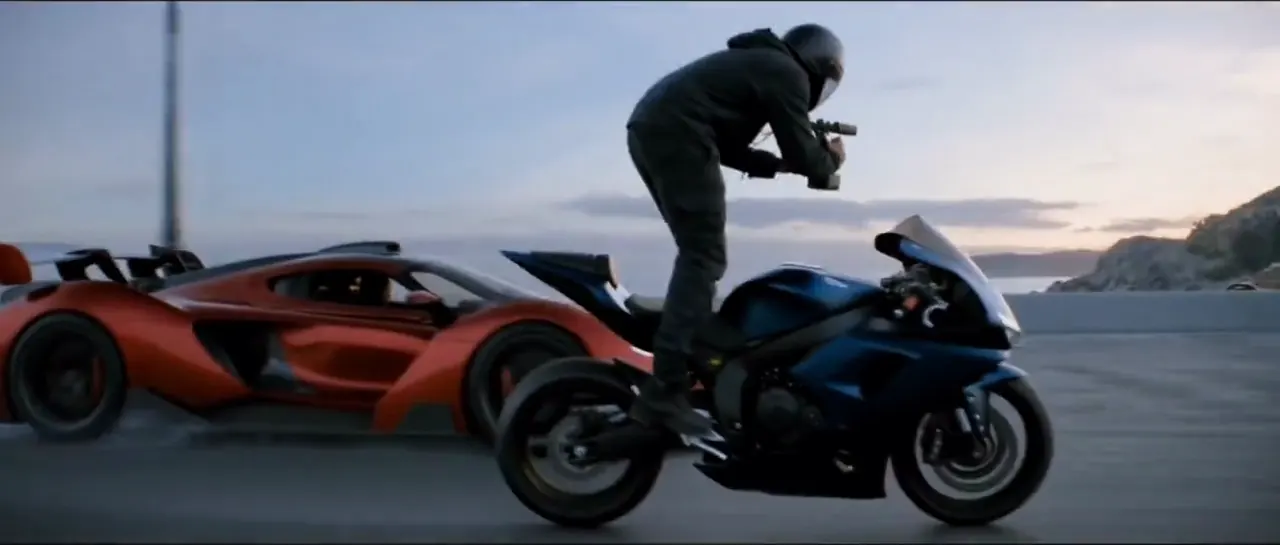
Keep the driver in @Image1 inside the red supercar, and keep the camera operator in @Image2 on the motorcycle beside it. They run a coastal road at dusk. The car then breaks into flame and the driver dives clear. Realistic, cinematic, 16:9.
Official Kling 4.0 resultKling 4.0
Source: Kling AI
Official Kling 4.0 Video Examples
Explore 59 official Kling 4.0 video examples published by Kling AI. The gallery showcases large-scale motion, reference-guided creation, longer storytelling, realistic performance, stylized animation, and the Kling 4.0 Flash experience.
Select a category to compare results and discover how different creative inputs shape the final video.
Realistic motion, character performance, and cinematic sound.
Explore high-speed action, complex camera movement, expressive faces, synchronized dialogue, and scenes with challenging lighting. These official examples demonstrate Kling 4.0's focus on visual realism and audiovisual continuity.
Combine creative assets to direct a video.
See how reference images, videos, subjects, and voice profiles can guide character appearance, product identity, action, camera behavior, and other details. Use these examples to understand the role of different reference inputs in a single multimodal workflow.
Develop a narrative across a longer sequence.
Explore scenes that use multiple story beats, changes in camera perspective, character interactions, and planned visual transitions. Native generation up to 30 seconds gives a story more room to develop within a single video.
Explore different styles, languages, and creative applications.
Kling 4.0 supports visual styles ranging from realistic film and social video to animation, stylized textures, and computer-generated worlds. It also supports multilingual dialogue and improved text rendering for a broader range of creative projects.
Explore the faster generation variant.
Kling 4.0 Flash focuses on faster creative iteration and shorter video tasks. It has a different feature set from the full Kling 4.0 model. Official Flash examples are provided for reference. Flash availability on Topview depends on the current model catalog.
Large-scale action in 21:9
Generated from a reference image, in the new 21:9 ultra-wide format.
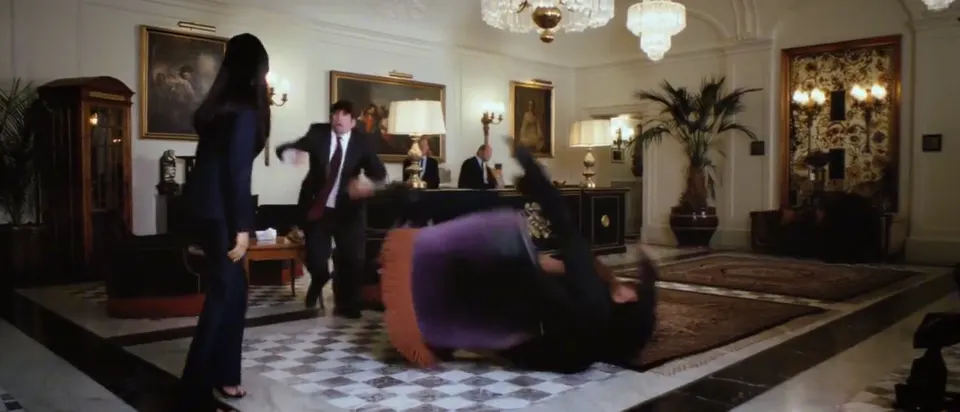
Large-scale scenes21:915sKling AI
Big motion from keyframes
Generated from keyframes. Large, fast movement stays stable and continuous.
Large-scale scenes16:922sKling AI
Fast action, steady camera
Generated from a first-frame image, with fast action and a big camera move.
Large-scale scenes16:915sKling AI
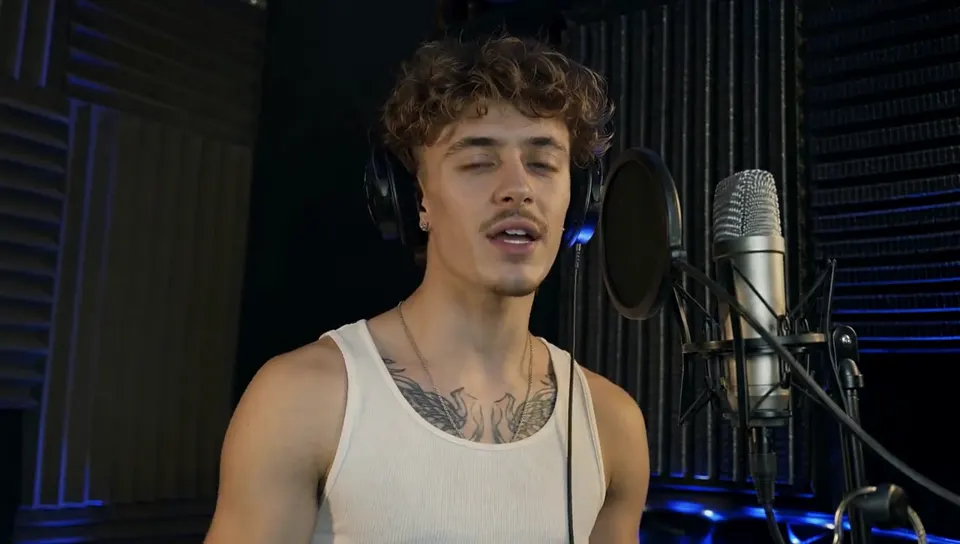
Native audio & lip sync
Generated from a first-frame image. Dialogue, sound and performance stay in sync.
Audio & lip sync16:930sKling AI
Performance with sound
Generated toward a last-frame image, with native audio.
Audio & lip sync16:915sKling AI
Stereo sound from keyframes
Generated from keyframes, with dual-channel stereo audio.
Audio & lip sync16:910sKling AI
Subtle expressions
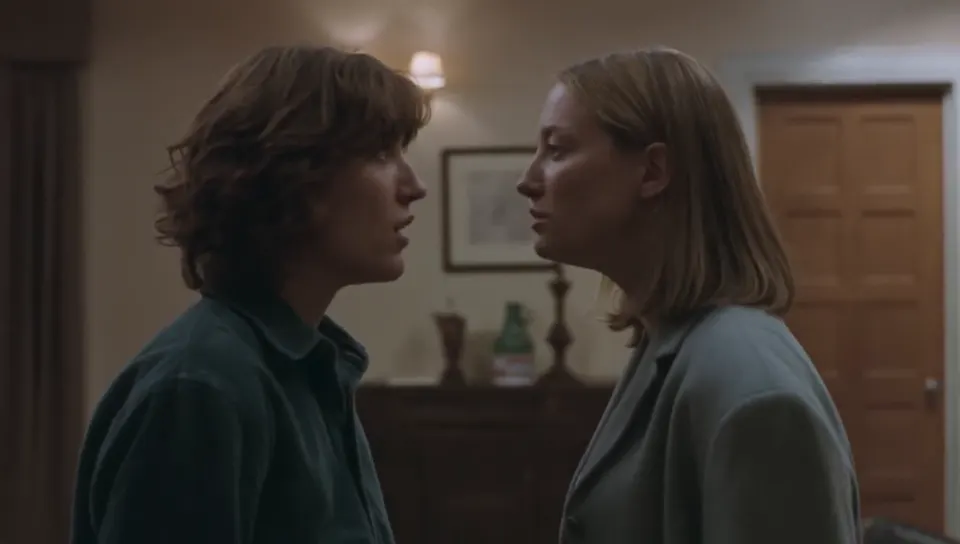
Generated from a first-frame image. Small glances and hesitations read clearly on camera.
Realistic detail16:911sKling AI
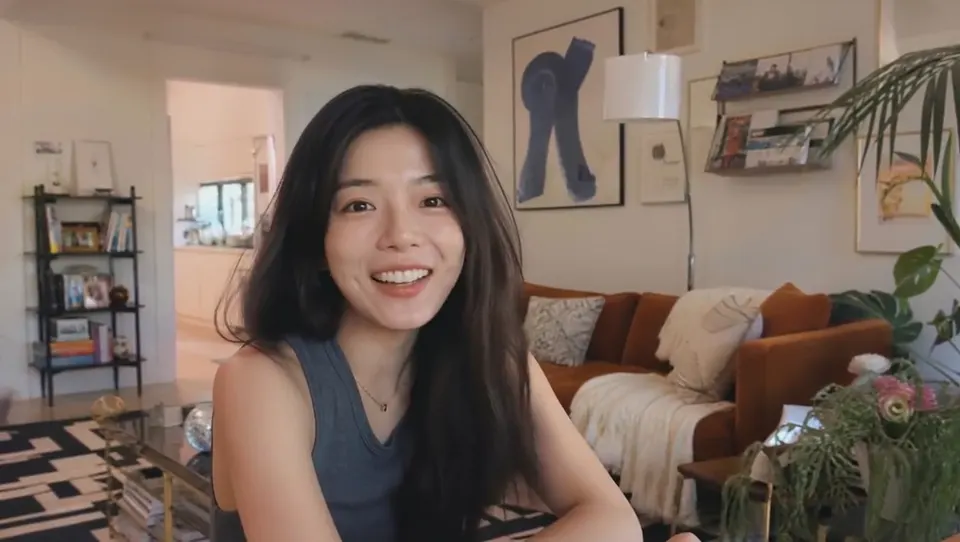
Vlogger intro
Generated from a text prompt.
PromptA vlogger video: the woman happily introduces herself to her audience. Keep it feeling real, with realistic image quality.
Realistic detail16:97sKling AI
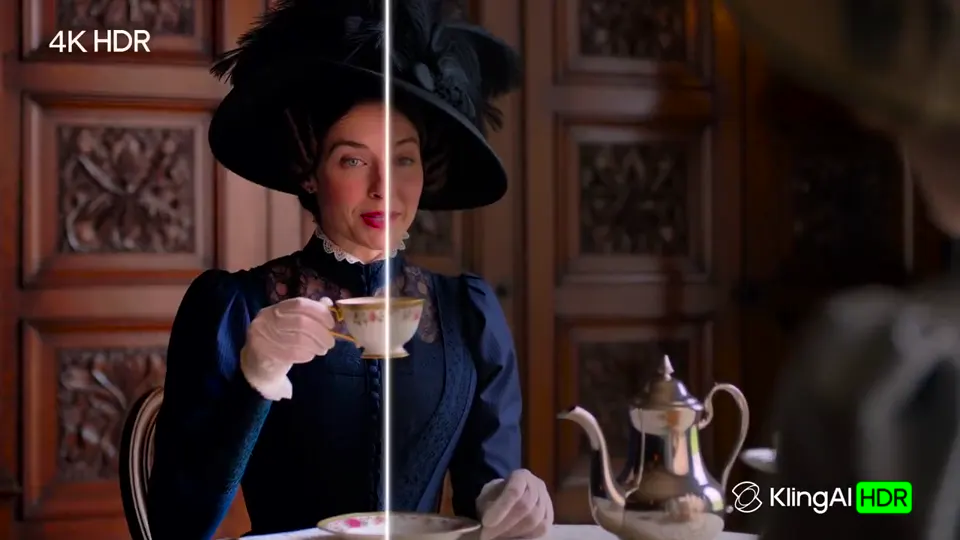
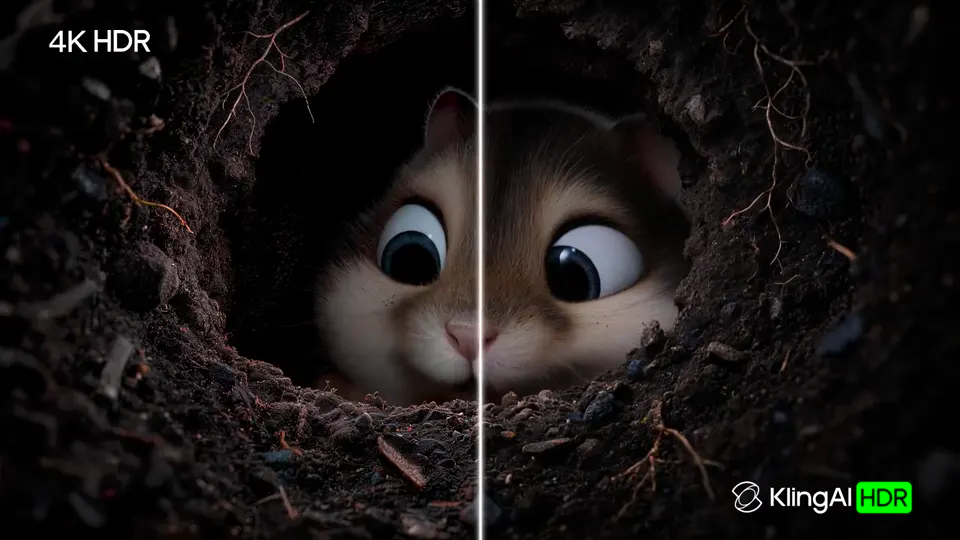
10-bit HDR output
Rendered in 10-bit HDR. Shown here converted to standard dynamic range for the web.
Pro-grade output16:95sKling AI
HDR highlights and shadows
Rendered in 10-bit HDR. Shown here converted to standard dynamic range for the web.
Pro-grade output16:96sKling AI
All example videos were made by Kling AI with Kling 4.0 and published in the official Kling 4.0 release note on September 28, 2026. Captions are translated from the Chinese release note, and the videos are re-encoded for the web. View the official release note
Kling 4.0 Key Features
Kling 4.0 focuses on four areas of video generation: longer storytelling, more precise visual control, multimodal references, and improved audiovisual output.
Native 30-Second AI Video Generation
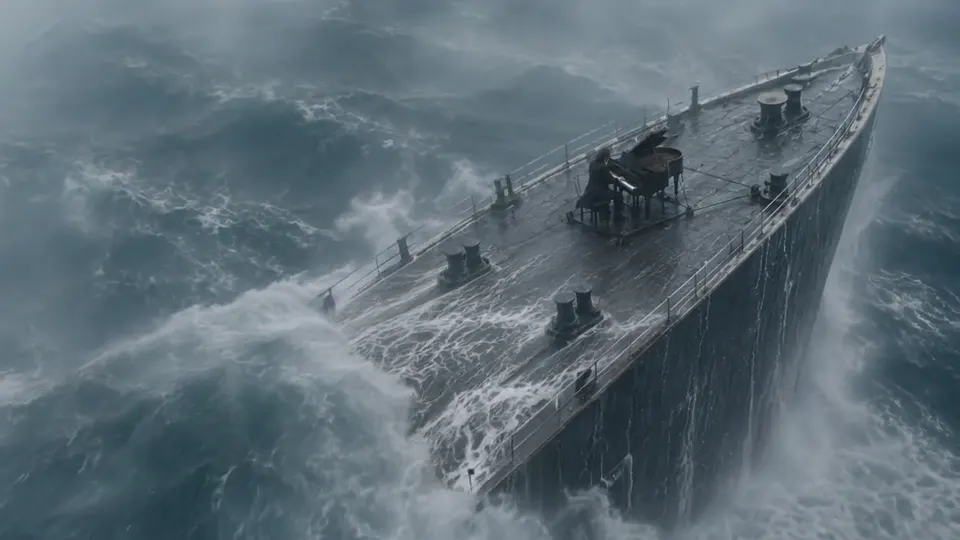
Kling 4.0 supports videos from 3 to 30 seconds in a single generation. A longer sequence can establish a setting, introduce an action, develop a character interaction, and reach a clear ending without requiring separate clips to be stitched together. For better creative direction, describe the key events and their order rather than asking the model to invent every transition.
Official example · Kling AI
Up to 10 Keyframes for Story Control
Kling 4.0 supports up to 10 keyframe images in its Keyframes workflow. Use keyframes to define how a scene begins, what appears at important points, and how the final composition should look. Keyframes are useful when your project already has a storyboard or needs specific visual moments at planned times.
Official example · Kling AI
Up to 15 Multimodal References
Omni Reference supports up to 15 combined reference assets in one generation task. Supported assets include images, video clips, subjects or elements, and voice profiles, subject to individual input limits. Use references to define what a character looks like, how an object moves, which environment to use, and what visual details should remain recognizable.
Important: Omni Reference and the separate Keyframes entry point cannot be combined in a single generation task.
Official example · Kling AI
Up to 4K Output, Stereo Audio, and Lip Sync
Kling 4.0 officially supports output resolutions up to 4K, alongside two-channel stereo audio and improved lip synchronization. The model also supports a 21:9 ultrawide aspect ratio for cinematic compositions. 10-bit HDR output at 1080p and 4K is part of Kling's announced roadmap and remains marked as coming soon in the official user guide.
Official example · Kling AI
What Is Kling 4.0?
Kling 4.0 is a multimodal AI video generation model developed by Kuaishou, the company behind Kling AI. It supports text-to-video, image-to-video, Omni Reference, multiple keyframes, native audiovisual generation, and reference-guided video editing. The model is designed to give creators greater control over camera movement, subject appearance, scene continuity, and the progression of events across a video.
When Was Kling 4.0 Released?
Kling AI introduced Kling 4.0 in September 2026, followed by early access to Kling 4.0 Flash. Kuaishou officially launched Kling 4.0 on October 15, 2026. Kling 4.0 is available through supported creation workflows on Topview.
What Makes Kling 4.0 Different?
Kling 4.0 expands the Kling video workflow with:
Up to 30 seconds of native generation.
Up to 10 keyframe inputs.
Up to 15 combined multimodal references.
More stable large-scale motion and complex camera movement.
Stereo audio and improved lip synchronization.
Expanded multilingual and creative editing capabilities.
These features are designed to make more complex videos easier to direct, revise, and develop.
Omni Reference or Keyframes: Which Kling 4.0 Mode Should You Use?
Kling 4.0 provides two distinct approaches to creative control. Choose Omni Reference when you need to combine reference materials. Choose Keyframes when you need to define exact visual moments along the timeline. Both approaches can support sophisticated video generation, but their input capabilities are not combined in a single task.
Omni Reference: Control Characters, Objects, Motion, and Style
Omni Reference is designed for projects involving multiple source assets. You can use reference images to define appearance, reference videos to guide motion, elements to identify recurring subjects, and voice profiles to guide speech.
Example:
@Image1 defines the appearance of the woman in the scene. Keep her hairstyle, dark jacket, and facial features recognizable.
@Image2 defines the interior of the cafe, including the wooden counter and warm window light.
@Video1 provides a reference for the camera movement and pacing.
The woman enters the cafe, pauses at the counter, and turns toward the window as rain begins outside.
Use natural body movement, quiet cafe ambience, and a slow tracking camera.
Keyframes: Control Important Moments in the Timeline
Keyframes are useful when a video needs a clear visual sequence. Upload keyframe images and place them at meaningful times. Describe how the subjects, environment, and camera should move between these points.
Example keyframe plan for a 15-second video:
0s — A closed product box rests on a dark tabletop.
5s — The box begins opening.
10s — The product is fully revealed.
15s — A centered product hero shot completes the sequence.
Use a prompt to describe the movement and transitions between the frames.
Kling 4.0 Image to Video
Kling 4.0 image-to-video generation turns a still image into a moving scene based on your instructions. An uploaded image can provide the starting appearance of a character, product, or environment. Your prompt guides how the subject moves, how the camera behaves, and how the scene develops.
How to Animate an Image with Kling 4.0
Step 1: Upload Your Image
Select the supported image-to-video workflow in Topview Board and upload your starting image.
Step 2: Describe the Motion
Explain what changes in the scene. Focus on subject movement, camera movement, environmental effects, and sound.
Step 3: Set the Output
Choose the available duration, aspect ratio, and resolution. Review the generation cost, then submit your video.
Kling 4.0 Image-to-Video Prompt Example
Use the uploaded image of a silver wristwatch on a black stone surface as the starting visual. The camera begins in an extreme close-up of the dial. Over the next few seconds, it moves slowly to the right, revealing the metal case and the texture of the strap. A narrow band of warm light travels across the glass while soft shadows move across the background. Maintain the original watch shape, dial layout, and strap color. Use subtle studio ambience and natural reflections. End with a balanced product composition.
First and Last Frames
The Keyframes workflow also supports using a first image and a final image to guide a transformation or movement. Choose this approach when you already know the intended beginning and ending compositions.
Kling 4.0 Video Editing and Extension
Kling 4.0 supports reference-guided editing workflows that can modify existing video content. Instead of describing an entirely new scene, you can identify an existing video, specify what to change, and explain which parts should remain unchanged.
Make Targeted Changes to a Video
Use supported video editing to modify subjects, backgrounds, visual styles, camera movement, and other scene elements.
Example Editing Prompt:
Edit @Video1. Replace the outdoor background with a rainy city street at night. Preserve the main subject's identity, clothing, walking movement, and camera timing. Keep the subject in the same position within the frame. Add reflected streetlights on the wet pavement and natural nighttime ambience. Keep the other actions unchanged.
Recreate a Creative Structure with New Assets
Creative Recreation uses the pacing, composition, and motion of a reference video as creative direction. Use your own product, characters, and brand assets to produce a new interpretation of a visual concept. Make sure you have the necessary rights to the source materials used in the project.
Extend a Story Beyond One Clip
Kling has also announced extended-video workflows for longer storytelling, including repeated video extension toward longer total runtimes. Availability and duration limits depend on the released feature set and the interface you use. Check Topview Board for supported editing and extension controls.
How to Use Kling 4.0 on Topview
You can open Kling 4.0 from this page and continue in Topview Board, where supported generation modes, references, and output settings are managed.
Step 1
Choose Your Creation Mode
Select Text to Video, Image to Video, or Multi Reference in the page generator. For timeline-based control, choose the supported Keyframes workflow when available in Board. Use one workflow at a time based on whether your project needs references or precise visual timing.
Step 2
Write Your Prompt and Prepare Your Assets
Describe the subject, action, setting, camera movement, and audio. If you upload multiple references, use the displayed asset tags, such as @Image1 or @Video1, and define each reference's role. If you use keyframes, specify the visual moments and what should happen between them.
Step 3
Generate, Review, and Refine
Choose your available generation duration, output resolution, and aspect ratio. Review the credit cost or subscription eligibility, then click Generate. Inspect the result for subject consistency, camera motion, visual details, audio, and any text in the video. Edit or regenerate as needed.
Who Is Kling 4.0 For?
Kling 4.0 is designed for creators who need to control more than one simple action in a video. Its longer generation time, reference inputs, and keyframe support are useful for storytelling, advertising, product presentation, and visual production.
Filmmakers and storyboard artists
Plan beats with up to 10 keyframes and let a single 30-second generation carry a whole scene.
Kling 4.0 can interpret both short prompts and more detailed creative instructions. Longer prompts are not automatically better. A useful prompt defines the subject, scene, action, camera direction, timing, audio, and the role of any uploaded references.
Vlogger intro
A vlogger video: the woman happily introduces herself to her audience. Keep it feeling real, with realistic image quality.
Translated from the Chinese release note.
Short prompt, directed result
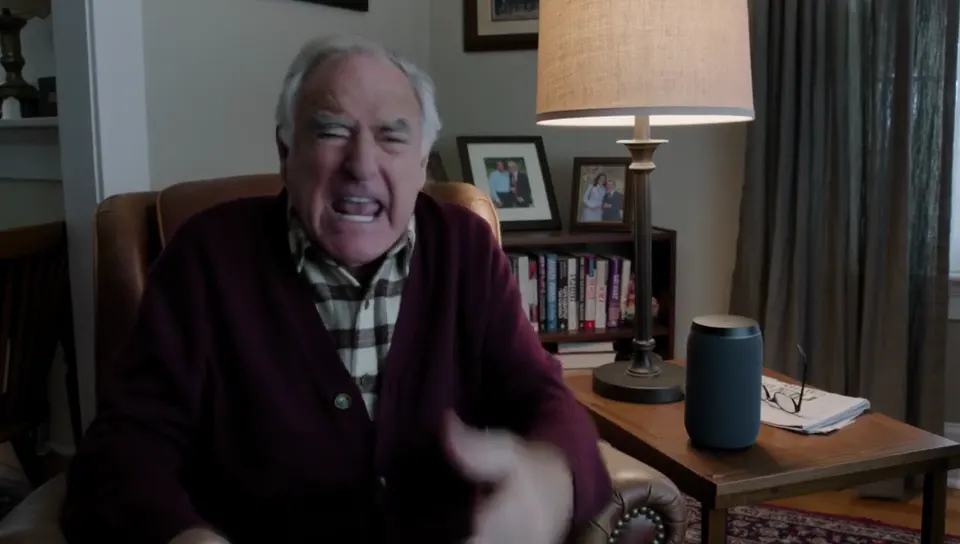
An old man ranting about AI.
Original English prompt.
Detailed prompt, followed closely
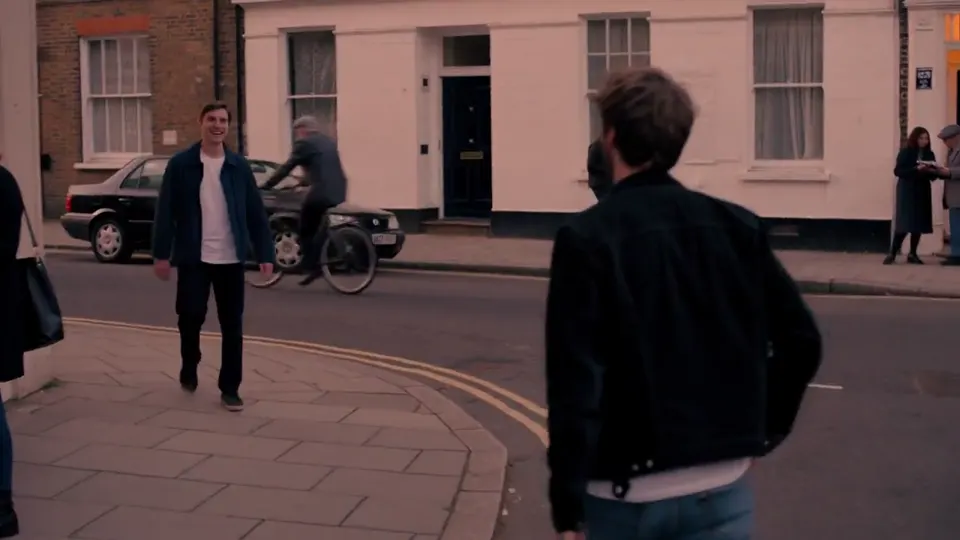
A 7-second continuous shot. In the UK, two friends who haven't seen each other in a long time meet at the corner of a quiet street at dusk, with all kinds of people going about their lives around them. They smile, walk quickly toward each other and hug warmly. Natural expressions and body movement. Handheld camera, slightly shaky, following them. Soft warm light, nostalgic film look. Natural footsteps, street ambience and background music; they speak English.
Translated from the Chinese release note.
Tips for Better Kling 4.0 Prompts
Begin with a clear subject and action.
Describe camera movements such as tracking, orbiting, panning, or pushing in.
Use timestamps when the order of events matters.
Give every uploaded reference a specific role.
Describe the materials, lighting, and visual details you want to see.
Specify dialogue, ambience, sound effects, or music where relevant.
Choose Keyframes for predetermined visual milestones.
Choose Omni Reference for multimodal assets.
Review the output and refine one major issue at a time.
Kling 4.0 is a multimodal video generation model developed by Kuaishou. The following table describes the official model capabilities rather than guaranteeing that every Topview generation mode exposes every option.
Model
Kling 4.0
Next-generation Kling video model developed by Kuaishou.
Variants
Kling 4.0 & Kling 4.0 Flash
Kling 4.0 Flash opened for a limited group on September 28 and is live for Kling Ultra Yearly subscribers.
Release
October 2026
Kling says Kling 4.0 is coming this October.
Duration
3–30s
Native single-pass generation up to 30 seconds. Video extension up to 2 minutes is coming soon.
Resolution
720p · 1080p · 4K
10-bit HDR on 1080p and 4K is coming soon. Aspect ratios: 21:9, 16:9, 1:1, 9:16 or smart.
References
Up to 15 multimodal
Up to 10 images, 5 videos (30s total) and 7 subjects per task.
Keyframes
Up to 10
Plus text-to-video, image-to-video and first/last frame.
Audio
Stereo + lip sync
Dual-channel stereo audio with more accurate lip sync.
Languages
9+ languages
Chinese, English, Japanese, Korean, Spanish, Portuguese, German, French, Hindi and more, plus accents such as American, British and Indian English.
On Topview
Available
Open Kling 4.0 in Board from this page. Prompts up to 8,000 tokens.
Kling 4.0 Pricing on Topview
Topview provides access to Kling 4.0 through its video creation platform. Generation costs depend on the model variant, resolution, duration, and subscription benefits.
How Much Does Kling 4.0 Cost?
Model Option
Published Credit Rate
720p
1 credit per second
1080p
1.5 credits per second
These published rates are reference information. Your final charge depends on the current product configuration, billing rules, and selected settings. Check the amount shown in the generator before submitting a video.
Is Kling 4.0 Free on Topview?
Kling 4.0 is not advertised as universally unlimited free generation on Topview. Free trial or promotional credits, if available, depend on your account and the current offer. The public pricing page does not establish a guaranteed free Kling 4.0 quota for every visitor. Review your available credits before generating.
Does Topview Offer Unlimited Kling 4.0 Generation?
Yes. Topview currently advertises Kling 4.0 Omni 720P 30 Days Unlimited as a benefit of its eligible Ultra and Team annual plans. Unlimited means credit-free generation for qualifying in-platform usage during the stated benefit period. It does not guarantee priority processing or extend to every model, resolution, or automated workflow. Wait times can be longer when demand is high. API, MCP, CLI, and other automated methods are not covered by the in-platform Unlimited benefit.
Pricing, membership benefits, and availability are subject to the latest Topview terms.
Generate Video with Kling 4.0 on Topview Now
Turn your creative direction into AI-generated video with Kling 4.0. Start with a written prompt, animate a source image, or use supported reference materials to guide subjects, motion, camera movement, and sound.
Topview does not publicly guarantee unlimited free Kling 4.0 generation to every user. Account-specific trial or promotional credits may be available, subject to current terms. Paid credit-based generation and eligible subscription benefits are also offered.
Eligible Topview Ultra and Team annual plans currently include Kling 4.0 Omni 720P Unlimited for 30 days. The benefit applies to qualifying in-platform generation and may involve longer queue times. Other resolutions and automated generation methods are not included in that specific benefit.
Kling 4.0 officially supports native video generation from 3 to 30 seconds. A separate video extension workflow has also been announced, with availability depending on the released feature set and platform.
Yes. The official Kling 4.0 model supports output up to 4K. The currently available resolutions on Topview depend on the selected generation mode. The public Topview pricing table lists 720p and 1080p options for Kling 4.0 Omni.
Kling has announced 10-bit HDR output at 1080p and 4K. Its official user guide still marks this feature as coming soon. Do not assume that every current Kling 4.0 generation or Topview export supports HDR.
No. Kling 4.0 uses separate Omni Reference and Keyframes creation entry points. Omni Reference combines different reference assets, while Keyframes controls visual moments along a timeline. The two entry points cannot be combined in the same task.
Kling 4.0 provides longer videos and broader creative controls, including up to 30 seconds of generation and multiple keyframes. Kling 4.0 Flash is designed for faster iterations and currently supports up to 20 seconds at 720p, without first-and-last-frame or multiple-keyframe support.
Kling 4.0 increases native video length from 15 to 30 seconds and adds up to 10 keyframes, richer Omni Reference, improved complex motion, stereo audio, and more advanced editing. Both model generations support 4K output, so resolution alone is not the main difference. See the Kling 3.0 page for the previous generation on Topview.
Commercial use depends on the applicable Topview terms, Kling model service terms, and your rights to the source materials. Review the relevant agreements before using generated clips in advertising, client work, or other commercial productions.
Kling 4.0 AI Video Generator | 30s Video & Omni | Topview


 @Image1
 @Image2