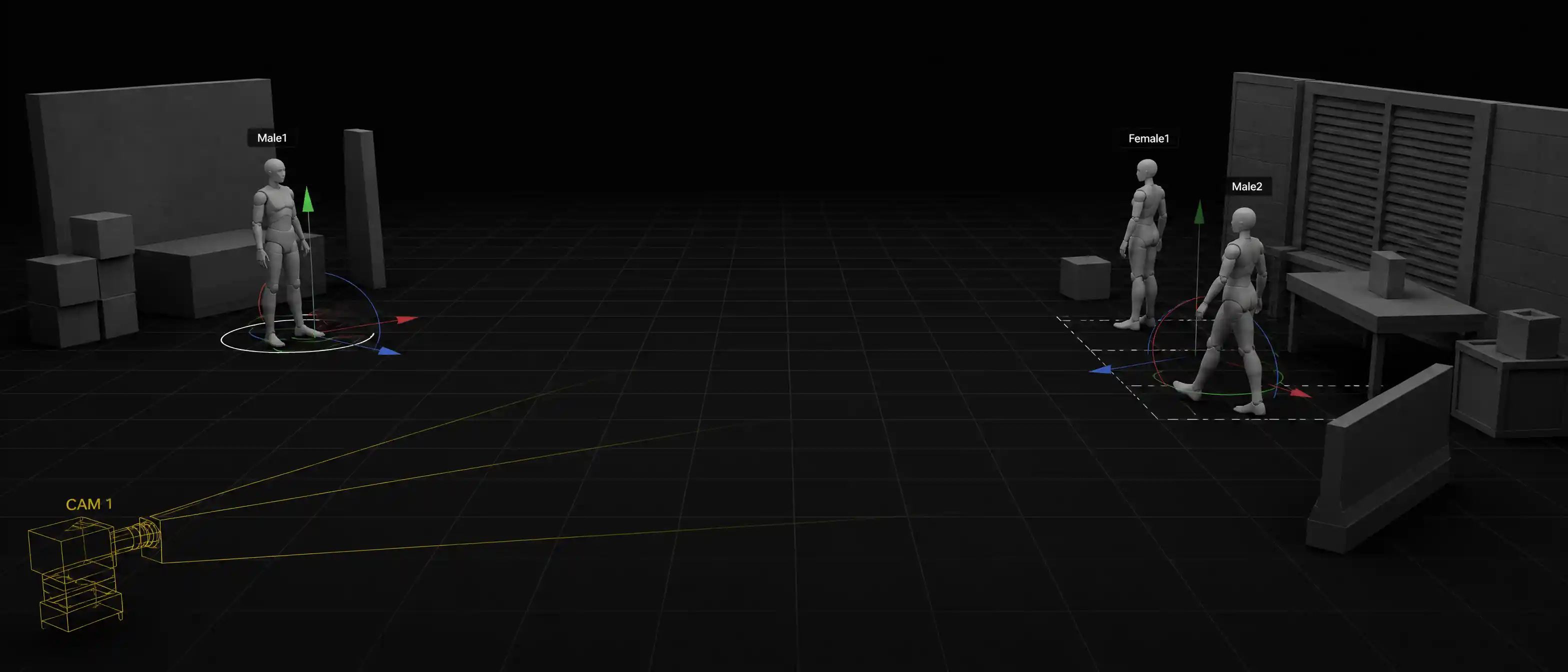
AI 3D Builder for Camera Previs
Describe a scene or upload a reference. Build an editable 3D stage for $0.10, then set the camera and generate.
User cases
3D Builder cases
Watch a stage get built from a description or a reference image, then see the camera, the move, and the objects get set before video generation.
Reference to scene
Generate a 3D Scene from One Reference
Hand the Agent a reference image. It builds an editable 3D scene in one click, so you start from a stage instead of an empty viewport.
One reference · one generated stage
Camera from a prompt
Add Camera Animation with a Prompt
Describe the move in one prompt and add the camera animation. Preview the push, pan, or orbit before you generate the shot.
One prompt · one camera move
One scene, many shots
Keep One Scene Across Multiple Shots
A reference image helps space, composition, and style stay closer across shots. Move cameras on that stage instead of rebuilding the world in every prompt.
Share the stage
Wide, closer, then side, from one generated scene.
Stay close to the reference
Later shots can keep the space and style of the storyboard or concept frame.
Cut between cameras
Set more than one camera on the same scene, then choose the coverage you need.
Same stage · several cameras
Editable stage
Change Every Object and How They Sit
The generated scene stays editable. Move objects and change how they relate in space before you generate. Model output can still vary; this locks the spatial plan.
Edit any object
Select what is already in the scene and change it. Hide or lock an object when you need to work around it.
Set position and distance
Place people and props left, right, near, or far, and keep those relationships when the camera moves.
Fewer wasted generations
Fix the stage first, so you spend less of the video budget on shots that miss the layout.
Locked layout · fewer wasted generations
Previs software
Previs Software for Shots You Can Rehearse
Set the blocking before you generate. Building one scene costs $0.10, so a limited budget can try more camera setups and fewer dead takes.
Rehearse the Move
Set camera position, angle, and animation, then watch the frame before anyone generates the shot.
Spend the Budget on Useful Shots
Use the same budget to test composition and camera moves, instead of paying for takes you will throw away.
Generate from a Locked Plan
A directed stage and a rehearsed camera cut down the video lottery. The finished shot starts from that plan.
Two different jobs
3D Builder vs. Motion Control
Use the 3D scene generator to build and direct the stage. Use Motion Control when the job is how the subject moves.
| Focus | 3D Builder | Motion Control |
|---|---|---|
| When it happens | Before generation — build the scene and rehearse the camera | During / after motion setup — drive movement |
| What you control | Scene, objects, camera position, and camera animation | Character action, motion reference, dynamic movement |
| Best for | Previs, multi-shot coverage, a $0.10 scene build | Matching or transferring motion performance |
| Typical question | Where should the scene and the camera be? | How should the subject move? |
Watch on YouTube
See the 3D Builder in Action
Watch a scene get staged, a camera move get set, and a shot get generated from that previs.
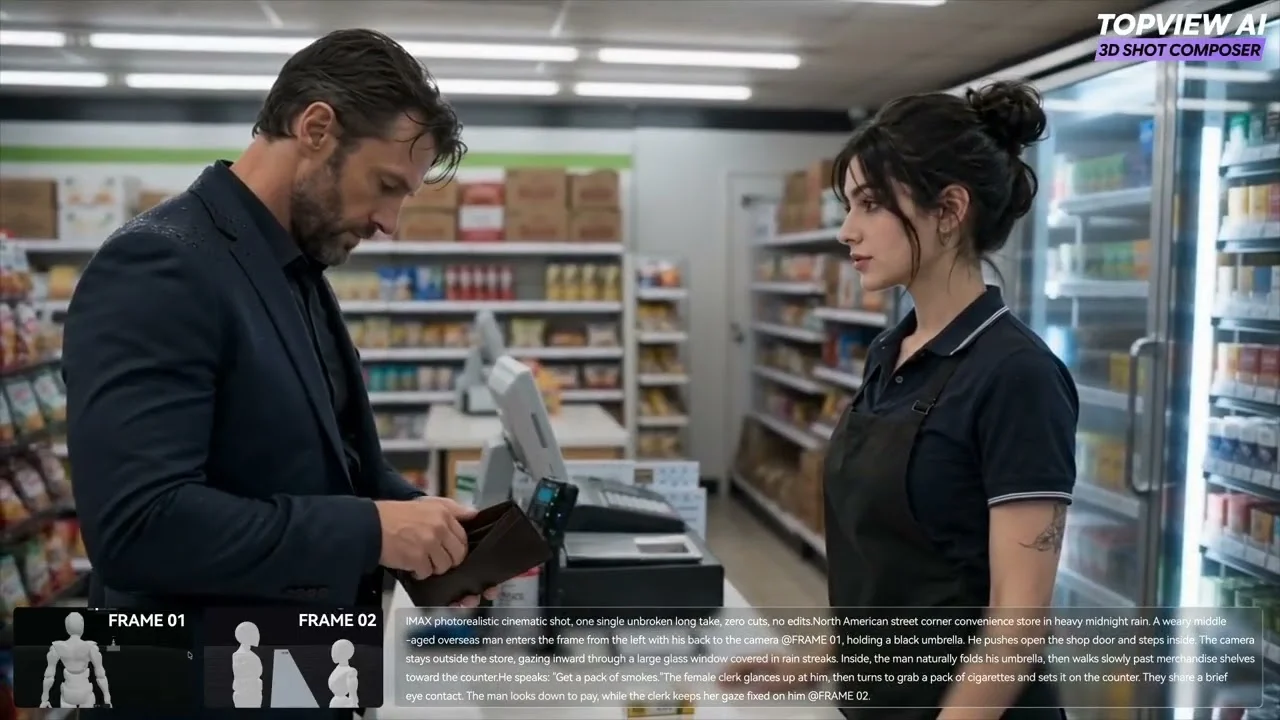
How to use it
From a Prompt to a Directed Shot
Generate the scene, direct the camera and the objects, then generate the video.
- 01
Generate the Scene
Describe the scene or upload a reference image. The AI Agent builds an editable 3D stage. One scene build costs $0.10.
- 02
Direct the Camera and Objects
Move objects, set how they sit together, and animate the camera with a push, pan, orbit, follow, or shot-reverse-shot. Preview the move from the camera view.
- 03
Generate the Video
Keep the stage and generate the shot. Move the camera when you need another angle of the same scene.
Start with 3D Builder
Describe the scene or upload a reference. Build it for $0.10, rehearse the camera, and generate video from a stage you can still edit.