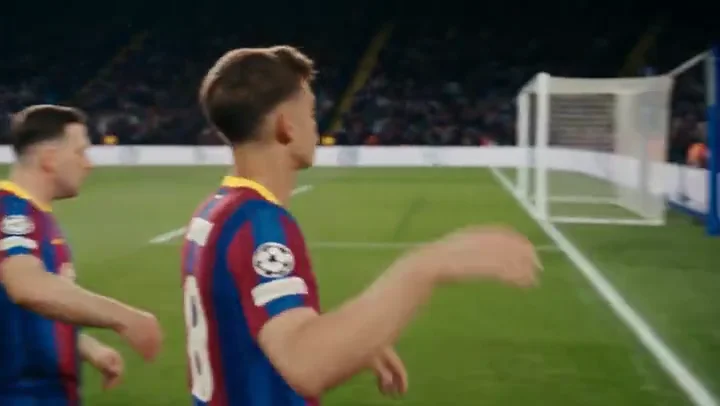
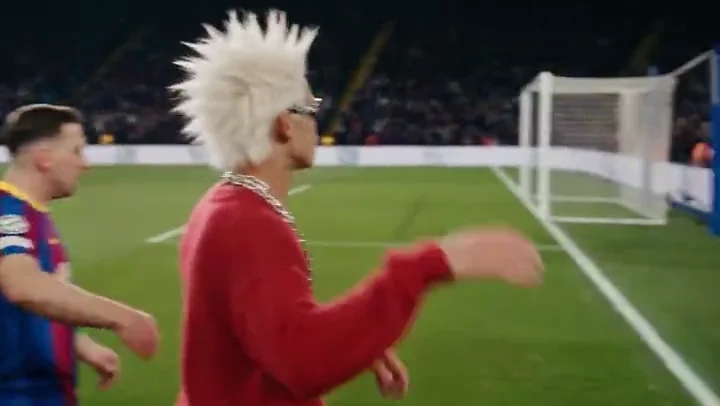
One Topview Board tool to keep a clip’s motion while restyling character, product, outfit, or scene—or to replace a specified element and leave the rest.
VIDEO RECAST
Keep the motion, change look or product — Motion Transfer or Object Swap
Demo only — upload your video and references in the left panel to Generate.
Video Recast is Topview’s Board tool for remaking short social and ecommerce clips: use Motion Transfer to keep reference-video motion while restyling the subject or scene, or Object Swap to replace a specified element and keep everything else.
Video Recast is built for creators, sellers, and marketing teams who already have a motion clip that works—a dance, a product demo, a UGC-style performance—and need a new character, outfit, product, or scene without reshooting the action. Both modes live in one entry: Board sidebar Video → Video Recast.
Video Recast gives you two ways to remake a clip. Pick the mode that matches the job; you are still inside the same tool and the same mixed template wall.
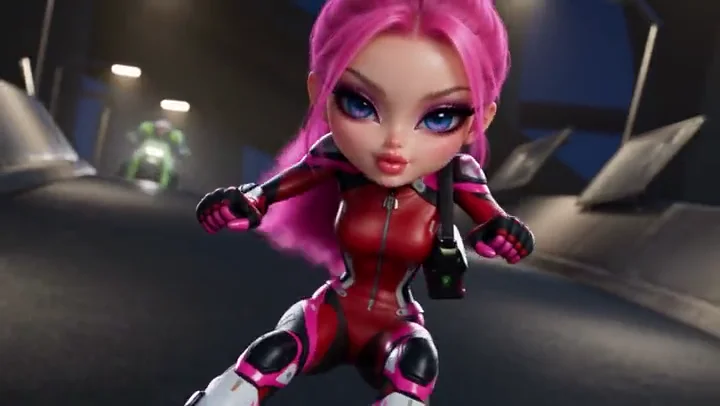
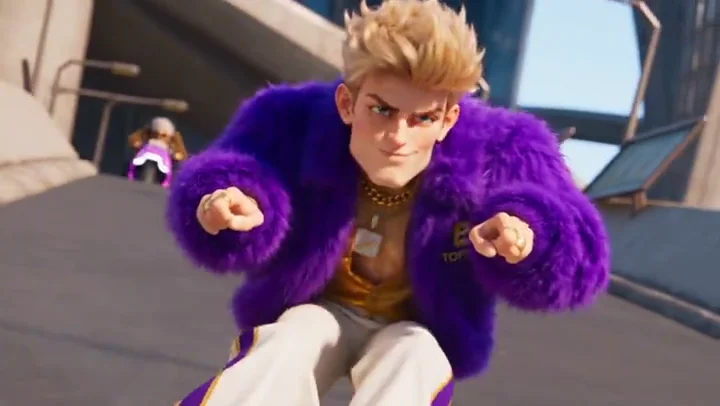
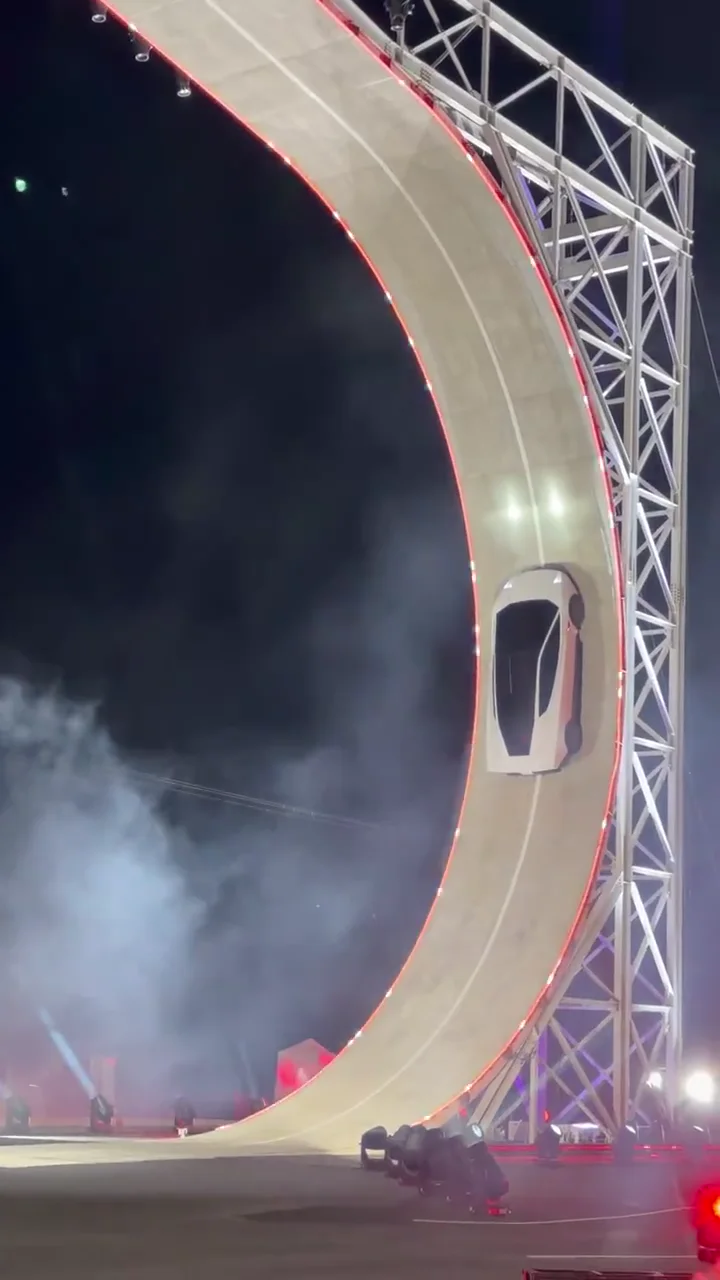
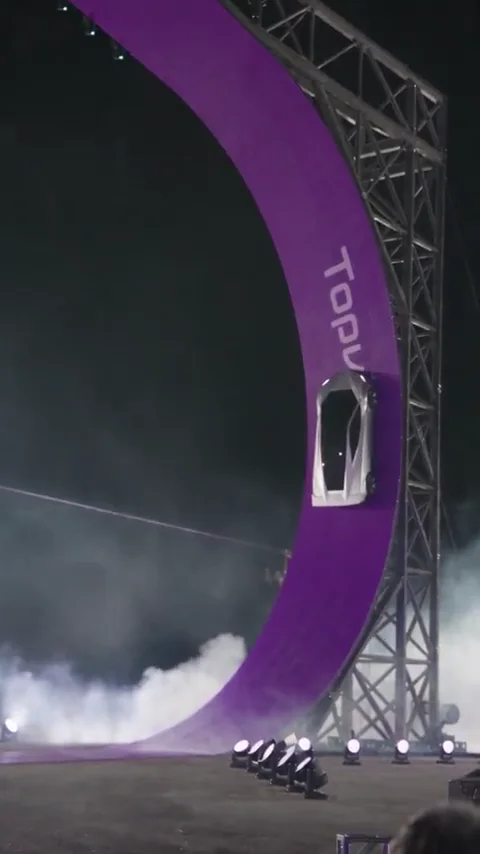
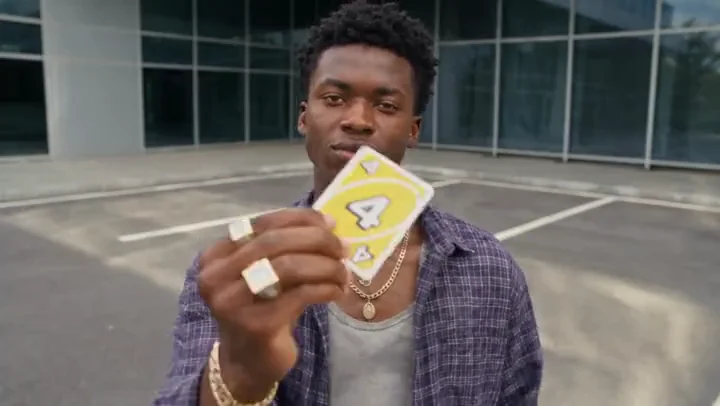
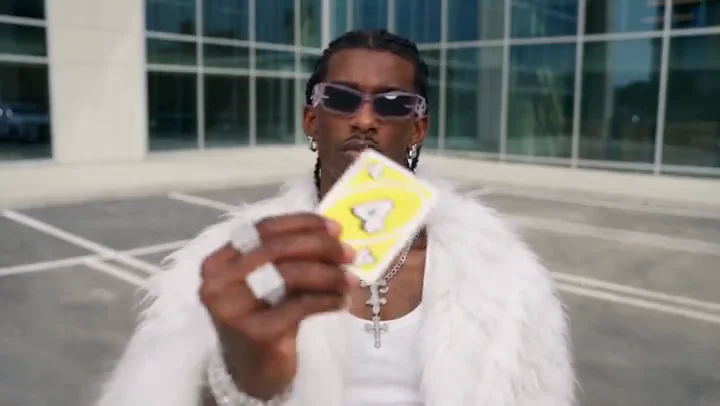
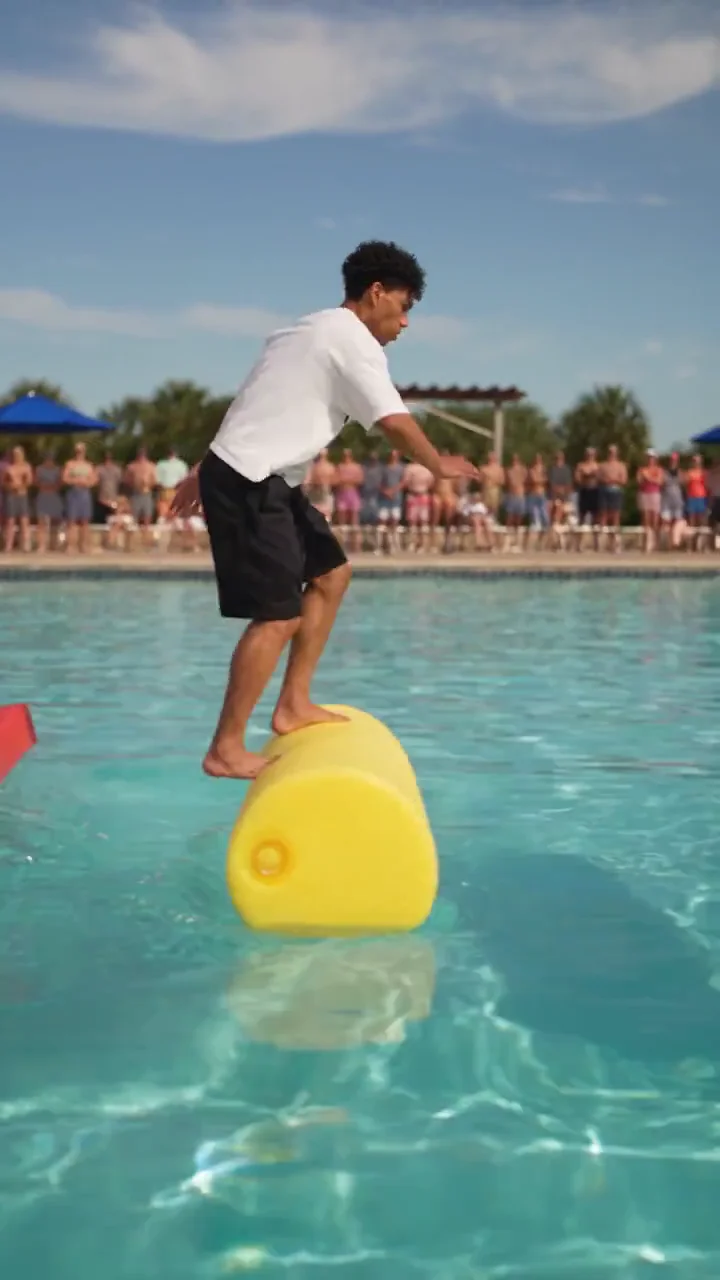
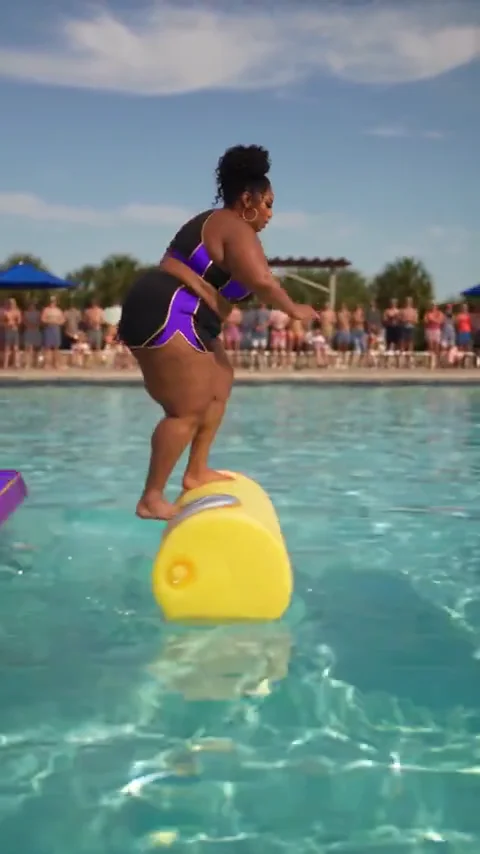
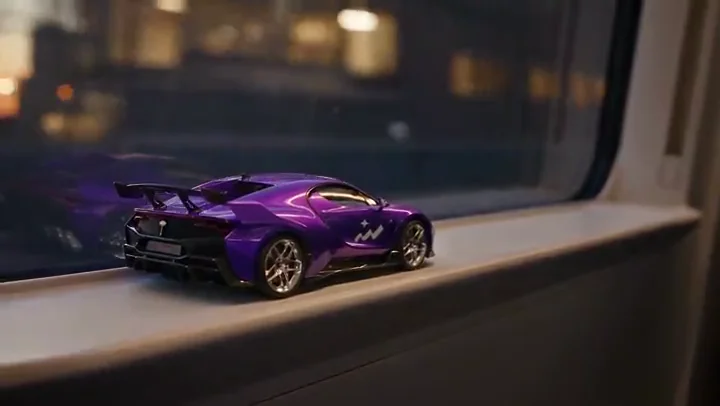

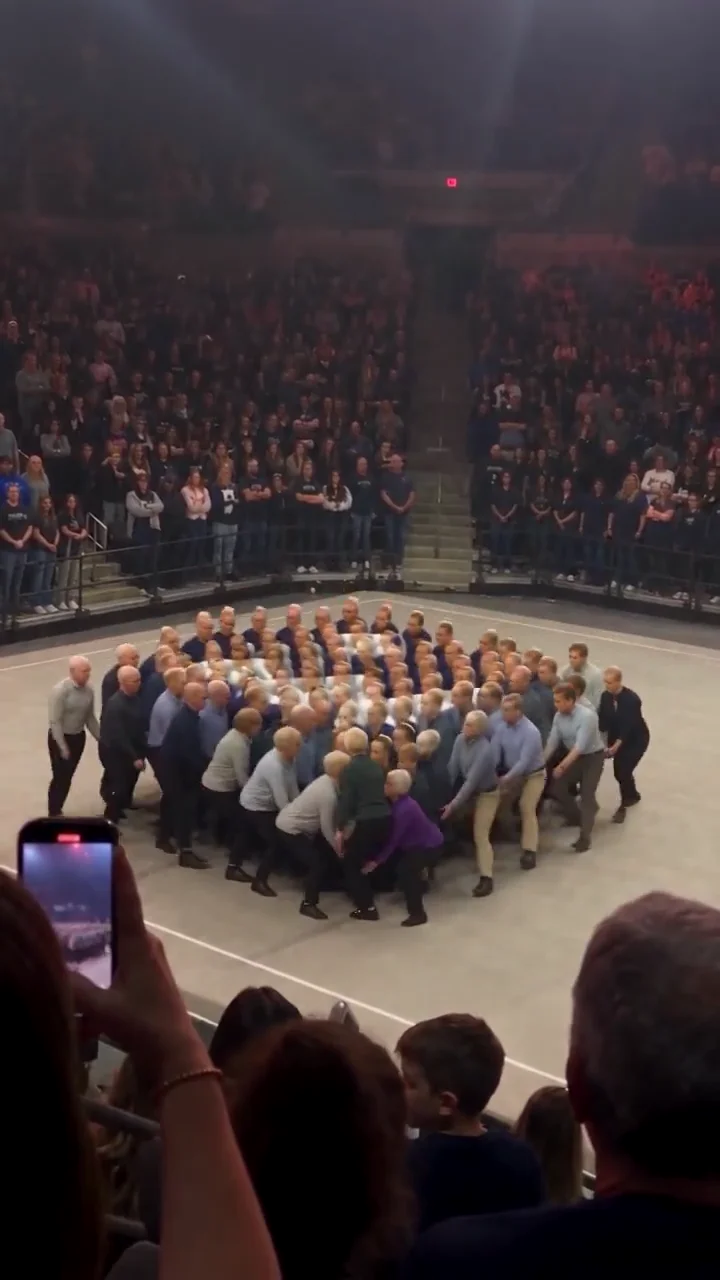
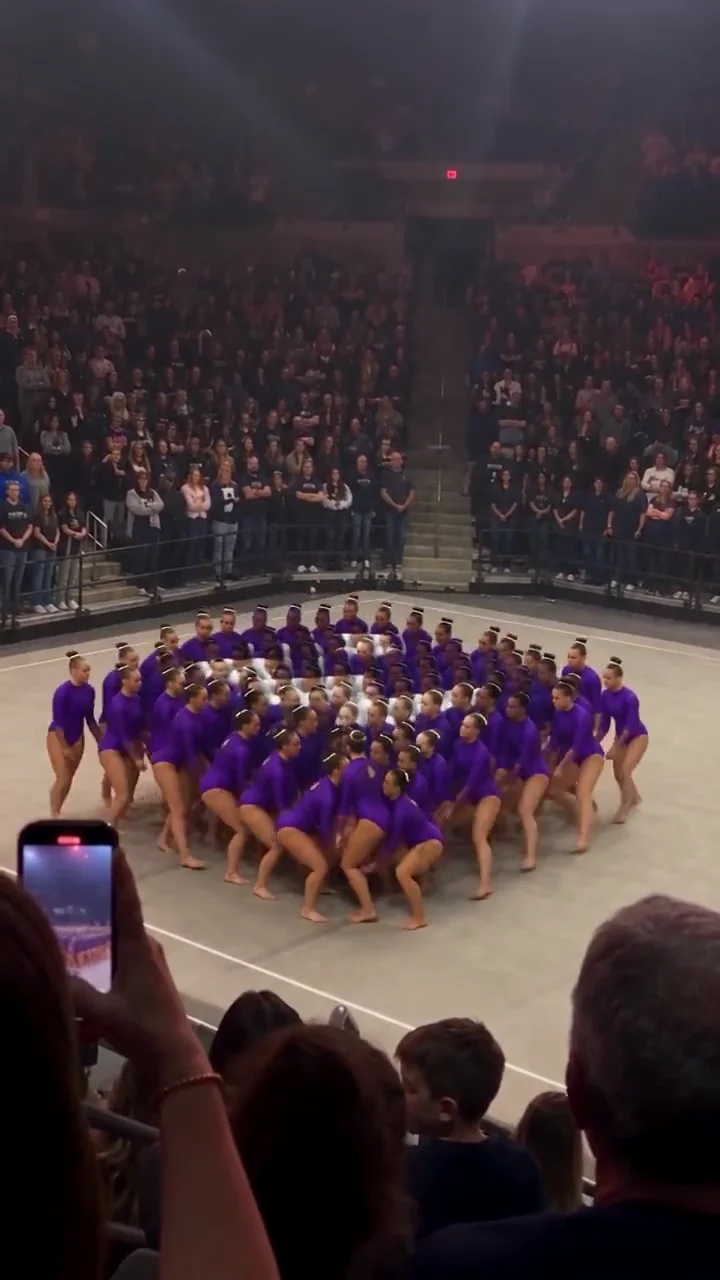


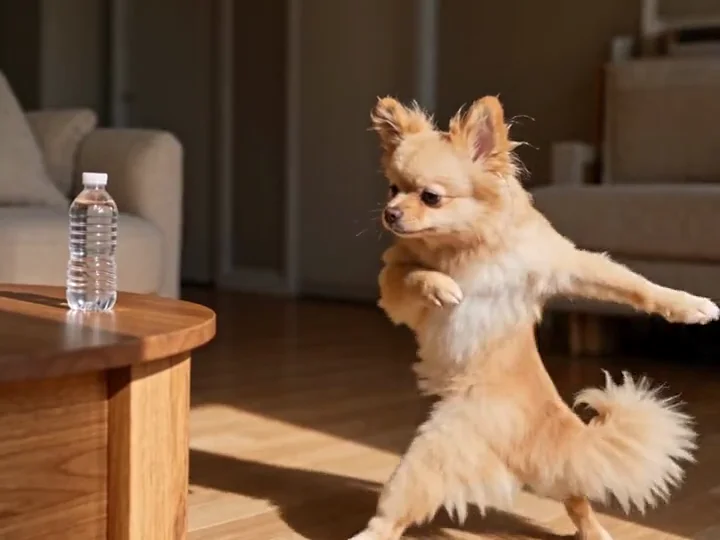
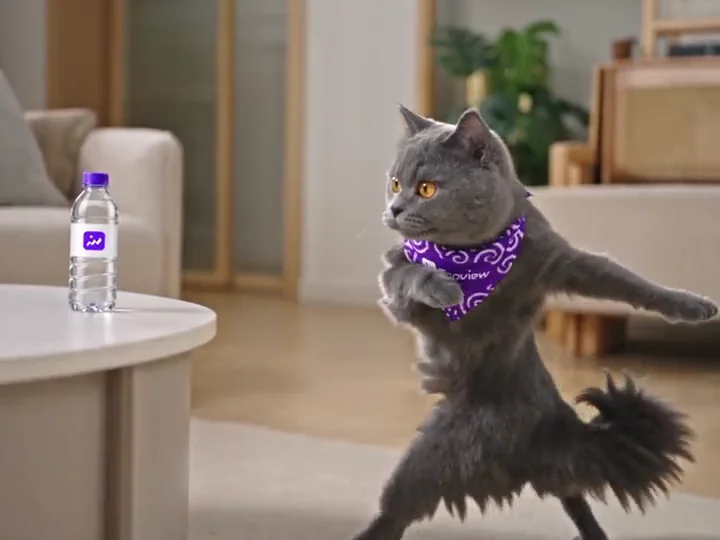
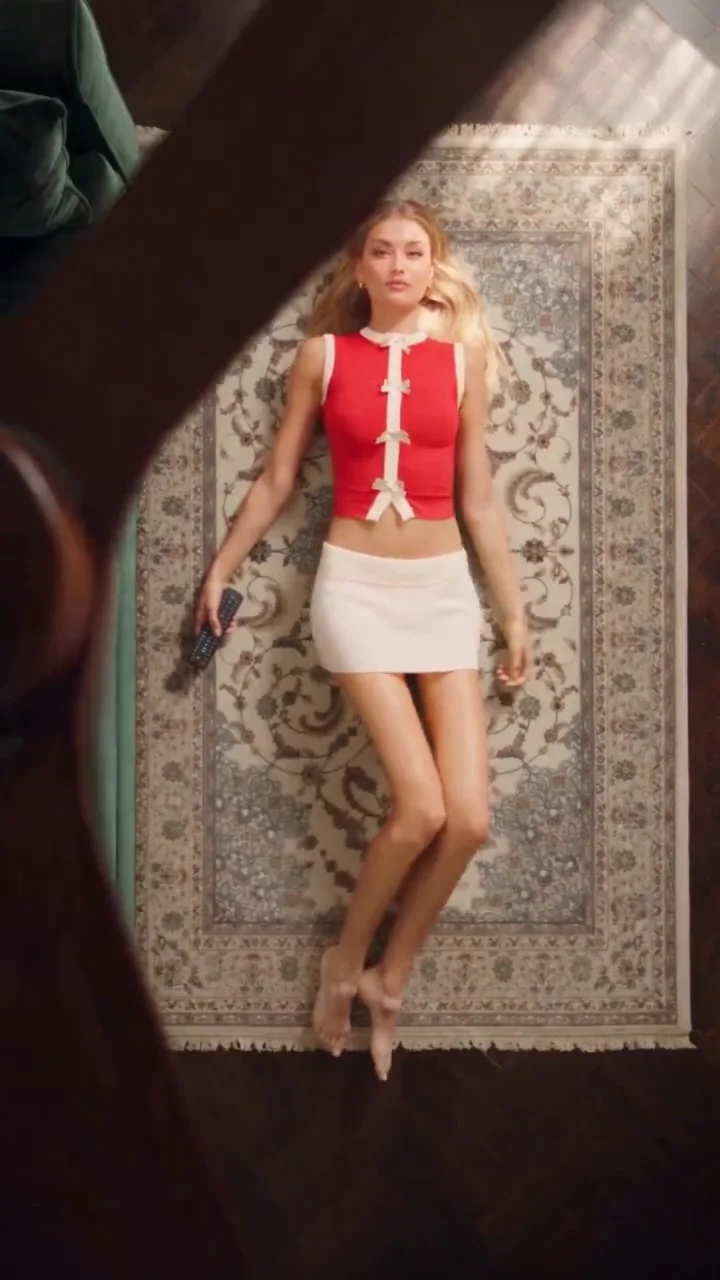
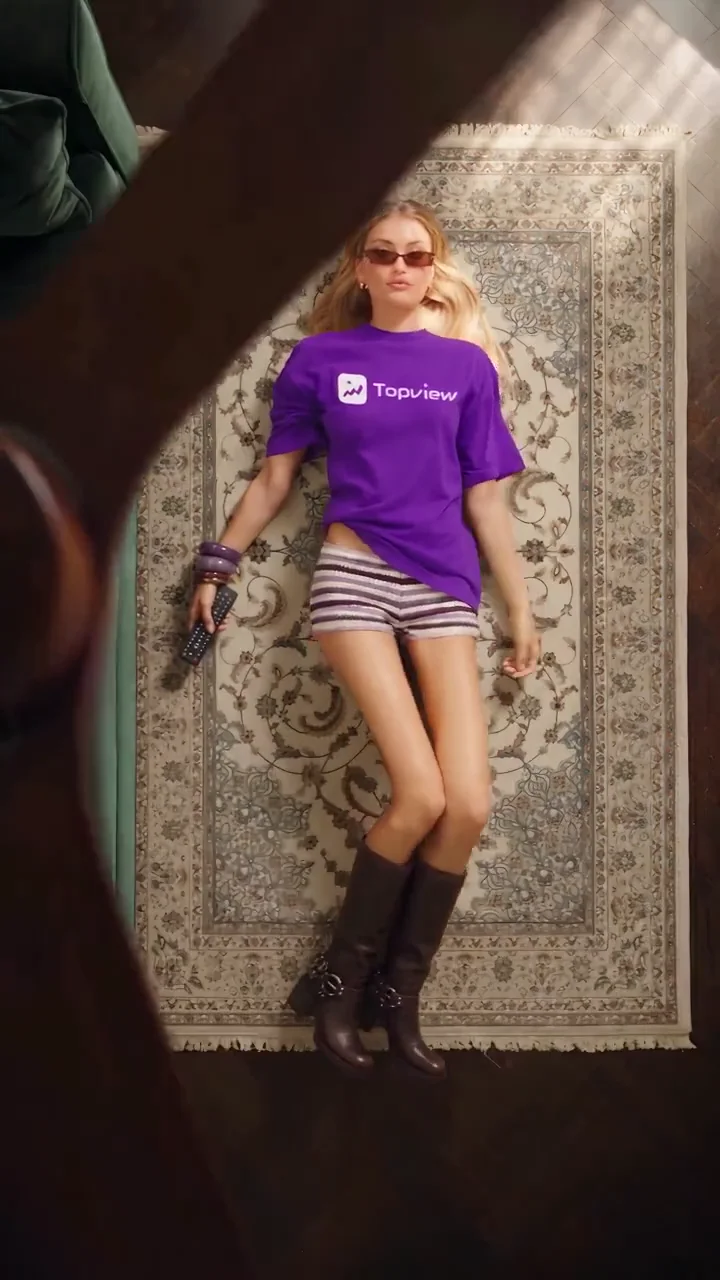
Together, the two modes cover “restyle the subject with the same motion” and “swap one thing, keep the rest.” They are modes of Video Recast, not two products and not two template libraries.
HOW IT WORKS
Three steps from Board entry to a result you can re-edit.
Open Video → Video Recast on Topview Board. Browse the mixed template wall (type badges for Motion Transfer or Object Swap) and Remake so references fill by type—or DIY: pick a mode, upload reference video and up to 30 images. Prefer templates for proven motion patterns; DIY when you own the winning clip. Reference video: 4–30 seconds, under 100MB.
A prompt is optional. When you write one, @ reference images so the model knows which upload guides which change. Select 720p or 1080p. Name the change and the keep—which person, product, or element updates, and that actions and camera stay aligned with the original. Clear targeting beats vague style language, especially for Object Swap.
Choose Topview T1 Recast or Seedance 2.5. Results appear on the same board—re-edit references or prompt and regenerate until the social or ecommerce cut is ready. Iteration is normal: swap a cleaner product still, tighten the prompt, or try the other mode. Unsaved drafts clear on refresh; treat the board result as your checkpoint.
WHO IT’S FOR
Creators who post dance, gesture, or performance clips can remake a motion that already performs—new look, seasonal outfit, or alternate character styling—without re-recording choreography. Motion Transfer is usually the first mode to try.
Sellers who need SKU-level variants of a demo or unboxing motion can place a new product into a proven clip. Object Swap handles “replace this product”; Motion Transfer helps when the whole product presentation and staging should follow the same motion pattern.
Paid social and UGC pods often need many visual variants of one concept. Video Recast supports that with template remakes and mode-specific DIY uploads, then board-side regenerate loops.
Teams that maintain a library of approved motion patterns can standardize remakes through the mixed template wall, then hand brand references to producers. Type badges reduce mode mix-ups between “keep motion, restyle” and “swap one element.”
USE CASES
Video Recast is aimed at short-form social, ecommerce creative, and template remakes—not long-form film pipelines. Each scenario below maps to a mode so teams know which path to open.
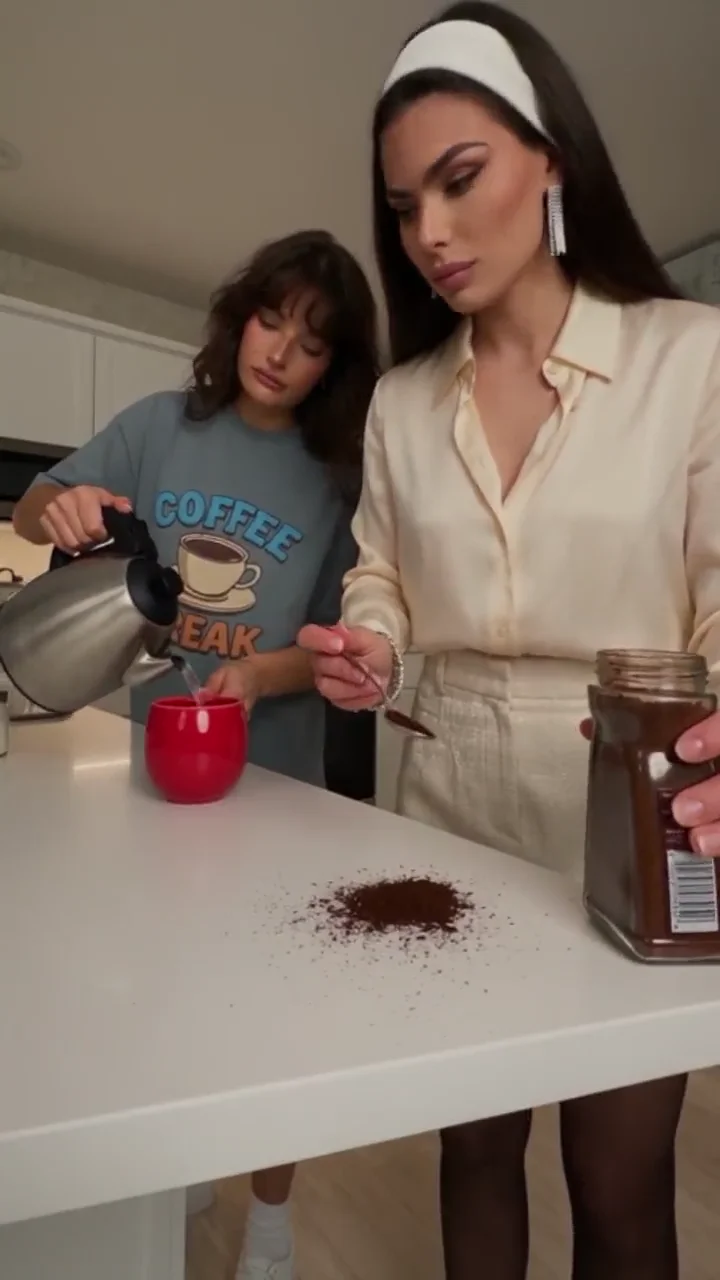
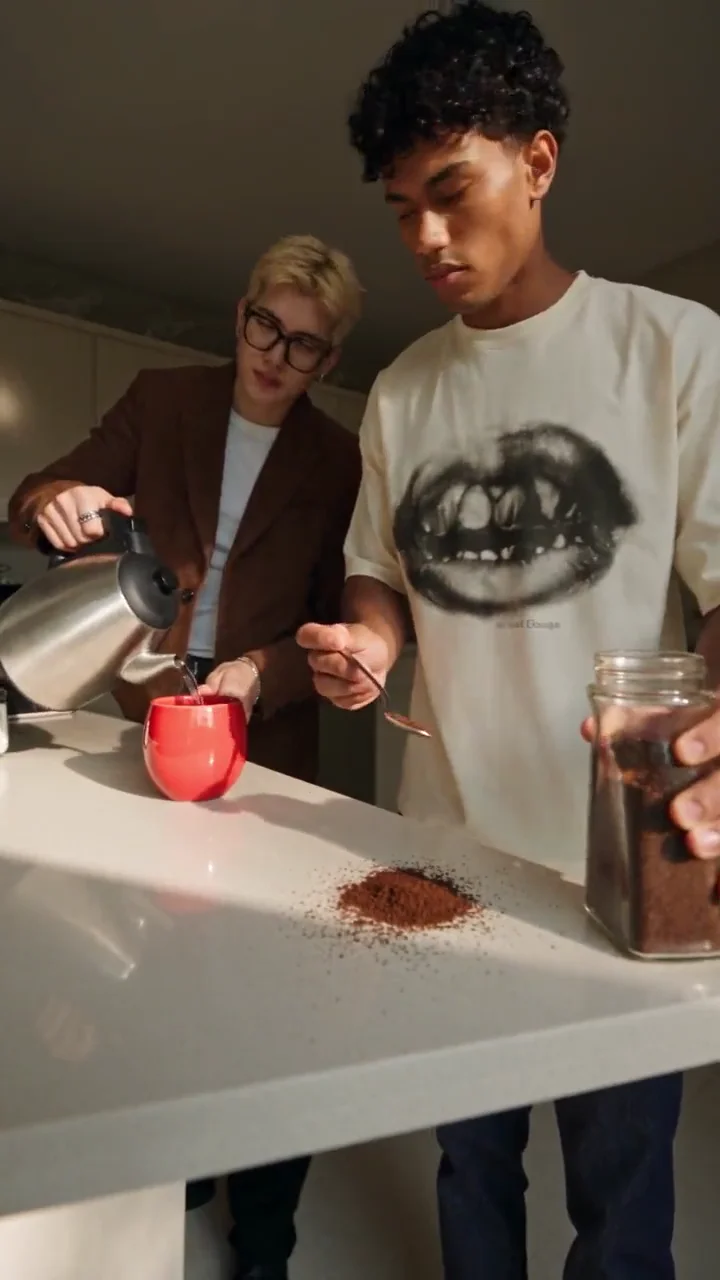
Example: one proven demo motion → multiple product SKUs for Reels, TikTok, Shorts, and paid social.
You have a short clip with clear hand motion, unboxing energy, or demo timing. Use Motion Transfer for that motion on a new product presentation or scene, or Object Swap to replace a product in a video while leaving the rest. Sellers and marketers turn one proven motion asset into SKU variants for Reels, TikTok, Shorts, and paid social. Use sharp product references at similar scale and hold angle, name the product to replace, and prefer readable hero-object shots.

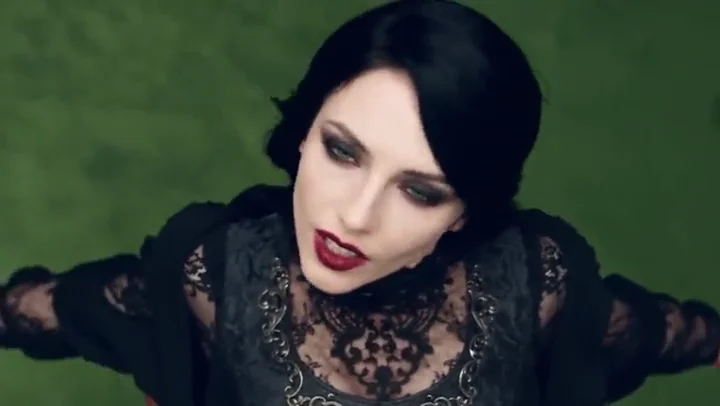
Example: keep the dance or gesture rhythm, restyle person or outfit without re-recording choreography.
Dance hooks, gesture-heavy talking clips, and creator-style performances often win on timing—not one fixed wardrobe. Motion Transfer keeps reference motion while you restyle person, character look, or outfit—new face, seasonal outfit, or brand-safe look without re-recording choreography. For full-person replacement with identity lock, compare sibling Video Character Swap. Stay on Video Recast when remakes may include product or scene restyle, or when you use the Video Recast template wall.
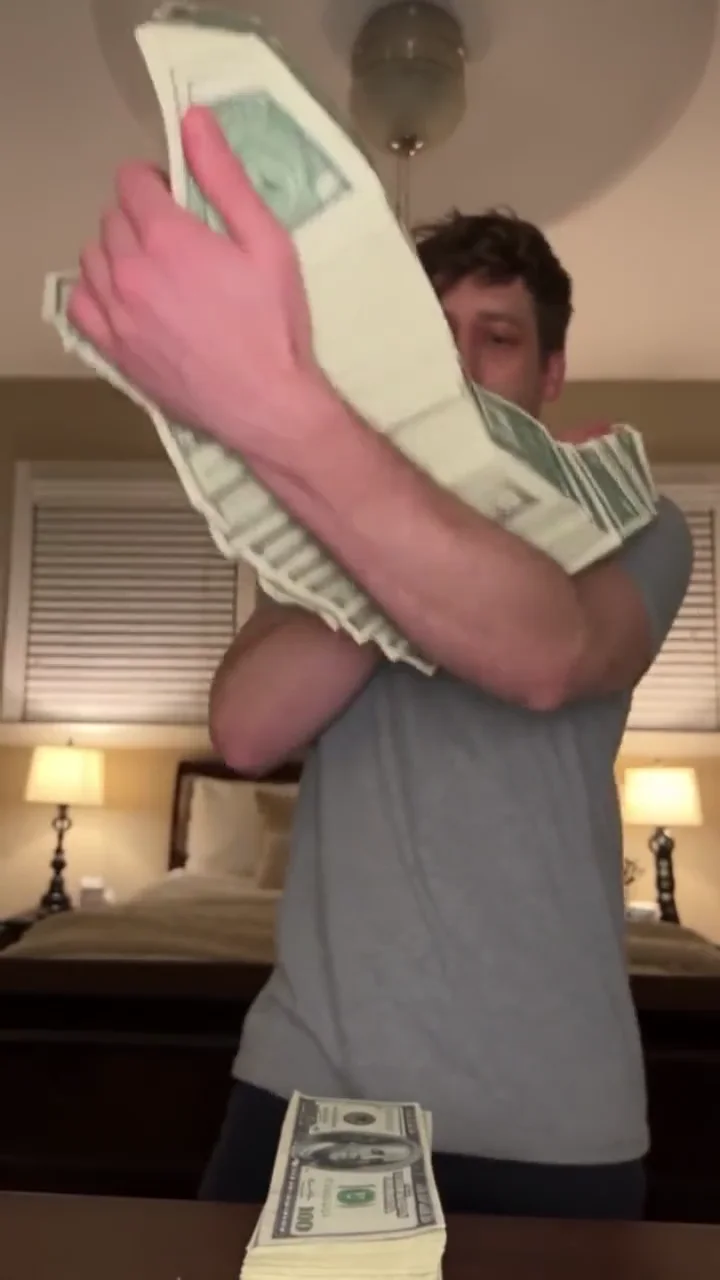

Example: change only the bag, bottle, device, or sign; keep the approved performance for creative testing.
When the brief is “change only this bag / bottle / device / sign,” open Object Swap. Specify the element to replace, supply reference images, and keep the surrounding action. Marketing teams use this for creative testing: same UGC framing, different hero object, faster variant cycles than a reshoot.
Object Swap is also useful when legal or brand review rejects one prop but approves the performance. Remake the element, keep the approved motion, and continue testing thumbnails and hooks downstream in your editor.
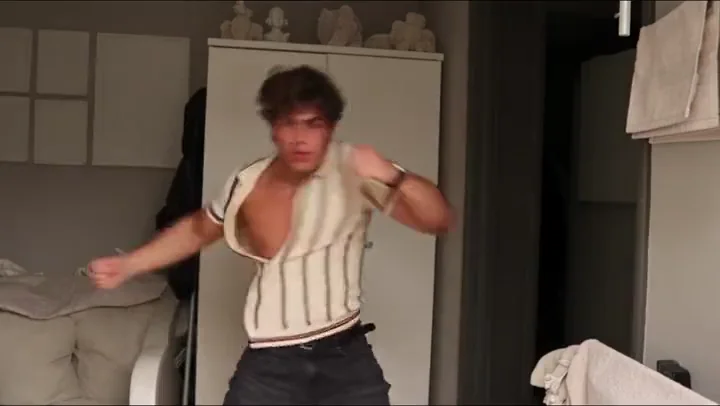
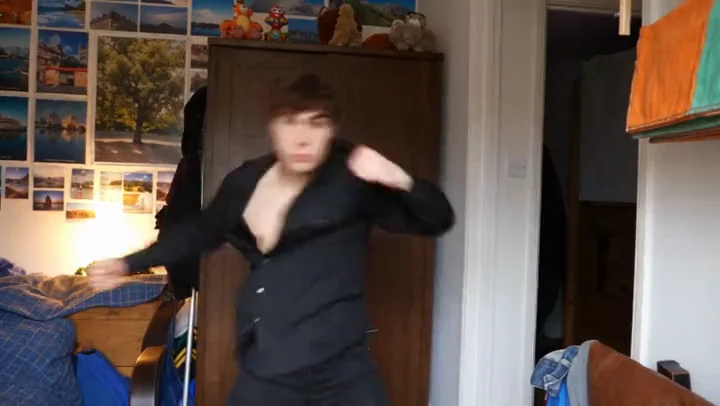
Example: remake a typed template with brand people, products, or scenes; preview stays preview-only.
The mixed template wall is built for remakes. Find a Motion Transfer or Object Swap template with a type badge that matches your job, run Remake so references populate by type, then swap in your brand’s people, products, or scenes. DIY remains available when no template fits. Template previews are for preview only—you still provide the references that define your brand look.
Templates and DIY share one Video Recast surface. You do not jump between two separate template libraries for Motion Transfer and Object Swap.
Browse one wall of templates. Each card carries a type badge so you can see whether the pattern is Motion Transfer or Object Swap before you open it. That keeps discovery simple for social teams who think in jobs (“keep this dance, change the look” vs “swap this product”) rather than in model names.
Choosing Remake on a template fills reference slots according to that template’s type. You then replace those slots with your own images (and video where required) so the remake follows your brand or campaign assets instead of the preview cast.
Template preview video is for understanding the motion pattern and framing. Video Recast does not apply the original template film as your final output through a single apply action. Treat preview as guidance, then upload your references and generate your own result.
Video Recast remakes specified visuals in an existing video. Use sibling tools when the job is person-only, face-only, or still-to-motion.
Video Recast
Primary job
Rebuild specified visual elements or content from an existing video
How it differs from Video Recast
Broader video-content remake: Motion Transfer + Object Swap for social/ecommerce variants—not person-only or face-only
Primary job
Replace the person in a video
How it differs from Video Recast
Focuses on identity and full-body appearance (Video Character Swap)
Primary job
Change only the face
How it differs from Video Recast
Changes only the face. Video Recast restyles motion or replaces one element in the clip.
Primary job
Apply reference motion to a new character (typically from an image)
How it differs from Video Recast
Motion-driven animation; does not assume keeping the whole source scene (Motion Control)
Lip Sync aligns mouth motion to speech on talking-head style workflows (see AI Lip Sync). Video Recast restyles motion or replaces an element. Use Lip Sync when speech alignment is the job; use Video Recast when motion restyle or element replacement is the job.
Video Recast is not a video editor. It does not replace a timeline for cutting, music beds, subtitles, or free-form duration editing. Generate the remade clip on the Board, then take the file into your usual editor or publishing stack if you still need cuts, captions, or audio design.
Explore related Topview tools for character swap, motion control, lip sync, and more creative workflows.
GET STARTED
Open Video Recast on Topview Board, pick Motion Transfer or Object Swap, start from a template remake or your own uploads, and generate at 720p or 1080p. Review on the same board, re-edit, and regenerate until the social or ecommerce variant is ready.
Open Video Recast on Topview Board