3D model (mesh) workflow
- Polygon geometry with materials—common in games, AR, and 3D printing.
- Tools like Meshy, Tripo, or photogrammetry exporters target GLB/OBJ/STL delivery.
- Best when you need a riggable asset or printable object file.
Mesh model vs roamable world
Searching for image to 3D can mean two different goals: a downloadable mesh for engines and printing, or a space you can enter and photograph. Topview focuses on the second—explorable 3D worlds on Canvas, not downloadable mesh-export workflows.
Read the 3D World guide01 Before
Image → 3D World
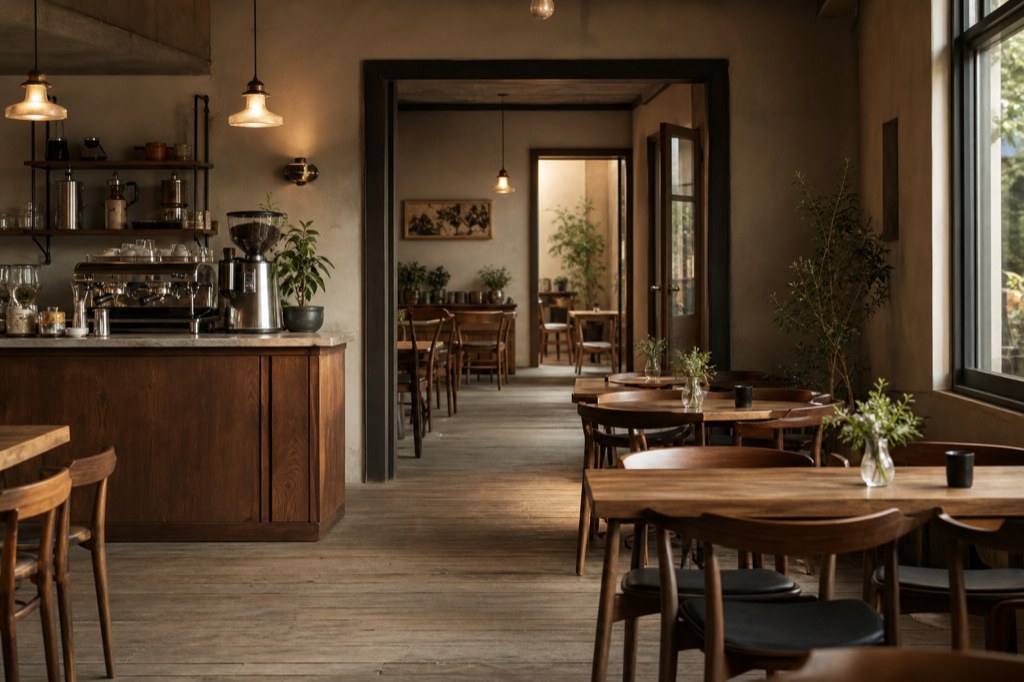
02 After
Marble 1.1 Plus
Optional: add one image or one video (up to 30s). Image and video cannot be used together.
Image to 3D tools often reconstruct a single object or scene as a polygon mesh—with vertices, faces, and UVs—so you can rig, print, or import into a game engine. Topview 3D World instead turns text, an image, or a short video into a Gaussian Splat environment you navigate inside Canvas and capture as still frames for image and video workflows.
Two valid outcomes—Topview specializes in worlds you can walk through.
You must import geometry into Unity, Unreal, Blender rigging, or a 3D printer and you own that export pipeline end to end.
You need to walk a location, try camera angles, and feed captured frames into Topview image or video generation on the same canvas.
Import mesh props elsewhere while using Topview worlds for set concepting—Topview does not replace every mesh exporter, it covers the roamable environment case.
Start from a photo or concept still when a mesh is not the deliverable.
Upload PNG, JPG, or WebP as visual guidance. You can add text to clarify the scene you want to create.
Open the 3D World card, enter full screen, and move through the splat—not orbit a single mesh preview.
PNG screenshots land beside your card for downstream text-to-image or video steps.
Answers about image to 3D intent, mesh exporters, and Topview explorable worlds.
Open Canvas to generate an explorable 3D world from text, image, or video.
Explorable Gaussian Splat worlds · Screenshot capture to Canvas