
3ds Max for Topview
Your next creative workflow starts in 3ds Max.
3ds Max 2024 or later is recommended
Install in three steps
- 1
Download the .mzp
Keep the installer as an .mzp. Do not unzip it.
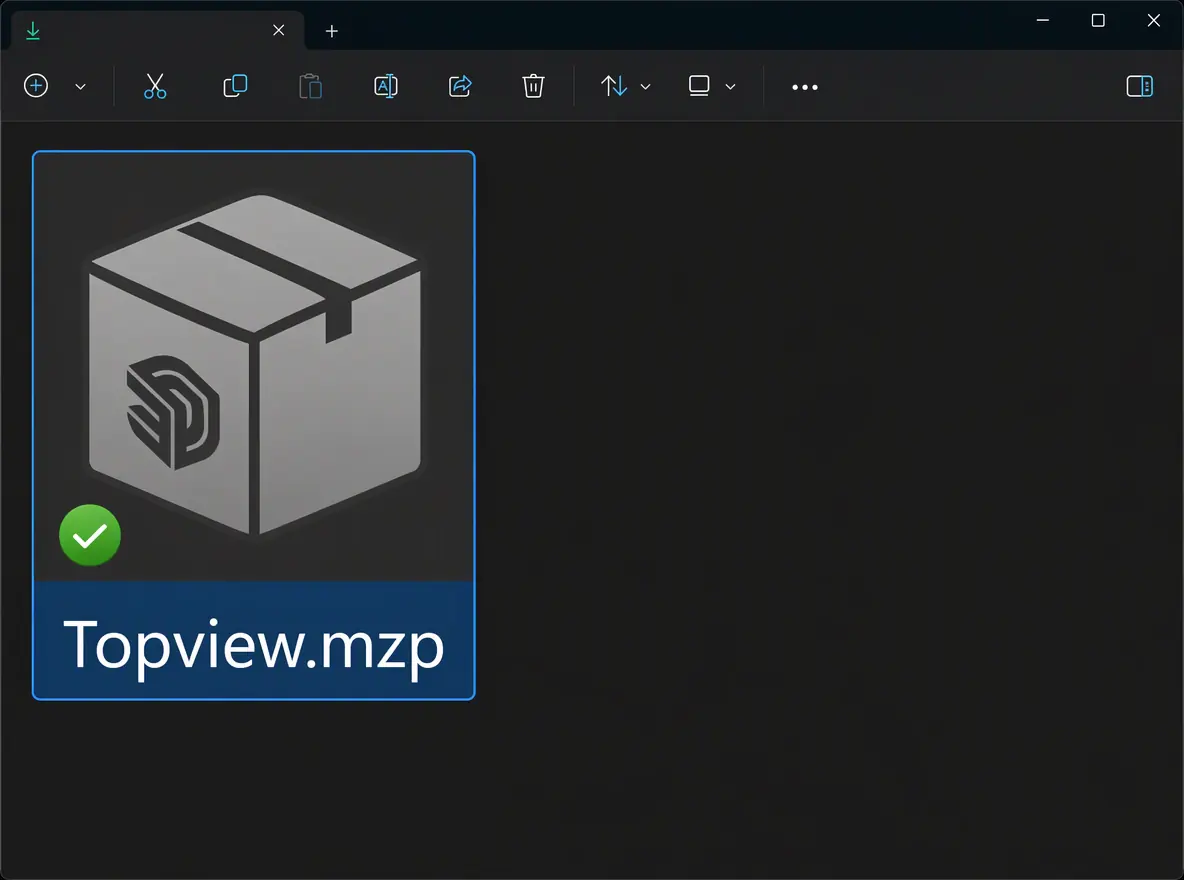 Download preview
 - 2
Drag the .mzp into the viewport
Drop the .mzp from File Explorer into a 3ds Max viewport.
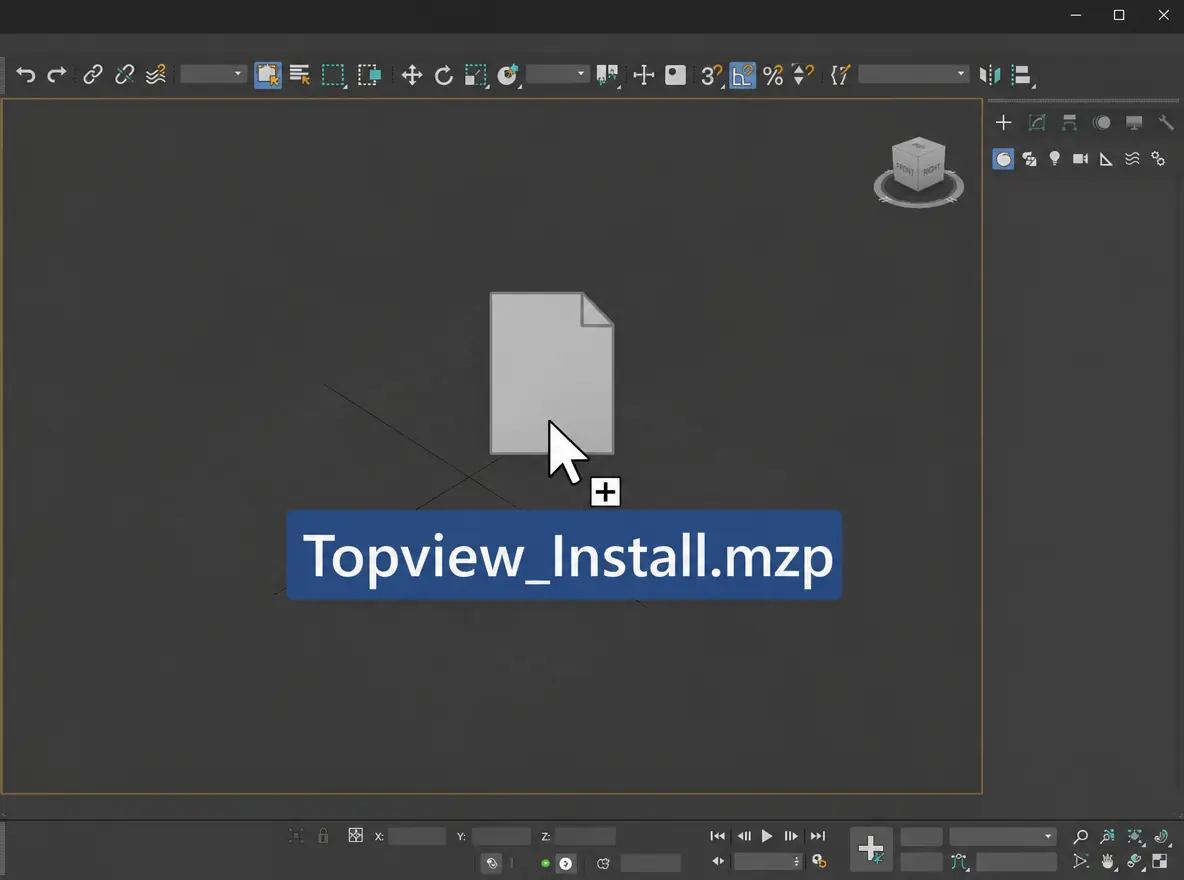 Drag-and-drop preview
3ds Max import to Topview for rendering
Keep a 3ds Max scene moving and send the next render to Canvas.
From 3ds Max to Topview
What is the Topview 3ds Max plugin?
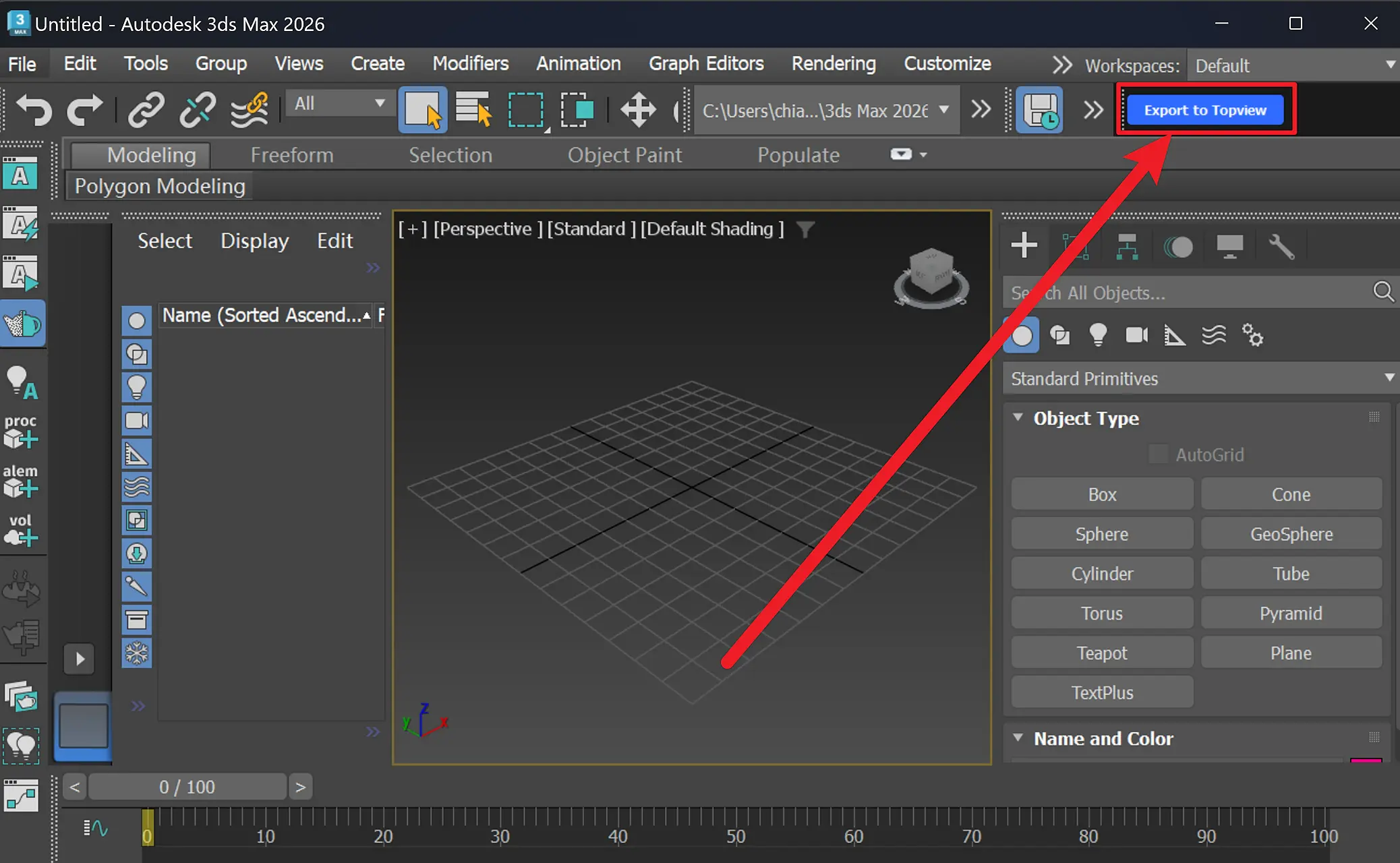
The Topview 3ds Max plugin exports clay-render videos from 3ds Max to Topview, where Seedance 2.5 turns them into cinematic videos. Keep your scene editable in 3ds Max and refine it whenever you need another take.
Why use the Topview 3ds Max plugin
From clay render to finished video, in one workflow
Export directly to Topview, create with an AI agent, and return to 3ds Max whenever you want to refine the shot.
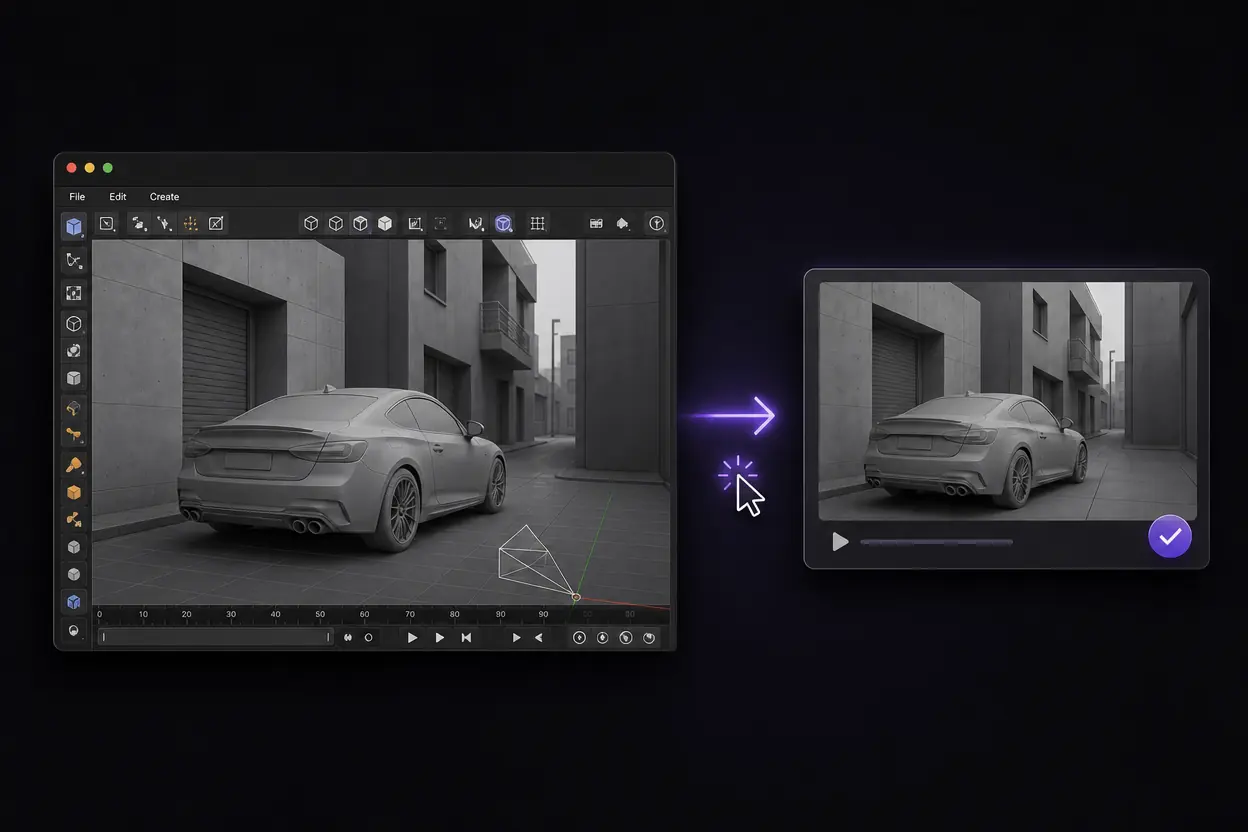
Send your clay video to Topview in one click
Export a clay-render video from your 3ds Max scene and send it directly to Topview with the plugin. Bring your scene layout and camera motion into your video workflow without a separate manual upload.
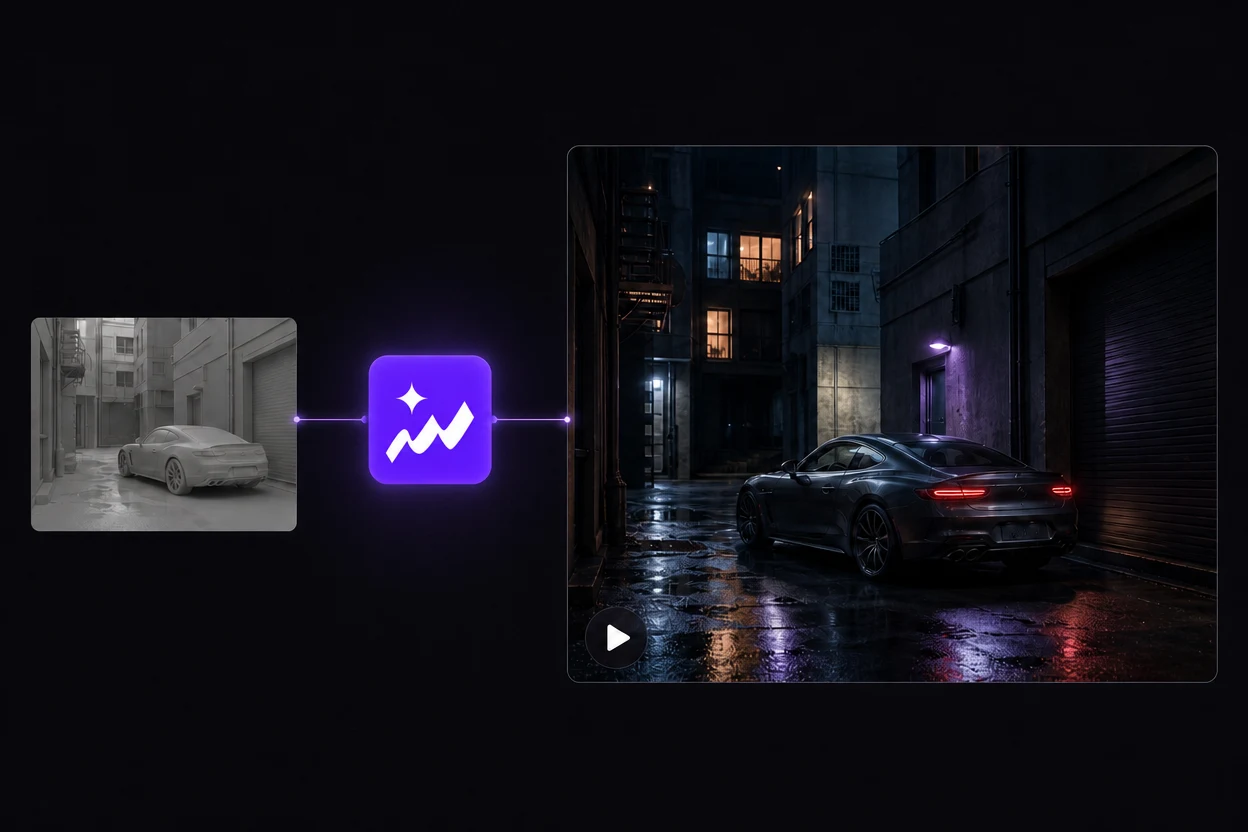
Create the finished video with a Topview agent
Topview’s AI agent takes your clay video through to a finished video with Seedance 2.5. Describe the look you want and complete the creative process in one place.
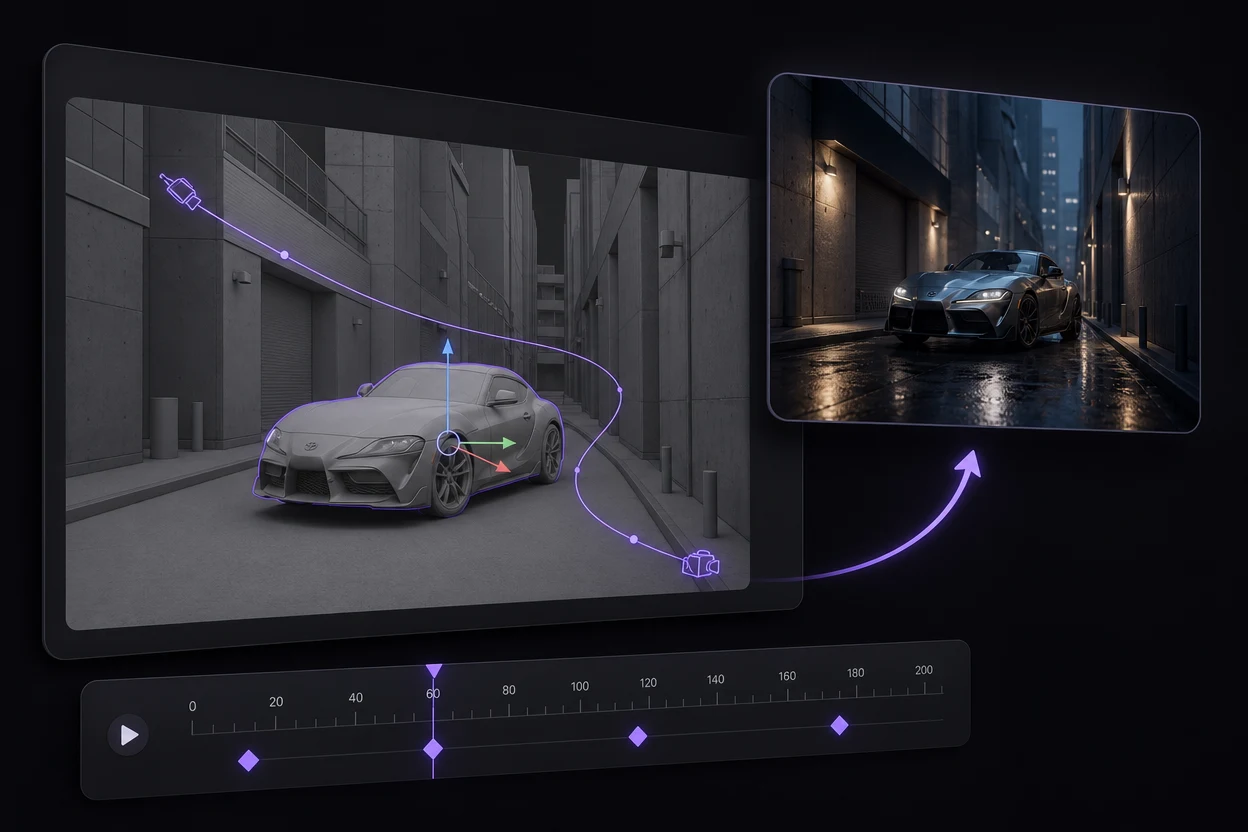
Edit in 3ds Max. Export again.
Need a different camera move or scene layout? Adjust objects, camera paths or keyframes in 3ds Max, then export a new clay video to Topview for another version.
GPT-6 + 3ds Max + Topview
Take a GPT-6-assisted 3ds Max scene further
Use GPT-6 Astra to help plan a 3ds Max scene, then review its objects and keyframed animation in 3ds Max. Once the camera move works, the Topview 3ds Max plugin carries your rendered reference into the video workflow.
GPT-6 Astra can help you describe objects, layout and camera motion before you build the shot in 3ds Max. Scene assistance is an optional starting point; GPT-6 is not built into the Topview plugin.
See OpenAI’s GPT-6 Astra introductionAn example scene brief
Help me build a simple alley scene in 3ds Max with editable buildings, a parked car and a camera that slowly moves forward before revealing the car. Keep the objects separate and put the camera motion on keyframes so I can revise the shot.
Describe the scene
Ask GPT-6 to help plan the objects, layout and camera animation for a specific shot.
Review and adjust
Check the scene in 3ds Max. Refine geometry, object placement and keyframes before rendering.
Send the clay video
Export through the Topview plugin and import the reference into your Topview project.
Develop the final look
Use Seedance 2.5 in Topview to explore a cinematic treatment based on that reference.
You can also build the scene yourself. The plugin imports the rendered video, regardless of how the 3ds Max scene was created.
3ds Max plugin FAQ
Build the motion in 3ds Max. Finish the look in Topview.
Start with a shot you can revise, then explore the cinematic treatment it deserves.
View plugin setup