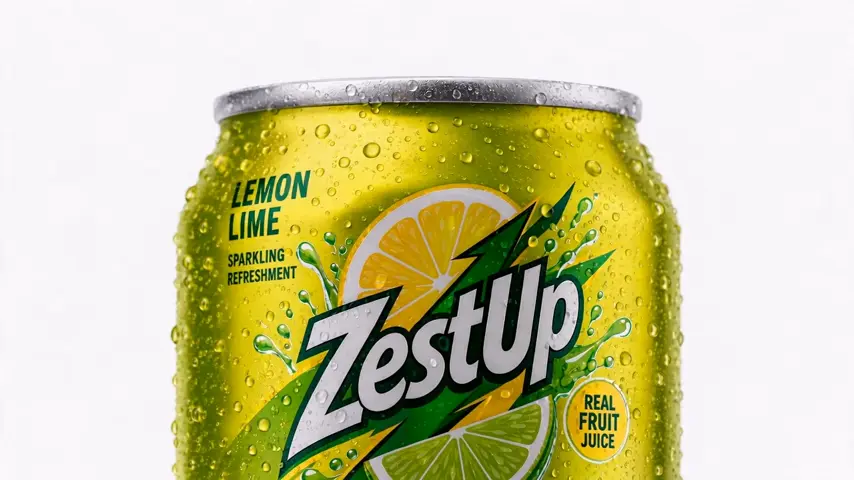
精選案例 · 影片復刻
復刻這支熱門產品廣告
復刻這支熱門產品廣告 是 Topview Canvas 上的影片復刻精選案例。頁面留下的提示詞開頭如下:Clone this viral product ad **Product Image**: <<<Image1>>> **Reference Video**: <<<Video1>>> **Reference Usage**: Follow the reference video for pacing, shot rhythm, captions, and hook structure **Replacement**: Swap…

案例影片
本案例使用的提示詞
Clone this viral product ad
**Product Image**: <<<Image1>>>
**Reference Video**: <<<Video1>>>
**Reference Usage**: Follow the reference video for pacing, shot rhythm, captions, and hook structure
**Replacement**: Swap the advertised item in the reference video with<<<Image1>>>
**Ad Style**: High-end lifestyle unboxing, UGC
**Tone / Energy**: Keep the overall viral-ad energy
參考素材

Reference 1
Reference 2
這個案例呈現什麼
復刻這支熱門產品廣告 是 Topview Canvas 上的影片復刻精選案例。頁面留下的提示詞開頭如下:Clone this viral product ad **Product Image**: <<<Image1>>> **Reference Video**: <<<Video1>>> **Reference Usage**: Follow the reference video for pacing, shot rhythm, captions, and hook structure **Replacement**: Swap…
案例拆解
- 1
托管的案例影片
復刻這支熱門產品廣告 的詳情影片放在凍結的 /media 路徑,尺寸來自上傳流程,因此頁面不必在執行時呼叫 sample-cases。
- 2
分類歸屬
這個精選案例歸在影片復刻。相關連結只留在同一分類,頁面不會假裝自己是工具總覽。
- 3
可複製的 Canvas
復刻這支熱門產品廣告 有來源 Canvas。「使用此案例」會依案例 id 複製該專案,再導向 /canvas——絕不會進 /board。
- 4
留下的提示詞
這個頁面上的提示詞是正式環境留下的 initialPrompt,只供閱讀,不會跟著複製請求送出。
- 5
參考素材
2 份來自此案例素材的凍結參考檔放在 /media,拆解才能對到實際上線時附上的內容。
工作流
如何在 Canvas 使用這個精選案例
- 1
檢視案例
觀看 復刻這支熱門產品廣告 已發布的媒體;若頁面有顯示,再讀留下的提示詞與參考素材。
- 2
使用此案例
點選「使用此案例」。若尚未登入,請在同一個 URL 完成電子郵件、Google 或 Apple 登入,複製就會繼續。
- 3
在你的 Canvas 中編輯
Topview 會在 /canvas 開啟複製後的專案。在那裡改場景、素材或模型——這個頁面不會跳到 Board。



精選案例常見問題
CANVAS
在 Canvas 繼續這個案例
「使用此案例」會把 復刻這支熱門產品廣告 複製進你的 Canvas。登入後會回到本頁,再開啟新的 /canvas 專案。