Featured Case · Marketing Video
Create a virtual try-on video for this outfit
Create a virtual try-on video for this outfit is a Marketing Video Featured Case on Topview Canvas. The stored prompt begins: Create a fashion try-on video **Outfit Image**: <<<Image1>>> **Model Action**: Wears the outfit and shows it off with natural turns and walks **Background**: Street-style setting **Lighting**: Flattering **Style**:…

Case video
Prompt used in this case
Create a fashion try-on video
**Outfit Image**: <<<Image1>>>
**Model Action**: Wears the outfit and shows it off with natural turns and walks
**Background**: Street-style setting
**Lighting**: Flattering
**Style**: Trendy fashion-reel
**Pacing**: Relatively fast, highly fashionable rhythm
**Duration**: ~20 seconds
Reference inputs
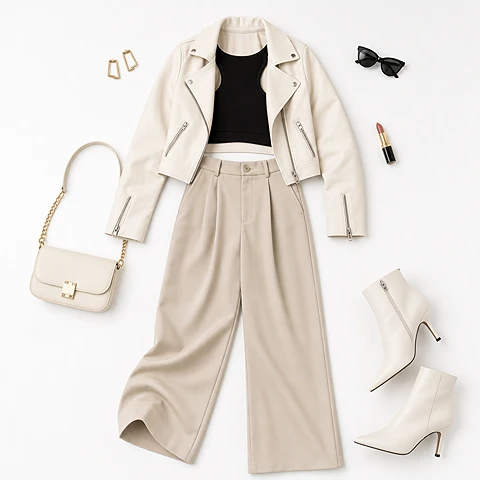
Reference 1
What this case shows
Create a virtual try-on video for this outfit is a Marketing Video Featured Case on Topview Canvas. The stored prompt begins: Create a fashion try-on video **Outfit Image**: <<<Image1>>> **Model Action**: Wears the outfit and shows it off with natural turns and walks **Background**: Street-style setting **Lighting**: Flattering **Style**:…
Case breakdown
- 1
Hosted case video
The detail video for Create a virtual try-on video for this outfit lives on a frozen /media path with measured dimensions from the upload pass, so the page can render without calling sample-cases at runtime.
- 2
Category placement
This Featured Case is filed under Marketing Video. Related links stay inside that category so the page does not pretend to be a tool hub.
- 3
Cloneable Canvas
Create a virtual try-on video for this outfit has a source Canvas. Use this case copies that project by case id and then routes to /canvas — never /board.
- 4
Documented prompt
The prompt on this page is the stored initialPrompt from production. It is shown for reading; it is not sent in the copy request.
- 5
Reference inputs
1 frozen reference file(s) from the case assets sit under /media so the breakdown can show what the published case actually attached.
WORKFLOW
How to use this Featured Case in Canvas
- 1
Review the case
Watch the published media for Create a virtual try-on video for this outfit and, when shown, read the stored prompt and reference inputs.
- 2
Use this case
Select Use this case. If you are signed out, finish email, Google, or Apple login on this same URL, then the copy continues.
- 3
Edit in your Canvas
Topview opens the copied project on /canvas. Change scenes, assets, or models there—this page does not jump to Board.

Featured case FAQ
CANVAS
Continue this case in Canvas
Use this case copies Create a virtual try-on video for this outfit into your Canvas. Login returns to this page, then opens the new /canvas project.