GPT Image 2.6 AI Image Editor
Mark up the image. Guide the edit.
OpenAI's API spec names GPT Image 2.6 with markup: a transparent PNG laid over your image to guide an edit, used instead of a mask. 2.6 has no public model ID or release date yet. GPT Image 2.5 Sunburst is live on Topview today.


- Markup overlay
- Pixel-aligned
- Markup or mask
- Coming soon
Trusted by leading companies











Mark it. Edit it. Keep the rest.
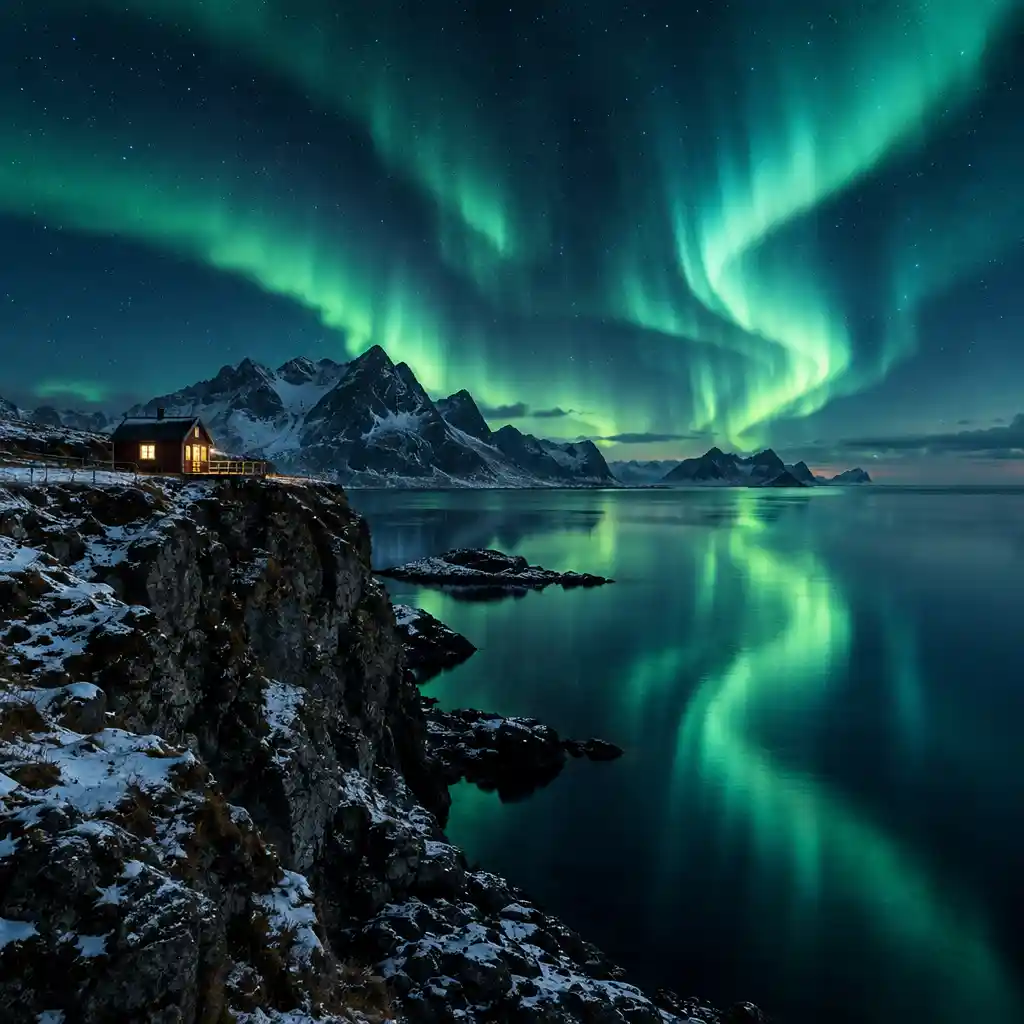
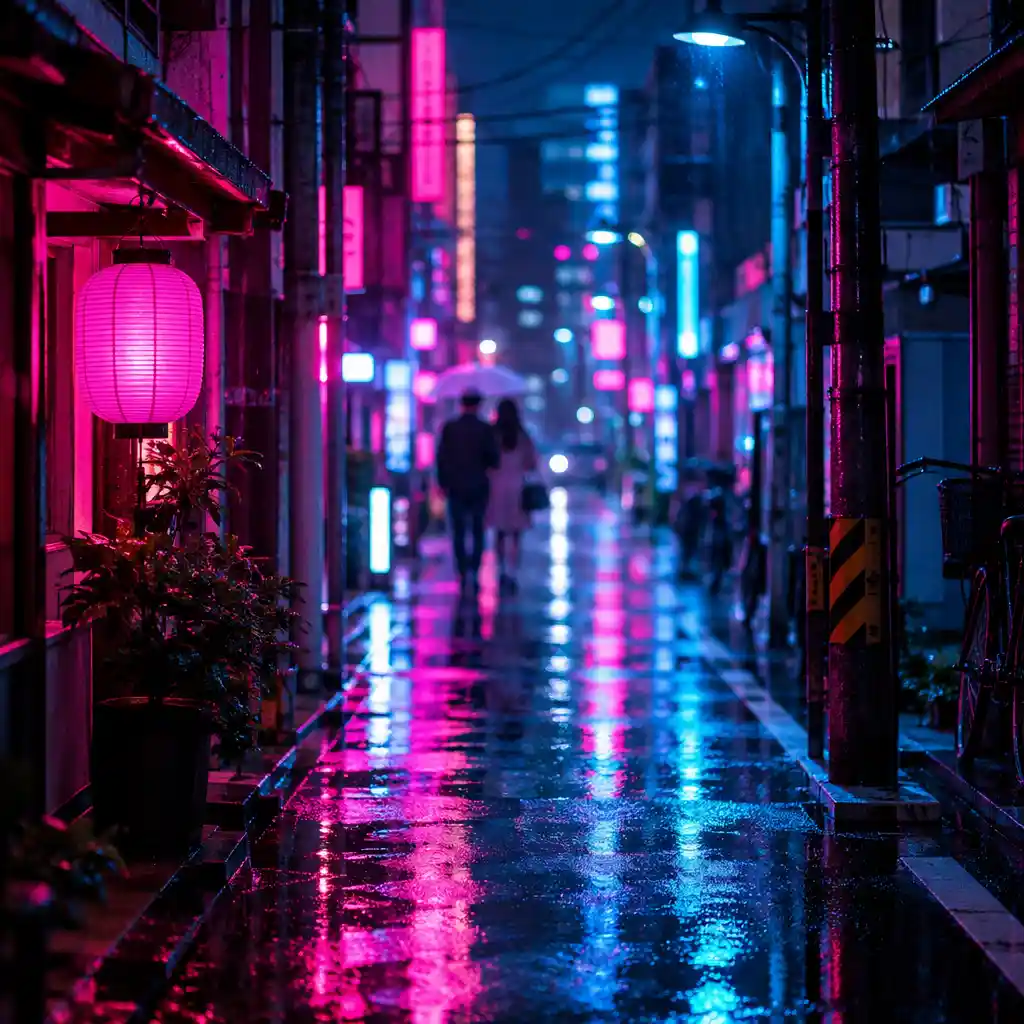
These frames show the markup workflow on Topview with GPT Image 2.5. They are not official GPT Image 2.6 samples; 2.6 is not released.
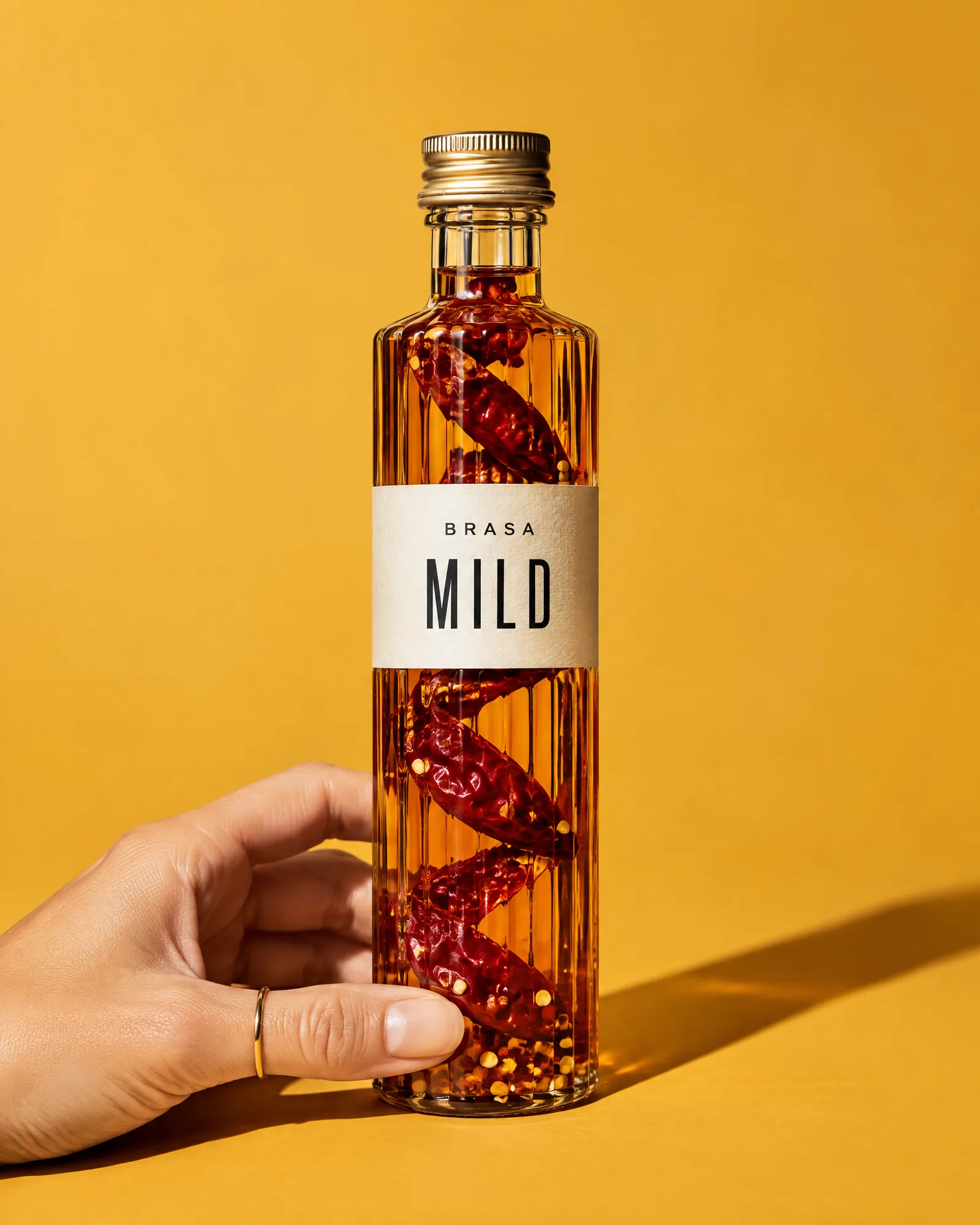
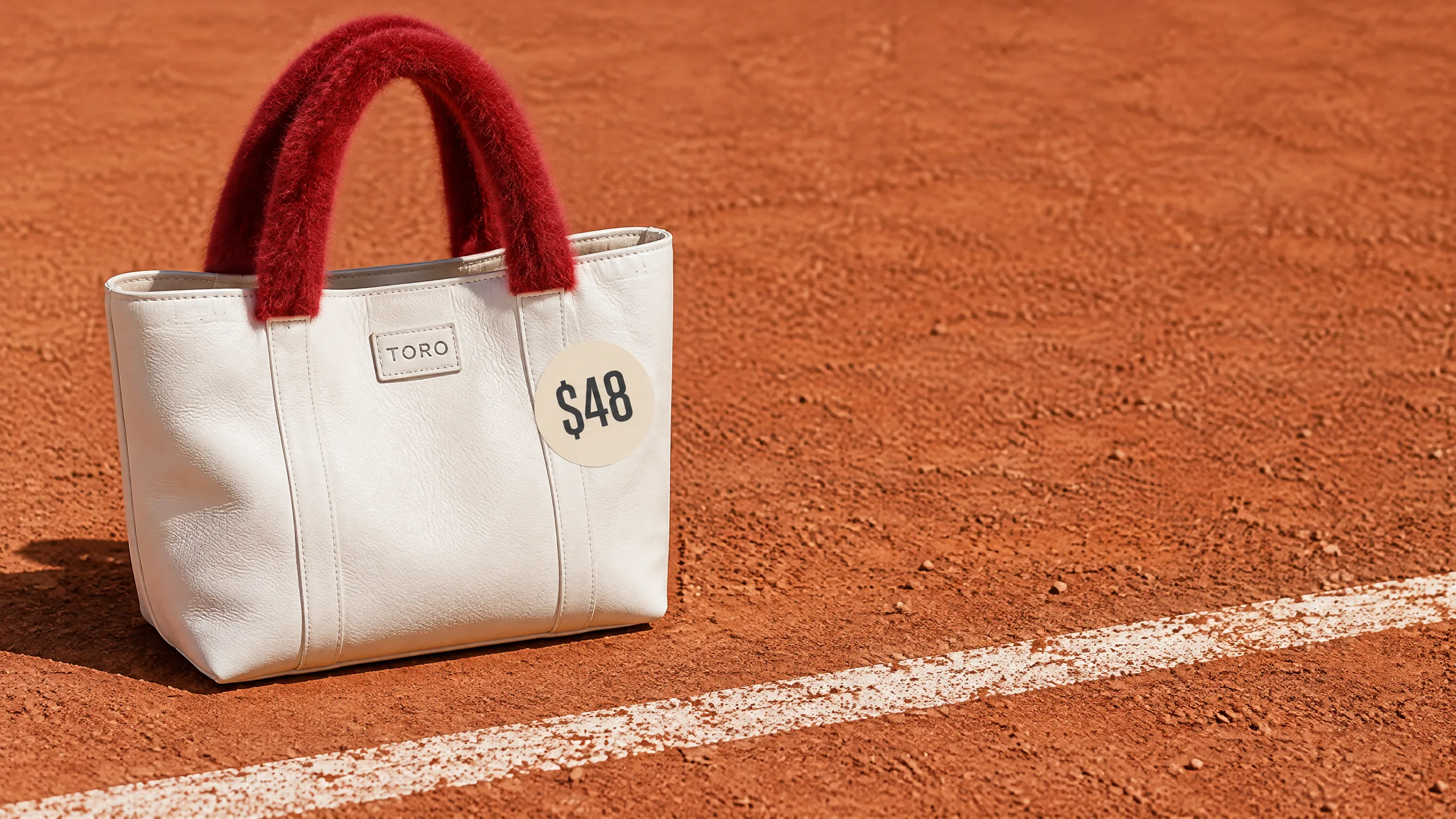
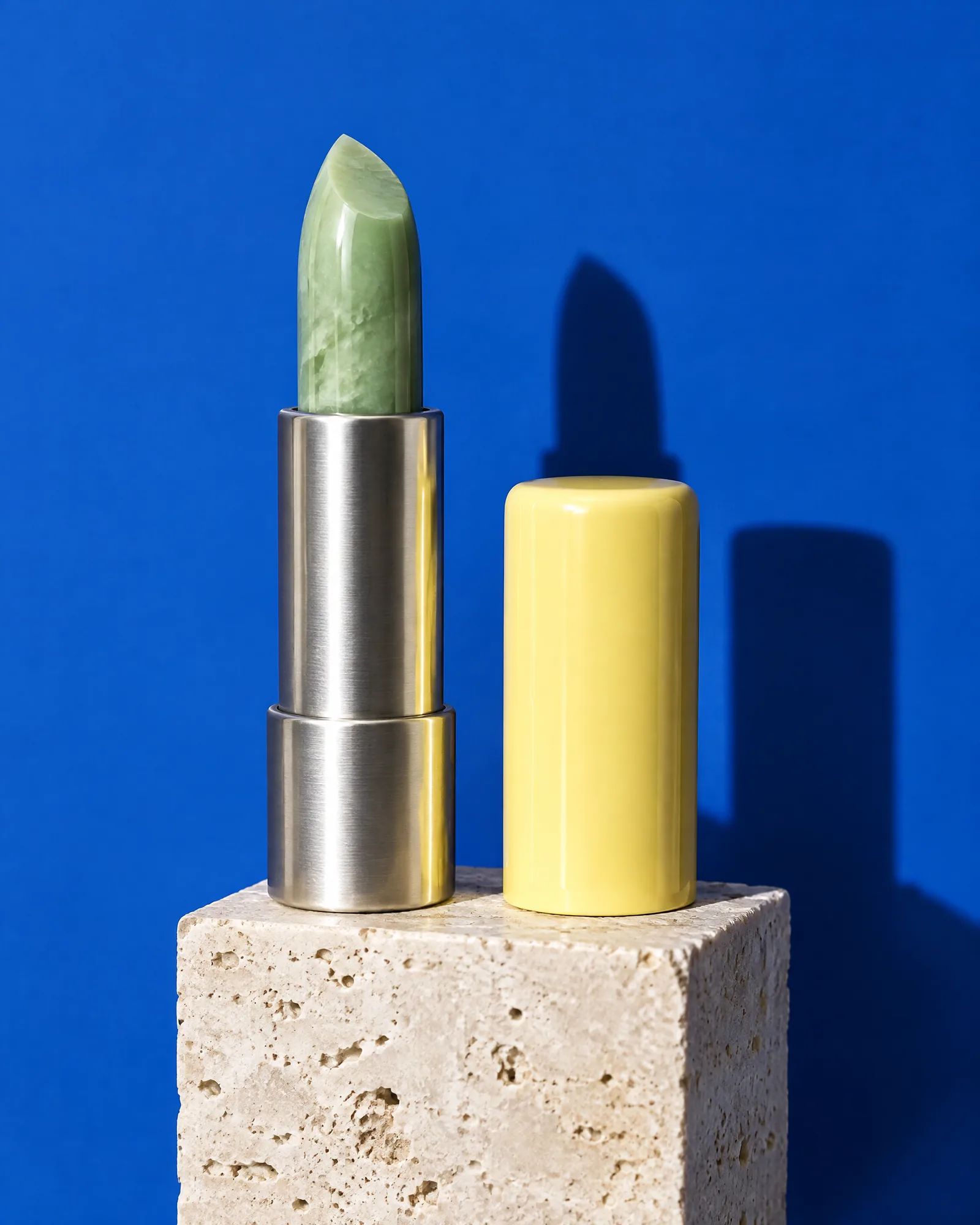
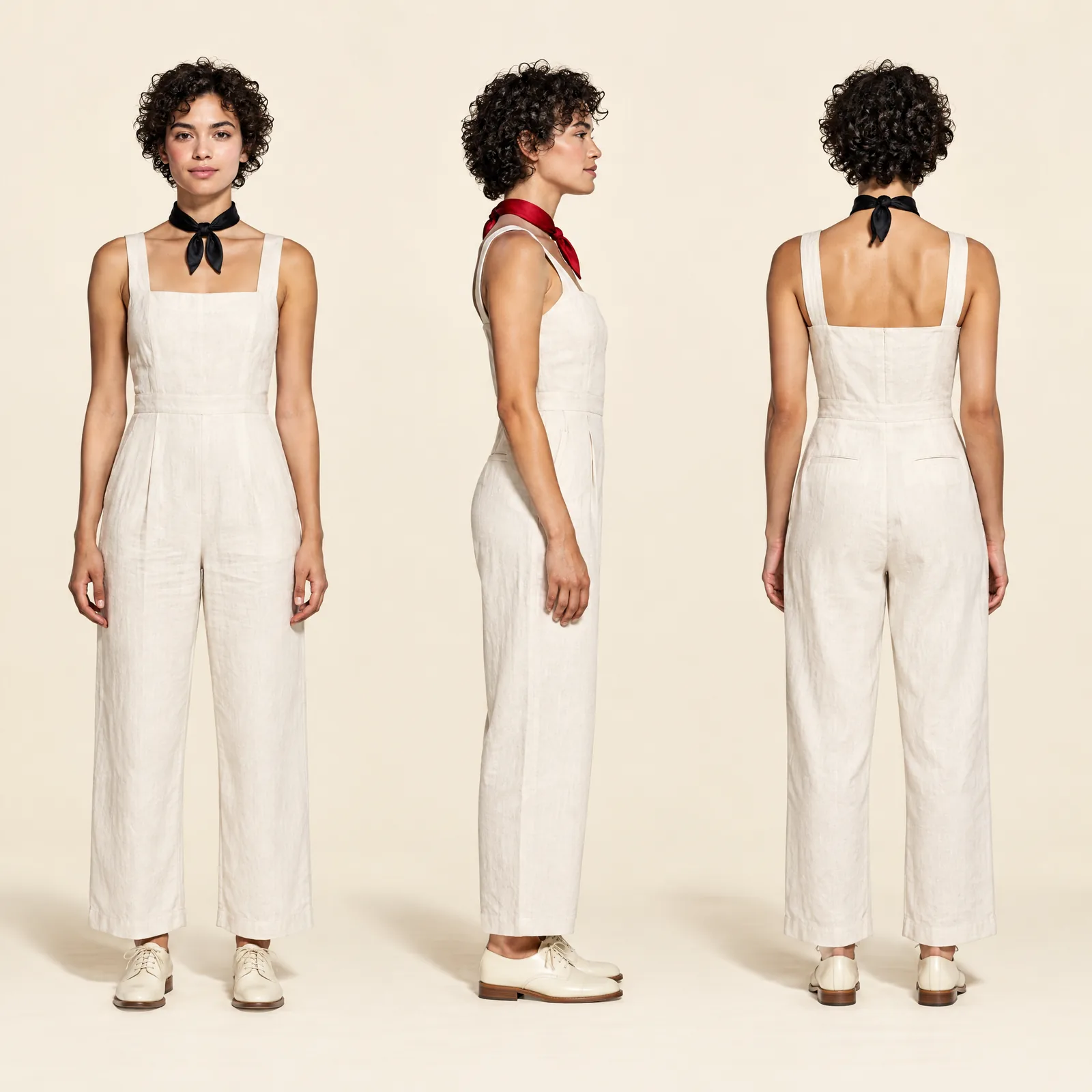
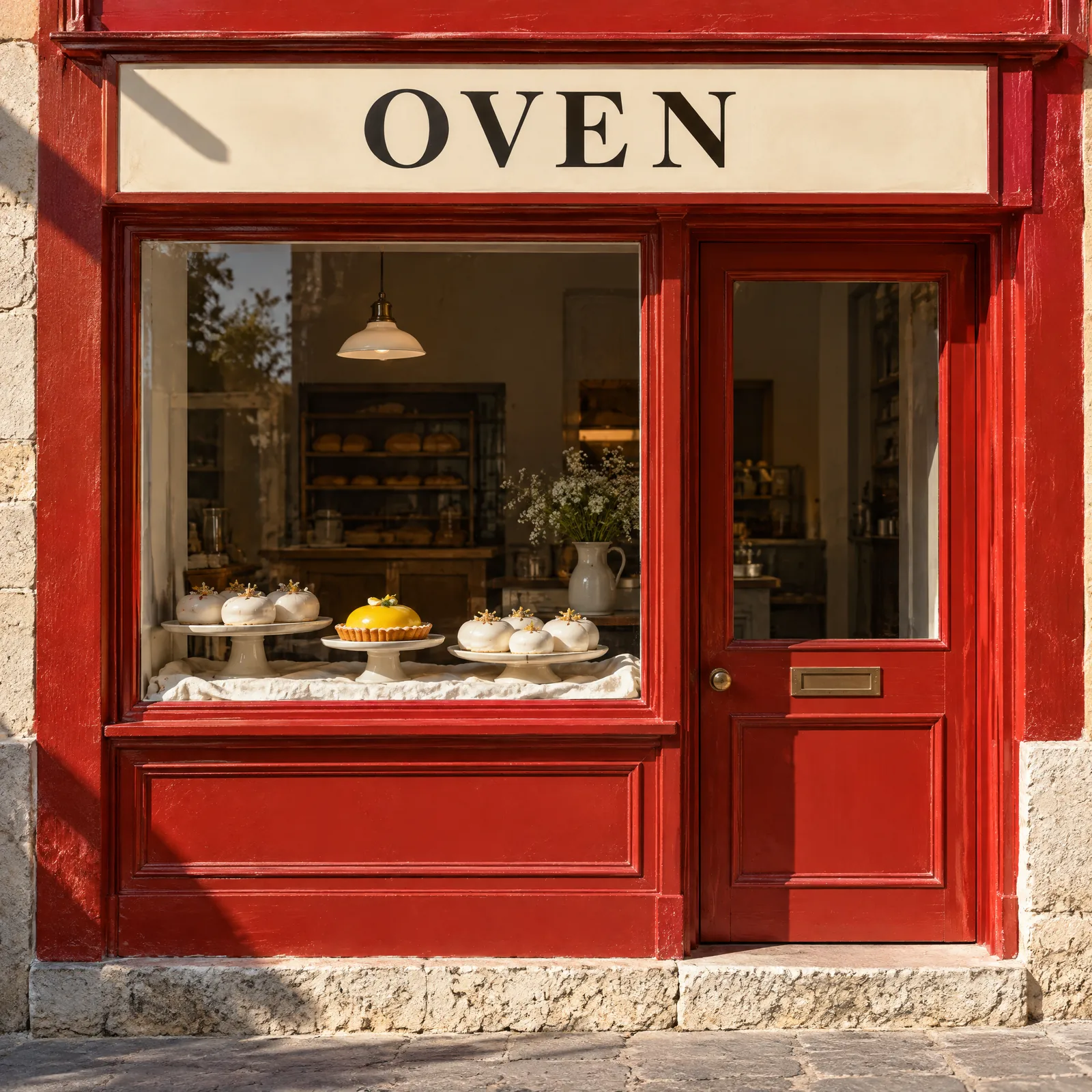
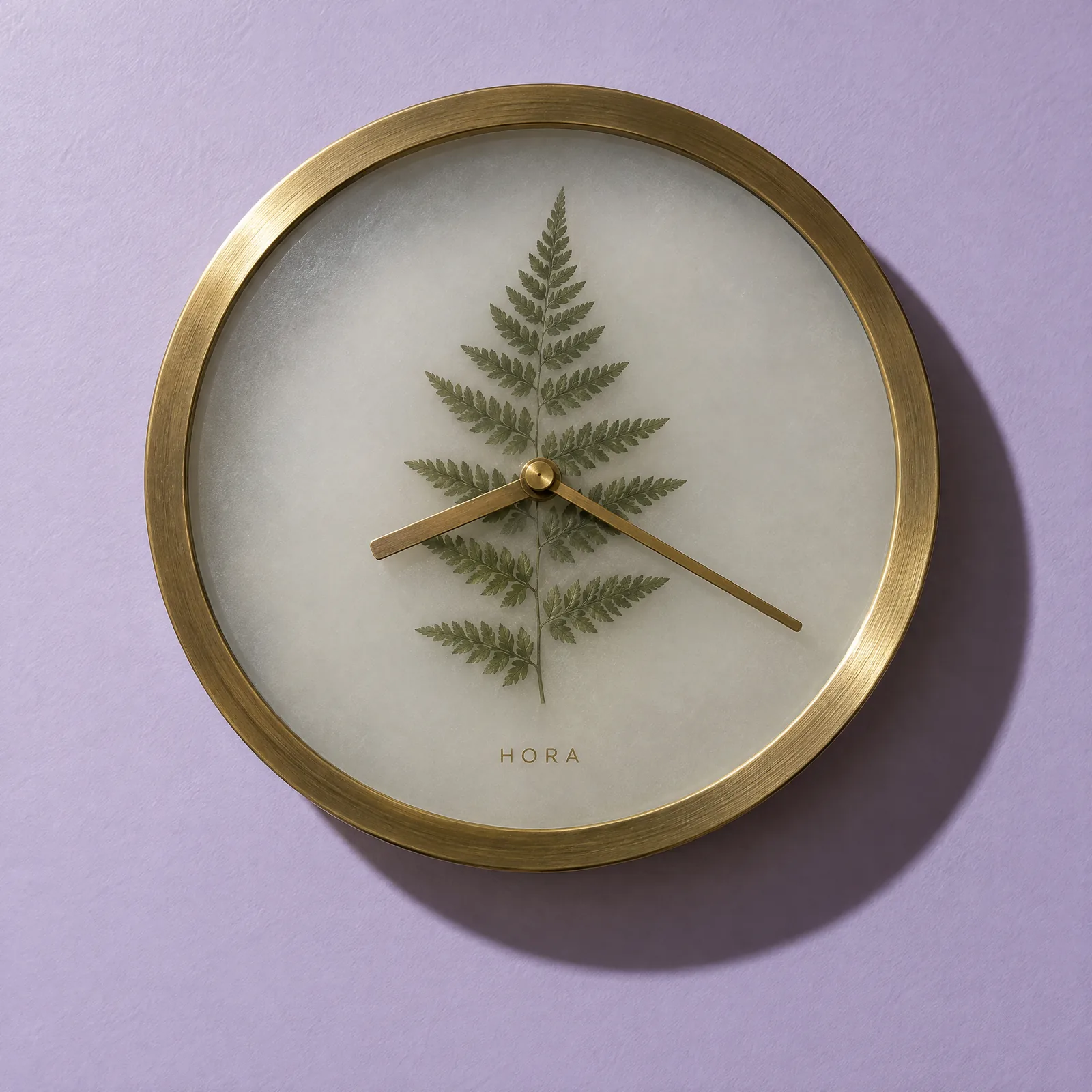
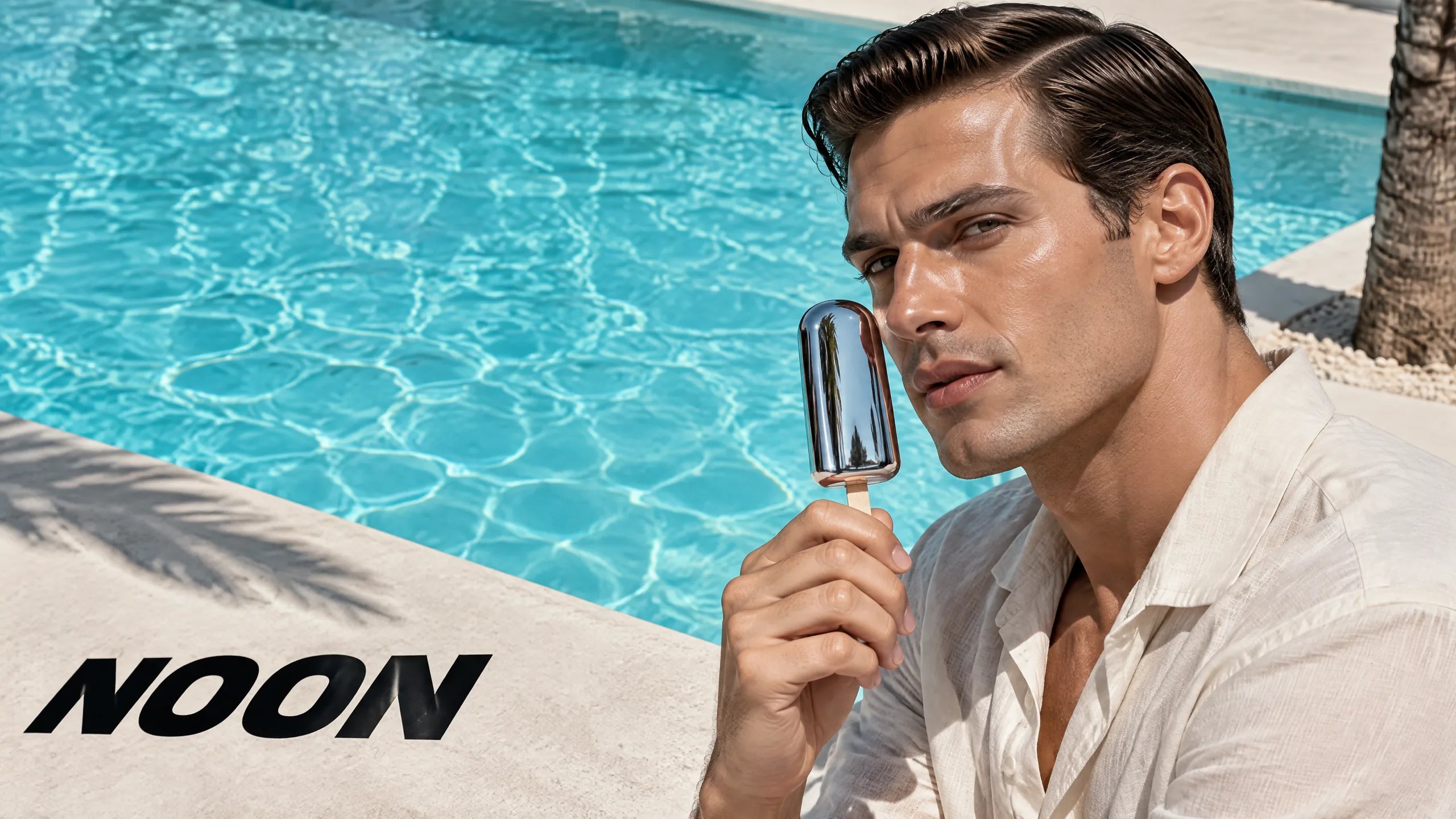
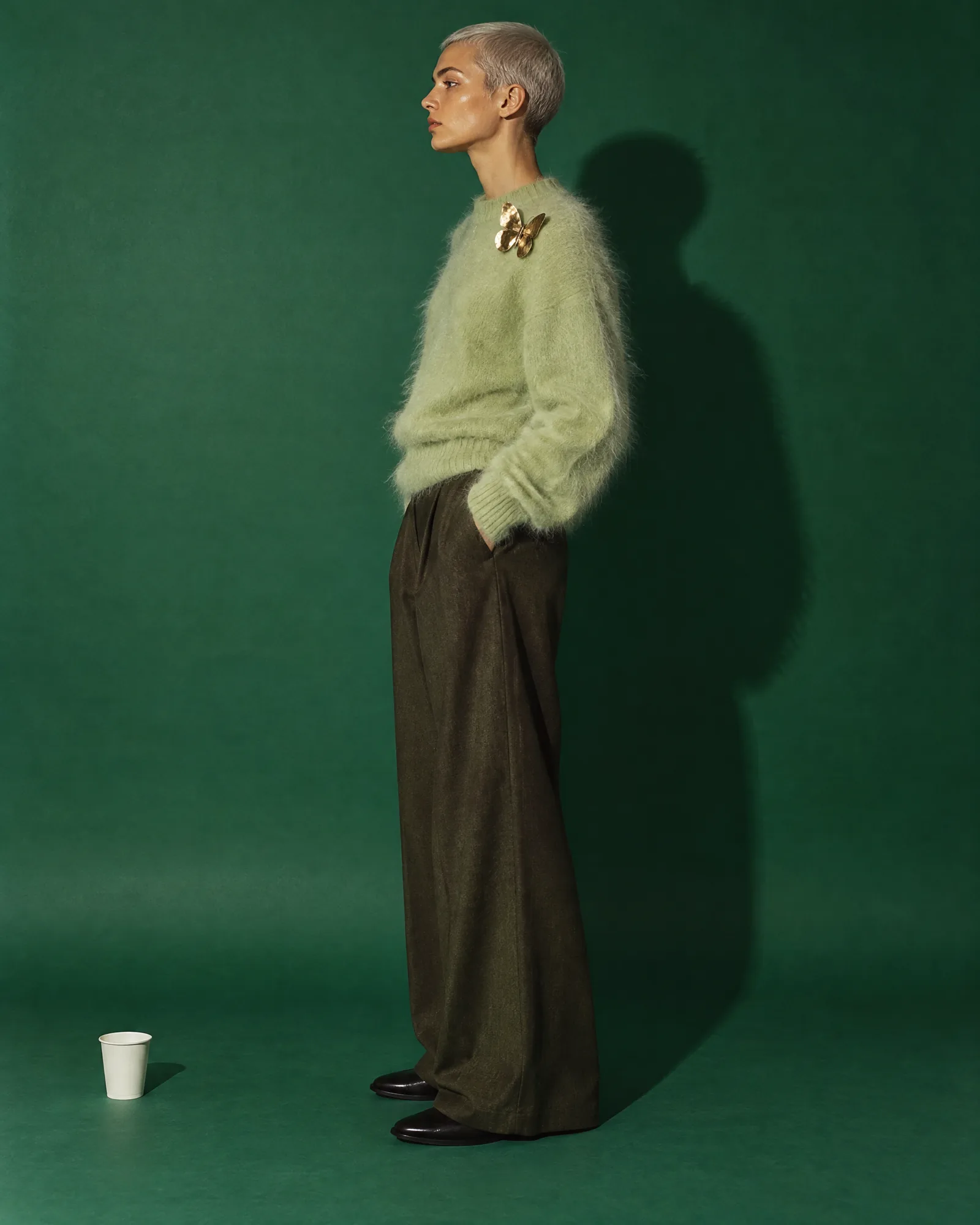
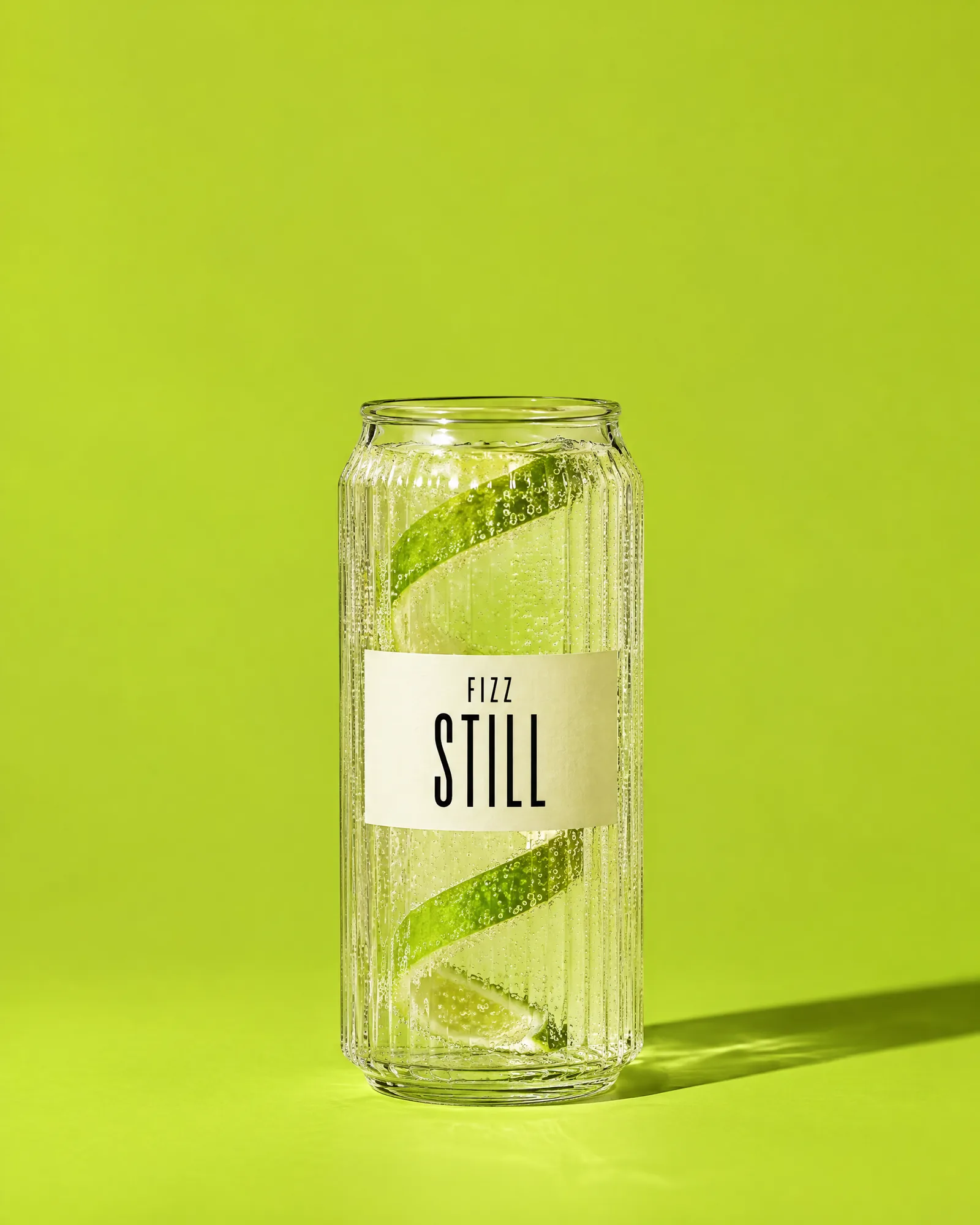
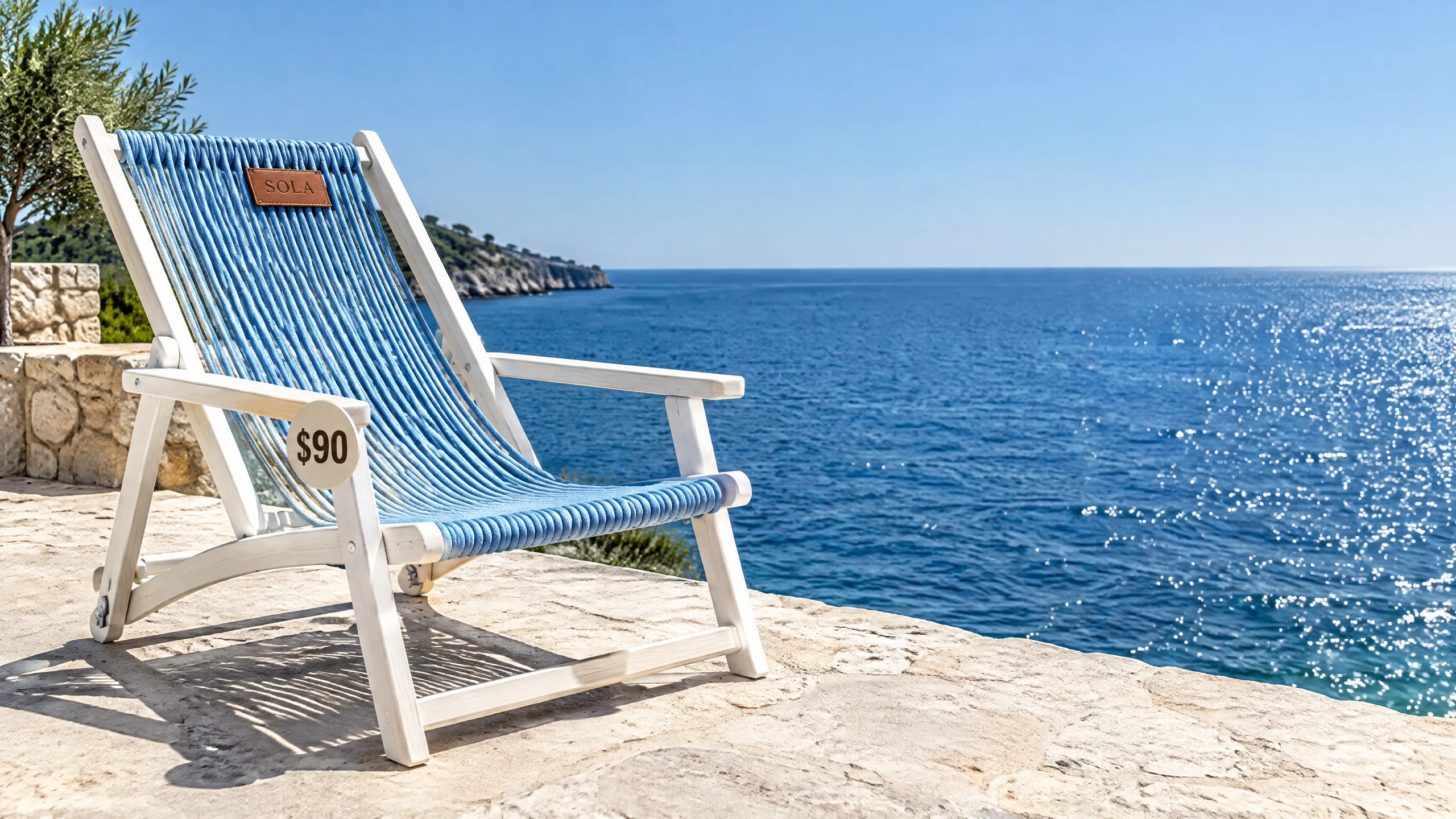
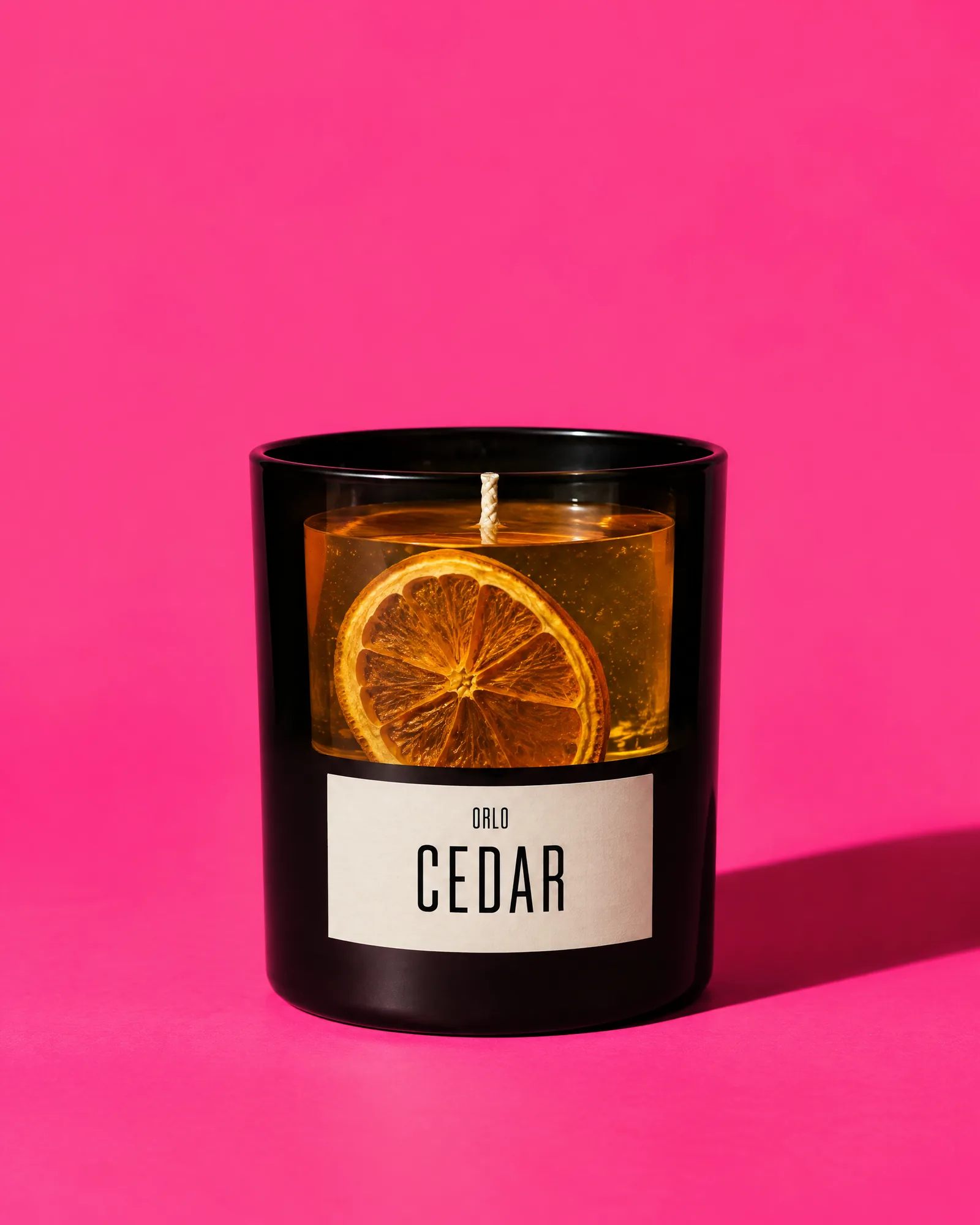
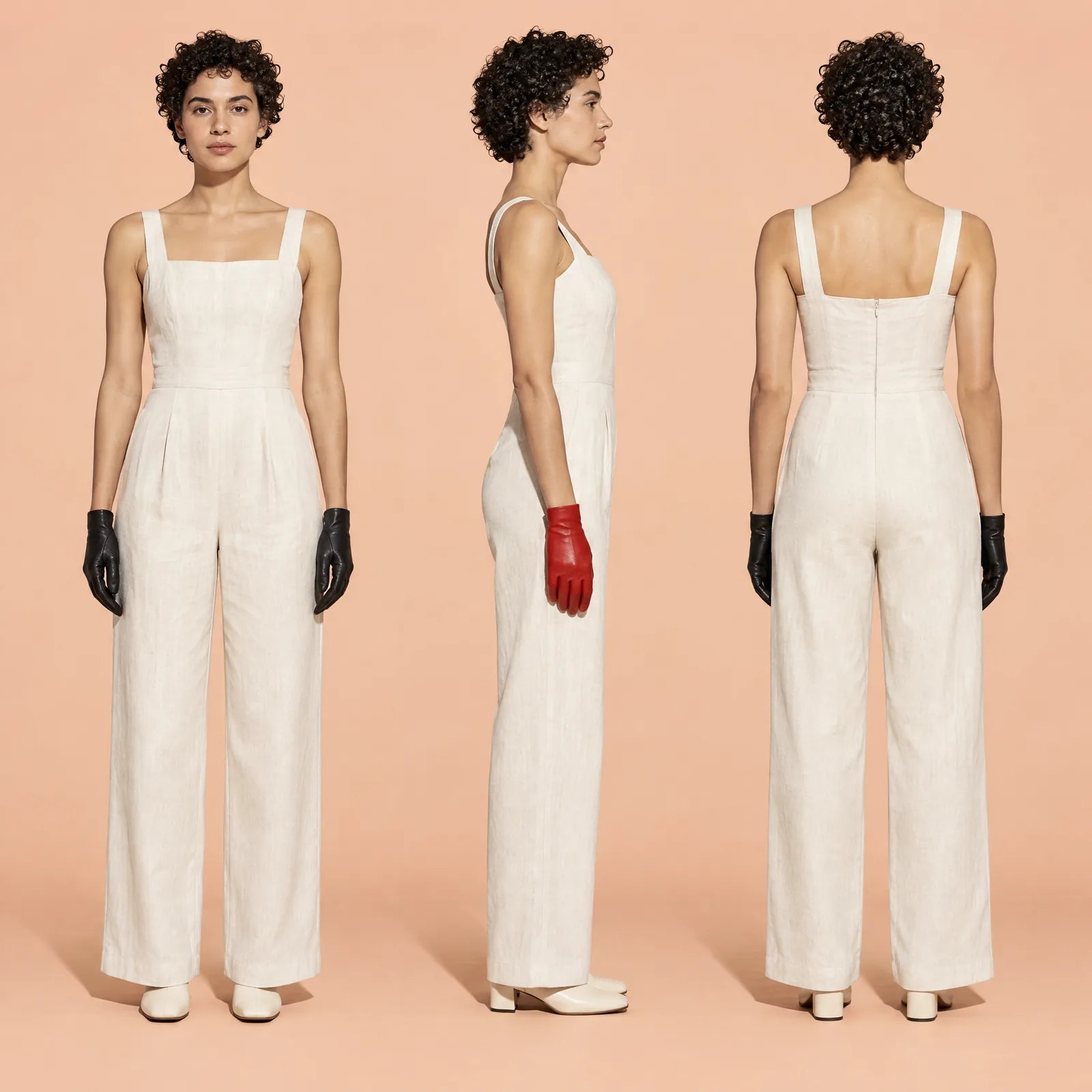
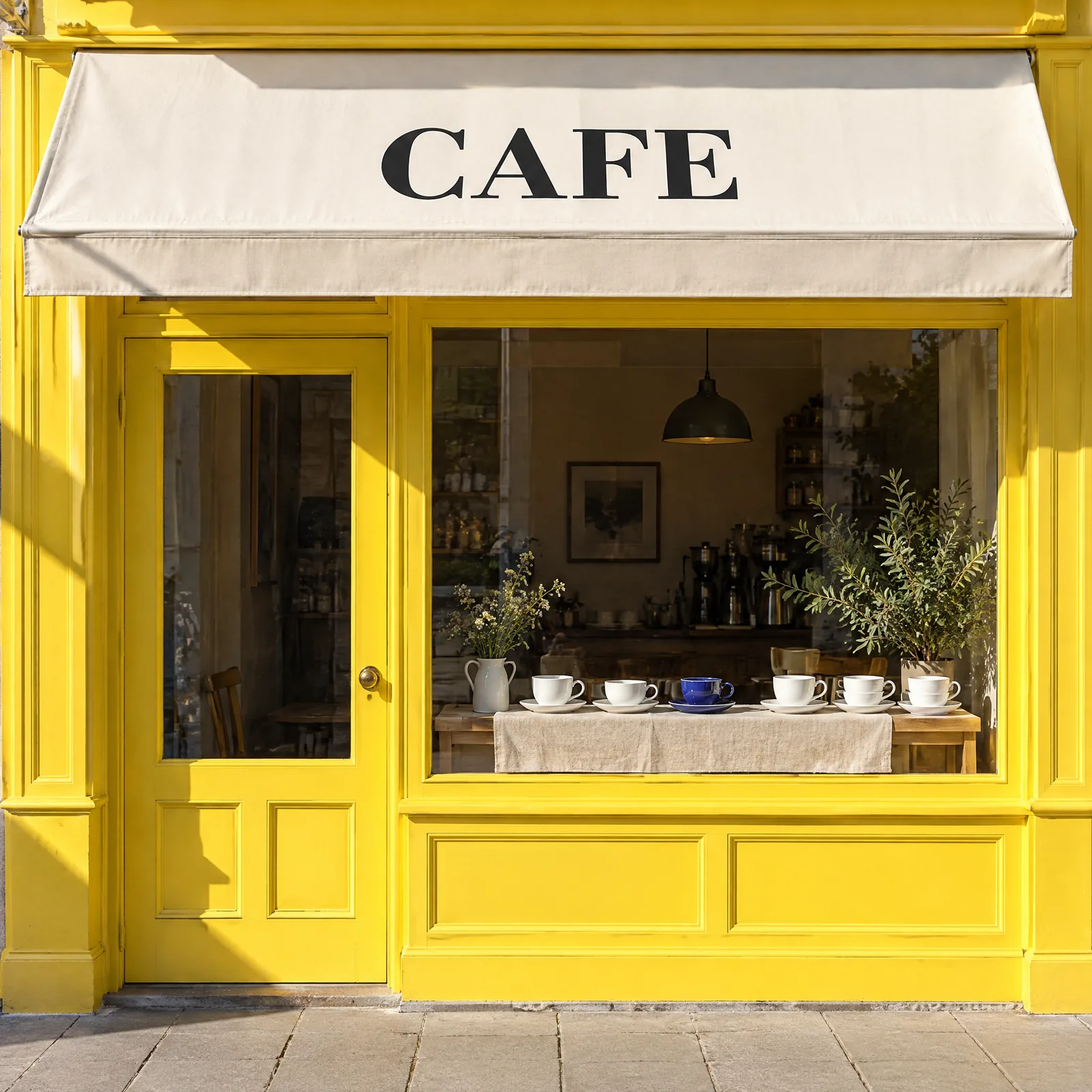
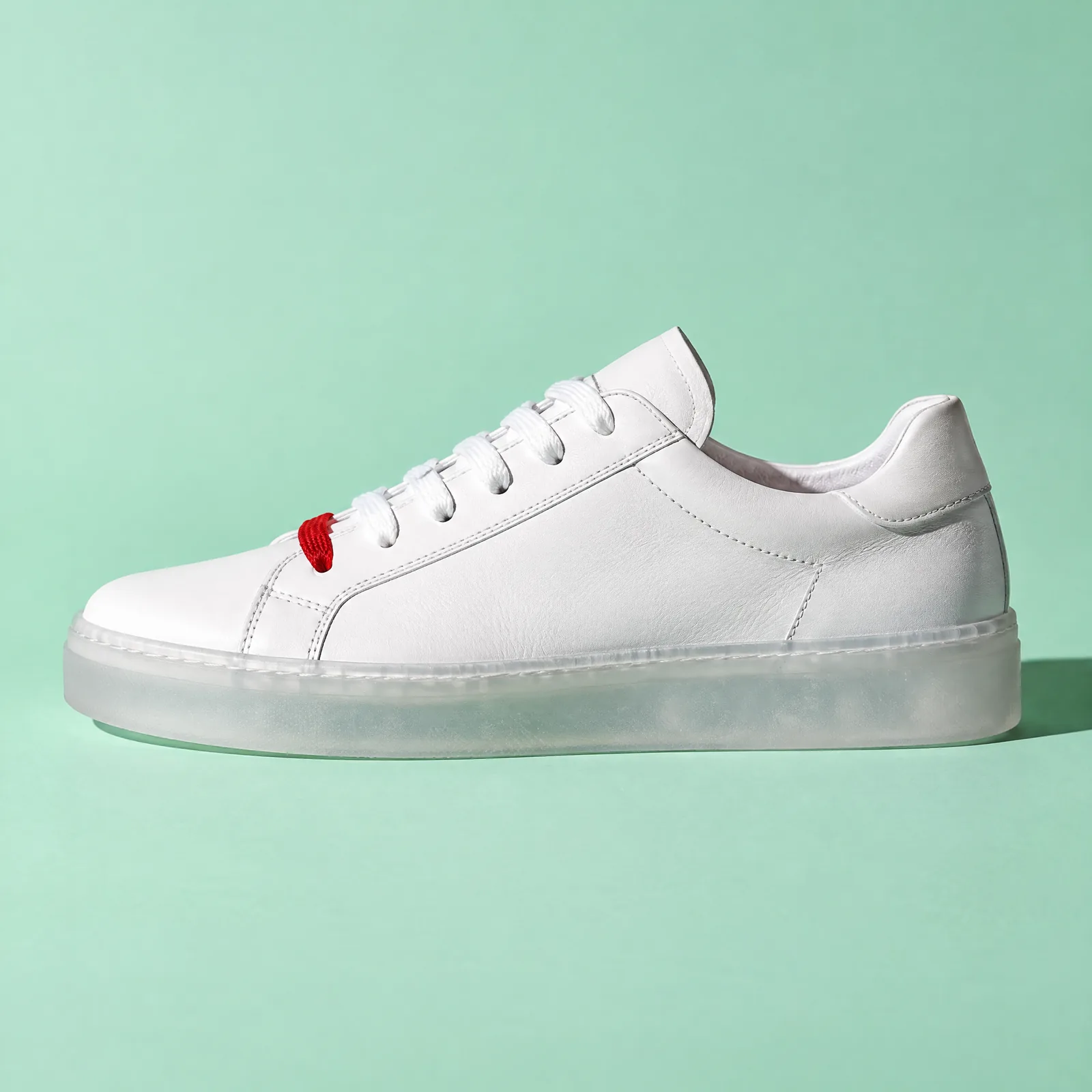
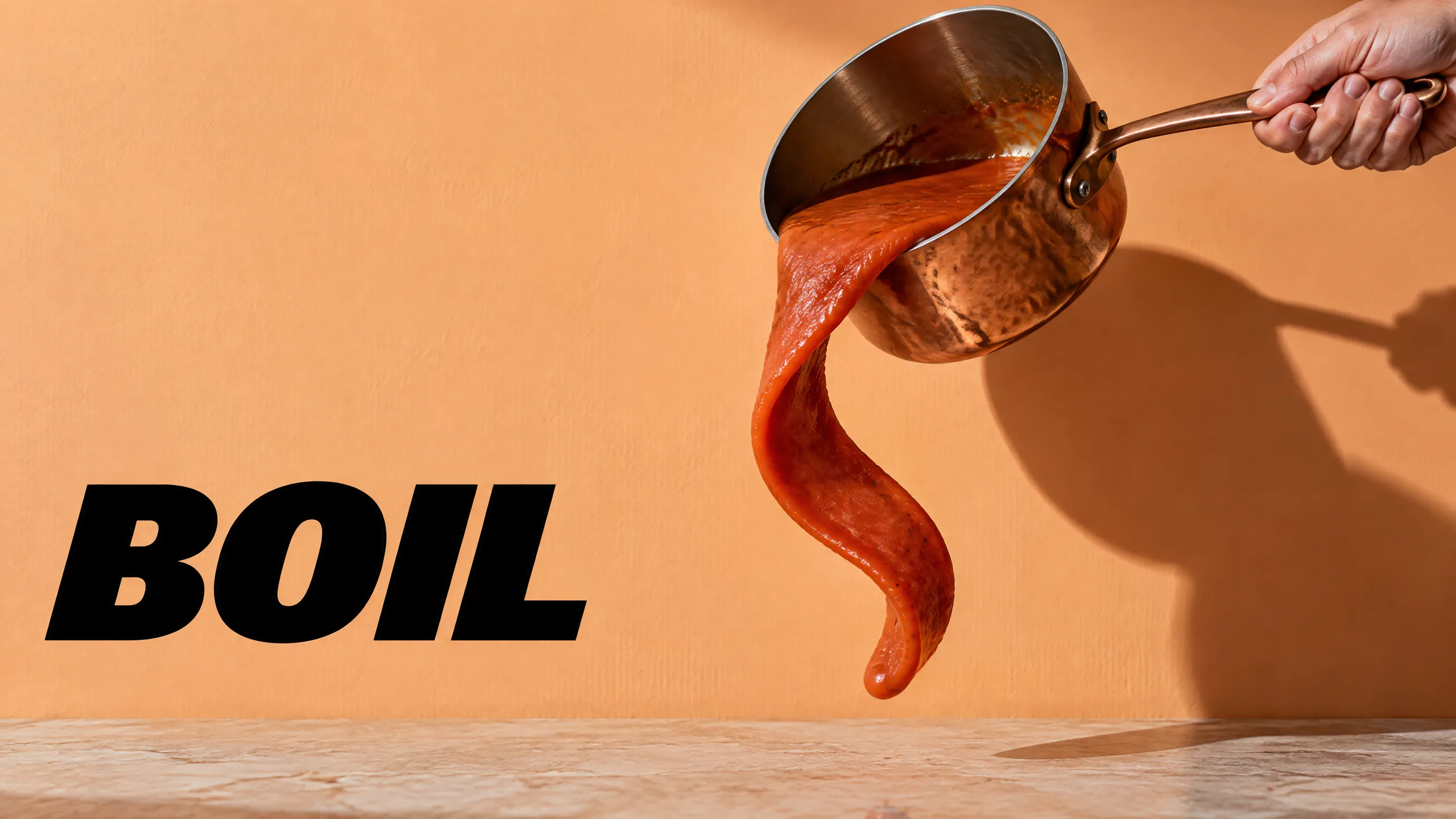
GPT Image 2.6 edits from what you mark.
- 2.5 today01
Your 2.5 workflow carries forward
OpenAI's spec says markup supports both GPT Image 2.5 and 2.6. Edit with GPT Image 2.5 Sunburst on Topview today. 2.6 has no public model ID yet.
Spec says Supports GPT Image 2.5 and 2.6. 2.6 is not released.
- Markup02
Mark the image. Guide the edit.
GPT Image 2.6 is named in OpenAI's image-edit spec alongside markup: a transparent PNG laid over your first image to guide the edit. Show where the change goes on the picture, then say what should change.
OpenAI API spec, image edits, 28 Oct 2026.
- Aligned03
Your notes sit exactly on the pixels
The markup layer must match the first image's dimensions after orientation and contain transparent pixels, so marks land where you put them. OpenAI has not said how the model reads each mark.
OpenAI API spec. How the model reads each mark is not documented.
- Either/or04
Guide it, or mask it
A mask marks the area to replace. Markup is an overlay that guides the edit. One request uses one or the other, never both, so each edit has a single source of direction.
OpenAI API spec: cannot be combined with mask.
Model parameters
What OpenAI's public spec says about editing with GPT Image 2.6.
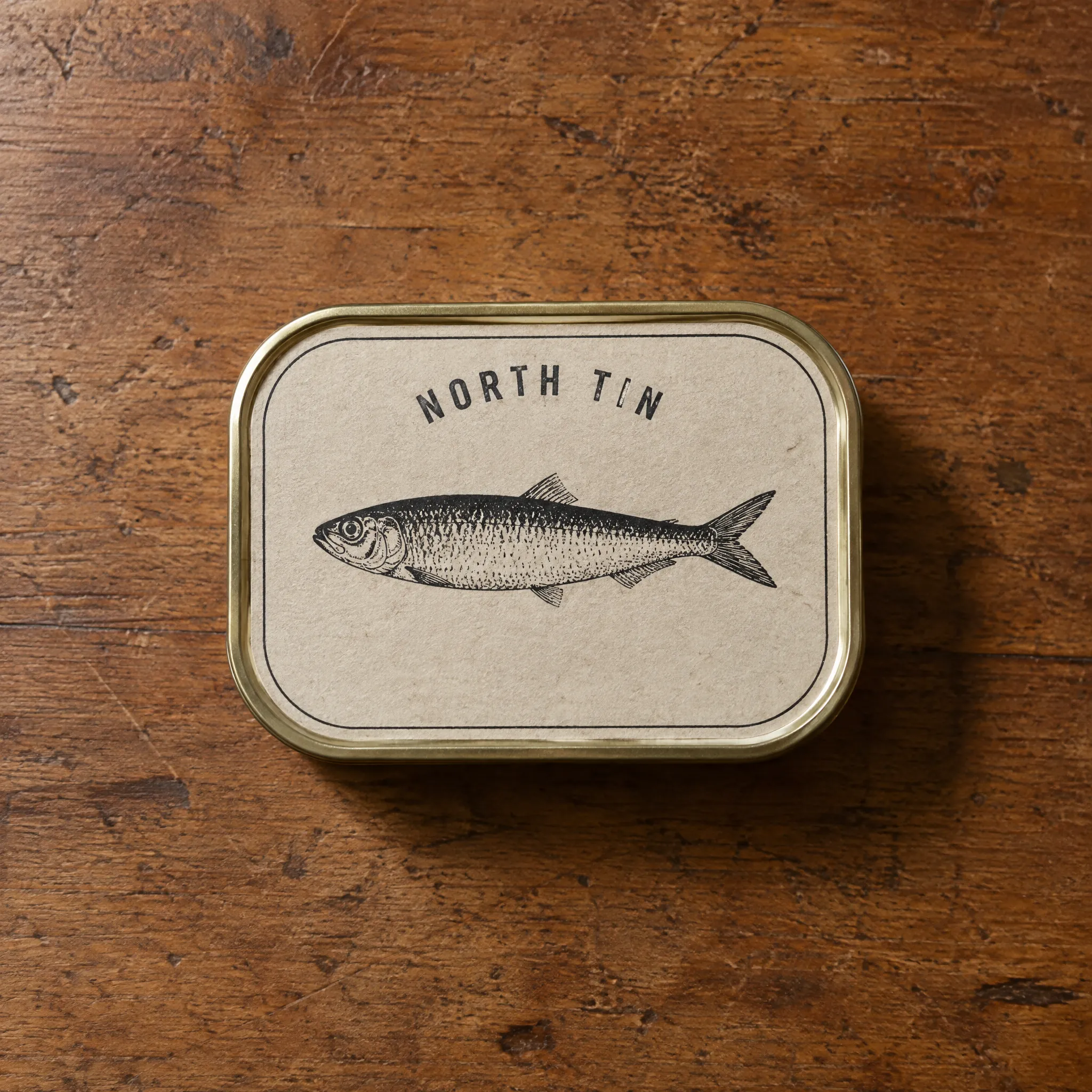
Markup: a transparent PNG laid over the first image to guide the edit.
- Up to
16input images
per edit request; markup applies to the first2
- Prompts up to
32,000characters
for GPT image models on the edit endpoint3
Markup must contain transparent pixels5
1:1 match
markup must match the first image's size after orientation4
Markup or mask: one per request6
How to use GPT Image 2.6
Step 1: Add your image
Upload or pick the image to edit from Board. Add references such as a logo, packaging, or a style frame if you need them.
Step 2: Mark it up
Mark the part to change on a transparent layer the same size as the image. Use either markup or a mask for each edit, not both.
Step 3: Describe and edit
Say what should change and what must stay. Then send the approved still to Image to Video. GPT Image 2.6 is not connected yet; GPT Image 2.5 is available now.
Where GPT Image 2.6 fits
Review notes, product fixes, keyframes, and market versions, edited where you marked them. GPT Image 2.5 Sunburst is what you can open on Topview today.
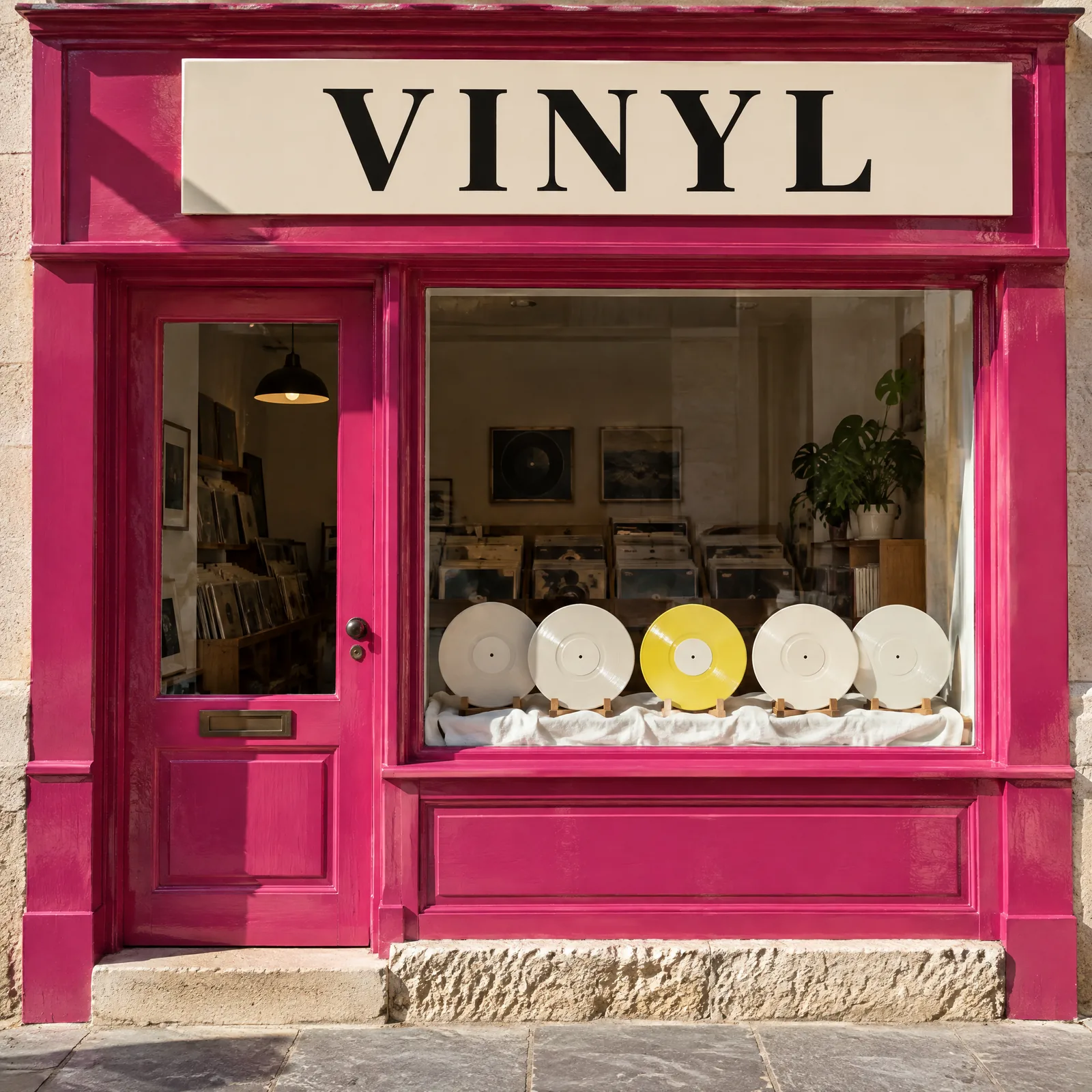
One master. Every market. Mark the copy and sign areas on the master visual and request each market's text. Check every language with a fluent reviewer.
Then on Topview: add a Voiceover and captions in 30+ languages to each market's video cut
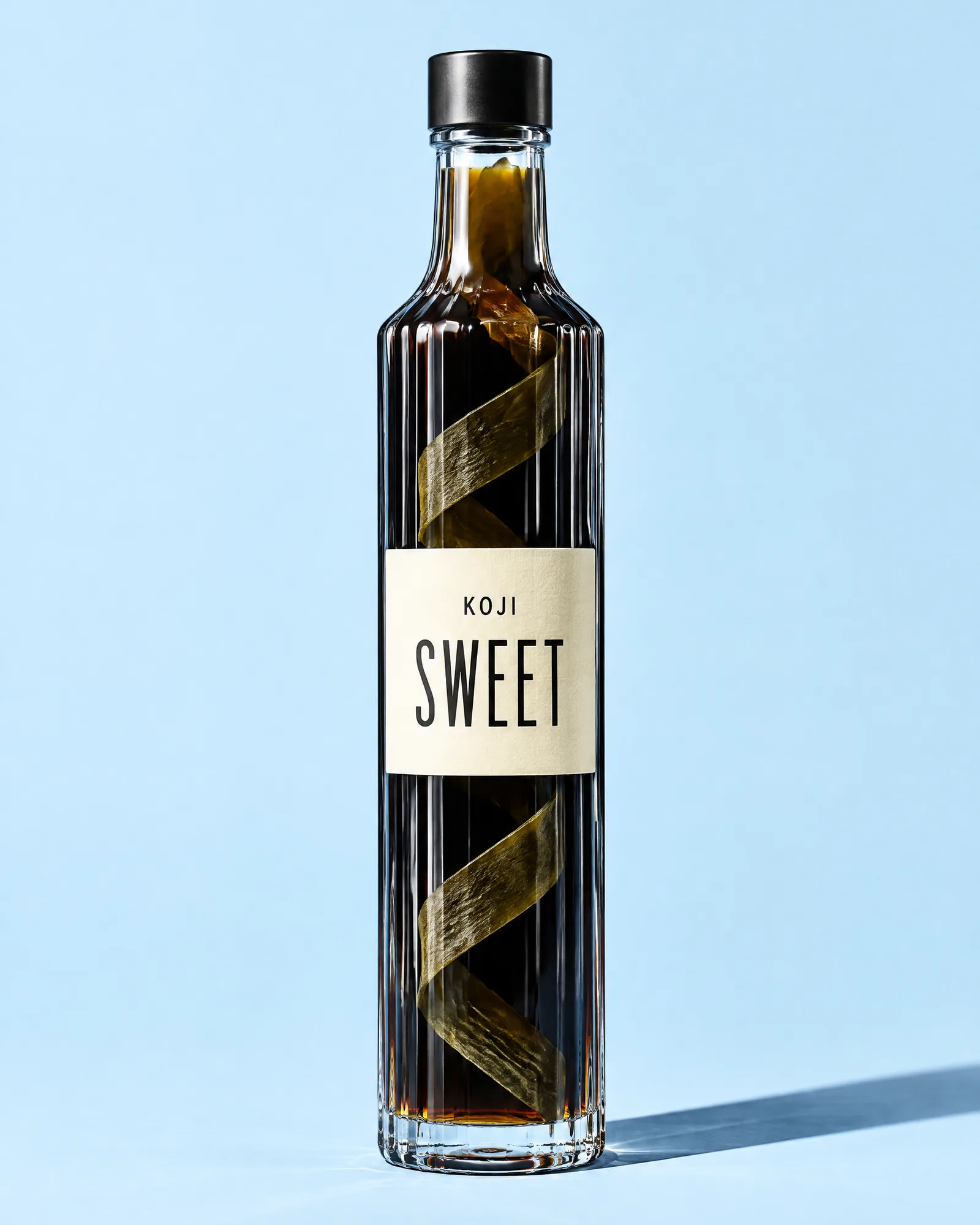
Fix the product, keep the shot. Mark a label, cap, or prop on a product photo and bring the real packaging as a reference.
Then on Topview: Product Photography scenes, Image to Video, Product Avatar
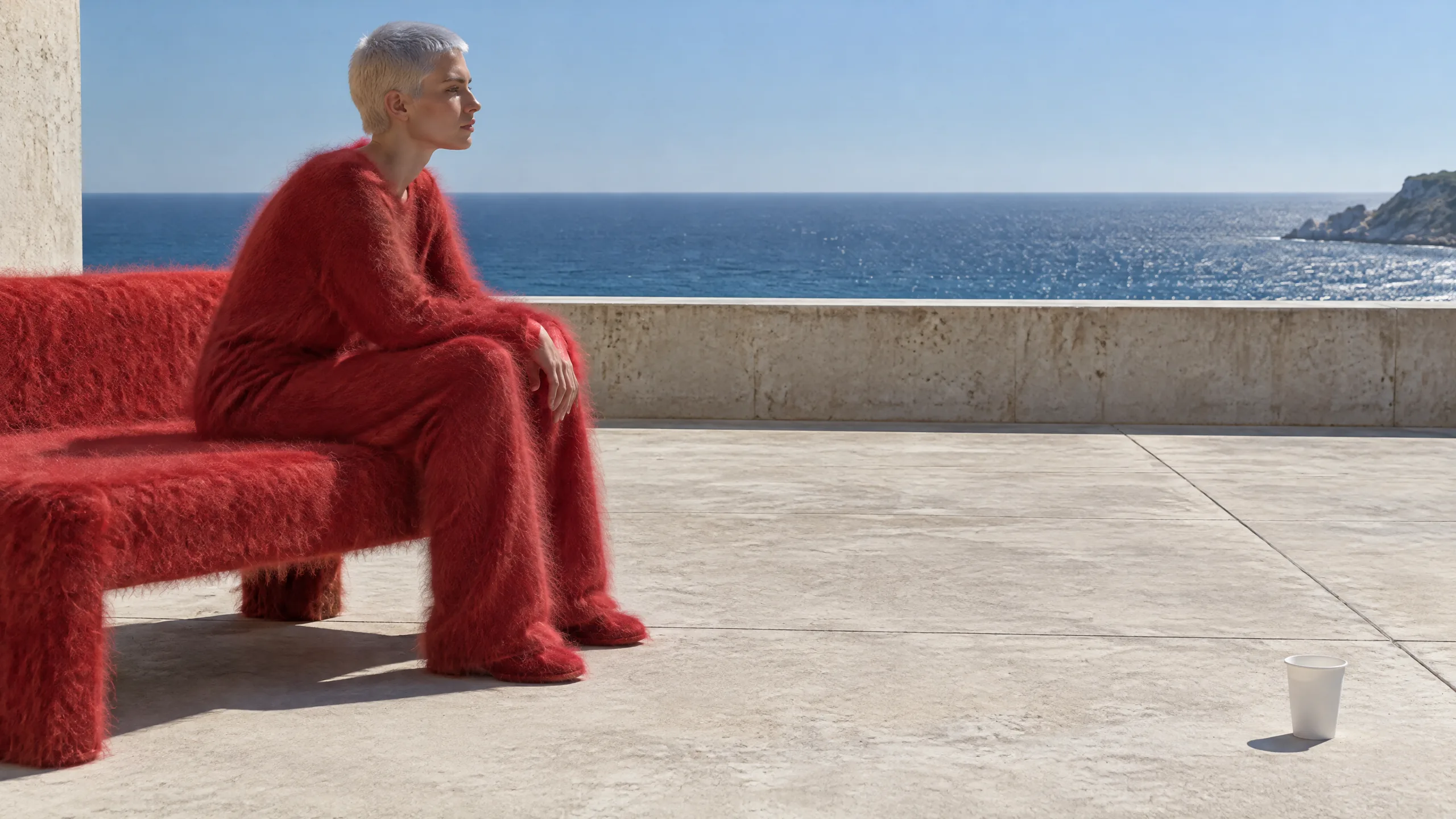
Correct the keyframe before the video. Fix a prop, outfit, or background on the still so the video shot starts from an approved frame.
Then on Topview: Canvas scene boards and Image to Video
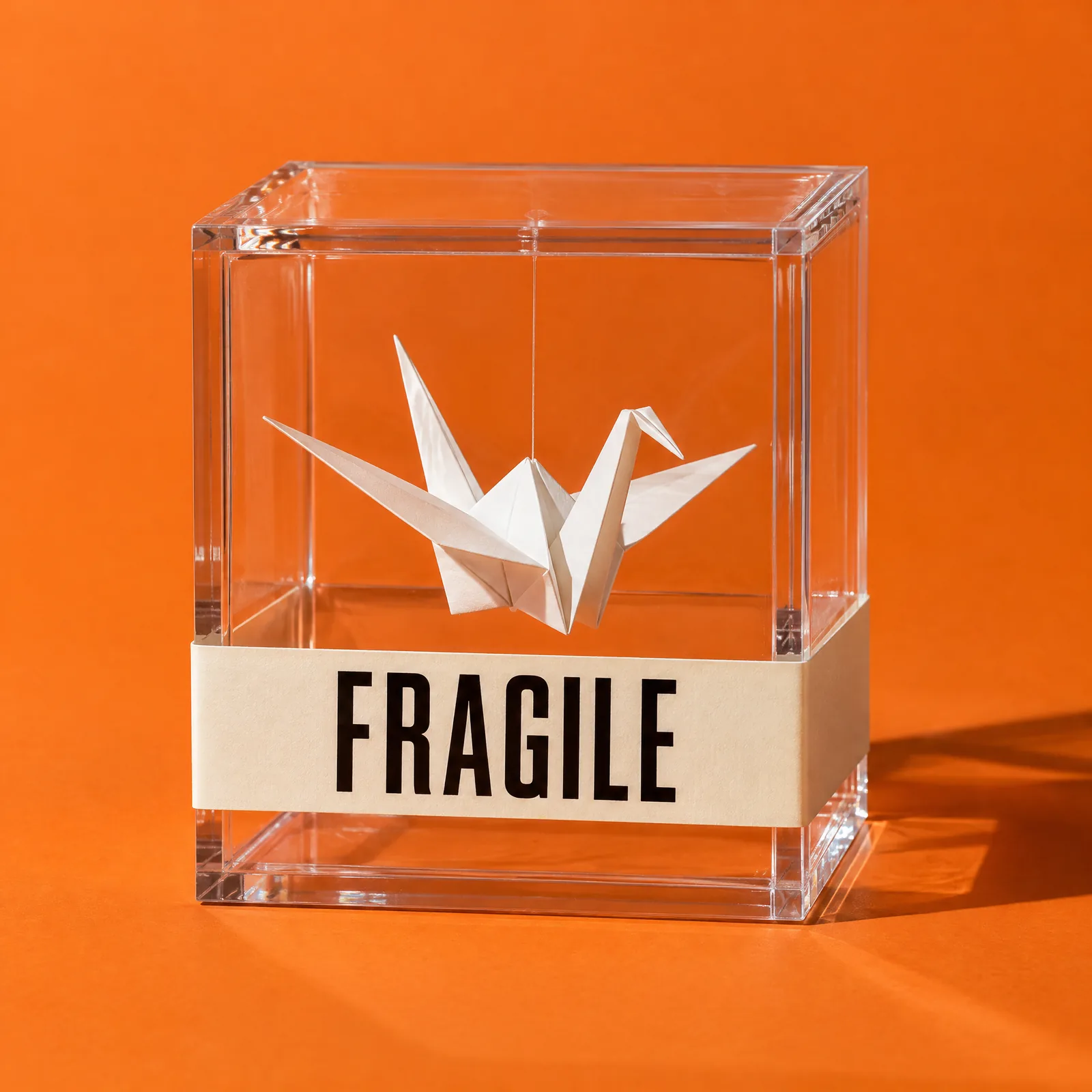
Review notes become the edit. Mark the change on the frame, add the note, and edit. Feedback stays attached to the pixels it is about.
Then on Topview: keep each version on Board for team review
GPT Image 2.6 is coming to Topview.
Mark up the image and guide the edit. Start today with GPT Image 2.5 Sunburst.
GPT Image 2.6 is named in OpenAI's API spec but is not released: no model ID, price, or date yet. Markup also supports GPT Image 2.5.